
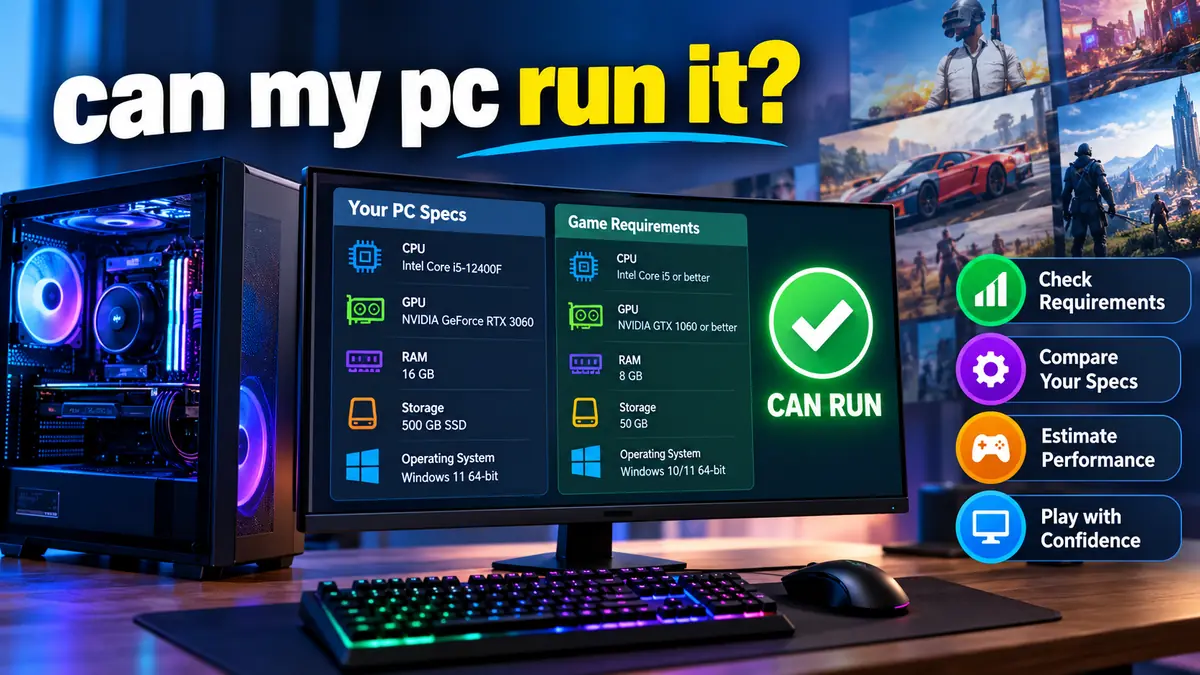

You find a PC game you want to play, but there’s one question standing between you and installing it: can your computer actually handle it?
Searching for “can my pc run it” is a practical first step before downloading a large game. A game might install successfully but still suffer from low frame rates, stuttering, crashes, or graphics problems if your hardware falls short.
Quick answer: To find out whether your PC can run a game, check your processor (CPU), graphics card (GPU), RAM, storage space, and operating system. Compare these specifications with the game’s minimum and recommended system requirements. You can also use compatibility-checking tools to identify potential hardware limitations.
The key is understanding the difference between a game that launches and one that runs smoothly. Meeting minimum requirements doesn’t necessarily mean you’ll get a comfortable gaming experience.
How to Check If Your PC Can Run a Game
There are two main ways to determine game compatibility: compare your hardware manually or use an automated system requirements checker.
Manual checking gives you more control and helps you understand your computer. Automated tools can make the process faster, especially when you’re unfamiliar with graphics cards and processors.
Method 1: Check Your PC Specifications Manually
Windows includes built-in utilities that reveal most of the hardware information you need.
Step 1: Find your processor and RAM
- Press
Windows + Ito open Settings. - Navigate to System → About.
- Look under Device specifications.
- Record your processor model and installed RAM.
For example, you might see an Intel Core i5-12400F processor with 16 GB of RAM.
Step 2: Identify your graphics card
- Press
Ctrl + Shift + Escto open Task Manager. - Select the Performance tab.
- Click GPU.
- Record the graphics processor’s name and dedicated GPU memory, if available.
Common graphics processors include NVIDIA GeForce RTX cards, AMD Radeon RX cards, and Intel Arc graphics.
Some computers use integrated graphics, such as Intel UHD Graphics or AMD Radeon integrated GPUs, which share system memory.
Step 3: Check your Windows version
Press Windows + R, type winver, and press Enter.
This displays your Windows version and build information. Modern PC games commonly require a 64-bit operating system, and some specifically require Windows 11 or particular Windows 10 versions.
Step 4: Check available storage
Open File Explorer, select This PC, and review the free space on the drive where you intend to install the game.
Remember that games may require additional storage for updates, temporary files, and shader caches.
Method 2: Use a Game Compatibility Checker
Popular compatibility tools

Can You RUN It
A web-based service that compares your computer’s hardware against game requirements. Its detection utility may be required for automatic scanning.

PCGameBenchmark
Provides game requirements and hardware comparisons, including options for checking whether specific PC configurations meet listed requirements.
These tools can help you determine whether your system meets published requirements. However, their results are estimates rather than guarantees of actual gameplay performance.
For privacy and security, download any detection utility only from the tool’s official website. Avoid unofficial executables that claim to improve or test game compatibility.
Understanding Minimum and Recommended Game Requirements
When checking whether your PC can run a game, you’ll usually encounter two hardware categories: minimum requirements and recommended requirements.
They serve different purposes.
| Component | Minimum requirements | Recommended requirements |
|---|---|---|
| CPU | Basic supported processor | More capable processor |
| GPU | Entry-level supported graphics hardware | Stronger graphics performance |
| RAM | Minimum memory needed | More memory for smoother operation |
| Storage | Required installation space | Often similar space, with SSD preferred |
| Operating system | Oldest supported OS | Preferred or tested OS |
| Performance | Basic playable target | Better settings or frame rates |
These categories aren’t standardized across the gaming industry. One developer might define minimum specifications around 30 FPS at low settings, while another might use a different resolution or performance target.
What Happens If Your PC Only Meets Minimum Requirements?
A computer meeting minimum requirements may be able to start and play the game, but you could experience:
- Lower frame rates during demanding scenes.
- Reduced graphics quality and resolution.
- Longer loading times on slower storage.
- Frame-time spikes or stuttering.
- Performance drops in crowded environments.
For demanding titles, a system barely meeting minimum specifications may need 720p or 1080p resolution with low graphics settings.
Do Recommended Requirements Guarantee 60 FPS?
Not necessarily.
Recommended specifications only provide useful performance guidance when the developer explains the target resolution, graphics preset, and frame rate.
For example, a recommendation designed for 1080p at 60 FPS might not be sufficient for 1440p gaming or high-quality ray tracing.
Whenever possible, check independent benchmarks using your exact CPU and GPU combination.
Which PC Components Matter Most for Gaming?
Understanding how different hardware components affect performance makes game compatibility checks more accurate.
Graphics Card (GPU)
The graphics processing unit is responsible for rendering game visuals, including textures, lighting, shadows, and effects.
In many modern 3D games, the GPU has the greatest impact on performance at high graphics settings.
Examples of gaming graphics cards include:
- NVIDIA GeForce GTX 1650
- NVIDIA GeForce RTX 3060
- NVIDIA GeForce RTX 4060
- AMD Radeon RX 6600
- AMD Radeon RX 7600
- Intel Arc A750
These models have different performance capabilities, and their relative performance varies by game.
Dedicated video memory, commonly called VRAM, also matters. Games with detailed textures, high resolutions, or ray tracing can require substantial VRAM.
However, having more VRAM does not automatically make a graphics card faster. GPU architecture, processing capability, memory bandwidth, and driver support all contribute to performance.
Processor (CPU)
Your CPU handles game logic, physics calculations, artificial intelligence, and many other tasks.
A powerful graphics card can still underperform when paired with a processor that cannot supply game data quickly enough.
This situation is commonly called a CPU bottleneck.
Processor performance depends on several factors, including architecture, clock speed, core count, cache, and the game’s ability to use multiple threads.
For example, a newer six-core processor can outperform an older processor with more cores in many games.
Comparing processors based solely on GHz or core count is therefore unreliable.
Random Access Memory (RAM)
RAM temporarily stores data needed by the operating system and running applications.
Many PC games list 8 GB, 16 GB, or 32 GB of system memory in their requirements.
As a general guide:
| Installed RAM | Gaming suitability |
|---|---|
| 4 GB | Mostly older or very lightweight games |
| 8 GB | Some older, indie, and less demanding games |
| 16 GB | Suitable for many modern games |
| 32 GB | Useful for demanding games, heavy multitasking, and certain simulations |
| 64 GB | Usually unnecessary for gaming alone |
These are broad guidelines, not universal requirements.
A game that lists 16 GB as its minimum may experience serious stuttering on an 8 GB system, particularly when background applications are consuming memory.
Dual-channel memory configuration and RAM speed can also influence performance, especially with integrated graphics.
SSD vs. HDD Storage
Storage performance primarily affects loading times and asset streaming.
A solid-state drive (SSD) generally loads data faster than a traditional hard disk drive (HDD).
Some modern games explicitly require SSD storage because their environments depend on rapid data streaming.
An NVMe SSD can provide higher transfer speeds than a SATA SSD, although the practical difference in game loading times varies.
Having enough free storage is equally important. If a game requires 100 GB, installing it on a nearly full drive can create problems during updates.
Operating System and DirectX
Windows compatibility depends on the operating system version, required drivers, and software features.
Games may specify DirectX 11, DirectX 12, or particular graphics feature levels.
DirectX 12 being installed does not automatically mean your GPU supports every DirectX 12 feature.
To inspect DirectX information:
- Press
Windows + R. - Enter
dxdiag. - Select the System tab to view the installed DirectX version.
- Select Display to review graphics hardware and supported feature levels.
Also check whether a game requires specific CPU instruction sets, such as AVX, or security features such as TPM 2.0 and Secure Boot.
These requirements can sometimes prevent a game from launching even when the graphics card appears powerful enough.
How to Check Game Requirements on Steam and Other Platforms
The most reliable starting point for checking compatibility is the game’s official requirements page.
Digital storefronts and publishers typically provide hardware requirements for individual games.
Checking Steam Game Requirements
Steam provides system requirements on game store pages.
To find them:
- Open the Steam Store.
- Search for the game you want to play.
- Open its store page.
- Scroll to the System Requirements section.
- Compare the minimum and recommended specifications with your computer.
Check every component, including any additional notes about SSD storage, internet connectivity, or specific hardware features.
Steam’s support documentation also explains that meeting published requirements does not guarantee high frame rates.
Software
Other Sources for Game Requirements
You can also find requirements through the Epic Games Store, publisher websites, and official game support pages.
For games distributed through multiple platforms, requirements may differ by version or update.
Always prioritize the latest official requirements over outdated third-party listings.
How to Estimate FPS Before Installing a Game
Meeting a game’s requirements answers whether your system is likely to support it. Estimating frames per second (FPS) helps determine how enjoyable the experience might be.
FPS represents the number of individual images your computer renders each second.
Higher frame rates generally provide smoother motion and more responsive controls, although consistent frame timing is also essential.
| Frame rate | Typical gaming experience |
|---|---|
| Below 20 FPS | Often difficult to play comfortably |
| 20–29 FPS | Noticeable choppiness |
| 30 FPS | Playable in many slower-paced games |
| 45–59 FPS | Generally smoother than 30 FPS |
| 60 FPS | Common smooth gaming target |
| 90–120 FPS | Very smooth on compatible displays |
| 144 FPS or higher | Particularly useful for competitive gaming |
These descriptions assume reasonably consistent frame delivery.
A game averaging 60 FPS can still feel unstable when frame times fluctuate significantly.
What Affects Your Expected FPS?
Several variables influence gaming performance beyond the listed system requirements.
Resolution: Rendering at 2560 × 1440 typically demands more GPU processing than 1920 × 1080. Gaming at 3840 × 2160 (4K) is generally more demanding still.
Graphics settings: Shadow quality, reflections, ambient occlusion, volumetric effects, and texture settings can influence performance.
Ray tracing: Real-time ray-traced lighting and reflections can substantially increase GPU workloads.
Upscaling: Technologies such as NVIDIA DLSS, AMD FSR, and Intel XeSS can improve performance in supported games by reconstructing an image from a lower internal rendering resolution.
Background applications: Browsers, recording software, launchers, and other applications can consume CPU time and memory.
Thermal conditions: Excessive temperatures may cause hardware to reduce operating speeds.
How Accurate Are FPS Calculators?
Online FPS calculators estimate performance using hardware comparisons, benchmark datasets, and sometimes real-world testing.
PCGameBenchmark, for example, offers an FPS estimation tool based on collected performance data.
PCGameBenchmark
However, estimates can differ from actual results because of driver versions, game updates, cooling systems, power limits, and graphics presets.
For better predictions, look for gameplay benchmarks that match your graphics card, processor, resolution, and game settings.
Pay attention to both average FPS and 1% low FPS, which can help reveal stuttering that averages conceal.
Can My PC Run It Without a Dedicated Graphics Card?
Yes. Some games work well on computers with integrated graphics.
Integrated GPUs are built into the processor or processor package and typically share system memory instead of using dedicated VRAM.
Modern integrated graphics can handle many lightweight titles, indie games, older PC releases, and certain competitive games at reduced settings.
Examples of games that may work on supported integrated graphics include:
- Minecraft
- Stardew Valley
- Terraria
- Among Us
- League of Legends
- Valorant
- Roblox
Actual compatibility depends on the integrated GPU model, driver support, available RAM, and the game’s current requirements.
A recent AMD Radeon integrated GPU may perform substantially differently from an older Intel HD Graphics chip.
Can Intel UHD Graphics Run Modern Games?
Some modern games can run on Intel UHD Graphics, especially when using low graphics settings and reduced resolution.
However, Intel UHD Graphics refers to multiple generations of integrated hardware with different performance capabilities.
You should identify the exact graphics model rather than assuming all UHD-equipped computers perform alike.
Can a Laptop Run the Same Games as a Desktop?
Gaming laptops can run demanding PC games, but laptop hardware behaves differently from desktop components.
For example, a laptop RTX graphics processor and a desktop GPU with a similar model name may deliver different results.
Laptop performance depends heavily on:
- GPU power limits.
- Cooling capacity.
- CPU and GPU temperatures.
- Power-management settings.
- Whether the laptop is connected to its charger.
A thin laptop with limited cooling may perform worse than a larger gaming laptop equipped with similarly named hardware.
For accurate compatibility estimates, prioritize benchmarks of your specific laptop model.
What to Do If Your PC Does Not Meet Game Requirements
Failing a compatibility check does not always mean a game is completely unplayable.
Some games can run below their published minimum requirements, but this is unpredictable and may introduce stability or performance problems.
The best approach depends on which component falls short.
Lower Graphics Settings
Start by changing the settings that place the greatest demand on your GPU.
Suggested settings for a low-end gaming PC
| Display resolution | 1280 × 720 or 1920 × 1080 |
| Texture quality | Low or Medium |
| Shadow quality | Low |
| Reflections | Low or Off |
| Ray tracing | Off |
| Motion blur | Off, if preferred |
| Upscaling | Balanced or Performance, if supported |
Lowering resolution often produces a substantial improvement when the GPU is the limiting factor.
Reducing texture quality can help when video memory is insufficient, although its impact on average FPS varies.
Update Your Graphics Drivers
Outdated GPU drivers can cause crashes, compatibility problems, or reduced performance.
Obtain drivers directly from the appropriate manufacturer:
New drivers sometimes contain game-specific optimizations and bug fixes.
However, installing the latest driver does not guarantee better performance in every game.
Close Unnecessary Background Programs
Open Task Manager and inspect applications consuming substantial CPU, RAM, or GPU resources.
Closing unnecessary programs can free resources for the game.
Avoid terminating unfamiliar Windows processes, drivers, or security services.
Enable an Appropriate Power Mode
On laptops, power-saving settings can reduce gaming performance.
Connect the laptop to its charger and select an appropriate performance profile when available.
Keep ventilation openings unobstructed and monitor temperatures during gameplay.
Upgrade the Component That Limits Performance
If software adjustments are insufficient, a hardware upgrade may help.
| Problem | Potential improvement |
|---|---|
| Low GPU performance | Upgrade graphics card |
| Insufficient system memory | Increase RAM |
| CPU bottleneck | Upgrade CPU or platform |
| Long loading times | Install game on SSD |
| Insufficient storage | Free space or expand storage |
| Thermal throttling | Improve cooling and airflow |
Before upgrading, verify motherboard compatibility, power supply capacity, available space, and laptop upgrade limitations.
Not every laptop allows CPU or GPU upgrades.
Why a Game Might Not Run Even When Your PC Meets the Requirements
Hardware compatibility is only one part of successful game operation.
A computer can meet recommended specifications and still encounter launch errors or performance issues.
Missing Software Dependencies
Some games require Microsoft Visual C++ Redistributable packages, DirectX runtime components, or specific .NET components.
Missing or corrupted dependencies can prevent games from starting.
Install required software through official sources or the game’s trusted installer.
Unsupported Graphics Features
A graphics card may support a particular DirectX version but lack the feature level required by a game.
Similarly, older processors may lack mandatory instruction sets.
These hardware limitations generally cannot be resolved by simply installing a newer graphics driver.
Driver Conflicts and Game Bugs
Graphics driver issues, damaged game files, and bugs introduced by updates can cause crashes.
On Steam, verifying the integrity of installed game files can help repair missing or corrupted files.
You can also review official patch notes and known-issues pages to determine whether other players are experiencing similar problems.
Anti-Cheat and Security Requirements
Certain multiplayer games use anti-cheat systems that require particular operating-system security features.
Depending on the title, these may include Secure Boot, TPM 2.0, or other platform requirements.
A system that meets CPU and GPU requirements might still be unable to launch the game if these conditions are not satisfied.
Poor Optimization
Not every performance problem comes from inadequate hardware.
Some games launch with shader-compilation stuttering, memory-management issues, or other optimization problems.
Game patches can sometimes improve performance without any hardware changes.
How to Test Actual Game Performance
If the game is already installed, measuring real performance is more reliable than relying solely on compatibility estimates.
Use an FPS Counter
Many gaming platforms and graphics utilities provide frame-rate overlays.
Examples include Steam’s in-game performance display, NVIDIA’s performance overlay, and AMD Software: Adrenalin Edition metrics.
Third-party tools such as MSI Afterburner, often used with RivaTuner Statistics Server, can also provide detailed performance monitoring.
Track your frame rate during normal gameplay rather than relying only on menus or loading screens.
Monitor CPU, GPU, and Memory Usage
Task Manager and dedicated monitoring utilities can help identify hardware limitations.
For example, a GPU operating near full utilization while the CPU has available capacity may indicate a GPU-limited scenario.
However, overall CPU utilization can be misleading. A game may be limited by one or two heavily loaded CPU threads even when total processor usage appears moderate.
Also monitor temperatures, clock speeds, RAM usage, and VRAM consumption.
Test Different Game Environments
Performance can change significantly between areas of the same game.
Test demanding locations, combat encounters, populated cities, and other representative scenarios.
A system delivering 90 FPS in an empty environment might fall considerably lower during intensive gameplay.
Consistent frame pacing matters as much as headline FPS numbers.
Can My PC Run It? A Practical Compatibility Example
Consider a hypothetical gaming computer with these specifications:
| Component | Example PC |
|---|---|
| Processor | Intel Core i5-12400F |
| Graphics card | NVIDIA GeForce RTX 3060 12 GB |
| RAM | 16 GB DDR4 |
| Storage | 500 GB SSD |
| Operating system | Windows 11 64-bit |
| Display resolution | 1920 × 1080 |
This is a reasonably capable configuration for many PC games, but it cannot be assigned one universal compatibility rating.
For a lightweight indie game, it may provide substantially more performance than necessary.
For a demanding modern game using high-resolution textures, advanced lighting, or extensive ray tracing, performance may require adjustments.
The correct process is to compare the example system with the exact game’s official requirements, then check relevant benchmarks.
A more powerful GPU does not automatically compensate for insufficient RAM, unsupported CPU features, or missing storage capacity.
Quick Compatibility Checklist
Before installing any PC game, confirm the following:
- Your CPU meets the game’s processor requirements.
- Your GPU supports the required graphics features.
- You have sufficient system RAM and VRAM.
- Your operating system is supported.
- Your storage drive has enough available space.
- Required DirectX features and drivers are available.
- Any SSD, security, or internet requirements are satisfied.
- Independent benchmarks suggest acceptable performance at your preferred settings.
This checklist is more dependable than making a decision based on a single compatibility score.
Final Thoughts: can my pc run it?
The simplest way to answer “can my pc run it” is to identify your computer’s hardware and compare it with the game’s official minimum and recommended requirements.
Automated tools such as Can You RUN It and PCGameBenchmark can simplify the comparison, while game-specific benchmarks provide a better indication of expected frame rates.
Remember that meeting minimum requirements does not guarantee smooth gameplay, and recommended specifications do not guarantee maximum graphics settings.
For the most useful result, check your CPU, GPU, RAM, storage, operating system, and graphics feature support together. Then consider your target resolution and FPS.
A careful compatibility check takes only a few minutes and can save hours of troubleshooting later.
