
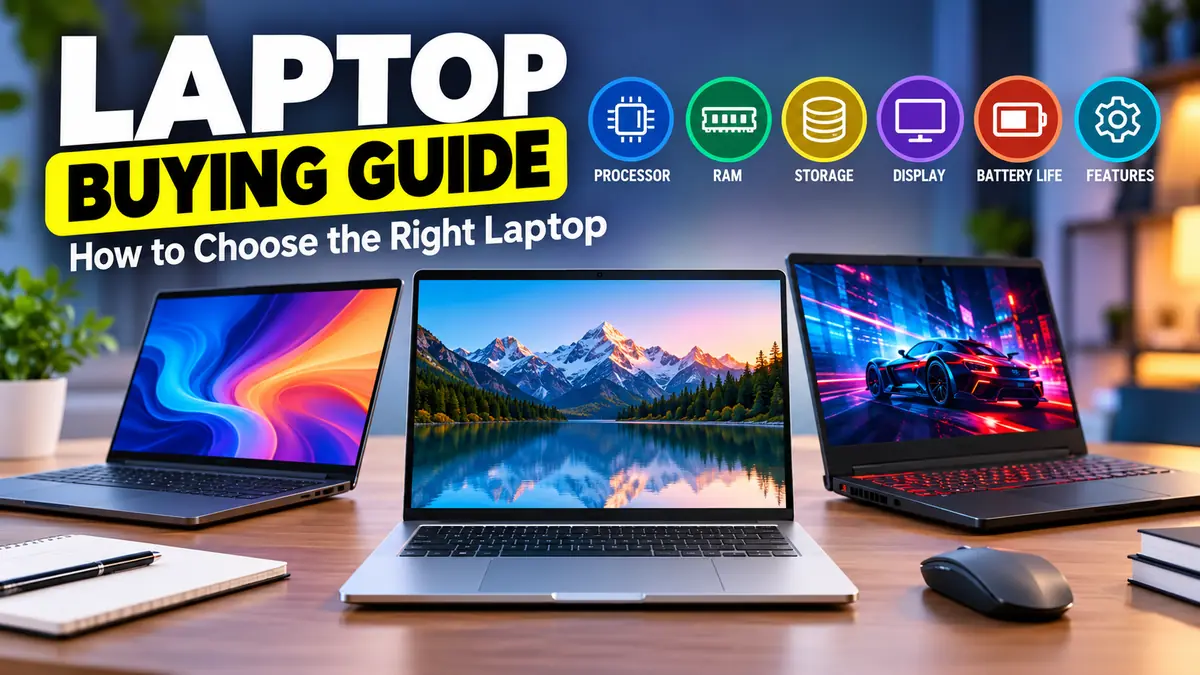

Buying a laptop can feel surprisingly complicated. Two models may look almost identical, yet one runs smoothly for years while the other struggles with everyday tasks. The difference often comes down to the processor, memory, storage, display, and how well those components match your needs.
This laptop buying guide explains how to evaluate laptop specifications, understand the differences between popular operating systems, and avoid paying for features you will rarely use.
The best way to choose a laptop is to start with your workload, then compare processor performance, RAM, SSD storage, display quality, battery life, and portability. For most everyday users, 16GB of RAM, a 512GB SSD, and a modern midrange processor provide a practical balance of performance and longevity.
1. laptop buying guide: Understand What You Need
Before comparing brands or specifications, identify what you actually expect your laptop to do. A machine designed for video editing has different requirements from one intended for university assignments or web browsing.
Laptops for Students
Students typically need portability, dependable battery life, and enough performance to handle research, documents, presentations, and video calls.
A practical student laptop generally offers:
- A modern Intel Core, AMD Ryzen, Apple M-series, or comparable processor.
- 16GB RAM for comfortable multitasking.
- At least 256GB SSD storage, preferably 512GB.
- A 13- or 14-inch screen for easier transportation.
- A comfortable keyboard and reliable webcam.
- Battery life sufficient for classes and study sessions.
Students in architecture, engineering, or media production may need more powerful hardware because their software requirements are significantly higher.
Laptops for Office Work and Business
Office workloads often involve spreadsheets, browser tabs, email, video meetings, and business applications.
Prioritize a responsive processor, 16GB RAM, a comfortable keyboard, good connectivity, and a reliable microphone and webcam.
Business users should also consider security features such as fingerprint authentication, TPM 2.0 support on compatible Windows systems, and device encryption.
Laptops for Gaming
Gaming performance depends heavily on the graphics processor.
A dedicated NVIDIA GeForce RTX or AMD Radeon GPU can deliver substantially better performance in demanding games than typical integrated graphics.
However, graphics performance is only part of the equation. Cooling design, GPU power limits, processor capability, display refresh rate, and available RAM also affect the experience.
Laptops for Programming and Creative Work
Programming requirements vary by project. Basic web development can run comfortably on a mainstream laptop, while large codebases, virtual machines, Android emulators, and local AI workloads may require considerably more memory.
Photo editing, 3D rendering, and video production benefit from fast processors, sufficient RAM, high-quality displays, and, for some applications, dedicated graphics.
The key is to check the recommended system requirements of the applications you intend to use.
2. How to Choose the Right Laptop Processor
The processor, or CPU, handles general computing tasks. It influences how quickly applications respond, how efficiently multiple tasks run, and how much power the laptop consumes.
A processor’s brand or product tier alone does not tell the whole story.
Intel Processors
Intel laptop processors include Core and Core Ultra families, alongside older Core i3, i5, i7, and i9 naming conventions.
In general:
| Processor category | Typical suitability |
|---|---|
| Entry-level Intel Core models | Browsing, documents, basic applications |
| Midrange Core and Core Ultra | Students, office work, everyday multitasking |
| Higher-performance Core Ultra models | Demanding productivity and creative workloads |
| High-power HX-class processors | Workstations and performance-focused gaming laptops |
The exact processor generation, power limits, and laptop cooling system matter more than the marketing tier alone.
For example, a newer midrange processor can outperform an older high-end processor in some workloads.
AMD Ryzen Processors
AMD Ryzen laptop processors compete across entry-level, mainstream, and high-performance categories.
Ryzen 5 and Ryzen 7 systems often offer a strong combination of processing performance and efficiency, although performance varies by architecture and model.
AMD also offers Ryzen AI processors with integrated neural processing units, or NPUs, for supported on-device AI tasks.
Apple Silicon
Apple’s M-series processors integrate CPU, GPU, and other components into a system on a chip.
MacBooks using Apple silicon are known for efficient performance and strong battery life in many productivity workflows.
However, software compatibility remains an important consideration. Some Windows-only applications and games may not run natively on macOS.
ARM-Based Windows Laptops
Windows laptops using Qualcomm Snapdragon processors are another option.
These systems can provide efficient performance and long battery life, but some legacy applications, drivers, games, and specialized peripherals may have compatibility limitations.
Before choosing an ARM-based laptop, verify support for any essential software.
How Much Processing Power Do You Actually Need?
A useful approach is to match CPU performance to the most demanding task you regularly perform.
For basic browsing and documents, a current entry-level or midrange processor is often enough. For extensive multitasking, software development, and moderate creative work, a capable midrange processor is a sensible starting point.
For demanding rendering, simulation, and professional production, higher-performance processors may justify their additional power consumption and cost.
Do not judge performance by clock speed or core count alone. Independent benchmarks of the exact processor and laptop model are more informative.
3. How Much RAM and Storage Does a Laptop Need?
RAM and storage serve different purposes.
RAM holds data actively used by applications, while storage retains files, software, and the operating system.
Laptop RAM Requirements
| RAM capacity | Recommended use |
|---|---|
| 8GB | Basic browsing, documents, light everyday tasks |
| 16GB | Most students, office workers, and general users |
| 24GB–32GB | Heavy multitasking, development, creative software |
| 64GB or more | Specialized workstations, large projects, virtual machines |
For most people choosing a new general-purpose laptop, 16GB is a sensible baseline.
An 8GB laptop may still work for light tasks, particularly with efficient software, but it offers less flexibility as applications and workloads grow.
If you regularly use Docker containers, virtual machines, large datasets, or high-resolution video editing applications, 32GB or more may be worthwhile.
Is Laptop RAM Upgradeable?
Not always.
Some laptops use removable SO-DIMM memory modules, while many thin-and-light designs have soldered RAM or memory integrated into the processor package.
Apple silicon MacBooks, for example, use unified memory that cannot be upgraded after purchase.
Check the exact model’s upgrade options before deciding how much memory to get.
SSD vs HDD Storage
Solid-state drives are the preferred storage technology for modern laptops.
Compared with traditional hard disk drives, SSDs typically provide faster startup times, quicker application loading, better shock resistance, and quieter operation.
Common laptop storage capacities include:
- 256GB: Suitable for lightweight users who store most files online.
- 512GB: A practical choice for everyday computing and moderate local storage.
- 1TB: Useful for large applications, photos, games, and creative projects.
- 2TB or more: Appropriate for extensive media libraries and professional workloads.
Most modern performance-oriented laptops use NVMe SSDs connected through PCI Express.
PCIe 4.0 and PCIe 5.0 drives can offer higher sequential transfer speeds, although typical everyday tasks may show relatively small differences.
Quick takeaway: For a balanced everyday configuration, prioritize 16GB RAM and a 512GB SSD before paying extra for marginal processor improvements.
4. laptop buying guide: Screen Size, Resolution, and Display Quality
The display affects nearly every interaction with your laptop.
A good screen makes reading, editing, and extended work more comfortable. A poor one can make even a powerful computer unpleasant to use.
Choosing the Right Screen Size

13–14 inches
Best for portability, commuting, travel, and students who frequently carry their laptop.

15–16 inches
A balance of workspace and portability, useful for spreadsheets, creative tasks, and multitasking.

17–18 inches
More screen space for gaming and workstation tasks, but generally heavier and less convenient to carry.
Understanding Laptop Screen Resolution
Resolution determines the number of pixels displayed.
Common options include Full HD (1920 × 1080), WUXGA (1920 × 1200), 2560 × 1600, and higher-resolution displays.
A 1920 × 1200 display with a 16:10 aspect ratio offers additional vertical workspace compared with a traditional 1920 × 1080 screen.
Higher resolutions can produce sharper text and images, although they may increase power consumption depending on the panel.
IPS vs OLED vs Mini-LED
| Display technology | Advantages | Considerations |
|---|---|---|
| IPS LCD | Good viewing angles, widely available | Contrast varies; blacks are not as deep |
| OLED | Deep blacks, excellent contrast, fast pixel response | Potential burn-in risk, variable battery impact |
| Mini-LED LCD | High brightness and strong HDR capability | Possible blooming around bright objects |
For general productivity, a good IPS display is usually sufficient.
OLED can be appealing for entertainment and visual work, while Mini-LED may be useful for HDR-focused applications.
Color-sensitive professionals should check actual color accuracy, color-gamut coverage, and calibration rather than relying on panel type alone.
Brightness and Refresh Rate
Display brightness is commonly measured in nits.
Around 300 nits can be adequate indoors, while 400–500 nits or more can improve visibility in bright environments. Outdoor usability also depends on reflections and screen coating.
Refresh rate determines how often the display updates.
A 60Hz panel is sufficient for many productivity tasks, while 90Hz, 120Hz, or higher refresh rates can make scrolling and animations appear smoother.
Gaming laptops may offer 144Hz, 165Hz, 240Hz, or higher refresh rates.
A high refresh rate is most valuable when the graphics hardware can deliver correspondingly high frame rates.
5. Understanding Laptop Battery Life
Battery life is one of the most important considerations for students, travelers, and professionals working away from a power outlet.
Unfortunately, advertised battery life does not always reflect real-world usage.
A laptop advertised to provide 15 hours of battery life may last considerably less when running demanding applications, using a bright display, or handling intensive multitasking.
What Affects Laptop Battery Life?
Several components influence power consumption:
- Processor efficiency: Energy-efficient processors can reduce power consumption during light workloads.
- Display brightness: Higher brightness generally increases battery drain.
- Screen resolution: Higher-resolution displays may consume additional power.
- Refresh rate: Running a display at 120Hz or higher can increase power consumption.
- Graphics hardware: Dedicated GPUs can consume substantial power when active.
- Background applications: Updates, synchronization, and unnecessary processes can reduce runtime.
Battery capacity is usually expressed in watt-hours (Wh). A larger battery can provide longer runtime, but capacity alone does not determine endurance.
How Many Hours of Battery Life Are Enough?
For students and office workers, eight to ten hours of tested light-to-moderate usage is a reasonable target.
People who travel frequently may benefit from laptops capable of exceeding ten hours in independent tests.
Gaming and professional rendering workloads can drain batteries much faster, even on laptops with large batteries.
Independent testing is more useful than relying solely on manufacturer claims. Publications such as RTINGS evaluate battery life alongside display quality, performance, and thermal behavior.
RTINGS.com
USB-C Charging and Fast Charging
USB-C charging can simplify travel by allowing compatible devices to share chargers.
However, not every USB-C port supports charging, and not every USB-C charger supplies enough power for a particular laptop.
A performance-focused laptop may require a higher-wattage adapter than a thin-and-light model.
Check the laptop’s charging requirements, USB Power Delivery compatibility, and whether fast charging is supported.
6. Windows vs macOS vs ChromeOS: Which Is Better?
The operating system determines which applications your laptop can run and how you interact with the computer.
Three major options dominate everyday laptop computing.

Microsoft Windows 11
Broad software compatibility, extensive hardware choices, gaming support, and business applications.

Apple macOS
Strong integration with Apple devices, efficient hardware, and a consistent computing environment.

Google ChromeOS
A streamlined experience centered on web applications, cloud services, and lightweight productivity.
When Should You Choose Windows?
Windows is a flexible choice for users who need broad software compatibility.
It supports applications such as Microsoft Office, Adobe software, AutoCAD, and numerous development tools.
Windows also offers the widest selection of mainstream PC gaming hardware.
For business users, Windows 11 Pro provides additional management and security capabilities.
Microsoft specifies TPM 2.0, Secure Boot capability, and compatible hardware among the requirements for Windows 11.
Microsoft Support
When Does a MacBook Make Sense?
MacBooks are particularly appealing to people already using iPhones, iPads, and other Apple devices.
Features such as AirDrop, Continuity, and integration with iCloud can simplify cross-device workflows.
macOS is also widely used for software development, design, writing, and media production.
However, compatibility should be checked for specialized Windows software, enterprise tools, and particular games.
Are Chromebooks Good for Everyday Use?
Chromebooks can work well for browsing, online learning, email, video meetings, and cloud-based documents.
Many support Android applications and selected Linux development tools.
Their limitations become more apparent when users require demanding desktop software or applications unavailable on ChromeOS.
A Chromebook should therefore be evaluated according to the software it supports, not simply its processor and RAM.
7. Graphics Cards, Cooling, and AI Features
Laptop graphics processors fall into two broad categories: integrated and dedicated.
Integrated vs Dedicated Graphics
Integrated graphics share system resources and are built into the processor or system-on-chip design.
Modern integrated GPUs can handle everyday multimedia, multiple displays, and some light gaming.
Dedicated GPUs provide separate graphics-processing hardware and typically offer greater performance for demanding visual workloads.
| Task | Graphics recommendation |
|---|---|
| Web browsing and documents | Integrated GPU |
| Streaming and everyday media | Integrated GPU |
| Basic photo editing | Capable integrated GPU |
| Casual gaming | Modern integrated GPU may suffice |
| Demanding AAA gaming | Dedicated GPU recommended |
| Complex 3D rendering | Dedicated GPU often beneficial |
| Professional video effects | Depends on software and codec support |
Popular dedicated graphics families include NVIDIA GeForce RTX and AMD Radeon.
For professional work, check whether the intended application supports hardware acceleration through CUDA, DirectX, Metal, OpenCL, or another relevant framework.
Why Laptop Cooling Matters
Two laptops with the same processor and graphics card can perform differently because of their cooling systems.
Thin laptops have limited space for fans, heat pipes, vapor chambers, and ventilation.
When internal temperatures rise, the system may reduce clock speeds to stay within safe operating limits. This behavior is called thermal throttling.
Sustained benchmark tests are particularly useful for identifying these differences.
A laptop that performs well during a short test may slow down during extended rendering or gaming sessions.
Do You Need an AI Laptop?
AI-focused laptops increasingly include a neural processing unit, or NPU.
An NPU is specialized hardware designed to accelerate certain AI operations efficiently.
Microsoft’s Copilot+ PC category requires supported hardware with an NPU capable of more than 40 trillion operations per second (TOPS), alongside other requirements.
Microsoft Windows
These processors can support compatible on-device AI features, but an NPU does not automatically improve every application.
For local large language models, machine learning development, and other demanding AI workloads, RAM capacity, GPU performance, software compatibility, and available graphics memory may matter more.
Choose AI hardware based on applications you actually intend to run.
8. Laptop Build Quality, Ports, and Connectivity
Specifications describe computing capability, but physical design determines how comfortable and reliable the laptop feels during everyday use.
Keyboard and Touchpad
A comfortable keyboard is essential for writing, coding, and office work.
Look for consistent key spacing, adequate key travel, and a stable keyboard deck.
Backlit keyboards are useful in low-light environments, while a numeric keypad may benefit users working extensively with spreadsheets.
A good touchpad should respond accurately to gestures and provide consistent clicking behavior.
Laptop Ports Explained
Common connections include:
| Port | Main purpose |
|---|---|
| USB-A | Older accessories, flash drives, peripherals |
| USB-C | Data, charging, and potentially video |
| HDMI | External monitors and televisions |
| Thunderbolt | High-speed peripherals and supported displays |
| USB4 | High-speed data and display connectivity |
| 3.5mm audio | Wired headphones and microphones |
| SD or microSD reader | Camera and memory-card transfers |
| Ethernet | Wired networking |
One common mistake is assuming that all USB-C ports offer identical capabilities.
USB-C describes the physical connector, not necessarily its speed, charging capability, or video-output support.
USB4 implementations can support high-speed connectivity, with specifications extending to 80Gbps operation under supported conditions.
USB-IF
Always verify the specific laptop’s port specifications.
Wi-Fi and Bluetooth
Modern laptops may support Wi-Fi 6, Wi-Fi 6E, or Wi-Fi 7.
Newer wireless standards can improve capacity, latency, and performance in compatible networking environments.
However, actual wireless speed depends on the router, internet connection, interference, and signal strength.
Bluetooth support is useful for wireless headphones, keyboards, mice, and other accessories.
Webcam and Microphone Quality
Video conferencing has made camera quality increasingly important.
A 1080p webcam can provide clearer video than a basic 720p camera, although sensor quality and image processing also matter.
Look for clear microphone recording, effective noise reduction, and a physical camera shutter if privacy is a priority.
Durability and Repairability
A well-built laptop should have a stable hinge, minimal chassis flex, and reliable cooling.
Metal construction can improve rigidity, but a well-designed plastic chassis may also be durable.
Repairability deserves attention because many modern laptops have soldered memory and difficult-to-replace components.
Framework laptops illustrate an alternative approach emphasizing modular components and repair access, although repairability varies across laptop brands and models.
9. How Much Should You Spend on a Laptop?
Laptop pricing varies by region, configuration, brand, and market conditions.
The following US-dollar ranges are illustrative categories rather than live retail quotations.
| Approximate budget | Typical expectations |
|---|---|
| Under $400 | Basic browsing, lightweight productivity, entry-level hardware |
| $400–$700 | Everyday laptops, mainstream processors, practical configurations |
| $700–$1,000 | Better displays, build quality, performance, and portability |
| $1,000–$1,500 | Premium ultrabooks, stronger creative or gaming configurations |
| $1,500–$2,500 | High-performance gaming, professional productivity, premium designs |
| Above $2,500 | Specialized workstations and high-end performance systems |
A higher price does not guarantee a better experience.
For example, a $1,500 gaming laptop may provide much stronger graphics performance than a similarly priced ultrabook, while the ultrabook may offer better portability and battery life.
The correct comparison depends on intended use.
Which Specifications Deserve Your Budget First?
For general computing, a useful priority order is:
- Sufficient RAM for current and future workloads.
- A reliable SSD with adequate capacity.
- A comfortable, readable display.
- A processor appropriate for your applications.
- Good battery life, keyboard, and build quality.
- Additional features such as premium speakers or high refresh rates.
For gaming, GPU capability moves much higher in the priority order.
For photographers and designers, display accuracy becomes especially important.
Should You Buy a New, Used, or Refurbished Laptop?
Refurbished laptops can provide good value, particularly business-class models designed for durability.
However, condition matters more than the original retail price.
Check battery health, screen condition, keyboard functionality, storage health, charger authenticity, and the availability of replacement parts.
Confirm that the laptop supports a currently maintained operating system.
A refurbished Windows machine that cannot officially run a supported Windows version may introduce avoidable security and maintenance problems.
Also check warranty coverage and the return policy before making a decision.
10. Common Laptop Buying Mistakes to Avoid
Even experienced computer users can overlook practical limitations when comparing specifications.
Choosing Based Only on Processor Names
A Core i7 label does not automatically mean a laptop is faster than every Core i5 system.
Processor generation, architecture, power limits, and cooling influence actual performance.
Compare specific CPU models and independent test results.
Buying Too Little RAM
Limited memory can cause slowdowns when multiple applications compete for resources.
This is particularly problematic when the laptop has soldered RAM.
Choose sufficient memory at purchase if upgrades are impossible.
Ignoring Screen Quality
A powerful processor cannot compensate for a dim, low-contrast display used for hours every day.
Check brightness, resolution, color accuracy, viewing angles, and reflection handling.
Overpaying for Graphics Performance
A dedicated graphics card adds cost, heat, and potentially power consumption.
If your activities consist mainly of browsing, writing, spreadsheets, and video calls, modern integrated graphics may be entirely sufficient.
Overlooking Weight and Charger Size
A laptop weighing 2.5kg may seem manageable in a showroom but become uncomfortable during daily commuting.
The charger can add considerable weight, particularly with high-performance gaming laptops.
Consider the complete travel setup.
Trusting Advertised Battery Figures
Manufacturer battery tests often use controlled conditions that differ from typical workloads.
Compare independently measured battery performance using similar testing methods.
Ignoring Warranty and Support
Repair costs can become significant when batteries, displays, or motherboards fail.
Check warranty duration, regional coverage, service availability, and whether accidental damage protection is included or optional.
11. Laptop Buying Checklist: Compare Before Deciding
Use this interactive checklist to evaluate a laptop against your requirements.
Your laptop readiness checklist
0 of 10I have identified my main workload and essential applications.The processor meets my performance requirements.The laptop has enough RAM, or supports upgrades.SSD capacity is sufficient for my files and applications.The screen size, brightness, and resolution suit my needs.Independent battery tests meet my expectations.The operating system supports my required software.The laptop has the ports and wireless features I need.Weight, keyboard, webcam, and cooling are suitable.Warranty, repairability, and total cost have been checked.
Reset checklist
How to Compare Two Similar Laptops
When two laptops have comparable specifications, look beyond the product listing.
Compare sustained performance, fan noise, battery runtime, display brightness, keyboard comfort, and repairability.
Also verify the exact configuration being reviewed. A laptop family may contain multiple screen panels, processors, batteries, and graphics options.
A review of one configuration may not accurately represent another.
For further technical evaluation, independent testing from sources such as RTINGS Laptop Buying Guide can help explain which measurements matter.
12. How Long Should a Good Laptop Last?
A well-maintained laptop can remain useful for approximately four to six years, sometimes longer, depending on its workload, construction, and software support.
Longevity depends on several factors.
Performance headroom: A laptop with adequate RAM and processing capability is less likely to become frustrating as software demands increase.
Battery condition: Lithium-ion batteries gradually lose capacity with age and charging cycles.
Thermal management: Keeping vents clear and avoiding prolonged overheating helps maintain reliable operation.
Operating system support: Security updates are essential for safe everyday computing.
Repairability: Replaceable batteries, SSDs, and other components can extend a device’s useful life.
Can You Upgrade a Laptop Later?
Some Windows laptops allow RAM and SSD upgrades, while others have soldered memory and limited internal access.
Storage may be replaceable even when RAM is not.
Before purchasing, review the manufacturer’s service manual to determine which components are upgradeable.
For non-upgradeable systems, selecting adequate memory and storage from the beginning becomes more important.
When Should You Replace Your Laptop?
Replacement may be appropriate when essential applications no longer perform adequately, security support ends, repair costs become excessive, or hardware reliability deteriorates.
A slow laptop does not always need replacement.
Removing unnecessary startup programs, checking storage health, cleaning cooling vents, or upgrading an SSD can sometimes restore satisfactory performance.
Final Thoughts on This laptop buying guide
Choosing the right laptop is not about finding the most expensive processor, the highest-resolution display, or the largest number of advertised features.
It is about selecting hardware that matches the work you actually perform.
For most everyday users, a modern midrange processor, 16GB RAM, 512GB SSD, comfortable display, and reliable battery life provide a strong foundation.
Gamers should prioritize graphics performance and cooling. Creative professionals should evaluate memory, display accuracy, and application acceleration. Students and travelers will often benefit most from portability, battery endurance, and dependable construction.
Use this laptop buying guide to compare complete laptop configurations rather than isolated specifications. Start with your essential applications, establish the performance you need, and verify real-world testing before making your final decision.
