
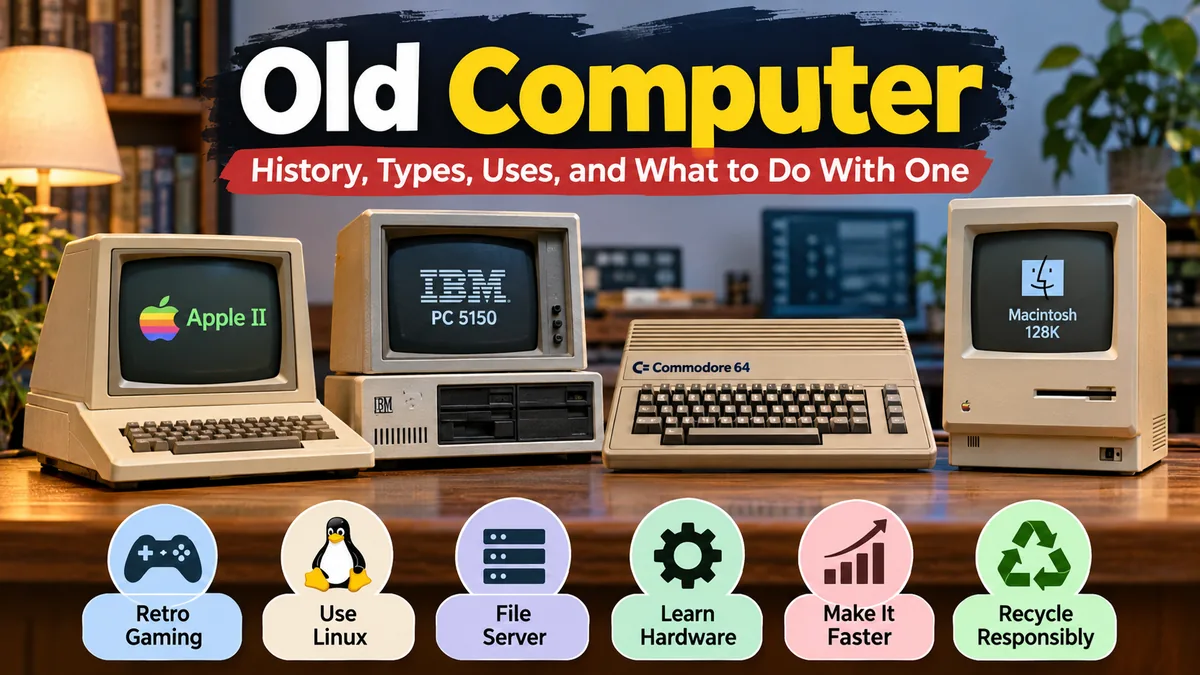

An old computer might look outdated, but it can still be useful. From bulky desktop machines with floppy disk drives to early laptops running Windows XP, older computers tell the story of how technology evolved and can sometimes serve practical purposes today.
An old computer is a desktop, laptop, or other computing system that has become outdated because of its age, hardware specifications, software compatibility, or performance. Some older machines are valuable vintage collectibles, while others can be upgraded, repurposed for simple tasks, donated, or responsibly recycled.
Understanding the difference between an aging computer and a historically significant machine helps determine what to do with it.
What Is an old computer?
An old computer is a computing device that belongs to an earlier generation of technology. It may have slower processing speeds, limited random-access memory (RAM), outdated storage, or an operating system that no longer receives security updates.
However, there is no universal age at which a computer officially becomes old.
A ten-year-old desktop with upgraded components might still handle everyday activities, while a much newer entry-level laptop could struggle with demanding applications.
What makes a computer outdated?
Several factors determine whether a computer is outdated:
- Processor performance: Older central processing units (CPUs) may struggle with modern software and multitasking.
- RAM capacity: Limited memory can cause slow performance when multiple applications run.
- Storage technology: Traditional hard disk drives (HDDs) are generally slower for everyday responsiveness than solid-state drives (SSDs).
- Operating system support: Unsupported systems can expose users to security vulnerabilities.
- Hardware compatibility: Older motherboards may not support modern processors, memory, or peripherals.
- Power efficiency: Some older desktops consume substantially more electricity than modern compact computers.
Age alone does not determine usefulness. Hardware condition, supported software, and intended tasks matter just as much.
Old, vintage, and retro computers: What’s the difference?
| Category | Meaning | Typical examples |
|---|---|---|
| Old computer | An aging or outdated computing device | Early Windows 10 desktops, older laptops |
| Vintage computer | A historically interesting machine from an earlier computing era | Apple II, IBM 5150 |
| Retro computer | A computer used or appreciated for classic computing experiences | Commodore 64, Amiga 500 |
| Obsolete computer | Hardware that cannot adequately support its intended modern applications | Systems limited to unsupported software |
These categories overlap. A vintage computer can also be retro, while an ordinary old office PC may have little collectible significance.
History of old computer technology
The history of computers stretches back long before personal desktops became common in homes and offices.
Early electronic computers occupied entire rooms. Over several decades, advances in transistors, integrated circuits, microprocessors, and semiconductor memory transformed computing into an everyday activity.
The Computer History Museum documents many of the machines and technologies responsible for this transformation. Computer History Museum
Early electronic computers: 1940s–1960s
Early electronic computers were designed primarily for scientific calculations, military research, government operations, and business data processing.
Machines such as ENIAC demonstrated the potential of electronic computation, although their size, cost, and electricity requirements placed them far beyond ordinary consumers.
Vacuum tubes were eventually replaced by transistors, improving reliability and reducing the physical size of computing equipment.
During the 1960s, systems such as the DEC PDP series helped make interactive computing more accessible to researchers and institutions.
The microcomputer revolution: 1970s
The development of the microprocessor was a turning point.
Instead of requiring many separate components to perform processing functions, manufacturers could place a central processor on a small integrated circuit.
Important milestones included:
- 1971: Intel introduced the 4004 microprocessor.
- 1975: The MITS Altair 8800 helped popularize hobbyist microcomputing.
- 1976: The Apple-1 introduced an influential single-board computer.
- 1977: The Apple II, Commodore PET, and Radio Shack TRS-80 helped bring personal computing to a wider audience.
These machines helped establish the foundation of the home computer industry. Computer History Museum+1
Personal computers become mainstream: 1980s
The 1980s brought rapid growth in personal computing.
In August 1981, IBM introduced the IBM Personal Computer, Model 5150. Its architecture encouraged a large ecosystem of compatible hardware and software.
The original machine used an Intel 8088 processor, and the entry-level configuration included 16 KB of RAM.
IBM-compatible systems became increasingly common in businesses, schools, and homes. IBM
The decade also saw major advances in graphical user interfaces, computer gaming, and software applications.
Windows computers and the internet: 1990s–2000s
During the 1990s, personal computers became more accessible and capable.
Microsoft Windows 3.1, Windows 95, Windows 98, and later Windows XP helped popularize graphical desktop computing.
Common hardware included:
- Intel 486 and Pentium processors
- CRT monitors
- Floppy disk drives
- IDE hard drives
- CD-ROM and DVD drives
- Dial-up modems
- PS/2 keyboards and mice
As internet connectivity expanded, computers became essential for communication, education, entertainment, and business.
By the 2000s, USB devices, broadband internet, flat-panel monitors, and faster processors were replacing many earlier technologies.
Famous old computer models that changed computing
Several historical computers remain recognizable because of their influence on technology, education, gaming, or software development.
APPLE: 1977-1979 APPLE II COMPUTER
Apple II — 1977
Helped establish personal computing in homes and schools. It supported color graphics and became an important platform for educational software and early applications.
Telex: Negyven éve mutatta be első PC-jét az IBM, amit aztán itthon egy év alatt klónoztak
IBM PC 5150 — 1981
Helped establish the IBM-compatible PC standard, influencing desktop computer design and business software for decades.
Commodore 64 Personal Computer | RR Auction
Commodore 64 — 1982
Featured 64 KB of RAM and distinctive graphics and sound capabilities. It became a landmark machine for home gaming and programming.
Ordenador personal Macintosh 128K fabricado por Apple en 1984 🖥️ Museo de la Informática
Apple Macintosh 128K — 1984
Popularized mouse-driven graphical interaction, making personal computers more approachable for nontechnical users.
Commodore Amiga 500 — 1987
Became popular for gaming, animation, digital graphics, and music thanks to its multimedia capabilities.
These machines illustrate how different manufacturers contributed to the development of modern computing. Computer History Museum+1
How old computers differ from modern computers
The difference between an older personal computer and a modern system extends beyond processing speed.
Storage, memory, graphics, networking, security, and energy efficiency have all changed dramatically.
Hardware comparison
The following table compares a representative early-2000s consumer desktop with a typical contemporary mainstream computer. Actual specifications vary considerably by model.
| Feature | Early-2000s computer | Modern computer |
|---|---|---|
| Processor | Often single-core | Commonly multicore |
| RAM | Often 128 MB–1 GB | Commonly 8–32 GB |
| Storage | Mechanical HDD | Usually SSD |
| Display | CRT or early LCD | Modern LCD or OLED |
| Connectivity | Dial-up or early broadband | Ethernet, Wi-Fi, Bluetooth |
| Ports | Serial, parallel, PS/2, USB | USB-A, USB-C, HDMI and others |
| Graphics | Basic integrated or dedicated GPU | Advanced integrated or dedicated GPU |
| Operating system | Windows 98, 2000, XP | Supported Windows, macOS, or Linux |
A modern SSD-equipped computer typically starts applications faster and handles larger files more efficiently.
Modern processors also support instruction sets, security capabilities, and power-management features unavailable on many older machines.
Why were old computers so slow?
Several limitations contributed to slower performance.
Early computers had relatively little RAM, forcing applications to rely more heavily on storage when memory became insufficient.
Mechanical hard drives introduced delays because data had to be accessed through moving components.
Processors also had fewer cores, smaller caches, and less advanced architectures.
However, older computers were not necessarily slow for the software they were originally designed to run.
A computer running a lightweight application from its own era may still feel responsive, even though it cannot handle modern web browsing comfortably.
What can you do with an old computer?
An old computer does not automatically become useless when it stops meeting the requirements of the latest operating system.
Many aging PCs can still perform specific tasks effectively.
The best use depends on the machine’s specifications, condition, electricity consumption, and security support.
1. Turn it into a Linux computer
A lightweight Linux distribution may extend the useful life of an older PC.
Linux systems can provide web browsing, document editing, basic programming, and file management without requiring the same hardware configuration as some modern commercial operating systems.
Possible distributions include:
- Lubuntu
- Linux Mint with Xfce
- Debian with a lightweight desktop environment
- antiX for particularly limited hardware
Minimum requirements vary by release and desktop environment.
Before installation, check whether the processor supports the chosen system and whether sufficient RAM and storage are available.
2. Use it as a retro gaming machine
Retro gaming is one of the most popular uses for vintage computing equipment.
Older computers can run classic PC games designed for MS-DOS, early Windows, or historical home-computer platforms.
Tools such as DOSBox can recreate a DOS-compatible environment on suitable systems.
RetroArch and other emulation software can also support historical gaming platforms, subject to hardware capabilities and applicable software rights.
For collectors, original hardware offers an experience that emulation cannot always reproduce exactly, particularly when specialized sound chips, CRT displays, or original input devices are involved.
3. Create a home file server
An older desktop can sometimes serve as a basic file server or network-attached storage system.
It can store documents, photographs, backups, and media files for devices on a local network.
Possible software includes Linux with Samba or other file-sharing services.
Before choosing this option, consider power consumption and drive reliability. An old desktop running continuously may cost more in electricity than a newer low-power device.
A file server should also receive security updates and use appropriate access controls.
4. Make a dedicated offline workstation
Older computers can remain useful for activities that do not require internet access.
Examples include:
- Writing and editing documents
- Running legacy accounting software
- Operating older industrial equipment
- Accessing historical file formats
- Practicing programming with classic development tools
- Playing offline educational games
Keeping unsupported systems disconnected from the internet reduces some security risks, although removable media and local network connections can still introduce threats.
5. Use it for learning computer hardware
An unused PC provides a practical opportunity to understand how computers work.
You can identify the motherboard, CPU, RAM modules, storage drives, power supply unit (PSU), and expansion cards.
Older desktop systems are often easier to disassemble than modern compact laptops.
Always unplug the computer before opening it, avoid touching exposed electrical components, and never open a power supply or CRT monitor without appropriate professional training. These components can retain dangerous electrical charges.
How to make an old computer faster
Performance improvements do not always require replacing the entire computer.
For many aging PCs, a few targeted changes can make a noticeable difference.
Upgrade the hard drive to an SSD
Replacing a mechanical hard drive with an SSD is often one of the most effective upgrades for an older computer.
An SSD has no moving read/write heads and offers substantially faster access times.
This can improve operating system startup, application loading, and file operations.
However, compatibility must be checked first.
Some older computers use IDE/PATA storage rather than SATA. These systems may require specialized adapters or compatible drives, and installation may involve additional limitations.
Increase RAM
Adding memory can reduce slowdowns caused by insufficient RAM.
Before upgrading, identify the motherboard’s supported memory generation, maximum capacity, and module configuration.
Common historical memory types include SDRAM, DDR, DDR2, DDR3, and DDR4.
These standards are not interchangeable.
Installing additional RAM only helps when the computer can recognize it and the software benefits from the extra capacity.
Clean dust and improve cooling
Dust buildup can restrict airflow and contribute to overheating.
High temperatures may cause thermal throttling, where a processor reduces its speed to protect itself.
Basic maintenance includes cleaning accessible fans, checking ventilation, and ensuring the CPU cooler is working properly.
Use appropriate cleaning methods and avoid allowing fans to spin excessively when using compressed air.
Reduce unnecessary startup programs
Older computers often accumulate software that runs automatically.
Disabling unnecessary startup applications can reduce memory consumption and improve boot performance.
Removing unused programs and checking storage health may also help.
Avoid registry cleaners or software promising dramatic speed improvements without clear technical evidence.
Install an appropriate operating system
An operating system designed for lighter hardware may improve responsiveness.
However, switching operating systems does not eliminate fundamental limitations such as an unsupported processor, failing storage, or insufficient memory.
The goal should be to match software requirements to the computer’s actual capabilities.
How to identify the age and specifications of an old computer
Before upgrading, repurposing, or disposing of an old computer, identify its hardware.
This helps determine compatibility, historical significance, and whether repairs are worthwhile.
Check the model and serial information
Desktop and laptop manufacturers commonly place identifying labels on the chassis.
Look for:
- Manufacturer and model number
- Serial number
- Product or service tag
- Processor information
- Manufacturing date, if provided
The serial number can sometimes help locate manufacturer documentation, although it should not be shared publicly unnecessarily.
Check system information
On a working Windows computer, system information tools can reveal processor details, installed RAM, BIOS information, and operating system architecture.
For example, msinfo32 opens System Information on supported Windows versions.
On Linux, commands such as lscpu, free -h, and lsblk can help identify hardware.
Some vintage operating systems require different diagnostic utilities.
Examine the ports and storage devices
Physical connections can offer clues about a computer’s generation.
| Hardware feature | What it may indicate |
|---|---|
| 5.25-inch floppy drive | Common on many 1980s systems |
| 3.5-inch floppy drive | Common from the late 1980s through the 1990s and beyond |
| Parallel printer port | Older PC peripheral connectivity |
| PS/2 keyboard and mouse ports | Common on 1990s and 2000s PCs |
| IDE/PATA hard drive | Older storage architecture |
| USB-C connector | Generally a more recent computer generation |
These features provide approximate clues, not definitive manufacturing dates.
Some technologies remained in use long after newer alternatives appeared.
Are old computers valuable?
Some old computers have collectible value, but most ordinary aging PCs are not rare.
Value depends on historical importance, condition, originality, completeness, functionality, and demand among collectors.
What makes a vintage computer collectible?
Collectors may look for machines that represent important technological milestones.
Factors that can increase interest include:
- Original packaging and manuals
- Matching keyboards, monitors, and accessories
- Functional original components
- Rare configurations or limited production runs
- Historically important models
- Well-preserved physical condition
An early Apple computer or unusual IBM system may attract interest because of its historical significance.
By contrast, a mass-produced office desktop from the 2000s may have limited collector demand.
Should you restore or modify a collectible computer?
Restoration can improve functionality, but irreversible modifications may reduce historical authenticity.
For a potentially rare machine, document its original condition before replacing components.
Keep original parts whenever practical.
A reversible repair is often preferable to drilling new holes, replacing distinctive components, or permanently altering the case.
Historical machines should also be inspected for aging capacitors, battery leakage, corrosion, and degraded storage media before being powered on.
How to safely dispose of or recycle an old computer
When a computer cannot be reused or repaired economically, responsible recycling helps prevent unnecessary electronic waste.
Computers contain recoverable materials such as metals and plastics, along with components that require careful handling.
The US Environmental Protection Agency recommends considering upgrades, donation, and appropriate electronics recycling rather than automatically discarding old devices. US EPA
Back up important files first
Before disposing of a computer, transfer any valuable information.
This may include photographs, documents, saved projects, emails, and application data.
Check that the backup is readable before deleting the originals.
If the computer no longer starts, it may still be possible to recover files from a functional storage drive using a compatible adapter or external enclosure.
Erase personal information securely
Simply deleting files or formatting a drive may not adequately protect personal information.
Secure data removal depends on the storage technology.
For traditional hard drives, suitable sanitization tools can overwrite accessible data.
For SSDs, manufacturer-supported secure erase or sanitize functions are generally more appropriate than repeated overwriting.
If a drive is damaged or contains highly sensitive information, professional destruction may be preferable.
The storage drive can also be removed before donating the remaining computer.
Donate working equipment
A functional computer may still benefit a school, community organization, repair group, or individual who needs basic computing capabilities.
However, donation is appropriate only when the device is safe, usable, and can support its intended tasks securely.
Providing unsupported internet-connected software to another user can create avoidable security risks.
Choose a responsible recycling facility
Electronics should be taken to an appropriate recycling or collection program rather than mixed with household waste.
In the United States, certified recycling programs and manufacturer take-back services may be available.
Other countries have their own recycling systems and local regulations.
Batteries may require separate handling, especially damaged or swollen lithium-ion batteries.
Common problems with old computers and how to troubleshoot them
Older computers may develop faults because of component wear, dust, corrosion, and aging storage devices.
Identifying the symptoms helps determine whether repair is practical.
| Problem | Possible cause | Initial action |
|---|---|---|
| Computer will not turn on | Power supply, cable, motherboard | Check external power connections |
| Computer starts but no display appears | Monitor, cable, RAM, graphics hardware | Test compatible display connections |
| Very slow startup | Aging HDD, startup software, limited RAM | Check drive health and memory use |
| Random shutdowns | Overheating or unstable power | Inspect ventilation and cooling |
| Clicking hard drive | Mechanical drive failure | Stop unnecessary use and prioritize recovery |
| Incorrect date and time | Weak CMOS battery | Check battery condition |
| Frequent crashes | Faulty RAM, storage, software | Run suitable diagnostics |
Why won’t an old computer turn on?
Start with external checks.
Confirm that the power cable, wall outlet, monitor, and power switch are functioning.
If the computer produces fan noise but no display, the issue may involve memory, graphics hardware, or the monitor rather than the power supply.
Avoid repeatedly powering on a machine showing signs of electrical damage, burning smells, or leaking components.
Can files be recovered from a dead old computer?
Sometimes.
If the motherboard has failed but the storage drive remains functional, the drive may be connected to another compatible computer.
Older IDE drives may require adapters, while SATA drives are generally easier to connect to modern systems.
File recovery can be complicated by encryption, proprietary formats, physical damage, and obsolete interfaces.
If a drive is mechanically failing or contains irreplaceable information, professional recovery may be safer than repeated DIY attempts.
Is it safe to connect an old computer to the internet?
Not necessarily.
An unsupported operating system may contain known vulnerabilities that will never receive fixes.
Modern websites may also require browser capabilities that older systems cannot provide.
A safer approach is to install a currently supported operating system and browser, provided the hardware meets their requirements.
For historically significant systems running original software, offline operation is often the more appropriate choice.
Why old computers still matter
Old computers are more than outdated electronic devices.
They document the development of personal computing, software, digital communication, and interactive entertainment.
Many concepts that define modern technology appeared in earlier machines: graphical interfaces, removable storage, networking, word processing, and programmable applications.
Vintage computing also offers educational benefits.
Studying an older computer can reveal how programmers worked with limited memory, how operating systems managed hardware, and how manufacturers solved engineering problems under strict constraints.
Organizations such as the Computer History Museum preserve these systems because they represent important stages in technological history. CHM
For hobbyists, restoring a classic computer can combine electronics, programming, research, and historical preservation.
For everyday users, extending the life of suitable equipment can reduce waste and avoid unnecessary replacement.
Final thoughts on old computer technology
An old computer may be a historical collectible, a practical secondary workstation, a learning tool, or a candidate for responsible recycling.
The right decision depends on its condition, hardware capabilities, software support, and historical significance.
A computer that is too slow for modern applications may still be useful for offline writing, retro gaming, basic programming, or hardware education. A rare vintage machine may deserve careful preservation rather than extensive modification.
Before discarding an old computer, identify its model, assess its condition, back up important files, and consider whether upgrading, reusing, donating, or recycling offers the best outcome.
