
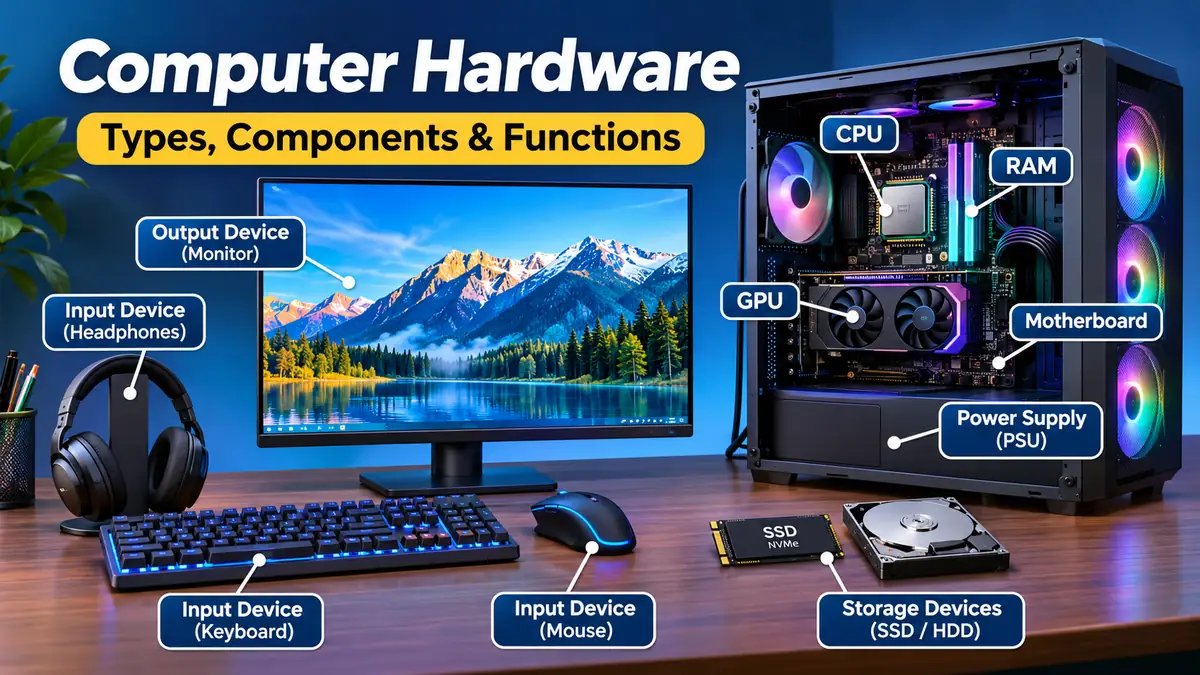

Every time you open a program, save a document, play a video, or browse the internet, physical components inside your computer work together to make it happen. Understanding those components helps you recognize performance problems, understand technical specifications, and make sense of how computers operate.
Computer hardware refers to the physical components of a computer system, including the central processing unit (CPU), motherboard, random access memory (RAM), storage drives, graphics processing unit (GPU), and input/output devices. These components work together to process instructions, store information, communicate with external devices, and perform computing tasks.
Unlike software, which consists of programs and instructions, hardware includes the electronic and mechanical parts that make computing possible.
This guide explains the major types of hardware, what each component does, how the parts interact, and how modern technologies influence performance, reliability, and compatibility.
What Is computer hardware?
Computer hardware is the collection of tangible components that form a computing system. These parts include internal electronic circuits, processors, memory modules, storage devices, and external peripherals.
A computer needs both hardware and software to perform useful tasks.
For example, when you open a web browser, the software provides instructions, the processor executes them, RAM holds active data, and the display shows the results.
Hardware vs. software: What’s the difference?
| Feature | Hardware | Software |
|---|---|---|
| Definition | Physical computer components | Programs and digital instructions |
| Examples | CPU, RAM, SSD, motherboard | Windows, Linux, browsers |
| Physical form | Tangible | Digital |
| Main function | Executes, stores, and transfers data | Directs hardware operations |
| Maintenance | Cleaning, repairs, replacement | Updates, patches, configuration |
| Common problems | Overheating, physical damage | Bugs, crashes, compatibility errors |
An operating system such as Microsoft Windows, Linux, or macOS coordinates hardware resources and provides services to applications.
Firmware occupies a related but distinct role. Technologies such as BIOS and UEFI provide low-level instructions that initialize hardware and help start the operating system.
Why computer hardware matters
Hardware determines what a computer can physically accomplish and influences how efficiently it performs.
Its capabilities affect:
- Processing speed and multitasking
- Graphics rendering and gaming performance
- Data storage capacity and responsiveness
- Network connectivity
- Power consumption and battery life
- System stability and upgrade potential
A powerful processor cannot compensate for every other limitation. For example, a computer with insufficient RAM may slow down when running several demanding applications, even if its CPU is relatively fast.
Understanding the relationship between components is more useful than focusing on a single specification.
Main Types of computer hardware
Computer components can be classified according to their primary functions: input, output, processing, storage, and communication.
Some devices perform more than one function, so these categories can overlap.
1. Input devices
Input devices allow users or other systems to send information and commands to a computer.
Common examples include:
- Keyboard: Enters text, numbers, and commands.
- Mouse: Controls the pointer and selects interface elements.
- Scanner: Converts printed documents and photographs into digital information.
- Microphone: Captures audio.
- Webcam: Records images and video.
- Touchscreen: Detects touch gestures while also displaying output.
- Barcode reader: Captures encoded product or inventory information.
Input devices translate physical actions or signals into data that the computer can process.
2. Output devices
Output devices present processed information in a form users can see, hear, or otherwise perceive.
Examples include monitors, printers, speakers, headphones, and projectors.
A monitor displays visual information generated by the graphics system, while speakers convert digital audio signals into sound through audio-processing hardware.
Printers produce physical documents using technologies such as inkjet or laser printing.
3. Processing devices
Processing components execute instructions, perform calculations, and coordinate operations.
The CPU is the main general-purpose processor. A GPU specializes in highly parallel workloads, particularly graphics processing.
Other specialized processors include digital signal processors (DSPs), neural processing units (NPUs), and dedicated video encoders.
4. Storage devices
Storage devices retain information for later use.
Examples include solid-state drives (SSDs), hard disk drives (HDDs), USB flash drives, memory cards, and optical discs.
Storage differs from RAM because ordinary storage devices retain their data when power is removed.
5. Communication devices
Communication hardware allows computers to exchange information with networks and other devices.
Examples include Ethernet adapters, Wi-Fi adapters, Bluetooth controllers, modems, and network interface cards (NICs).
These components support internet access, local networking, wireless peripherals, and device-to-device communication.
Essential Internal Computer Components
PC Professionals | Ontdek Topservice – Bel Ons Nu
Intel core i9 Stock Photos, Royalty Free Intel core i9 Images | DepositPhotos
8
Most desktop and laptop computers contain several core components that operate as one system.
Central processing unit (CPU)
The central processing unit is responsible for executing program instructions and performing general-purpose calculations.
Modern processors commonly contain multiple cores, allowing them to handle several execution workloads simultaneously.
Important CPU specifications include:
| Specification | Meaning | Why it matters |
|---|---|---|
| Core count | Number of physical processing cores | Supports parallel workloads |
| Thread count | Number of hardware execution threads | Helps utilize processing resources |
| Clock speed | Operating frequency, usually in GHz | Influences execution rate |
| Cache | High-speed memory close to CPU cores | Reduces delays accessing frequently used data |
| Architecture | Processor instruction-set and microarchitecture design | Affects compatibility and efficiency |
| Power rating | Thermal or processor power specification | Influences cooling requirements |
Popular processor families include Intel Core, Intel Core Ultra, AMD Ryzen, and Apple M-series chips.
Clock speed alone does not establish which processor is faster. Instructions per clock, architecture, cache, memory performance, power limits, and workload characteristics also matter.
For example, a newer processor operating at a lower frequency can outperform an older processor with a higher advertised clock speed.
Motherboard
The motherboard is the main printed circuit board that connects and supports computer components.
It provides electrical connections and communication pathways between the processor, memory, storage, expansion cards, and external devices.
Important motherboard features include:
- CPU socket or integrated processor mounting
- DIMM or SO-DIMM memory connections
- PCI Express expansion slots
- M.2 and SATA storage connectors
- USB and networking interfaces
- Voltage regulator modules (VRMs)
- Firmware storage and UEFI configuration
- Chipset or platform controller functions
Common desktop motherboard form factors include ATX, Micro-ATX, and Mini-ITX.
The form factor influences case compatibility, available expansion space, and component layout.
A motherboard must also support the processor’s socket, memory generation, firmware requirements, and electrical characteristics.
Random access memory (RAM)
RAM provides fast, temporary working storage for the operating system and running applications.
When you launch a program, the system typically loads the required code and data from permanent storage into RAM.
The processor can then access that information more quickly than it could from an SSD or HDD.
RAM is generally volatile, meaning its contents disappear when power is removed.
How much RAM does a computer need?
| RAM capacity | Typical use |
|---|---|
| 4 GB | Very basic tasks on lightweight systems |
| 8 GB | Basic browsing, documents, and everyday use |
| 16 GB | General productivity, multitasking, and many games |
| 32 GB | Heavier multitasking, creative applications, and development |
| 64 GB or more | Large datasets, virtual machines, and demanding professional workloads |
These are general guidelines rather than universal requirements.
Memory technologies include DDR4, DDR5, LPDDR5, and LPDDR5X. Compatibility depends on the processor and motherboard or integrated platform.
DDR4 and DDR5 desktop memory modules are not interchangeable.
Storage devices: HDD vs. SSD
Storage retains operating systems, applications, documents, photographs, and other files.
Two major technologies are hard disk drives and solid-state drives.
1TB Seagate 3,5 Inch Sata Harddisk
Hard disk drive (HDD)
Uses spinning magnetic platters and moving read/write heads.
Storage Executive software | Micron Technology Inc.
Solid-state drive (SSD)
Uses flash memory without moving mechanical parts.
| Feature | HDD | SSD |
|---|---|---|
| Technology | Magnetic platters | NAND flash memory |
| Moving parts | Yes | No |
| Access latency | Higher | Lower |
| Typical performance | Slower random access | Faster random access |
| Noise | May produce mechanical noise | Silent |
| Cost per GB | Often lower | Often higher |
| Common use | Bulk storage, archives | Operating systems, applications, active files |
SSDs can use SATA or NVMe interfaces. NVMe drives generally communicate through PCI Express, providing greater potential bandwidth and lower protocol overhead than SATA drives.
An M.2 connector describes a physical form factor, not necessarily the storage protocol. Some M.2 drives use SATA, while others use NVMe.
For most modern general-purpose computers, an SSD offers a noticeable improvement in boot times and application responsiveness compared with an HDD.
Graphics processing unit (GPU)
A GPU performs calculations particularly suited to parallel execution.
Its primary role is rendering graphics, but modern GPUs also accelerate video processing, scientific computing, machine learning, and other specialized workloads.
There are two common configurations.
Integrated graphics share a processor package or system-on-chip platform with the CPU and often use system memory. They are suitable for office work, streaming, and many everyday tasks.
Discrete graphics cards contain a dedicated GPU and usually their own video memory, known as VRAM. They are commonly used for demanding games, 3D rendering, and GPU-accelerated professional applications.
Major GPU technologies and product families include NVIDIA GeForce, AMD Radeon, and Intel Arc.
A GPU’s performance depends on architecture, memory bandwidth, compute resources, power limits, and software optimization—not simply its VRAM capacity.
Power supply unit (PSU)
The power supply converts incoming electrical power into regulated voltages used by computer components.
Desktop computers commonly use ATX-compatible power supplies, while laptops rely on external adapters and internal power-management circuits.
Important PSU considerations include:
- Rated continuous power output
- Electrical protection features
- Connector compatibility
- Voltage regulation
- Cooling and noise
- Efficiency certification
The 80 PLUS program identifies power supplies meeting specified efficiency thresholds under defined testing conditions.
However, efficiency certification alone does not guarantee overall electrical quality or reliability.
A suitable PSU needs adequate capacity for the complete system, including the processor, graphics card, storage devices, and other connected hardware.
Cooling systems
Electronic components produce heat while operating.
Cooling systems transfer this heat away from sensitive components to help maintain safe operating temperatures.
Common cooling methods include:
- Air coolers with heatsinks and fans
- Liquid cooling systems
- Case ventilation fans
- Thermal interface materials
- Passive cooling for low-power devices
Modern processors and graphics cards often reduce operating frequencies or power consumption when thermal limits are reached. This behavior is called thermal throttling.
Dust accumulation, obstructed airflow, poorly installed coolers, and aging fans can contribute to elevated temperatures.
How computer hardware Works Together
Individual components do not operate independently. They exchange instructions, data, and control signals through interconnected pathways.
Consider what happens when you open a document.
Simplified data-processing flow
Input deviceKeyboard or mouse sends a command
CPU + RAMSoftware instructions and active data are processed
Storage + graphics systemFile data is retrieved and visual output is prepared
DisplayThe document appears on the screen
Actual computer operations involve overlapping, bidirectional communication rather than a strictly linear sequence.
The process can be understood through five main steps:
- Input: The user clicks a document or enters a command.
- Instruction execution: The CPU executes instructions from the operating system and application.
- Data retrieval: The system reads required information from storage.
- Memory operations: Active document data is held in RAM while the application runs.
- Output: The graphics system prepares the display image, and the monitor presents it.
The motherboard and its electrical interfaces enable communication throughout the process.
What is the system bus?
A bus is a communication pathway used to transfer information between computer components.
Traditional computer architecture describes data buses, address buses, and control buses.
Modern systems use a range of specialized interconnects, including PCI Express, memory channels, and processor-specific communication links.
What is PCI Express?
PCI Express (PCIe) is a high-speed serial interface used to connect devices such as graphics cards, NVMe storage drives, and network adapters.
PCIe uses lanes to transmit and receive data.
Common link configurations include x1, x4, x8, and x16.
Newer PCIe generations generally increase potential bandwidth per lane, although actual performance depends on the devices, negotiated link speed, workload, and system configuration.
Computer Ports and Connectivity Standards
Computer ports provide physical connections for peripherals, displays, storage devices, and networking equipment.
Different interfaces support different data rates, power capabilities, and communication protocols.
Common computer ports and their functions
| Port or interface | Main purpose |
|---|---|
| USB-A | Connects keyboards, mice, drives, and accessories |
| USB-C | Supports compatible data, power, and display functions |
| HDMI | Transmits digital video and audio |
| DisplayPort | Connects digital displays, including high-refresh-rate monitors |
| Ethernet (RJ45) | Provides wired networking |
| 3.5 mm audio jack | Connects compatible audio equipment |
| Thunderbolt | Supports high-speed data and compatible display or docking functions |
| SATA | Connects compatible storage devices |
| PCIe | Connects internal expansion devices |
USB-C describes a connector shape rather than a guaranteed performance level. Two USB-C ports can support different speeds, charging capabilities, and display features.
Similarly, a cable must support the required capabilities for a connected device to function as expected.
Wired vs. wireless connectivity
Wired connections commonly offer predictable performance and avoid radio interference. Ethernet is widely used for desktop networking, servers, and business systems.
Wireless connections provide mobility and convenience.
Wi-Fi supports local wireless networking, while Bluetooth is commonly used for keyboards, mice, headphones, and other nearby devices.
Actual wireless performance depends on distance, interference, hardware capabilities, and the network environment.
Understanding Computer Performance and Specifications
Computer performance depends on the interaction between processing resources, memory, storage, graphics, and software.
A system may have impressive specifications in one area while being limited by another component.
What makes a computer fast?
Several factors influence perceived and measured speed.
Processor performance: Affects calculations, application execution, and workloads that rely heavily on CPU resources.
Memory capacity: Determines how much active data can remain in RAM without excessive paging to storage.
Storage responsiveness: Influences startup times, file loading, and many application operations.
Graphics performance: Matters for gaming, rendering, video effects, and GPU-accelerated calculations.
Thermal performance: Helps components sustain their intended operating speeds.
Software efficiency: Determines how effectively applications use available resources.
A performance bottleneck occurs when one resource limits the speed of a particular workload.
For instance, a computer running out of RAM may repeatedly move data between memory and storage, reducing responsiveness.
CPU vs. RAM: Which is more important?
The answer depends on the workload.
A CPU executes instructions, while RAM provides temporary storage for the instructions and data currently in use.
Adding RAM can improve performance when a computer regularly exceeds its available memory. However, adding memory beyond the amount an application needs will not automatically make its calculations faster.
Likewise, a faster CPU may improve computational workloads without substantially reducing delays caused by slow storage.
Understanding hardware specifications
Specifications are useful only when interpreted in context.
| Specification | What it describes | Common misunderstanding |
|---|---|---|
| GHz | Processor clock frequency | Higher always means faster |
| GB of RAM | Memory capacity | More RAM always increases speed |
| TB of storage | Storage capacity | Capacity determines transfer speed |
| GPU VRAM | Dedicated graphics memory capacity | More VRAM guarantees higher frame rates |
| PCIe generation | Interface technology | Every device uses its maximum bandwidth |
| PSU wattage | Rated power output | Higher wattage means higher actual consumption |
Benchmark tests can help compare systems under similar conditions. However, results should reflect the applications and workloads relevant to the comparison.
Computer Hardware Compatibility and Upgrades
Not every component can be installed in every computer.
Compatibility depends on physical dimensions, electrical requirements, supported interfaces, firmware, and software drivers.
How to check hardware compatibility
Before replacing or adding a component, follow these steps:
- Identify the computer model or motherboard. Consult the manufacturer’s specifications.
- Check processor support. Verify socket, chipset, firmware, and supported CPU models.
- Confirm memory compatibility. Check DDR generation, supported capacity, module type, and configuration.
- Inspect storage interfaces. Determine whether the system supports SATA, M.2 SATA, NVMe, or a combination.
- Check physical clearance. Ensure expansion cards and cooling equipment fit inside the case.
- Verify power requirements. Confirm that the PSU has sufficient capacity and appropriate connectors.
- Review software support. Make sure the operating system and required drivers support the hardware.
Laptop upgrades require additional attention because many modern laptops contain soldered memory, integrated processors, or limited internal expansion options.
Which hardware upgrade improves performance most?
The most useful upgrade depends on the system’s current limitation.
| Problem | Potentially useful upgrade |
|---|---|
| Slow startup with an HDD | Install a compatible SSD |
| Frequent memory exhaustion | Increase RAM capacity |
| Low gaming frame rates | Upgrade the GPU, where supported |
| Slow CPU-heavy calculations | Upgrade the processor or platform |
| Insufficient file storage | Add or replace a storage drive |
| Thermal throttling | Improve cooling and airflow |
| Unreliable wireless connection | Improve networking hardware or placement |
For an older computer still using a mechanical hard drive as its operating-system drive, moving to an SSD often produces one of the most noticeable improvements in everyday responsiveness. HP® Official Site+1
However, an upgrade should address a measured limitation rather than an assumed one.
Desktop vs. laptop hardware
Desktop and laptop computers share similar computing principles but differ in physical design.
Desktop systems usually offer more room for expansion, larger cooling systems, and easier access to replaceable parts.
Laptops prioritize portability, energy efficiency, and compact construction.
Some laptops integrate the CPU, GPU, memory, and supporting controllers into a system-on-chip (SoC) design.
This integration can improve efficiency and reduce physical space requirements, but it may also limit upgrades.
Computer Hardware Maintenance and Troubleshooting
Routine maintenance can improve reliability, reduce avoidable performance problems, and extend the useful life of a computer.
Common hardware problems and symptoms
| Symptom | Possible causes |
|---|---|
| Computer will not power on | Power supply, battery, cable, or motherboard issue |
| No display | Monitor, cable, GPU, RAM, or startup failure |
| Unexpected shutdown | Overheating, power instability, or component fault |
| Frequent freezing | Memory, storage, driver, or software problems |
| Unusual clicking from HDD | Potential mechanical drive failure |
| Loud fan noise | High temperatures, dust, or fan wear |
| USB device not detected | Port, cable, device, power, or driver problem |
| Slow performance | Resource exhaustion, thermal limits, or software activity |
These symptoms are not definitive diagnoses. For example, freezing can result from defective memory, but it can also be caused by operating-system errors or incompatible drivers.
How to maintain computer components
- Keep ventilation openings unobstructed.
- Remove accumulated dust using appropriate cleaning methods.
- Monitor unusual temperature increases.
- Install compatible firmware and driver updates when necessary.
- Maintain backups of important files.
- Protect equipment against unsuitable power conditions.
- Inspect cables and connectors for visible damage.
- Avoid forcing incompatible connectors into ports.
Always shut down and disconnect equipment from external power before performing internal maintenance. Follow manufacturer instructions for batteries and electrostatic discharge precautions.
Do not open a power supply enclosure; internal capacitors can retain hazardous electrical charge after the unit has been unplugged.
How to check computer hardware information
On Windows, several built-in utilities provide useful system information.
Task Manager: Open the Performance tab to examine CPU, memory, storage, GPU, and network activity.
System Information: Run msinfo32 to review system details, firmware information, and hardware resources.
Device Manager: Inspect detected hardware and identify devices reporting problems.
DirectX Diagnostic Tool: Run dxdiag to examine graphics and audio information.
On macOS, System Information provides hardware and software details.
Linux users can examine hardware using tools such as lscpu, lsblk, and lspci, depending on the distribution and installed utilities.
Modern computer hardware Technologies and Trends
Computing hardware continues to evolve through improvements in semiconductor design, integration, memory technology, and specialized acceleration.
Several developments are particularly relevant to modern systems.
AI accelerators and neural processing units
Neural processing units are specialized processors designed to accelerate certain machine-learning operations.
They may be integrated into processors or SoCs alongside CPU and GPU resources.
NPUs can help perform supported tasks such as image analysis, speech processing, and on-device AI inference with improved energy efficiency.
However, their usefulness depends on software support, model compatibility, and the type of computation being performed.
Not every AI application automatically benefits from an NPU.
ARM and x86 processor architectures
Two major instruction-set architecture families used in modern personal computing are x86 and Arm.
x86 processors are widely used in traditional Windows and Linux desktops, laptops, and servers.
Arm-based processors are common in smartphones, tablets, embedded devices, and an increasing number of personal computers and servers.
Both architectures can support high-performance computing. Differences in efficiency and performance depend on specific processor designs and workloads rather than instruction-set architecture alone.
Software compatibility also matters because applications may require architecture-specific versions or translation layers.
DDR5 memory and faster storage
DDR5 memory increases potential bandwidth compared with DDR4 and introduces changes to memory organization and power management.
Actual benefits vary with processor support, memory configuration, and workload.
NVMe storage has also advanced alongside newer PCI Express generations.
However, the highest advertised sequential transfer speed does not necessarily produce a proportional improvement in everyday application responsiveness.
Random-access latency, queue depth, workload characteristics, and system behavior remain important.
Hardware security technologies
Modern systems include hardware-supported security capabilities.
Examples include:
- Trusted Platform Module (TPM): Supports cryptographic operations and protected key storage.
- Secure Boot: Helps verify trusted boot components during startup.
- Hardware virtualization: Enables efficient execution of supported virtual machines.
- Memory protection technologies: Help enforce isolation and access restrictions.
- Firmware security mechanisms: Support platform integrity and update verification.
These technologies can strengthen system security, but they do not eliminate the need for software updates, access controls, and safe computing practices.
Energy efficiency and sustainability
Power efficiency is an increasingly significant consideration in computer design.
Modern hardware may use dynamic voltage and frequency scaling, power gating, specialized accelerators, and improved manufacturing processes to reduce energy consumption.
Repairability and component longevity also affect environmental impact.
Keeping functional equipment in service, upgrading suitable components, and responsibly recycling electronic waste can reduce unnecessary hardware disposal.
computer hardware: Key Takeaways
Computer hardware forms the physical foundation of every computing system. Processors execute instructions, RAM supports active workloads, storage preserves data, and motherboards connect the components.
Input and output devices allow people to interact with computers, while networking equipment supports communication with other systems.
The most useful principles to remember are that CPU performance, RAM capacity, storage responsiveness, and GPU capability serve different purposes, and a computer’s overall performance depends on how well these resources work together.
Understanding component functions and compatibility makes it easier to diagnose problems, interpret specifications, maintain equipment, and recognize when an upgrade is genuinely useful.
For further technical reference, educational resources from Stanford Computer Science and IBM’s hardware overview explain the fundamental relationships between processors, memory, storage, and other computing components.
