
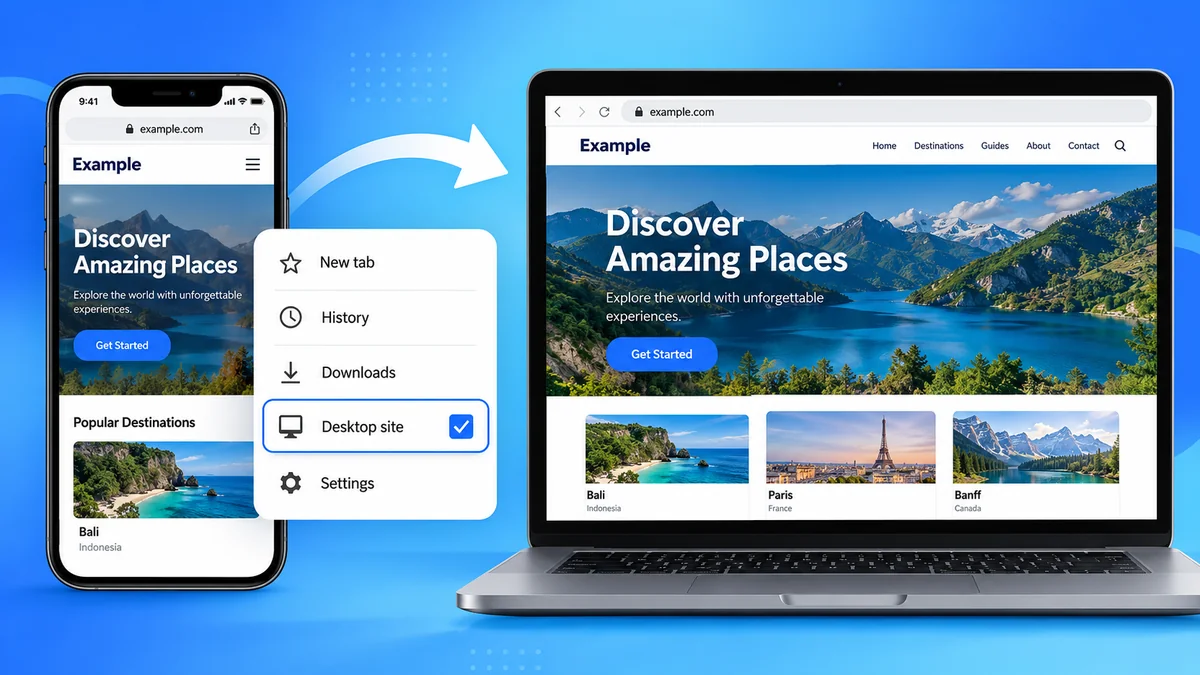

Have you ever opened a website on your phone and noticed that certain buttons, menus, or features were missing? The mobile version of a website may look completely different from what you see on a computer.
That’s where the desktop site option becomes useful.
A desktop site is a version of a website designed for larger screens, such as desktop computers and laptops. Mobile browsers offer a desktop site setting that requests the desktop-oriented version of a webpage. This can help users access different layouts, navigation menus, and features without switching to a computer.
In this guide, you’ll learn what desktop site means, how it works, how to enable it on popular browsers, and what to do when desktop mode doesn’t display correctly.
What Is a desktop site?
A desktop site is a website layout or experience intended primarily for desktop and laptop browsers. It typically uses the extra screen space to display wider navigation menus, multiple columns, detailed tables, and additional interface controls.
Most modern websites use responsive web design, which automatically adjusts the layout based on screen size.
For example, an online shopping website might display four products per row on a laptop but only one or two on a smartphone.
The underlying website may be the same, but the presentation changes.
Desktop Site vs. Mobile Site
| Feature | Desktop Site | Mobile Site |
|---|---|---|
| Screen layout | Wide, often multi-column | Narrow, usually stacked |
| Navigation | Full menus or navigation bars | Compact menus |
| Text and buttons | Designed for larger screens | Optimized for touch |
| Images | May use larger layouts | Often resized or rearranged |
| Tables | More columns visible | May scroll horizontally |
| User interaction | Mouse and keyboard friendly | Touchscreen friendly |
| Browser access | Desktop browsers or mobile desktop mode | Mobile browsers |
A desktop layout is not necessarily more complete than a mobile layout. Well-designed responsive websites can provide the same functionality across both.
How to Enable desktop site on Android
Android smartphones commonly use Google Chrome, Samsung Internet, Mozilla Firefox, or Microsoft Edge.
Most of these browsers provide a built-in option for requesting a desktop version of a webpage.
Enable Desktop Site in Google Chrome
Android — Google Chrome

1. Open Google Chrome on your Android phone and visit the website you want to view.
2. Tap the three-dot menu in the upper-right corner.
3. Find Desktop site and enable it. Chrome will request the desktop-oriented page.
Depending on your Chrome version, the setting may appear as a checkbox or another menu control.
Enable Desktop Site in Samsung Internet
If you use a Samsung Galaxy phone, Samsung Internet offers a similar feature.
- Open Samsung Internet.
- Navigate to the webpage.
- Tap the menu icon, commonly shown as three horizontal lines.
- Select Desktop site.
- Wait for the webpage to reload if necessary.
To return to the mobile experience, open the menu again and choose the mobile site option.
Enable Desktop Site in Firefox on Android
Mozilla Firefox supports desktop browsing through its site menu.
- Open Firefox and visit a website.
- Tap the three-dot menu.
- Locate the Desktop site switch.
- Turn it on.
- Allow the page to refresh.
Firefox may remember the setting for the current tab or website, depending on the browser version and configuration.
How to Enable desktop site on iPhone
Apple’s iPhone uses Safari as its default browser, although users can also install Chrome, Firefox, Edge, and other supported browsers.
The process differs slightly between applications.
Request Desktop Website in Safari

To request a desktop website in Safari:
- Open Safari on your iPhone.
- Visit the website you want to access.
- Tap the page menu icon beside the address bar. On some older iOS versions, this appears as aA.
- Open the page’s additional settings if necessary.
- Select Request Desktop Website.
Safari will attempt to load the desktop-oriented presentation.
The exact menu location can vary depending on your iOS version and Safari interface settings.
Enable Desktop Website by Default in Safari
On supported iOS versions, Safari also offers a preference for requesting desktop websites more broadly.
Open the Settings app, navigate to Safari’s website settings, and look for Request Desktop Website.
On newer iOS versions, Safari settings may appear under Settings → Apps → Safari.
You can configure the available default behavior or website-specific preferences.
Request Desktop Site in Chrome on iPhone
Google Chrome for iOS also provides a desktop website option.
- Open Chrome on your iPhone.
- Visit your chosen website.
- Tap the three-dot menu.
- Select Request Desktop Site.
- Wait for the page to reload.
The wording and placement can change with Chrome updates.
Unlike a full desktop browser, Chrome on iPhone still operates within iOS browser capabilities and does not automatically gain desktop-only extensions or software features.
How to Enable desktop site in Microsoft Edge
Microsoft Edge is available on Android, iOS, Windows, and macOS.
Its mobile browser includes a desktop site option.
On Android or iPhone
- Launch Microsoft Edge.
- Open the website.
- Tap the browser menu.
- Find the desktop site option, which may appear under additional page controls.
- Select it to request the desktop version.
If the website remains in mobile view, try refreshing the page.
On a Computer
Edge on Windows and macOS already uses a desktop browser environment by default.
You normally don’t need to enable desktop mode.
If a webpage appears unusually narrow, check the browser window size, zoom level, and any enabled device emulation in Developer Tools.
How Does desktop site Mode Work?
Desktop mode changes how a mobile browser requests or presents a website, but it does not turn your phone into a desktop computer.
Several technical factors determine what happens when you enable the option.
User-Agent Information
Browsers send identifying information to websites, including a user-agent string or related user-agent client hints.
These signals can help a server determine which browser or device environment is making the request.
When desktop mode is enabled, some browsers adjust their identification signals to resemble a desktop browser.
A website may then serve desktop-oriented content.
However, this behavior differs across browsers, operating systems, and websites.
Viewport and Screen Width
The viewport is the area available for rendering webpage content.
Mobile browsers typically use a narrow layout viewport suitable for smartphones.
Desktop mode may adjust viewport behavior to encourage a wider layout.
This can cause the page to appear zoomed out, with smaller text and more content visible horizontally.
Responsive Web Design
Responsive websites use CSS media queries, flexible grids, and other techniques to adapt to different screen sizes.
For example, a website might apply different layouts based on viewport width:
@media (max-width: 768px) {
  .content {
    width: 100%;
  }
}
This example applies a full-width content rule when the viewport is 768 CSS pixels wide or narrower.
Requesting a desktop site may influence which responsive rules apply, but the result depends on the browser and the website’s implementation.
Server-Side Device Detection
Some websites use server-side logic to deliver different HTML or application experiences to mobile and desktop users.
Others serve the same HTML and rely on CSS and JavaScript to change the layout.
As a result, enabling desktop mode does not guarantee that every website will display a different interface.
Benefits of Using desktop site Mode
Desktop mode can be helpful when a mobile layout doesn’t provide the interface you need.
Accessing Complex Navigation
Some websites simplify their navigation for smaller screens.
A desktop layout may expose more menu items at once, making it easier to find advanced settings or less prominent sections.
Viewing Large Tables and Dashboards
Financial reports, analytics dashboards, administrative panels, and comparison tables often contain many columns.
A desktop-oriented layout may make their structure easier to understand, although horizontal scrolling or zooming may still be necessary.
Using Website Administration Tools
People who manage websites through WordPress, content management systems, or hosting dashboards sometimes prefer desktop mode.
For example, a WordPress administration page may provide a more familiar arrangement of menus and editing panels when viewed in a desktop-oriented layout.
However, some drag-and-drop editors still require a larger screen or precise pointer input.
Accessing Different Page Controls
Occasionally, a website exposes certain controls only in its desktop layout.
Requesting desktop mode can help locate those controls, but it cannot bypass account permissions, paid access restrictions, or features genuinely unsupported on mobile devices.
How to Make desktop site the Default in Chrome
If you frequently prefer desktop layouts, you don’t need to enable the option every time.
Google Chrome for Android provides browser-wide desktop mode settings and website-specific exceptions.
To change the default:
- Open Chrome on Android.
- Tap the three-dot menu and select Settings.
- Open Site settings.
- Select Desktop site.
- Choose your preferred default: automatic, mobile, or desktop.
Chrome can also select the default view based on screen size and device memory. You can add exceptions for websites that need different settings.
Google Chrome Help
Enable Desktop Mode for One Website Only
A website-specific exception is useful when you prefer mobile browsing generally but need a desktop layout for a particular dashboard or web application.
In Chrome’s desktop site settings, find the option to add a site exception and enter the website address.
This avoids forcing desktop layouts on every website you visit.
Why Is desktop site Not Working?
Sometimes, requesting a desktop site makes no visible difference. Other times, the page changes but still lacks the feature you need.
Several issues can explain this behavior.
The Website Uses a Responsive Layout
A responsive website may serve essentially the same page to desktop and mobile users.
Its layout depends on viewport dimensions rather than simply checking whether the browser identifies itself as mobile or desktop.
Even when desktop mode is active, the website may continue to look similar.
The Website Has No Separate Desktop Version
Not every website maintains separate mobile and desktop experiences.
Many websites use a single responsive codebase.
Requesting desktop mode cannot reveal a separate layout that doesn’t exist.
Browser Settings Are Being Overridden
A website may remember your preferred display mode using cookies, local storage, or account settings.
These preferences can sometimes influence the layout independently of the browser’s desktop site setting.
Try refreshing the page, checking the website’s own display settings, or opening the page in a new private browsing session.
Cached Content Is Displayed
Browsers store resources locally to improve loading performance.
Occasionally, a previously loaded page may remain visible after changing the browsing mode.
Refresh the webpage first. If the problem continues, consider clearing the relevant website’s cached data, remembering that deleting site data may also sign you out.
The Feature Requires Desktop Hardware
Some web applications depend on mouse movement, keyboard shortcuts, drag-and-drop interactions, or other capabilities that are difficult to reproduce on a touchscreen.
Desktop mode doesn’t automatically provide these hardware capabilities.
For complex applications, a laptop or desktop computer may still be necessary.
Disadvantages of Using desktop site on Mobile
Although desktop mode can be useful, it is not always the best browsing experience.
Smaller text: Desktop layouts may appear zoomed out, making paragraphs and navigation labels difficult to read.
Horizontal scrolling: Wide tables and fixed-width page elements may extend beyond your phone’s screen.
Touch difficulties: Small buttons, hover menus, and closely spaced controls can be frustrating on touchscreens.
Possible performance issues: Some desktop-oriented experiences use complex interface components or larger assets, although desktop mode does not necessarily increase data usage.
Accessibility limitations: A desktop interface may be less comfortable for users who rely on large touch targets or mobile accessibility features.
For routine reading, searching, and navigation, the mobile version is often more convenient.
desktop site on Tablets and iPads
Tablets occupy a middle ground between smartphones and desktop computers.
Their larger screens make desktop-oriented layouts more practical.
Some browsers automatically request desktop websites on tablets.
For example, Firefox for Android has requested desktop sites by default on tablets since version 133, while still allowing users to change that behavior.
Firefox for Android Help
On an iPad, Safari may display desktop-oriented websites without requiring you to change the view manually.
However, a tablet’s screen size, browser settings, and website design still determine the final layout.
When Should Tablet Users Enable Desktop Mode?
Desktop mode can be useful for spreadsheets, content management dashboards, complex forms, and websites containing large navigation structures.
For reading articles or using mobile-optimized applications, the automatic or mobile layout may remain more comfortable.
Is desktop site Safe to Use?
Yes. Desktop site mode is a normal browser feature and is generally safe.
Enabling it doesn’t automatically grant websites additional permissions or change your account’s security settings.
However, some privacy-related considerations are worth understanding.
A desktop-mode request can change the browser information visible to a website. It does not make your device anonymous or hide your IP address.
You should continue following ordinary browsing precautions, including checking website addresses, avoiding suspicious downloads, and keeping your browser updated.
Desktop mode also cannot bypass authentication requirements, geographic restrictions, or website access controls.
Can You Use desktop site Without Installing an App?
Yes. You don’t need a separate application or browser extension to request desktop mode.
Modern mobile browsers include this functionality directly.
In most cases, the process takes only a few taps through the browser menu.
Third-party applications that promise to force desktop browsing are usually unnecessary for this basic purpose.
Using your existing browser’s built-in setting is generally simpler.
How to Switch Back to Mobile Site
Returning to the mobile layout is straightforward.
Open the same browser menu you used to enable desktop mode and turn the option off, or select Request Mobile Site where available.
In Firefox for iOS, for example, the Page Actions menu lets you switch between desktop and mobile site views.
Firefox for iOS Help
If the desktop layout persists, check whether you configured a website-specific preference or a browser-wide default.
Once the desktop request is disabled, reload the page to allow the website to display its normal mobile presentation.
Final Thoughts
The desktop site feature gives mobile users another way to view and interact with websites. It is particularly useful for accessing complex navigation, administrative dashboards, detailed tables, and interfaces that are easier to understand in a wider layout.
Chrome, Safari, Firefox, Samsung Internet, and Microsoft Edge all provide ways to request desktop-oriented websites.
The key limitation is that desktop mode changes how a browser requests or renders a webpage; it doesn’t transform a smartphone into a computer or guarantee access to every desktop feature.
For the best experience, use mobile view for everyday browsing and switch to desktop mode when a particular website or task benefits from it.
