
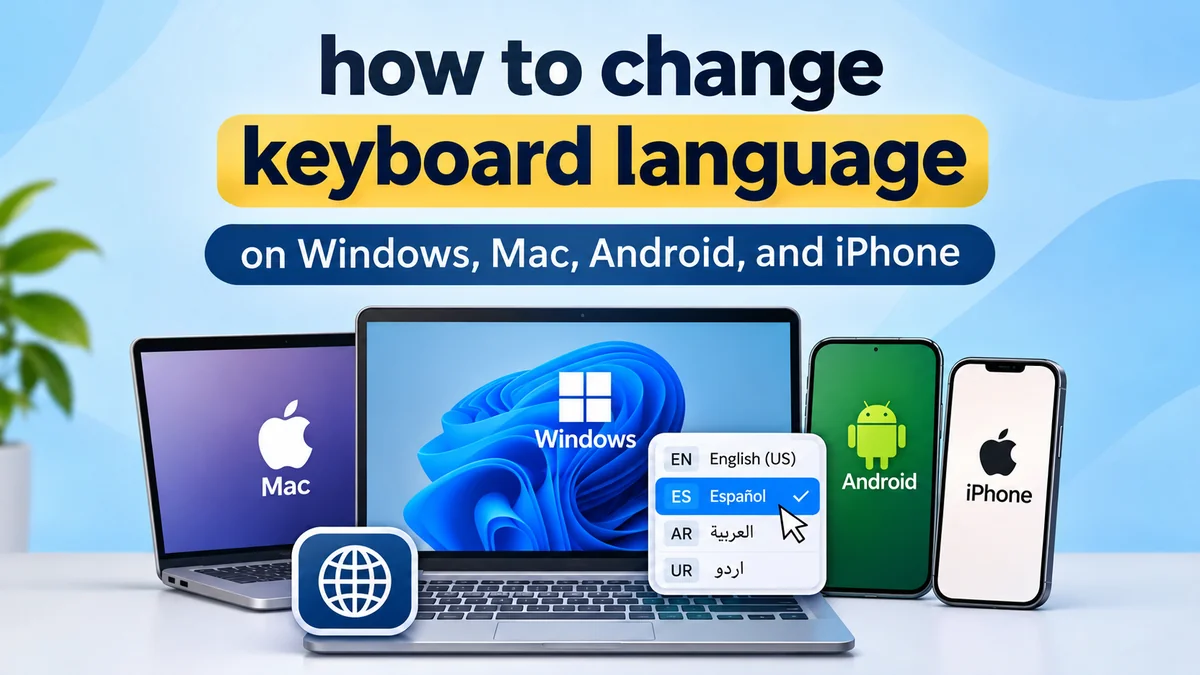

Typing in the wrong language can turn a simple message into a frustrating experience. You might need to switch from English to Spanish, type in Urdu, or use a different keyboard layout for work or school.
Learning how to change keyboard language makes it easier to communicate in multiple languages without changing your device’s entire display language.
Quick answer: To change your keyboard language, open your device’s keyboard or language settings, add the language you want, and select its keyboard layout. On Windows, switch using Windows + Space. On Mac, use the Input menu or a configured shortcut. On Android and iPhone, switch languages directly from the on-screen keyboard.
How to Change Keyboard Language on Windows 11 and Windows 10
Windows supports multiple keyboard languages and layouts, including English, French, German, Spanish, Arabic, Urdu, and many others. You can install several input languages and switch between them without restarting your computer.
Change keyboard language on Windows 11
- Press Windows + I to open Settings.
- Select Time & language from the left sidebar.
- Click Language & region.
- Under Preferred languages, choose Add a language.
- Search for the language you want, such as Spanish or Urdu.
- Select the language and click Next.
- Review the optional language features and click Install.
- Once installed, use the language indicator on your taskbar to select your keyboard language.
If the language is already installed but its keyboard layout is missing, select the three-dot menu beside the language, open Language options, and add a keyboard under the Keyboards section.
You do not need to change the Windows display language simply to type in another language.
Change keyboard language on Windows 10
Windows 10 uses a slightly different settings interface.
- Open Start → Settings.
- Select Time & Language.
- Click Language.
- Under Preferred languages, select Add a language.
- Find and install your preferred language.
- Select the language, open Options, and add a keyboard layout if necessary.
- Use the taskbar language indicator to switch input methods.
For example, you can keep Windows menus in English while using an Arabic keyboard to write messages.
Windows keyboard language shortcuts
Keyboard shortcuts are the fastest way to switch between installed input methods.
| Shortcut | Function |
|---|---|
| Windows + Space | Cycle through installed keyboard layouts |
| Alt + Shift | Switch input languages when the shortcut is configured |
| Windows + I | Open Windows Settings |
| Windows + R | Open the Run dialog |
Practical tip: Hold the Windows key and press Space repeatedly to cycle through your available keyboard layouts.
If Windows + Space does nothing, check whether you have more than one keyboard layout installed.
How to Change Keyboard Language on Mac
Apple’s macOS uses input sources to manage keyboard languages. You can add multiple input sources, switch between them, and customize keyboard shortcuts.
Add a keyboard language on macOS
On recent macOS versions:
- Click the Apple menu in the upper-left corner.
- Open System Settings.
- Select Keyboard.
- Find Text Input and click Edit.
- Click the + button to add an input source.
- Search for the language you want.
- Select an available keyboard layout.
- Click Add.
The new input source becomes available through the Input menu in the macOS menu bar.
Older macOS versions may use System Preferences → Keyboard → Input Sources instead.
Switch keyboard language on Mac
You can switch languages using the Input menu or keyboard shortcuts.
- Control + Space: Switch to the previous input source when the shortcut is enabled.
- Control + Option + Space: Move to the next input source when configured.
- Fn or Globe key: Switch input sources if that function has been assigned in Keyboard settings.
- Input menu: Select your preferred language directly from the menu bar.
For example, a bilingual writer can switch between English and Japanese without opening System Settings every time.
Change the keyboard layout without changing the language
A language may offer multiple layouts.
English, for example, can use US, British, or other regional keyboard layouts. The placement of symbols such as @, quotation marks, and currency signs can differ.
To change the layout, add the appropriate input source in Keyboard settings and select it from the Input menu.
How to Change Keyboard Language on Android
Android phones and tablets support multilingual typing, although the exact steps depend on the manufacturer and keyboard application.
Common keyboard apps include Gboard, Samsung Keyboard, and Microsoft SwiftKey.
Change keyboard language using Gboard
Gboard is commonly used on Google Pixel phones and many other Android devices.
- Open Settings on your Android phone.
- Go to System → Keyboard → On-screen keyboard, or the equivalent menu on your device.
- Select Gboard.
- Tap Languages.
- Select Add keyboard.
- Choose the language you want.
- Select your preferred layout.
- Tap Done.
You can also access Gboard settings from the keyboard itself.
Once you have added another language, open an app such as Messages, WhatsApp, or Gmail and bring up the keyboard.
Depending on your settings, hold or tap the globe key, or hold the spacebar, to switch between languages.
Change keyboard language on Samsung Galaxy
Samsung Galaxy devices commonly use Samsung Keyboard by default.
- Open Settings.
- Select General management.
- Tap Samsung Keyboard settings.
- Open Languages and types.
- Select Manage input languages.
- Enable or download the language you want.
- Return to your keyboard.
On many Samsung keyboards, you can swipe left or right across the spacebar to switch languages. The exact gesture depends on your keyboard’s language-switching settings.
For example, you could enable English and Urdu and alternate between them while writing a message.
Change language in Microsoft SwiftKey
If you use Microsoft SwiftKey:
- Open the SwiftKey app or its settings.
- Select Languages.
- Find and download your preferred language.
- Enable an appropriate keyboard layout.
- Open a typing app and switch languages using the keyboard’s available controls.
SwiftKey also supports multilingual predictions for supported language combinations, allowing some users to type in more than one language without manually switching each time.
How to Change Keyboard Language on iPhone and iPad
iOS and iPadOS allow multiple keyboards to be installed, including languages that use different writing systems.
Add a new keyboard language on iPhone
- Open the Settings app.
- Tap General.
- Select Keyboard.
- Tap Keyboards.
- Select Add New Keyboard.
- Choose the language you want.
- Select a layout if the language offers multiple options.
The new keyboard will now be available when you type.
For example, you can add Spanish, Arabic, Hindi, or Chinese while keeping your iPhone’s interface in English.
Switch keyboard language while typing
- Open Messages, Notes, Safari, or another app with a text field.
- Tap the text field to display the keyboard.
- Touch and hold the globe or emoji key near the bottom of the keyboard.
- Select the language you want from the list.
You can also tap the globe key repeatedly to cycle through available keyboards.
If you have several keyboards installed, holding the globe key is usually more convenient because you can select the intended language directly.
Remove an unwanted iPhone keyboard
If you no longer need a language:
- Go to Settings → General → Keyboard → Keyboards.
- Tap Edit.
- Remove the unwanted keyboard.
- Tap Done.
Removing a keyboard does not change the device’s display language or delete documents written in that language.
How to Change Keyboard Language on Chromebook
Chromebooks use ChromeOS, which supports different keyboard languages, input methods, and special characters.
Add a keyboard language on Chromebook
- Click the time in the bottom-right corner.
- Open Settings.
- Under Device, select Keyboard.
- Click Change input settings.
- Find the Input methods section.
- Add the keyboard languages you want.
- Select your preferred input method.
After adding a language, you can switch using the input indicator on the shelf.
Chromebook keyboard language shortcuts
| Shortcut | Action |
|---|---|
| Ctrl + Shift + Space | Cycle through input methods |
| Ctrl + Space | Switch to the previous input method |
| Ctrl + Shift + U | Begin entering a Unicode character in supported text fields |
The input language indicator can also be displayed beside the clock for convenient switching. Chromebook Help
How to Change Keyboard Language Using Shortcuts
Once your preferred languages are installed, you usually do not need to open Settings again.
Here is a quick comparison of common keyboard language switching methods.
| Device | Language switching method |
|---|---|
| Windows 11/10 | Windows + Space |
| Mac | Control + Space, if configured |
| Android (Gboard) | Hold the spacebar |
| Samsung Galaxy | Swipe the spacebar, if enabled |
| iPhone/iPad | Tap or hold the globe key |
| Chromebook | Ctrl + Shift + Space |
Some shortcuts can be customized or may conflict with application shortcuts. If a shortcut does not work, use the device’s language menu and check the assigned keyboard settings.
How to Change Keyboard Language for Different Writing Systems
Changing keyboard language is not always the same as changing keyboard layout. This distinction matters when typing in languages that use non-Latin scripts.
Switch between English and Urdu
Urdu uses a right-to-left writing system. Depending on your device, you may find traditional Urdu layouts, phonetic keyboards, or transliteration options.
On Windows, add Urdu under Language settings and select an available Urdu keyboard layout. On Android, add Urdu through Gboard or another compatible keyboard application.
A phonetic layout can be easier for someone familiar with English letter positions because keys are mapped according to approximate sounds.
Switch between English and Arabic
Arabic also uses right-to-left text.
After adding an Arabic keyboard, applications that support bidirectional text can handle Arabic letters alongside English text.
If punctuation appears in an unexpected position, check the text direction settings in your document editor rather than assuming the keyboard is malfunctioning.
Type in Chinese or Japanese
Chinese and Japanese input methods work differently from ordinary alphabetic layouts.
Chinese input methods commonly support Pinyin, where you enter Latin letters representing pronunciation and select the appropriate Chinese characters.
Japanese input methods often allow users to type using Romaji, converting Latin-letter input into Hiragana, Katakana, or Kanji.
On Windows, the Microsoft Pinyin and Japanese IME input methods provide these capabilities. On macOS, comparable input sources are available through Keyboard settings.
Type accented characters without switching languages
Sometimes you only need an accented letter rather than a completely different keyboard.
For example:
- Spanish: ñ, á, é
- French: é, è, ç
- German: ä, ö, ü, ß
- Portuguese: ã, õ, ç
On many mobile keyboards, holding a letter displays accented variations.
On Windows, an international keyboard layout can provide convenient access to accented characters. On Mac, holding supported letter keys often displays an accent selection menu.
How to Fix Keyboard Language Not Changing
If you followed the setup instructions but your keyboard still types in the wrong language, the problem is usually related to the installed layout, selected input method, or keyboard application.
1. Keyboard language is missing
If your preferred language does not appear in the switching menu, verify that it was added successfully.
On Windows, open Language & region and check the installed keyboard layouts. On Android or iPhone, inspect the keyboard language list.
Installing a display language does not always mean the desired keyboard layout is available or selected.
2. Keyboard shortcut is not working
If Windows + Space or another shortcut does nothing, check whether multiple input methods are installed.
For Windows, Microsoft confirms that Windows + Space will not switch layouts when only one keyboard layout is installed. Microsoft Support
On Mac, check the keyboard shortcut assignments in System Settings because another feature may be using the same key combination.
3. Keyboard keeps switching back to English
Some applications remember their own input language, while others follow the system’s current keyboard.
Try these steps:
- Select the desired keyboard language.
- Close and reopen the affected application.
- Check whether the application has separate language settings.
- Remove unused keyboard layouts if accidental switching continues.
- Restart the device if the input method remains unresponsive.
On Windows, review Advanced keyboard settings if different applications appear to use different input methods.
4. Keyboard symbols do not match the physical keys
This commonly happens when the selected layout differs from the physical keyboard.
For example, US and UK keyboards have different arrangements for certain symbols. A French AZERTY layout also places some letters differently from a standard English QWERTY layout.
Check the selected layout and match it to your physical keyboard where possible.
5. The globe icon is missing on Android
Gboard allows users to control whether the language-switch key appears.
To enable it:
- Open Gboard Settings.
- Select Preferences.
- Enable Show language switch key.
If the option is unavailable, you may need to disable the separate emoji switch key. You can still hold the spacebar to switch between configured languages. Gboard Help+1
6. A language downloads but does not appear
Some language features require an internet connection during installation. Others may be unavailable for a particular keyboard application or device version.
Confirm that the download finished, check for system or keyboard-app updates, and look for an alternative supported input method.
Avoid repeatedly installing the same language pack without checking whether its keyboard layout is already present.
Keyboard Language vs. Display Language: What’s the Difference?
These settings serve different purposes, even though they are often located near each other.
| Feature | Keyboard language | Display language |
|---|---|---|
| Main purpose | Controls typing and character input | Controls interface text |
| Changes menus | Usually no | Yes |
| Affects typing | Yes | Not necessarily |
| Supports multiple languages | Yes | Depends on device settings |
| Requires restart | Usually no | Sometimes requires sign-out or restart |
| Example | Type Spanish on an English device | Display system menus in Spanish |
For instance, someone working on an English-language Windows laptop can install an Urdu keyboard to write Urdu documents without changing the language of File Explorer or the Settings application.
Windows specifically treats keyboard layout selection and display language selection as separate settings. Microsoft Support+1
Tips for Using Multiple Keyboard Languages Efficiently
Multilingual typing becomes easier when you configure only the input methods you actually use.
Keep your most-used languages installed. If you regularly switch between English and Spanish, there is little benefit in maintaining several additional layouts that you never use.
Learn one reliable switching method. A keyboard shortcut on a computer or a spacebar gesture on a phone is faster than repeatedly opening Settings.
Choose the correct regional layout. English (US), English (UK), and other variants may use different symbol positions, even though they share the same language.
Use language-aware suggestions carefully. Autocorrect and predictive typing may change when you switch languages. Check proper names, technical terms, and mixed-language sentences before sending them.
Test your keyboard in a simple text editor. Before using a new input method in an important document, try it in Notes, Notepad, or another basic writing application.
Be careful at password screens. A different keyboard layout can change the characters produced by certain physical keys. If your password suddenly appears incorrect, verify the selected keyboard layout before trying again.
Final Thoughts
Knowing how to change keyboard language helps you type comfortably in multiple languages across computers, phones, and tablets.
Windows users can usually switch with Windows + Space, Mac users can select input sources through the menu bar, Android users can manage languages in Gboard or their preferred keyboard, and iPhone users can switch through the globe key.
Start by adding your preferred language, choose the correct keyboard layout, and test the switching method in a text field. Once configured, changing typing languages generally takes only a few seconds.
