
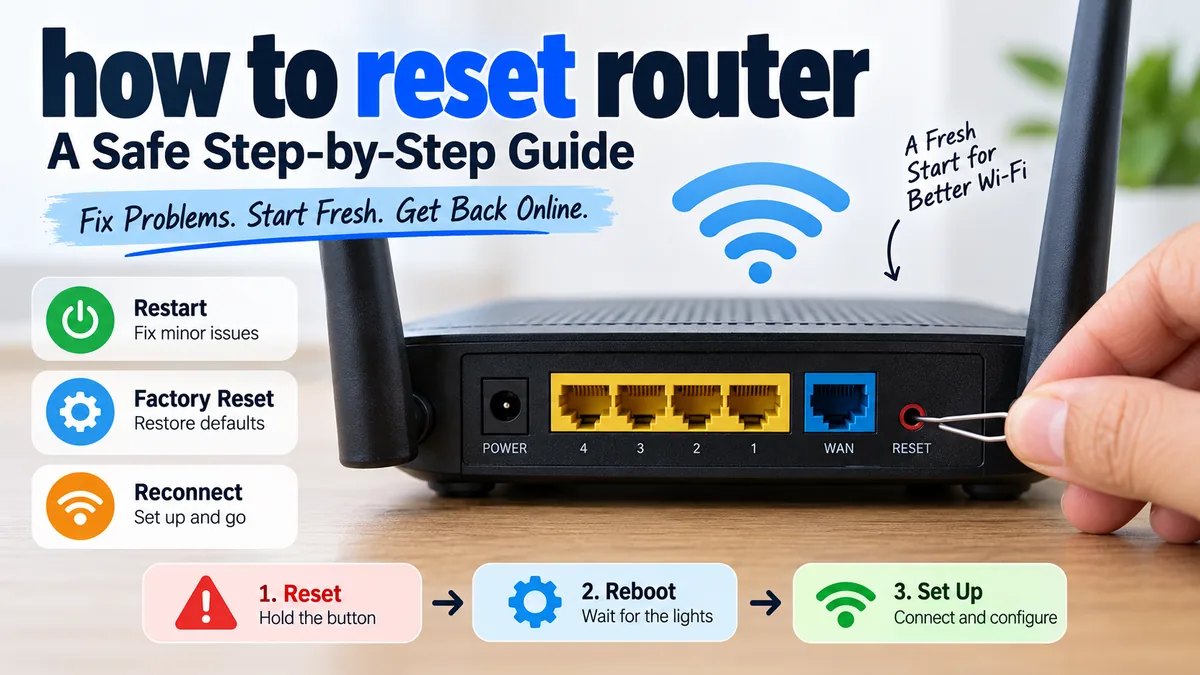

A router that suddenly drops Wi-Fi, refuses your admin password, or stops connecting devices can make a factory reset seem like the obvious fix. But pressing the Reset button too soon can erase settings you actually need.
If you want to know how to reset router safely, first decide whether you need a simple restart or a full factory reset. A restart keeps your Wi-Fi name, password, and other configuration. A factory reset erases customized settings and returns the router to its original setup state.
Quick answer: To factory-reset most home routers, keep the router powered on, locate the recessed Reset button, press and hold it with a paperclip until the status lights change, then release it and wait for the router to restart. The exact hold time varies by manufacturer and model, so check the router’s manual before proceeding.
How to Reset Router Without Losing Your Settings
The first thing to understand is that “reset” is commonly used for two very different actions: restarting the router and restoring factory defaults.
If your internet is simply slow, unstable, or temporarily unavailable, start with a restart or power cycle. You normally do not need a factory reset for an ordinary Wi-Fi problem.
| Action | What It Does | Erases Wi-Fi Settings? | Best Used For |
|---|---|---|---|
| Restart/reboot | Turns the router off and starts it again | No | Slow Wi-Fi, temporary connection problems |
| Power cycle | Disconnects and restores power | No | Router freezes or connection failures |
| Factory reset | Restores factory-default configuration | Yes | Forgotten admin password, corrupted configuration, clean setup |
| Admin-panel reset | Performs factory reset through software | Yes | When you can still access router settings |
A factory reset is the disruptive option. For example, Verizon warns that customized Wi-Fi settings, including the network name and password, are deleted when its routers are restored to factory defaults.
Restart the Router First
For most everyday internet problems, try this before touching the Reset button:
- Turn the router off or disconnect its power cable.
- Wait about 30 seconds.
- Reconnect the power.
- Wait for the router to finish starting.
- Reconnect your phone or computer and test the internet.
A restart reloads the router without intentionally deleting its saved configuration.
That distinction matters. Unplugging a router is not the same thing as factory-resetting it.
Quick Takeaway: If your goal is simply to fix slow or unstable Wi-Fi, restart first. Save a factory reset for problems that actually require the router’s configuration to be erased.
When Should You Factory Reset a Router?
A factory reset is useful when the problem involves the router’s saved configuration rather than a temporary connection glitch.
Common situations include:
- You forgot the router’s administrator password.
- Incorrect settings are preventing the router from working.
- You want to remove old custom configurations.
- You are setting up a previously used router from scratch.
- Troubleshooting steps have failed and the manufacturer recommends resetting.
- You are transferring the router to another user.
- You need to recover from configuration changes you cannot reverse manually.
TP-Link, for example, identifies forgotten passwords and persistent connectivity problems among reasons a factory reset may be appropriate.
Don’t assume a reset will fix every internet outage, though. If your ISP has an outage, your modem has lost its broadband signal, an Ethernet cable is damaged, or the WAN connection is down, erasing the router configuration may accomplish nothing.
What Does a Factory Reset Actually Erase?
This varies by router, but you should expect customized configuration to disappear.
That may include:
- Wi-Fi network name (SSID)
- Wi-Fi password
- Router administrator password
- Guest network configuration
- Parental controls
- Port forwarding rules
- DNS settings
- DHCP configuration
- Access-control rules
- Firewall customizations
- VPN settings
- Static IP assignments
- Internet/WAN configuration
- Mesh-related configuration on some systems
TP-Link specifically notes that factory restoration removes custom Internet settings, Wi-Fi configuration, port-forwarding rules, and parental controls.
One useful distinction: resetting settings does not necessarily downgrade the router’s firmware. D-Link states that a factory reset restores configuration defaults without returning the firmware to an earlier version.
What to Do Before You Reset Your Router
A little preparation can save a lot of frustration.
1. Check the Router Label
Look underneath or behind the router.
The label may contain:
- Model number
- Default Wi-Fi network name
- Default Wi-Fi password or wireless key
- Device-specific setup information
- Router address
- Serial number
Take a photo if appropriate so you have the information available after the reset.
2. Record Your Current Wi-Fi Details
Write down your current SSID and Wi-Fi password.
If you recreate the same network name, security mode, and password afterward, many previously connected devices may reconnect automatically.
That can be particularly helpful if your home contains smart TVs, security cameras, printers, speakers, plugs, thermostats, or other IoT devices.
3. Back Up the Router Configuration
If your router supports configuration backups and you can still access its admin interface, save a backup before resetting.
For example, Linksys provides a Backup and Restore function designed to save router configuration so it can be retrieved after a reset.
Be careful when restoring an old backup, however. If you are resetting because you suspect a configuration problem, restoring the exact same configuration may also restore the problem.
4. Know Your ISP Connection Requirements
This step is often overlooked.
Some internet connections require ISP-specific information during setup. Depending on the service, that might include PPPoE credentials, VLAN configuration, static IP details, or other WAN parameters.
If your router was configured by your internet provider and you do not know how the connection is provisioned, check the provider’s documentation before wiping it.
5. Find the Correct Reset Procedure
Reset-button behavior is not universal.
One router may require seven seconds; another may require ten or fifteen. A WPS button may also double as the Reset button on certain hardware.
Use instructions for your exact model, not just the brand.
how to reset router Using the Physical Reset Button
The physical Reset button is the most universal factory-reset method because it works even when you cannot log in to the router’s web interface.
Step 1: Keep the Router Powered On
Most routers must be powered on before you press the Reset button.
Wait until the router has completed its normal startup process.
Step 2: Find the Reset Button
Look on the:
- Rear panel
- Bottom
- Side panel
The button may be labeled:
- Reset
- RST
- Restore Factory Settings
- WPS/Reset
Many routers use a recessed pinhole to prevent accidental resets.
Step 3: Use a Paperclip if Necessary
If the button is recessed, straighten a paperclip or use another suitable blunt, narrow object.
Insert it gently until you feel the button press.
Don’t force the object into an unlabeled hole. Make sure you have actually identified the Reset button first.
Step 4: Press and Hold Reset
Hold the button for the duration specified by your router manufacturer.
The required time varies significantly. For example, TP-Link documents a hold of more than 10 seconds for many routers, Linksys specifies 10 seconds for the cited mesh-router procedure, Verizon specifies 15 seconds for its documented router reset, while D-Link’s cited DIR-878 instructions specify seven seconds.
This variation is why a universal “hold it for exactly 10 seconds” instruction isn’t reliable.
Step 5: Watch the Status Lights
Depending on the model, you may see:
- Power LED flashing
- System LED changing its blink pattern
- Multiple LEDs switching off
- LEDs flashing together
- A status light changing color
These signals often indicate that the reset has been triggered.
Step 6: Release the Button
Once the manufacturer’s specified reset indication appears, release the button.
Do not disconnect power while the router is restoring its settings.
Step 7: Wait for the Router to Reboot
The router should restart automatically.
Give it time to complete the process before trying to connect. During this period, your old Wi-Fi network may disappear because its custom SSID has been erased.
Quick Takeaway: Keep the router powered on, press the correct Reset button for the model-specific duration, release it when the documented LED behavior occurs, and leave the router alone until it finishes rebooting.
How to Factory Reset a Router Through the Admin Page
If you still know the router administrator password, resetting through the web interface can be easier than finding a tiny physical button.
The exact menu varies by manufacturer.
Step 1: Connect to the Router
Connect your computer or phone to the router using Wi-Fi or Ethernet.
An Ethernet connection can be useful because it avoids losing the local connection unexpectedly while navigating wireless settings.
Step 2: Open the Router’s Admin Interface
Enter the router’s local management address into a web browser.
Common private addresses include:
192.168.0.1192.168.1.1
But don’t assume either address is correct. Use the address listed in your router’s documentation, label, app, or current network gateway information.
Step 3: Log In
Enter the router administrator credentials.
Remember that the router admin password and Wi-Fi password can be different credentials.
Step 4: Find the Factory Reset Option
Depending on the firmware, look for menus named:
- Administration
- System
- System Tools
- Troubleshooting
- Backup & Restore
- Factory Defaults
- Restore
For example, TP-Link documents factory restoration through its web management interface under its system/backup-and-restore settings on supported models.
Step 5: Confirm Factory Restore
Select Factory Reset, Factory Restore, Restore Factory Defaults, or the equivalent option.
Read the warning carefully before confirming.
Once the reset starts, don’t unplug the router.
How to Reset Router by Brand
There is no single reset-button timing that applies to every router. Even devices from the same manufacturer can use different procedures.
Use this as orientation rather than a substitute for your model’s manual.
TP-Link Router Reset
On many TP-Link routers:
- Leave the router powered on.
- Locate Reset or WPS/Reset.
- Hold the button for more than 10 seconds on models covered by TP-Link’s general reset instructions.
- Release it when the appropriate system LED changes its flashing behavior.
- Wait for the router to restart.
Some TP-Link products use different button behavior, which reinforces the need to verify the exact model.
Linksys Router Reset
For the Linksys mesh-router procedure documented by Linksys:
- Make sure the router is powered on.
- Hold its Reset button for 10 seconds.
- Watch for the documented LED sequence.
- Release the button.
- Allow the router to return to its factory configuration.
Linksys also provides a software-reset option through the router interface on supported equipment.
D-Link Router Reset
D-Link’s instructions for the DIR-878 illustrate why model-specific guidance matters:
- Keep the router on.
- Press the recessed Reset button with a paperclip.
- Hold it for seven seconds.
- Release it and allow the router to reboot.
- Wait until the power indicator finishes its startup sequence.
ISP-Supplied Routers and Gateways
Equipment supplied by an ISP deserves extra caution.
A device that looks like a Wi-Fi router may actually combine several functions, such as:
- Modem
- Router
- Wireless access point
- Ethernet switch
- Telephone/VoIP gateway
Resetting an ISP gateway may therefore affect more than the Wi-Fi network.
For example, Verizon’s documented factory-reset procedure uses a 15-second Reset-button hold and warns that personalized Wi-Fi settings are deleted.
For equipment from providers such as Xfinity, Spectrum, BT, Sky, Virgin Media, TalkTalk, or other ISPs, follow instructions for the exact supplied gateway rather than generic router directions.
What Happens After You Reset a Router?
After a successful factory reset, the router behaves much more like a newly installed device.
Your customized SSID may disappear and be replaced by the router’s default setup network. Your previous Wi-Fi password may stop working. The router’s admin interface also returns to its default or initial-setup state.
Reconnect to the Default Network
Check the router label or manufacturer documentation for its setup information.
Connect your phone or computer to the default wireless network, or use Ethernet if supported.
Open the Setup Page or App
Modern routers may be configured through:
- A web browser
- Manufacturer mobile app
- ISP app
- Setup wizard
Follow the device’s official setup process.
Configure the Internet Connection
Many home connections configure automatically, but some require ISP-specific settings.
If the router connects to Wi-Fi locally but shows no internet, check the WAN connection before assuming the reset failed.
Make sure:
- The modem or ONT is online.
- The Ethernet cable reaches the router’s WAN/Internet port.
- The router received the necessary WAN configuration.
- Required ISP credentials or VLAN settings are correct.
Create Your Wi-Fi Network
Configure your SSID and Wi-Fi password.
You can use your previous network details if you want compatible devices to recognize the network again, provided you use secure settings.
Set a New Administrator Password
Don’t leave the router management interface inadequately protected.
Set a strong, unique administrator password that is different from passwords you use for other accounts.
Check Wireless Security
Use the strongest security mode supported appropriately by your router and devices, typically WPA2 or WPA3 depending on hardware compatibility.
Avoid obsolete wireless security options when modern alternatives are available.
Reapply Custom Settings Carefully
If you previously used advanced configuration, restore or recreate settings such as:
- Guest networks
- Parental controls
- Port forwarding
- DHCP reservations
- Custom DNS
- VPN configuration
- Access controls
- Mesh nodes
Make one group of changes at a time. This makes troubleshooting easier if the original problem returns.
Why Is My Internet Not Working After a Router Reset?
This is one of the most common surprises after a factory reset.
Your phone may connect successfully to the new Wi-Fi network while websites still refuse to load. That tells you the wireless connection between the phone and router is working, but the router may not have established its internet connection.
Check the WAN or Internet Cable
Make sure the cable from your modem or ONT is connected to the router’s WAN/Internet port rather than one of its LAN ports.
Check both ends of the Ethernet cable.
If the router’s Internet/WAN indicator remains off, a cable or port problem is possible. TP-Link’s current troubleshooting guidance, for example, recommends checking the Ethernet connection and trying another cable when relevant port indicators remain off.
Restart the Modem or ONT if Appropriate
Some connections may need the upstream equipment to establish a fresh connection with the router.
Follow your ISP’s recommended startup order because modem, ONT, and gateway arrangements differ.
Re-enter ISP Settings
If your connection uses PPPoE, you may need the username and password supplied by the ISP.
Other providers may require particular VLAN or IP settings.
Allow the Router to Finish Setup
Don’t judge the result immediately after the LEDs come back on.
The router may still be negotiating an internet connection, applying configuration, or bringing its wireless radios online.
What If the Router Reset Button Does Nothing?
Pressing Reset and seeing no change doesn’t necessarily mean the router is defective.
Make Sure the Router Is Powered On
Many factory-reset procedures require the router to remain powered during the button hold.
Verify You Have the Correct Button
WPS, Wi-Fi, power, and Reset buttons can sit close together.
Some devices combine WPS and Reset into one button, with different actions depending on how long it is pressed.
Hold It for the Correct Duration
A quick press may do nothing or trigger another feature.
Check the exact manufacturer’s instructions for your model.
Try the Software Reset
If the router still works well enough for you to access its administrator interface, use its factory-default option instead.
Check the Manual Before Trying Unusual Reset Methods
Some devices have specialized recovery or reset sequences involving the WPS button or power cycle.
Don’t experiment with undocumented button combinations. Use the official manual for the exact model.
Does Resetting a Router Change the Wi-Fi Password?
A restart does not normally change your Wi-Fi password.
A factory reset does remove the customized wireless configuration, meaning the router returns to its initial setup/default state. Verizon explicitly notes that personalized Wi-Fi names and passwords are deleted during factory restoration.
This distinction explains why devices suddenly stop connecting after a hard reset.
Your phone is still trying to join the old SSID with the old credentials while the router is broadcasting its default or newly configured network.
Does Resetting a Router Change Your IP Address?
Not necessarily.
There are several addresses involved in a home network.
Your router has a local gateway address, while your ISP assigns or routes the internet-facing connection. A factory reset can restore the router’s local network configuration to its defaults, but it does not guarantee that your public IP address will change.
If your goal is specifically to obtain a different public IP, factory-resetting your router is not a reliable method.
Will Resetting the Router Fix Slow Wi-Fi?
Sometimes, but a factory reset should not be the first fix.
Slow wireless performance can result from:
- Wi-Fi interference
- Weak signal
- Poor router placement
- Congested channels
- Too many active devices
- ISP congestion
- Damaged cables
- Outdated or malfunctioning hardware
- Broadband-plan limitations
- Problems with a specific phone or computer
Start with a restart and basic troubleshooting.
If the speed is poor only in distant rooms, resetting the router is unlikely to fix the underlying coverage problem.
If Ethernet is fast but Wi-Fi is slow, investigate the wireless network.
If both wired and wireless connections are slow, check the broadband connection, modem/ONT, ISP status, and router performance.
How Often Should You Reset Your Router?
There is no reason to routinely factory reset a healthy router.
Factory restoration is a recovery and configuration tool, not normal maintenance.
Restarting is different. A reboot can help clear temporary glitches, but if you constantly need to restart the router to maintain a usable connection, investigate the underlying cause rather than treating repeated reboots as the permanent solution.
Possible causes include unstable firmware, overheating, failing hardware, poor power delivery, an upstream ISP problem, or network configuration issues.
Reset vs. Restart: Which One Should You Choose?
Use the least destructive solution that matches the problem.
Restart the router when:
- Wi-Fi suddenly becomes slow.
- The connection temporarily drops.
- Devices cannot connect correctly.
- The router appears frozen.
- You are doing basic troubleshooting.
Factory-reset the router when:
- You have lost administrator access.
- Configuration errors cannot be identified or reversed.
- You need a completely fresh setup.
- You are transferring ownership.
- Official troubleshooting specifically calls for factory restoration.
That simple distinction prevents the most common reset mistake: wiping a perfectly usable configuration to solve a temporary connection issue.
how to reset router Safely: Final Checklist
Knowing how to reset router is mostly about knowing when not to factory-reset it.
For a temporary Wi-Fi or internet problem, restart the router first. If a genuine factory reset is necessary, record your network information, back up the configuration when useful, verify any ISP settings you may need, and follow the exact instructions for your router model.
Then keep the router powered on, use the documented Reset-button procedure, wait for the reboot to finish, and configure the network again.
Most importantly, don’t assume every Reset button works the same way. TP-Link, Linksys, D-Link, ISP gateways, mesh routers, and other networking equipment can use different hold times, LED signals, and recovery procedures. Checking the exact model before pressing the button is a small step that can prevent a much bigger networking headache.
