
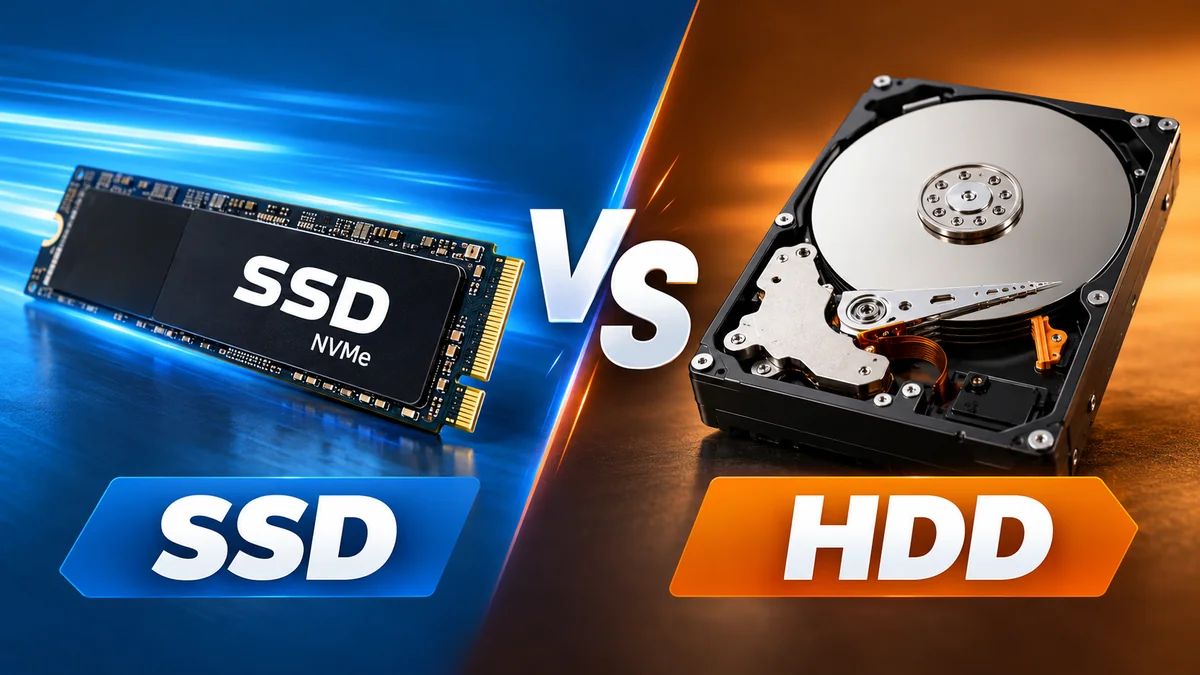

Choosing between an SSD and an HDD used to be mostly about price. Today, the difference is more about how you use your storage. SSDs dominate everyday computing because they are fast, responsive, quiet, and resistant to physical shock. HDDs remain relevant because they can provide large amounts of storage economically.
In an ssd vs hdd comparison, an SSD stores data electronically in NAND flash memory with no moving parts, while an HDD stores data magnetically on spinning platters. SSDs generally provide much faster access, lower latency, quieter operation, and better shock resistance. HDDs remain useful when large storage capacity and lower cost per terabyte matter more than speed. StorageReview.com
Understanding those differences makes it much easier to choose storage for a laptop, desktop, gaming PC, NAS, backup system, or media archive.
ssd vs hdd: Key Differences at a Glance
The biggest difference is the underlying technology. A solid-state drive (SSD) uses flash memory, while a hard disk drive (HDD) relies on magnetic platters and mechanical components.
| Feature | SSD | HDD |
|---|---|---|
| Storage technology | NAND flash memory | Magnetic platters |
| Moving parts | No | Yes |
| Speed | Much faster | Slower |
| Latency | Very low | Higher |
| Noise | Silent | Audible spinning/clicking |
| Shock resistance | Better | More vulnerable |
| Power use | Generally lower, depending on model/workload | Generally higher, especially 3.5-inch drives |
| Cost per TB | Usually higher | Usually lower |
| Large-capacity storage | Available but relatively expensive | Strong use case |
| OS and applications | Excellent | Usable but noticeably slower |
| Gaming | Excellent | Better suited to secondary storage |
| Backups and archives | Good | Economical for large datasets |
| Portable devices | Excellent | Less suitable due to moving components |
Microsoft notes that SSDs are now the most common storage drives in modern PCs and are generally smaller, faster, and quieter than HDDs. Microsoft Support
How Does an HDD Work?
A hard disk drive is a mechanical storage device.
Inside the drive are one or more circular platters coated with magnetic material. The platters spin while an actuator arm moves a read/write head across their surfaces. Data is represented magnetically on different areas of those platters.
Think of it loosely like a highly sophisticated record player. The required information exists at a physical location, and mechanical components must reach that location before the drive can read it.
This creates two important delays: seek time, while the head moves to the correct track, and rotational latency, while the desired sector rotates into position.
Those delays may be tiny in human terms, but computers perform enormous numbers of storage operations. The cumulative effect makes an HDD feel much slower than an SSD when booting an operating system, opening programs, or accessing many small files.
Mechanical design also explains several other HDD characteristics.
An HDD can produce audible spinning or clicking sounds, consumes power to operate its motor, and is more vulnerable to physical shocks while operating.
The major advantage is economics. Magnetic storage remains particularly useful when you need several terabytes for backups, video libraries, surveillance recordings, NAS systems, or archives without paying SSD prices for every terabyte. StorageReview.com
How Does an SSD Work?
An SSD has no spinning disks or mechanical read/write arm.
Instead, it stores information electronically in NAND flash memory. NAND is non-volatile memory, meaning the stored information remains available when power is removed.
An SSD typically contains NAND flash chips, a controller, firmware, and—depending on the design—cache or additional memory used to improve performance.
The SSD controller manages operations such as reading and writing data, error correction, garbage collection, and wear leveling.
Because the drive does not have to physically reposition a mechanical head, it can access data with dramatically lower latency.
That distinction explains why replacing an HDD with even a basic SATA SSD can transform an older computer. Windows may start faster, applications open more quickly, files respond sooner, and multitasking feels smoother.
SSDs also use technologies such as TRIM to help manage deleted data and maintain efficient operation. Amazon Web Services, Inc.
NAND Flash and Write Endurance
NAND cells cannot be erased and rewritten indefinitely.
Manufacturers therefore specify SSD endurance using measurements such as TBW (terabytes written) or, particularly for enterprise drives, DWPD (drive writes per day).
Wear leveling helps distribute writes across NAND cells rather than repeatedly using the same cells.
For ordinary home and office workloads, write endurance is generally less concerning than it sounds. What matters is checking the endurance specification and warranty for the particular drive rather than assuming every SSD has the same lifespan.
For example, Backblaze notes that TBW represents the total quantity of data that can be written as an SSD accumulates usage, while endurance also depends on the NAND technology and its program/erase cycles. Backblaze
ssd vs hdd Speed: How Much Faster Is an SSD?
Speed is the most noticeable difference.
An HDD has to physically locate data. An SSD retrieves information electronically.
Typical HDD sequential transfer rates are often around 30–150 MB/s, depending heavily on the particular drive and workload. SATA SSDs can approach the limits of the SATA interface, while modern NVMe SSDs can operate at several gigabytes per second. HP
However, sequential transfer speed tells only part of the story.
Sequential vs Random Performance
Sequential performance measures how quickly large contiguous blocks of information can be transferred.
It matters when:
- copying large video files;
- transferring disk images;
- moving large datasets;
- working with large media files.
Random performance measures access to smaller pieces of information scattered across the drive.
That matters greatly for:
- starting Windows;
- launching applications;
- installing software;
- loading game assets;
- web browser caches;
- databases;
- multitasking.
This is where SSDs can feel dramatically faster because they do not wait for a mechanical head to seek different physical locations.
Intel identifies read/write speed and latency as major differences between the technologies, with SSDs providing lower access times than mechanical HDDs. Intel
Does an SSD Increase Computer Performance?
Yes—but only for workloads affected by storage.
An SSD can make a computer boot faster, open applications sooner, transfer files faster, and respond more quickly when storage is heavily involved.
It does not automatically make the CPU or GPU faster.
For example, replacing an HDD with an SSD can greatly reduce a game’s loading time, but it does not necessarily produce a comparable increase in frame rate. FPS is primarily influenced by components such as the GPU and CPU.
SATA SSD vs NVMe SSD
Not every SSD delivers the same performance.
Two common categories are SATA SSDs and NVMe SSDs.
SATA was originally designed around older storage technologies and uses the AHCI protocol in common SSD implementations. NVMe was designed specifically for flash-based storage and communicates over PCI Express.
A SATA SSD may use a 2.5-inch enclosure or, in some cases, an M.2 form factor. An NVMe SSD commonly uses an M.2 form factor but communicates through PCIe.
This leads to an important distinction:
M.2 describes a form factor; NVMe describes a storage protocol.
An M.2 drive is therefore not automatically an NVMe drive.
SATA has a theoretical maximum transfer rate around 600 MB/s, whereas PCIe-based NVMe storage can provide substantially more bandwidth. Current PCIe generations can support multi-gigabyte-per-second SSDs. IBM
For ordinary web browsing and office work, the jump from an HDD to a SATA SSD is usually far more noticeable than the jump from a SATA SSD to a high-end NVMe model.
Heavy video editing, large-file transfers, professional content creation, databases, and other storage-intensive workloads can benefit more clearly from NVMe.
SSD vs HDD for Gaming
An SSD is generally the more suitable primary storage device for a modern gaming computer.
Games can contain thousands of textures, models, audio files, shaders, and other assets. Faster storage allows those files to be accessed more quickly.
An SSD can improve:
- game installation and updating;
- loading screens;
- level loading;
- asset streaming;
- game launching;
- file verification;
- overall system responsiveness.
Intel specifically notes that SSDs can reduce game loading times and improve system responsiveness compared with HDD storage. Intel
That does not make HDDs useless for gaming.
If you have a very large library, an HDD can still provide economical secondary storage. Games you play frequently can remain on an SSD, while less frequently used titles can be stored elsewhere when the platform and game support that arrangement.
A practical gaming configuration is therefore often SSD-first, with an HDD added only when economical bulk capacity is required.
SSD vs HDD Lifespan and Reliability
There is no universal answer to “Which lasts longer?”
Both technologies have failure mechanisms.
How HDDs Fail
An HDD contains motors, bearings, platters, actuator mechanisms, electronics, and read/write heads.
Potential failures include:
- head crashes;
- motor problems;
- bearing wear;
- electronic failure;
- bad sectors;
- physical damage;
- firmware problems.
Because the mechanism is physical, dropping a running HDD can be particularly damaging.
How SSDs Fail
SSDs eliminate those mechanical components, but flash memory has finite write endurance.
Possible SSD problems include:
- NAND wear;
- controller failure;
- firmware failure;
- electronic damage;
- excessive heat;
- other component failures.
Modern SSDs use wear leveling and other controller technologies to manage NAND endurance.
Rather than assuming one storage technology can never fail, treat every drive as replaceable.
Backblaze, which publishes large-scale storage reliability statistics, reported a 1.24% annualized failure rate across the HDD population represented in its Q1 2026 Drive Stats snapshot. That figure describes its specific data-center drive population and should not be treated as the expected failure rate for every consumer HDD. Backblaze
TBW Is Not an Expiration Date
An SSD’s TBW specification is commonly misunderstood.
It is an endurance rating associated with how much data is written to the drive and often forms part of the manufacturer’s warranty conditions. It should not be interpreted as a countdown timer guaranteeing that a drive will instantly stop functioning after reaching a specific number.
Always compare the TBW rating, warranty, drive type, workload, and manufacturer specifications when evaluating SSD endurance.
Which Is More Durable?
For laptops and portable devices, SSDs have a significant physical advantage.
An SSD contains no spinning platter or moving read/write head. Movement, vibration, and ordinary bumps therefore present less mechanical risk.
An HDD can tolerate normal use, but operating it while it is being dropped or subjected to severe vibration creates greater risk because of its mechanical design.
This is one reason SSDs have become particularly suitable for thin laptops and portable computers. Microsoft highlights their smaller size and lack of noise alongside their performance advantages. Microsoft Support
SSD vs HDD Storage Capacity
HDDs remain valuable when capacity matters more than performance.
Large-capacity hard drives are widely used for:
- NAS storage;
- media libraries;
- backups;
- surveillance systems;
- photography archives;
- video archives;
- large datasets;
- infrequently accessed files.
SSDs are also available in multi-terabyte capacities, but large SSDs generally carry a higher cost per unit of storage.
That means the relevant question is not simply, “Which technology can store more?”
Both can provide substantial storage.
The more useful question is:
How much does each additional terabyte cost for the performance you actually need?
If files are accessed constantly, SSD performance can justify the extra expense. If they are mostly being retained for later use, an HDD may offer better storage economics.
SSD vs HDD Price and Cost per Terabyte
Price is the strongest continuing argument for HDDs.
SSDs have become substantially more affordable over time, but HDDs remain attractive for high-capacity storage because their cost per terabyte is generally lower.
That difference becomes increasingly important as capacity requirements grow.
A person needing a primary drive for Windows, applications, documents, and a few games may find an SSD easily affordable.
Someone storing tens of terabytes of video, backups, surveillance footage, or other large files faces a different calculation.
StorageReview summarizes the modern division clearly: SSDs dominate performance-oriented storage, while HDDs continue to make sense for economical bulk capacity. StorageReview.com
Power Consumption and Heat
SSDs generally offer another advantage in power efficiency, particularly at idle and in many everyday workloads.
An HDD needs energy to spin its platters and operate mechanical components. SSDs eliminate that motor.
Lower consumption can matter for laptops because storage contributes to overall battery usage. It can also matter in systems containing many drives, where cumulative power and cooling requirements become significant.
However, “SSDs always use less power” is too simplistic.
A high-performance NVMe SSD under sustained heavy load can consume considerable power and may require thermal management. Actual consumption depends on the model, workload, interface, performance state, and cooling configuration.
The practical lesson is to compare the manufacturer’s power specifications if energy consumption is important to your system.
Noise and Vibration
An SSD operates silently because there are no mechanical components moving inside it.
HDDs can produce:
- spinning sounds;
- clicking;
- seeking noises;
- vibration.
Good HDDs are often relatively quiet, but they cannot completely eliminate mechanical activity.
For silent PCs, recording studios, quiet workstations, and laptops, SSDs therefore have a natural advantage.
SSD vs HDD for Laptops
An SSD is usually the more practical primary storage technology for a laptop.
It provides faster startup and application loading while avoiding the mechanical vulnerability of a spinning drive.
SSDs are also available in compact formats such as M.2, helping manufacturers build thinner computers.
For an older laptop still running its operating system from an HDD, upgrading to a compatible SSD can be one of the most noticeable hardware improvements.
Before upgrading, verify:
- interface compatibility;
- physical form factor;
- available M.2 slots;
- SATA support;
- NVMe/PCIe support;
- maximum supported capacity;
- operating-system migration requirements.
Do not assume that an M.2 slot supports every M.2 SSD.
SSD vs HDD for Desktop PCs
Desktop systems provide more flexibility because they often have room for multiple storage devices.
A common arrangement is:
Primary SSD: operating system, applications, active projects and games.
Secondary HDD: backups, media libraries, old projects, large downloads and archives.
This hybrid setup uses each technology where its characteristics make sense.
You do not necessarily need to choose exclusively between SSD and HDD.
SSD vs HDD for Video Editing and Content Creation
Storage performance can have a major impact on professional media workflows.
High-resolution video editing involves large source files, cache data, previews, proxies, and exports.
An SSD—particularly a suitable NVMe SSD—can improve responsiveness when moving and accessing these files.
A practical workstation may use several storage tiers:
Fast SSD for Active Work
Keep the operating system, editing applications, cache, and current projects on fast storage.
Larger Storage for Completed Projects
Finished projects that are rarely accessed do not necessarily require premium high-performance storage.
Large HDDs can therefore remain useful as part of an archival or backup strategy.
This tiered approach avoids paying for maximum performance where it provides little practical benefit.
SSD vs HDD for Backups
HDDs remain widely useful for backups because they provide large capacities economically.
An external HDD can store system images, photographs, videos, documents, and other large collections without requiring expensive flash storage.
But the type of drive is less important than having a proper backup strategy.
Neither SSD nor HDD should be treated as failure-proof.
A single external drive containing the only copy of important files is not a robust backup system.
Maintain multiple copies of irreplaceable information, preferably with at least one copy stored separately from the primary computer. Cloud storage or another off-site location can provide protection against theft, fire, ransomware, and other events that may affect local copies simultaneously.
What About Data Recovery?
Data recovery is another area where SSDs and HDDs behave differently.
Traditional HDD recovery may sometimes involve repairing or working around damaged mechanical components and reading magnetic media using specialist equipment.
SSD recovery can be more complicated because data placement is controlled internally by the SSD controller, while technologies such as TRIM and garbage collection can affect deleted information.
AWS notes that data can potentially be recovered from both technologies but that SSD recovery may be more complicated in some circumstances. Amazon Web Services, Inc.
The important lesson is not to choose a drive based on the assumption that lost files will always be recoverable.
Backups are safer and cheaper than relying on data recovery.
Is an HDD Still Worth Using?
Yes.
HDDs have not disappeared simply because SSDs are faster.
They remain practical where capacity per dollar matters more than latency.
Common HDD use cases include:
- large backup drives;
- NAS systems;
- home media servers;
- surveillance recording;
- bulk photography storage;
- video archives;
- cold or infrequently accessed datasets.
The workload matters as much as the technology. A surveillance system, for example, should use a drive designed for the required continuous recording workload rather than selecting an arbitrary desktop HDD solely because it has enough capacity.
Is an SSD Worth Using in an Older Computer?
Often, yes—provided the computer supports a compatible SSD.
Older PCs commonly become frustrating not because the processor suddenly stopped functioning, but because mechanical storage creates a bottleneck during booting, program launches, updates, and multitasking.
A SATA SSD can substantially reduce those storage delays.
Even though SATA SSDs are slower than modern NVMe drives, they eliminate the mechanical seek delays of an HDD and can make an older machine feel much more responsive.
The upgrade cannot compensate for every limitation. A machine with insufficient RAM, an extremely old processor, or unsupported software may still perform poorly.
But when storage is the bottleneck, moving from an HDD to an SSD is often a meaningful improvement.
Should You Use SSD and HDD Together?
For desktop computers and storage-heavy systems, using both can be highly practical.
For example:
SSD
- Windows or another operating system
- applications
- frequently played games
- active work
- cache and temporary project files
HDD
- backups
- movies and media
- old projects
- surveillance footage
- archives
- infrequently accessed files
This arrangement is sometimes called tiered storage because information is placed on a storage tier appropriate to its performance requirements.
It can provide much of the responsiveness of an all-SSD system without requiring expensive flash storage for every terabyte.
Common SSD and HDD Buying Mistakes
Understanding a few common mistakes can prevent an expensive or disappointing upgrade.
Comparing Capacity Alone
Two 2TB drives can deliver radically different performance depending on their underlying technology and interface.
Capacity tells you how much information a drive stores—not how quickly it accesses it.
Assuming Every SSD Is Equally Fast
A SATA SSD and a high-performance PCIe NVMe SSD are both solid-state drives, but their interfaces and performance capabilities can be very different.
Confusing M.2 With NVMe
M.2 describes the physical form factor. NVMe is a protocol commonly used over PCIe.
Always check the complete specification.
Ignoring Compatibility
A fast drive provides little value if your motherboard, laptop, NAS, or enclosure cannot support its interface or physical format.
Treating Storage as a Backup
A reliable SSD is not a backup.
A new HDD is not a backup.
RAID by itself is not a complete backup strategy either.
Important files should exist in multiple independent locations.
Buying Performance You Cannot Use
High-end NVMe drives can provide enormous sequential throughput, but many ordinary workloads will not use their maximum bandwidth.
For browsing, documents, email, and basic applications, the improvement from HDD to SSD is much more significant than chasing the fastest available SSD benchmark.
Which Storage Type Fits Each Use Case?
| Use Case | Practical Storage Approach |
|---|---|
| Windows/macOS/Linux system drive | SSD |
| Everyday laptop | SSD |
| Office computer | SSD |
| Gaming PC | SSD for active games |
| High-performance gaming | NVMe SSD |
| Video editing | SSD/NVMe for active projects |
| Large media collection | HDD or mixed storage |
| NAS | Depends on workload; HDDs remain economical for bulk capacity |
| Backup | HDD is economical; SSD also works |
| Portable external storage | SSD offers strong speed and shock resistance |
| Large archive | HDD can be cost-effective |
| Quiet PC | SSD |
| Older PC upgrade | Compatible SATA or NVMe SSD |
| Large surveillance storage | Workload-rated storage appropriate to the recorder |
These are practical patterns rather than absolute rules. Specific workloads, budgets, hardware compatibility, redundancy requirements, and performance expectations can change the appropriate configuration.
SSD vs HDD: Which One Should You Choose?
For a modern computer’s primary drive, an SSD is generally the practical choice. It provides much faster data access, lower latency, silent operation, and greater resistance to physical movement than a mechanical HDD. Modern PCs increasingly use SSDs as standard primary storage. StorageReview.com
An HDD makes more sense when you need large amounts of economical storage and the information does not require SSD-level access speed.
The decision can be reduced to three questions:
- Do you need maximum responsiveness? Use an SSD.
- Do you need many terabytes at a lower cost? Consider an HDD.
- Do you need both? Use an SSD for active data and an HDD for bulk storage.
For most people, therefore, the modern ssd vs hdd decision is not about declaring one technology universally superior. SSDs are better suited to performance-sensitive everyday computing, while HDDs continue to serve an important role in economical high-capacity storage. The most effective setup is often to place frequently accessed data on flash and reserve hard drives for files where capacity matters more than speed.
