
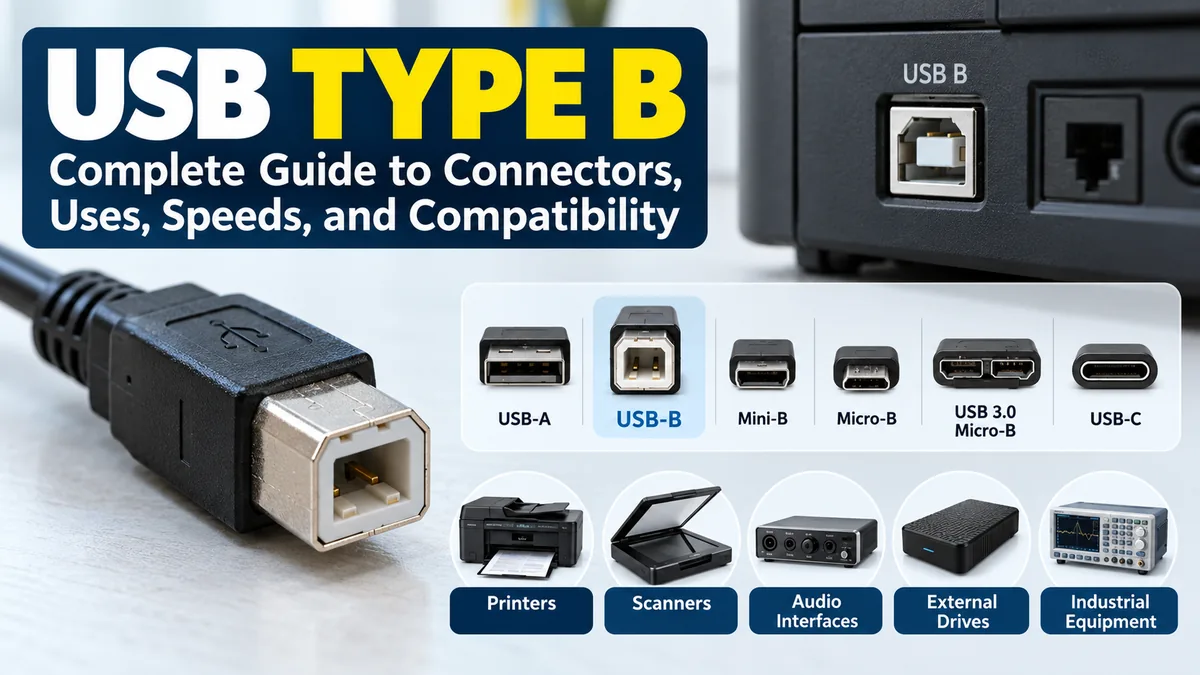

If you have ever connected a printer, scanner, audio interface, or other large peripheral to a computer, you have probably used a usb type b connection. Its distinctive square-shaped plug makes it one of the easiest USB connectors to recognize.
usb type b is a Universal Serial Bus connector primarily designed for peripheral devices such as printers, scanners, audio interfaces, external drives, and professional equipment. Standard USB-B has a roughly square shape with beveled upper corners and is commonly connected to a computer using a USB-A-to-B or USB-C-to-B cable. TE.com
Although USB-C dominates newer consumer electronics, USB Type-B remains relevant because millions of printers, musical devices, industrial systems, and other peripherals continue to use it.
What Is usb type b?
USB Type-B, usually shortened to USB-B, is a connector within the Universal Serial Bus family. Unlike the familiar flat rectangular USB-A connector traditionally found on computers, Standard-B is taller and approximately square.
The original USB architecture deliberately used different connector shapes at opposite ends of a connection. The host side generally used Type-A, while the peripheral or device side used Type-B. This physical distinction helped prevent inappropriate host-to-host connections. 皇海科技 KINGCONN
A traditional setup looks like this:
Computer → USB-A cable end → cable → USB-B cable end → Printer
Modern computers may replace USB-A with USB-C:
Laptop → USB-C cable end → cable → USB-B cable end → Printer
This means a device does not necessarily become obsolete simply because your new computer has only USB-C ports.
The topic here is specifically usb type b, as required by the supplied keyword and informational brief. Pasted text
What Does a USB Type-B Connector Look Like?
Standard USB-B is easy to distinguish from USB-A and USB-C.
It has a relatively large, near-square housing with the two upper corners slightly beveled. This prevents the plug from being inserted in the wrong orientation.
The most common connector shapes can be distinguished quickly:
| Connector | Typical Shape | Common Applications |
|---|---|---|
| USB-A | Flat rectangle | Computers, hubs, chargers |
| Standard USB-B | Square with beveled corners | Printers, scanners, audio equipment |
| Mini-B | Small trapezoid-like connector | Older cameras and electronics |
| Micro-B | Small, thin connector | Older phones, controllers and cameras |
| USB 3.0 Micro-B | Wide two-part connector | External hard drives |
| USB-C | Small rounded rectangle | Modern computers, phones and peripherals |
USB-C is reversible, while Standard USB-B must be inserted in the correct orientation.
What Is usb type b Used For?
USB-B was designed primarily for the device side of USB connections rather than the traditional host side.
That makes it particularly common on equipment that stays in one location and does not need to be disconnected constantly.
Printers
Printers are probably the best-known application.
Many inkjet, laser, label, photo, and multifunction printers have a square USB-B port on the rear panel. Canon’s documentation, for example, describes connections where the rectangular Type-A end goes to the computer and the square Type-B end goes to the printer. Canon Manuals
This is why USB A-to-B cables are frequently called printer cables.
Scanners
Flatbed and document scanners have also commonly used USB-B.
The connector provides a straightforward data connection between the scanner and computer without requiring a permanently attached cable.
Audio Interfaces
USB-B remains especially visible in professional and home recording equipment.
Many audio interfaces, MIDI devices, digital mixers, synthesizers, and other music-production devices use Standard-B ports. The connector’s relatively substantial physical design works well for equipment intended to stay on a desk or in a studio.
External Storage
Some external hard drives and storage devices have used Standard-B, although smaller Micro-B connectors became especially common on portable external drives.
USB 3.0 Micro-B can still be found on many older high-speed external hard drives.
Industrial and Laboratory Equipment
Test equipment, measurement instruments, control systems, and specialized industrial hardware may use USB-B because these devices typically prioritize reliable peripheral connectivity rather than an ultra-thin physical design.
Types of USB Type-B Connectors
“USB-B” can refer to more than one physical connector.
Several B-family designs appeared as USB evolved.
Standard USB-B
This is the classic square connector most people associate with printer cables.
Standard USB 2.0 Type-B has four contacts. USB-IF compliance information specifies four contacts for Standard A-series and B-series USB connectors. USB-IF Compliance
The four fundamental USB 2.0 connections are associated with:
- VBUS power
- D− data
- D+ data
- Ground
Standard-B is considerably larger than Mini-B or Micro-B, making it better suited to printers and other relatively large stationary equipment than thin portable electronics.
USB 3.0 Type-B
USB 3.0 introduced a modified Standard-B design to provide additional connections required for SuperSpeed communication.
The USB 3.x Type-B connector therefore looks different from the original USB 2.0 Type-B plug. It includes an additional section and extra contacts.
A USB 3.0 Standard-B receptacle can accept a USB 2.0 Standard-B plug, but the larger USB 3.0 Type-B plug cannot physically fit into an older USB 2.0 Type-B receptacle. Wikipedia
That distinction matters when replacing a cable.
Mini USB-B
Mini-B was developed for smaller portable devices.
It appeared on older:
- Digital cameras
- GPS units
- MP3 players
- Game controllers
- Portable electronics
- External drives
Mini-B connectors generally have five contacts rather than the four used by Standard USB 2.0 A and B connectors. USB-IF Compliance
Mini-B has largely disappeared from new mainstream consumer products, but replacement cables are still needed for legacy hardware.
Micro USB-B
Micro-B, commonly called Micro-USB, became one of the most widespread connectors of the pre-USB-C mobile era.
It appeared on smartphones, cameras, controllers, GPS devices and numerous small electronics. PCCables
Standard USB 2.0 Micro-B uses five contacts.
It should not be confused with USB 3.0 Micro-B.
USB 3.0 Micro-B
USB 3.0 Micro-B is significantly wider than ordinary Micro-B because it has an additional connector section.
The design became particularly common on external hard drives and other portable storage devices requiring faster data transfer.
USB 3.0 Micro-B provides additional contacts for SuperSpeed communication while maintaining compatibility with the USB 2.0 portion of the interface. TE.com
usb type b Speeds Explained
One common misunderstanding is that the connector’s shape alone determines its speed.
It does not.
The USB connector type and USB data specification are related but separate concepts.
For example, Standard-B has existed in both USB 2.0 and SuperSpeed implementations.
| USB Version | Maximum Signaling Rate | Relevant Type-B Variants |
|---|---|---|
| USB 2.0 | 480 Mbps | Standard-B, Mini-B, Micro-B |
| USB 3.x Gen 1 / original USB 3.0 | 5 Gbps | SuperSpeed Standard-B, Micro-B |
| Higher USB generations | Varies | Connector support depends on specification |
TE Connectivity notes that USB-B implementations can support USB 2.0 speeds up to 480 Mbps and, in applicable USB 3.0 implementations, speeds up to 5 Gbps. TE.com
The actual performance you receive depends on the device, host, cable, controller, and USB standard supported across the entire connection.
A high-speed cable cannot make an older USB 2.0 printer operate at USB 3.x speeds.
USB Type-B vs USB Type-A
USB-A and USB-B were designed for different ends of a traditional USB connection.
USB-A was normally associated with the host, such as a desktop or laptop computer.
USB-B was normally associated with the peripheral.
| Feature | USB-A | USB-B |
|---|---|---|
| Traditional role | Host side | Device side |
| Shape | Flat rectangle | Roughly square |
| Common location | Computers and hubs | Printers and peripherals |
| Reversible | No | No |
| USB 2.0 contacts | 4 | 4 |
This design made the direction of a traditional USB cable visually obvious.
USB Type-B vs USB-C
USB-C is much newer and substantially more versatile than Standard USB-B.
The most obvious physical difference is size. USB-C is compact, thin, and reversible. Standard-B is larger and directional.
USB-C also belongs to the modern connector ecosystem used across laptops, smartphones, tablets, docks, monitors, storage devices, and many other products.
That does not mean you must replace an otherwise functional USB-B peripheral.
If your new laptop has USB-C and your printer has USB-B, a suitable USB-C-to-USB-B cable can provide the required physical connection, assuming the devices and operating system support one another.
Is USB-B Being Replaced by USB-C?
In many new consumer-device categories, yes, USB-C has become the preferred connector.
But replacement is gradual rather than immediate.
Printers, professional audio hardware, industrial equipment, and existing legacy peripherals can remain useful for years. Manufacturers and users therefore still have practical reasons to support USB-B connections.
USB Type-B Pinout
A Standard USB 2.0 Type-B connector uses four contacts.
At a basic level, they provide:
| Pin | Signal | Purpose |
|---|---|---|
| 1 | VBUS | Power |
| 2 | D− | USB data |
| 3 | D+ | USB data |
| 4 | GND | Ground |
USB-IF compliance documentation confirms the four-contact arrangement for standard A-series and B-series connectors. Mini-B and Micro-B use five contacts. USB-IF Compliance
SuperSpeed versions require additional signal paths, which is one reason USB 3.x Type-B connectors differ physically from their USB 2.0 counterparts.
For ordinary users, pinouts rarely matter when purchasing a replacement cable. Matching the physical connector and required USB specification is more important.
Can USB Type-B Carry Power?
Yes. USB connections can carry both data and electrical power.
However, USB-B is most commonly encountered on peripherals whose primary purpose is data communication with a host.
A desktop printer, for example, normally has its own AC power supply even though it communicates with the computer over USB.
Do not assume that because a USB cable physically fits, it can power a particular peripheral. The device’s own power requirements determine whether external power is necessary.
Is USB Type-B the Same as a Printer Cable?
Not technically, although the terms are often used interchangeably in everyday conversation.
“Printer cable” commonly refers to a USB-A-to-USB-B cable because printers are one of the most recognizable devices using Standard-B.
The cable normally has:
USB-A male → USB-B male
For newer laptops, you may instead need:
USB-C male → USB-B male
USB-B itself describes the connector, not the entire cable.
A USB-B connection can also be used with scanners, audio interfaces, laboratory equipment, MIDI hardware, and other peripherals.
Can USB Type-B Connect to USB-C?
Yes, provided you use an appropriate cable or adapter and the devices support the required USB communication.
For example, suppose your printer has a Standard USB-B receptacle but your laptop has only USB-C ports.
A USB-C-to-USB-B cable can connect them directly:
USB-C laptop → USB-C-to-B cable → USB-B printer
The computer’s USB-C connector does not require the peripheral to have USB-C.
The cable simply provides the appropriate connectors at each end while supporting compatible USB communication.
Is USB-B Backward Compatible?
Compatibility depends on the specific USB-B version.
A particularly useful example involves Standard-B USB 3.0.
A USB 3.0 Type-B receptacle can accept an older USB 2.0 Type-B plug. However, the physically larger USB 3.0 Type-B plug cannot be inserted into a USB 2.0 Type-B receptacle. Wikipedia
USB 3.0 Micro-B has a similar legacy consideration: the wider SuperSpeed receptacle can accommodate the compatible USB 2.0 Micro-B portion, but using the older connection does not magically provide SuperSpeed performance. iTechGuides
Always consider both physical compatibility and data-speed compatibility.
How to Choose the Correct USB Type-B Cable
Start by inspecting both devices rather than buying a cable based only on its product name.
1. Identify the Peripheral Port
Look at the port on your printer, scanner, audio interface, external drive, or other device.
A classic near-square port with beveled upper corners usually indicates Standard USB-B.
A wide, unusual two-section connector may indicate USB 3.0 Micro-B.
2. Check the Computer’s Port
Older computers commonly provide USB-A.
Many newer laptops provide USB-C instead.
That determines the connector required on the host end of your cable.
3. Check the USB Generation
For basic printers, a standard USB 2.0 connection is often sufficient.
High-speed storage and specialized hardware may require a SuperSpeed-compatible cable to achieve their intended transfer rates.
4. Avoid Confusing Similar Connectors
Micro-B, Mini-B, Standard-B, and SuperSpeed Micro-B are not interchangeable simply because all contain “B” in their names.
Compare the actual port shape before purchasing a replacement.
5. Don’t Assume USB-C Means the Device Is Incompatible
A modern USB-C-only laptop can often communicate with older USB-B equipment through an appropriate cable or adapter.
This is frequently cheaper and simpler than replacing a working peripheral.
Common USB Type-B Connection Problems
USB-B itself is generally straightforward, but several common mistakes can prevent a device from working.
Wrong Cable Type
The most frequent issue is simply selecting the wrong B-family connector.
Standard-B, Mini-B, Micro-B, and USB 3.0 Micro-B are physically different.
Connecting to the Wrong Port
Some equipment places Ethernet and USB ports close together. Because larger ports can appear similar at a glance, verify the labeling before inserting a connector.
Damaged Cable
USB cables can fail internally even when there is little visible exterior damage.
If a peripheral suddenly stops connecting, testing another known-good cable is one of the simplest troubleshooting steps.
USB Hub Problems
A peripheral may occasionally behave differently when connected through a hub or docking station.
When troubleshooting, connecting the device directly to the computer can help determine whether the intermediate hub is causing the issue. Brady’s printer-support documentation, for example, recommends a direct PC connection when diagnosing certain USB communication problems. Brady Support
Driver or Operating-System Issues
A successful physical connection does not guarantee that the operating system can communicate with the device.
Printers, scanners, professional audio interfaces, and specialized equipment may require compatible drivers or software.
If the cable fits correctly but nothing happens, check whether the device appears in the operating system and whether its manufacturer provides an appropriate driver.
Why USB Type-B Is Still Used
USB-B can look dated beside USB-C, but its continued presence makes sense.
Millions of perfectly functional printers, scanners, musical instruments, audio interfaces, industrial systems, and other peripherals already use it. Replacing these devices solely because their connector is older would often provide little practical benefit.
Standard-B is also physically well suited to relatively large stationary equipment. The size that makes it unattractive for smartphones is far less problematic on a printer sitting on a desk.
USB-C has changed how modern devices connect, but it has not instantly erased older USB standards. The USB Implementers Forum still maintains documentation related to USB 2.0 specifications and compliance, illustrating the continuing relevance of established USB technologies. USB Implementers Forum
Final Takeaway
usb type b is the familiar square-style USB connector most strongly associated with printers, scanners, audio interfaces, and other peripheral equipment. Standard USB 2.0 Type-B uses four contacts and supports USB 2.0 communication up to 480 Mbps, while SuperSpeed Type-B variants were developed for faster USB generations. TE.com
The B family also includes Mini-B, Micro-B, and USB 3.0 Micro-B, so identifying the exact connector shape matters when replacing a cable.
For modern computers, an older USB-B device is not automatically obsolete. If your computer has USB-A, an A-to-B cable is typically appropriate for a Standard-B peripheral. If it has only USB-C, a compatible USB-C-to-B cable can often provide the same essential connection.
