
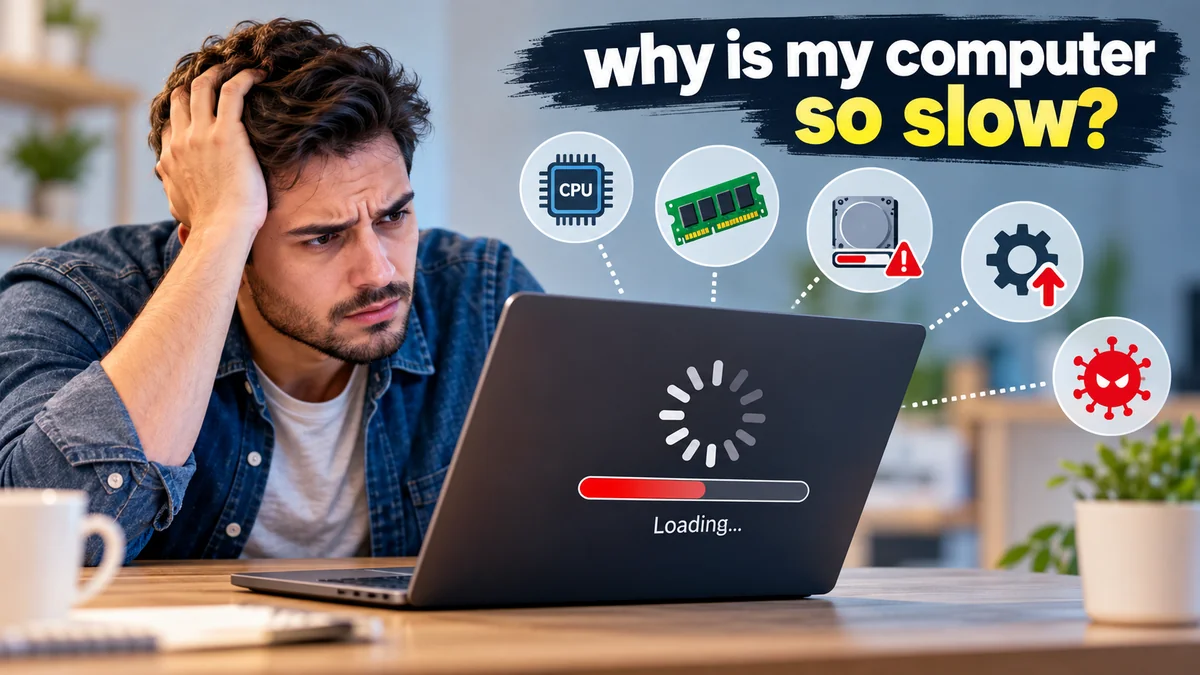

Few computer problems are more frustrating than clicking an app and waiting, watching browser tabs freeze, or sitting through a startup that seems to take forever. A computer that once felt fast can gradually become sluggish—or sometimes slow down almost overnight.
If you’re wondering why is my computer so slow, the cause is usually one or more overloaded resources: too many programs using the CPU, insufficient RAM, low storage space, background processes, outdated software, malware, overheating, or aging hardware. Checking resource usage first can help you find the actual bottleneck instead of trying random fixes. Microsoft Support
The good news is that many slow computers can be improved without replacing them. Start with simple fixes such as restarting, closing unnecessary programs, reducing startup apps, and freeing storage before considering hardware upgrades.
Why Is My Computer So Slow All of a Sudden?
A sudden slowdown deserves a different approach from a computer that has gradually become slower over several years.
If performance changed recently, think about what changed around the same time. You may have installed a new application, received an operating-system update, added a browser extension, started running more programs simultaneously, or filled most of your storage drive.
Microsoft identifies limited storage, excessive startup applications, outdated software, background activity, malware, and aging hardware among the common causes of poor Windows performance. Microsoft Support
Some slowdowns are temporary. Your computer may be:
- installing Windows or macOS updates;
- indexing files;
- synchronizing cloud storage;
- scanning for malware;
- downloading large files;
- processing photos or videos;
- running backup software;
- updating applications in the background.
Before changing settings, restart the computer and wait a few minutes after logging back in. If performance returns to normal, a temporary process or memory problem may have been responsible.
Check CPU, RAM, and Disk Usage First
The fastest way to troubleshoot a slow computer is to determine which resource is under pressure.
The three components that most directly affect everyday responsiveness are the CPU, RAM, and storage drive. Intel similarly highlights the processor, memory, and disk as major factors influencing PC performance. Intel
Check Task Manager on Windows
Press Ctrl + Shift + Esc to open Task Manager.
Select Processes and look at the CPU, Memory, and Disk columns. You can click a column heading to sort applications by resource consumption.
Look for unusually high usage that persists even when you are not doing anything demanding.
| Resource | What High Usage Can Mean | Common Causes |
|---|---|---|
| CPU | Processor is overloaded | Heavy apps, background tasks, malware |
| Memory | RAM is nearly full | Too many programs or browser tabs |
| Disk | Storage is constantly busy | Updates, slow HDD, background apps |
| GPU | Graphics processor is overloaded | Games, video editing, graphics apps |
| Network | Heavy internet activity | Downloads, cloud sync, updates |
A brief spike to 100% CPU or disk usage is not automatically a problem. What matters more is sustained high usage accompanied by slow performance.
Microsoft specifically recommends Task Manager’s Processes, Performance, and Startup sections for identifying applications consuming excessive resources. Microsoft Support
Check Activity Monitor on a Mac
On macOS, open Activity Monitor from Applications > Utilities.
Review CPU and Memory to see which applications consume the most resources. Apple recommends Activity Monitor when an application appears to require more memory than the Mac can comfortably provide. Apple Support
This simple diagnostic step can prevent unnecessary troubleshooting. If one application consistently consumes most of your CPU, for example, deleting temporary files probably won’t solve the underlying problem.
Too Many Programs Are Running at Once
Every open program needs resources.
A music app, messaging software, cloud-sync service, browser, video meeting application, antivirus program, and several background utilities can collectively consume a substantial amount of memory and processing power.
The effect becomes particularly noticeable on computers with limited RAM.
Start by closing programs you aren’t actively using. Don’t simply minimize them—many applications continue running normally when minimized.
Browser tabs matter too.
Modern websites can contain video, advertisements, interactive applications, scripts, and other resource-intensive elements. Keeping dozens of tabs open can consume gigabytes of memory.
If closing programs immediately improves performance, resource pressure was probably part of the problem.
Restart the Computer
A restart is one of the simplest troubleshooting steps, but it is surprisingly useful.
As programs run, they allocate memory and launch processes. A restart clears active RAM usage, terminates stuck processes, and reloads the operating system and essential services. Intel recommends restarting as an early step when a computer becomes sluggish from heavy memory use. Intel
Restart rather than simply closing the laptop lid or putting the computer to sleep.
Too Many Apps Launch at Startup
If your computer feels particularly slow during the first few minutes after turning it on, startup applications are a prime suspect.
Programs such as communication tools, game launchers, cloud-storage clients, printer utilities, music services, and update managers often configure themselves to start automatically.
Each application might seem harmless individually. Together, they can increase startup time and continue consuming resources throughout the day.
Disable Startup Apps in Windows
Open:
Task Manager > Startup apps
Review the list and disable programs you don’t need immediately after signing in.
Microsoft notes that having too many startup applications can slow startup and continue affecting system performance afterward. Microsoft
Don’t disable software randomly. Security tools, hardware drivers, accessibility software, or applications you genuinely need at login may be worth keeping enabled.
Focus first on optional applications you recognize.
Your Computer Is Running Out of RAM
RAM (random-access memory) temporarily stores information programs need while they are running.
When available memory becomes scarce, the operating system has to manage data more aggressively and may rely more heavily on storage. The result can be noticeable lag when switching applications, opening browser tabs, or handling large files.
Common signs of insufficient RAM include:
- applications becoming slow when several are open;
- browser tabs frequently reloading;
- lag when switching between programs;
- high Memory usage in Task Manager;
- poor performance during video editing or other demanding work.
Closing unnecessary applications can provide immediate relief.
For a long-term solution, consider increasing RAM if your computer supports memory upgrades and your normal workload consistently exhausts the installed memory.
However, more RAM won’t solve every performance problem. If memory usage is comfortable while disk usage remains constantly high, storage may be the real bottleneck.
Low Storage Space Can Slow Down Your Computer
Storage isn’t just where documents and applications live. Your operating system also needs working space for temporary files, updates, caches, virtual memory, and other processes.
When the drive becomes extremely full, performance can suffer.
Microsoft recommends freeing disk space as one method for improving Windows performance, while Apple similarly advises checking available startup-disk space when a Mac runs slowly. Microsoft Support
Free Storage on Windows
Go to:
Settings > System > Storage
Check which categories consume the most space.
Windows includes Storage Sense, which can help remove temporary files automatically. You can also review Temporary files manually. Microsoft Support
Consider removing:
- unused applications;
- old installers;
- unnecessary downloads;
- duplicate large files;
- temporary files;
- videos you no longer need;
- old game installations.
Be careful with files you don’t recognize. Don’t manually delete operating-system folders simply because they appear large.
Free Storage on macOS
Open:
Apple menu > System Settings > General > Storage
macOS provides storage recommendations and a breakdown of the categories using disk space. Apple recommends this area when insufficient startup-disk space is contributing to poor Mac performance. Apple Support
An Old Hard Drive May Be the Bottleneck
Not all storage drives perform equally.
Older computers frequently use a mechanical hard disk drive (HDD). HDDs contain moving components and are considerably slower at many everyday operations than modern solid-state drives.
An SSD (solid-state drive) has no mechanical read/write head and offers much faster access to data.
If an older computer still uses an HDD, replacing it with an SSD can make a dramatic practical difference to:
- startup time;
- application launches;
- file searches;
- software installation;
- operating-system updates;
- general responsiveness.
Before buying hardware, confirm that the drive is actually contributing to the slowdown and that your computer supports the intended replacement.
An SSD won’t compensate for every limitation. A very old processor or insufficient RAM can still restrict performance.
Background Apps Are Consuming Resources
Closing visible windows doesn’t necessarily stop all software activity.
Programs may continue operating in the background to check for notifications, synchronize data, download updates, maintain cloud files, or perform scheduled tasks.
Microsoft specifically recommends reviewing unnecessary background activity when troubleshooting Windows performance. Microsoft Support
On Windows 11, background permissions for supported applications can be managed through their settings.
You don’t need to disable every background process. Instead, focus on applications that:
- consume meaningful resources;
- don’t need constant updates; and
- aren’t required for Windows or important hardware.
Cloud synchronization deserves special attention. Services copying thousands of files can temporarily create heavy CPU, disk, and network activity.
Malware Can Make a Computer Slow
A computer that becomes unexpectedly slow without an obvious explanation should be checked for malicious software.
Malware may consume processor, memory, disk, or network resources in the background. Microsoft recommends running a malware scan as part of its Windows performance troubleshooting guidance. Microsoft Support
In Windows 11, open:
Settings > Privacy & security > Windows Security > Virus & threat protection
Run a scan.
Don’t disable your security software simply because the computer feels slow. Modern antivirus software is designed to protect the system continuously, and disabling protection can create a much bigger problem.
Also be cautious about downloading “PC cleaner,” “RAM booster,” or “one-click speedup” programs from unfamiliar websites. Some provide little benefit, while questionable utilities can add more background software or introduce security risks.
Outdated Windows, macOS, or Drivers Can Cause Problems
Updates aren’t only about adding features.
Operating-system and driver updates can include bug fixes, security improvements, compatibility changes, and performance fixes.
Microsoft recommends installing Windows updates and relevant optional driver updates when diagnosing a slow Windows PC. Microsoft Support
For Windows 11:
Settings > Windows Update > Check for updates
Optional drivers may appear under:
Windows Update > Advanced options > Optional updates
For hardware such as graphics cards, you may also need drivers supplied by the computer or component manufacturer.
Avoid downloading random driver packages from unknown websites. Incorrect or modified drivers can create instability rather than improve performance.
One current consideration is Windows 10: Microsoft ended standard free Windows 10 support on October 14, 2025, so users of older PCs should consider their supported upgrade options rather than assuming the operating system will continue receiving normal free security updates indefinitely. Microsoft Support
Your Browser May Be the Problem
Sometimes the computer itself isn’t slow—the web browser is.
If everything else runs normally but browsing feels sluggish, investigate:
- excessive open tabs;
- problematic extensions;
- corrupted browser data;
- heavy websites;
- background downloads;
- insufficient RAM;
- poor Wi-Fi;
- slow internet service.
Try closing most tabs and restarting the browser.
Then disable unnecessary extensions, especially ones you don’t recognize or no longer use.
Remember that slow internet and a slow computer are different problems.
If local applications open instantly but websites take a long time to load, your network connection may be responsible. Microsoft notes that Wi-Fi conditions, browser add-ons, system resources, spyware, viruses, and external network factors can all affect perceived internet performance. Microsoft Support
Test another website and another device on the same network. If every device has the same problem, troubleshooting the computer alone probably won’t fix it.
Overheating Can Reduce Performance
Computers produce heat whenever their processors and graphics hardware work.
Cooling systems are designed to remove that heat. If temperatures become excessive, modern hardware can reduce operating performance to protect itself.
Warning signs can include:
- fans running loudly for long periods;
- the laptop becoming unusually hot;
- good performance immediately after startup followed by slowdown;
- lag during games or demanding software;
- sudden shutdowns under heavy load.
Place a laptop on a firm surface rather than a bed, blanket, or cushion that can obstruct ventilation.
Make sure vents aren’t blocked.
Dust accumulation can also reduce cooling efficiency over time. Cleaning internal components requires appropriate care, particularly with laptops. If you’re uncomfortable opening the device, professional servicing is safer than experimenting with delicate components.
Power Settings Can Limit Laptop Performance
Laptop manufacturers balance speed, heat, fan noise, and battery life.
Power-saving settings can therefore reduce performance, particularly when the computer is running on battery power.
Windows provides different power modes. Microsoft notes that selecting Best performance can increase performance when required, although it also increases power consumption and can make a laptop run warmer. Microsoft Support
On Windows 11, check:
Settings > System > Power & battery > Power mode
Don’t automatically leave a laptop on maximum performance if you value battery life. Choose the setting that fits what you’re doing.
Apple also notes that certain Mac laptops may offer graphics-related battery settings that trade power consumption for graphics performance. Apple Support
Visual Effects Can Make Older PCs Feel Slower
Animations, shadows, transparency, and other visual effects make an operating system look polished, but they consume some system resources.
The difference is usually small on modern hardware. On an older or resource-constrained PC, reducing effects can improve perceived responsiveness.
Windows provides an Adjust the appearance and performance of Windows setting. Microsoft includes selecting Adjust for best performance among its options for improving responsiveness. Microsoft Support
Treat this as an optimization rather than a cure.
If your disk is failing or RAM is constantly exhausted, disabling animations won’t address the underlying bottleneck.
Why Is My Computer So Slow After an Update?
Temporary sluggishness after an operating-system update isn’t necessarily evidence that something went wrong.
The system may still be completing background tasks, updating applications, optimizing files, rebuilding indexes, or downloading additional components.
First:
- Let pending updates finish.
- Restart the computer.
- Check Windows Update or Software Update again.
- Give the computer some time after login.
- Check CPU and disk activity.
If performance remains poor, inspect Task Manager or Activity Monitor to identify the resource being consumed.
For Windows problems that become persistent after system changes, Microsoft recommends progressing from less disruptive troubleshooting methods toward recovery options rather than immediately resetting the PC. Some recovery procedures can affect files or settings, so important data should be backed up first. Microsoft Support
Why Is My Computer Slow When Gaming?
Games place much heavier demands on hardware than ordinary web browsing or document editing.
Gaming performance can be limited by the:
- CPU;
- graphics processing unit (GPU);
- RAM;
- storage drive;
- cooling system;
- graphics driver;
- game settings.
First compare your computer’s specifications with the game’s system requirements.
If the hardware meets the requirements but performance is poor, update the graphics driver, close unnecessary background applications, check temperatures, and reduce demanding graphics options such as resolution, shadows, ray tracing, or texture quality where appropriate.
Online-game lag may also come from network latency rather than computer performance. If frame rates are smooth but other players appear to jump or actions are delayed, investigate the internet connection separately.
Why Is My Computer So Slow on Startup?
A slow startup often points toward a smaller group of causes than general poor performance.
The most common suspects are excessive startup applications, slow storage, background updates, limited system resources, or aging hardware.
Microsoft explicitly identifies too many startup applications as a reason Windows may take longer to become usable after login. Microsoft
Try this sequence:
- Open Task Manager.
- Select Startup apps.
- Review high-impact applications.
- Disable optional programs you don’t need at login.
- Restart the computer.
- Compare startup performance.
If the computer uses an old mechanical HDD and remains extremely slow despite a clean startup configuration, the drive may be a major performance limitation.
A Practical Order for Fixing a Slow Computer
Randomly changing ten settings makes it difficult to determine what actually helped. A better strategy is to start with safe, reversible changes and work toward more substantial fixes.
1. Restart
A restart clears temporary active processes and gives you a clean baseline.
2. Check Task Manager or Activity Monitor
Identify whether CPU, memory, disk, or a particular application is responsible.
3. Close Unnecessary Apps and Browser Tabs
If performance immediately improves, you’re probably exceeding the comfortable limits of your available resources.
4. Reduce Startup Programs
Disable optional software that doesn’t need to launch automatically.
5. Check Available Storage
Remove unnecessary files and applications if your system drive is becoming full.
6. Install Updates
Update the operating system and appropriate device drivers.
7. Scan for Malware
Use a trusted security tool rather than unknown “speed booster” utilities.
8. Check Cooling
Pay attention to unusual heat, constant fan noise, blocked vents, and performance that worsens under sustained workloads.
9. Identify Hardware Bottlenecks
Determine whether RAM, storage, CPU, or GPU limitations match the situations in which the slowdown occurs.
10. Consider Repair, Upgrade, or Replacement
Only after identifying the bottleneck should you spend money on hardware.
This order closely reflects the principle behind current Windows troubleshooting guidance: address software, storage, startup, background processes, updates, malware, and resource usage before concluding that the hardware needs replacement. Microsoft Support
Will Adding More RAM Make My Computer Faster?
Sometimes—but only if insufficient memory is the problem.
Suppose Task Manager regularly shows very high memory usage when you perform your normal work. Adding RAM can allow more applications and data to remain available in fast memory and reduce performance pressure.
But if you already have plenty of unused RAM, adding more probably won’t make everyday tasks noticeably faster.
Think of hardware upgrades as solutions to specific bottlenecks:
| Problem | Upgrade That May Help |
|---|---|
| Memory constantly full | More RAM |
| Old mechanical hard drive | SSD |
| Weak gaming performance | Faster GPU, where upgradeable |
| CPU constantly maxed during workloads | Faster CPU/platform |
| Entire system is outdated | Newer computer |
Laptop upgrade options vary significantly. Some machines have soldered RAM or storage components, while others allow straightforward upgrades. Check the manufacturer’s documentation before purchasing parts.
How Do I Know If My Computer Is Simply Too Old?
Software fixes can’t make outdated hardware perform like a modern machine.
Age itself isn’t the only consideration. What matters is whether the hardware can adequately run your operating system and applications.
Microsoft lists several signs that an aging PC may be approaching replacement territory, including consistently high CPU, memory, or disk usage, long startup and shutdown times, frequent errors, insufficient storage, and increasingly slow everyday tasks. Microsoft Support
Replacement becomes more reasonable when:
- the operating system is no longer adequately supported;
- required software no longer runs properly;
- several hardware components are limiting performance;
- repairs would cost too much relative to the computer’s value;
- the device frequently freezes or crashes despite troubleshooting;
- your workload has outgrown the hardware.
Before replacing a computer, back up important documents, photos, credentials, and other data.
Should You Reset the Computer?
A factory reset or operating-system reinstall can solve certain persistent software problems, but it shouldn’t be the first response to ordinary sluggishness.
First determine whether the problem is software or hardware.
Resetting Windows won’t turn a slow HDD into an SSD, increase RAM, repair inadequate cooling, or make an old processor substantially faster.
If normal troubleshooting fails and you decide to use Windows recovery features, back up important files first. Microsoft warns that some recovery options can result in data loss. Microsoft Support
A reset makes more sense when persistent software corruption or configuration problems remain after safer troubleshooting steps have failed.
What Actually Makes the Biggest Difference?
For many slow computers, the most useful fixes are surprisingly ordinary:
- restart periodically;
- keep unnecessary startup apps disabled;
- close software you aren’t using;
- avoid keeping excessive browser tabs open;
- maintain adequate free storage;
- keep the operating system and drivers updated;
- remove unused applications;
- scan for malware;
- keep cooling vents unobstructed;
- identify resource-heavy processes before changing settings.
Older systems may need hardware help. Moving from a mechanical hard drive to an SSD or adding RAM when memory is consistently exhausted can produce much more noticeable results than installing optimization software.
The key is diagnosis.
If you’re still asking why is my computer so slow, open Task Manager on Windows or Activity Monitor on macOS and watch what happens while the slowdown occurs. CPU, memory, disk, and application-level usage usually provide the strongest clues about where to investigate next. Fix the bottleneck you can actually observe rather than applying every performance tweak you find online.
