
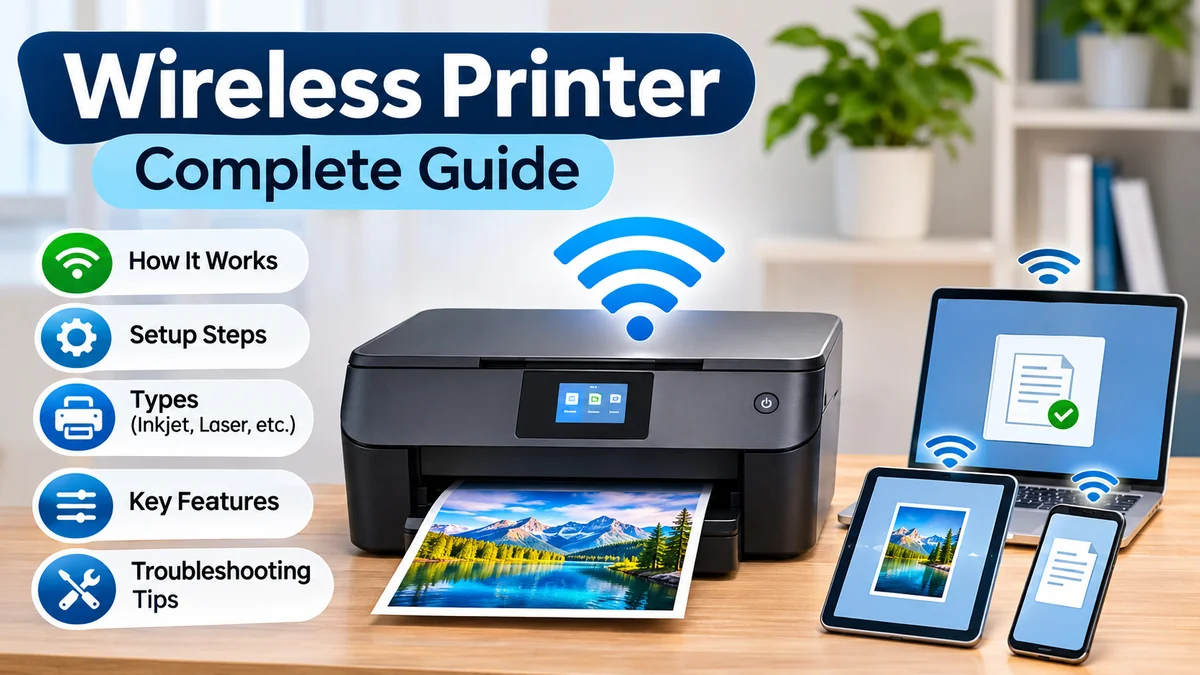

Printing a document should not require finding a USB cable or moving your laptop next to a printer. A wireless printer makes it possible to print from computers, smartphones, and tablets without a direct cable connection.
But wireless printing can sometimes be confusing. Wi-Fi networks, Bluetooth, printer drivers, mobile printing apps, and connection errors all affect how smoothly the process works.
A wireless printer is a printing device that receives documents and images through a wireless connection instead of requiring a direct USB cable. Most models use Wi-Fi to communicate with computers and mobile devices. Depending on the printer, additional options may include Wi-Fi Direct, Bluetooth, Apple AirPrint, and Mopria-compatible printing.
This guide explains how wireless printers work, the different technologies available, how to connect them, and how to solve common problems.
What Is a wireless printer and How Does It Work?
A wireless printer uses wireless communication technology to receive print jobs from compatible devices. Rather than transferring information through a physical USB connection, the sending device communicates with the printer over a local network or another supported wireless link.
For a typical home setup, the process works as follows:
- The printer connects to a Wi-Fi router.
- A laptop, desktop, smartphone, or tablet connects to the same network.
- The user selects a document or image and chooses Print.
- The device discovers the printer and sends the print job.
- The printer processes the information and produces the printed page.
Many wireless printers also include a USB port or Ethernet connection, allowing them to operate through wired connections when necessary.
Does a wireless printer need internet access?
Not necessarily.
A wireless printer generally needs a compatible connection between the printer and the sending device, but that connection does not always require internet access.
For example, a laptop and printer connected to the same local Wi-Fi network can often communicate even when the internet service is unavailable.
Internet access may be required for cloud-based printing services, remote printing features, firmware downloads, or certain manufacturer account functions.
This distinction matters because Wi-Fi and internet access are not the same thing. Wi-Fi provides wireless networking, while an internet connection provides access to services outside the local network.
Wireless printing technologies explained
| Technology | How it works | Typical use |
|---|---|---|
| Wi-Fi | Connects through a wireless network | Home and office printing |
| Wi-Fi Direct | Creates a direct wireless connection between devices | Printing without a router |
| Bluetooth | Uses a short-range wireless connection | Compatible portable and specialty printers |
| Apple AirPrint | Enables printing from supported Apple devices | iPhone, iPad, and Mac |
| Mopria | Provides standardized printing support on compatible devices | Android and other supported systems |
| Cloud printing | Uses an internet-connected service or manufacturer feature | Printing from outside the local network |
AirPrint and Mopria are printing frameworks rather than separate wireless radio technologies. They typically operate over an existing network connection.
Types of Wireless Printers
Wireless connectivity is available across several printer categories. The most suitable type depends on what needs to be printed, how frequently the device will be used, and the required output quality.
Inkjet wireless printers
Inkjet printers create images by placing tiny droplets of ink onto paper.
They are commonly used for household documents, school assignments, photographs, and color graphics.
Their advantages include:
- Good color reproduction for photos and illustrations.
- Compatibility with various paper types.
- Compact models suitable for home desks.
- Availability of scanning and copying functions.
However, ink cartridges can be expensive relative to their page yield, and printheads may require cleaning when a printer sits unused for extended periods.
Some inkjet models use refillable ink tanks rather than conventional cartridges. These can reduce ink costs per page, although the initial printer price is often higher.
Laser wireless printers
Laser printers use toner and an imaging process to transfer text or graphics onto paper, with heat and pressure fixing the toner to the sheet.
They are particularly useful for producing clear text documents and handling frequent printing.
Common advantages include fast document printing, sharp text, and toner that does not dry out in the way liquid ink can.
A monochrome laser printer prints in black and white, while a color laser printer uses multiple toner colors.
Laser printers may be larger than compact inkjet devices, and color toner replacements can be costly.
All-in-one wireless printers
An all-in-one printer combines several functions in one machine, usually printing, scanning, and copying. Some models also support faxing.
This design is useful when several office tasks need to be performed without purchasing separate devices.
Features may include an automatic document feeder (ADF), automatic duplex printing, a flatbed scanner, and a touchscreen control panel.
Portable wireless printers
Portable printers prioritize mobility.
Some are compact document printers designed for travel, while others use thermal printing technology for labels, receipts, or small photographs.
Battery-powered models can be useful when working away from a conventional office, although their supported paper sizes and printing capabilities may be limited.
Inkjet vs. laser vs. thermal printers
| Feature | Inkjet | Laser | Thermal |
|---|---|---|---|
| Printing method | Liquid ink | Toner | Heat-sensitive media or thermal transfer |
| Text documents | Good | Excellent | Depends on model |
| Color photographs | Often excellent | Generally less photo-focused | Specialized models |
| Typical use | Home and mixed media | Office documents | Labels, receipts, portable prints |
| Consumables | Ink | Toner and other replaceable parts | Thermal media or ribbon |
| Maintenance | Possible nozzle cleaning | Toner and imaging components | Printhead and media care |
The wireless connection does not determine the printing method. A printer can support Wi-Fi regardless of whether it uses ink, toner, or thermal technology.
How to Connect a wireless printer to Wi-Fi
Connecting a wireless printer to a home or office network is usually straightforward, although the exact menu names vary between manufacturers.
Before beginning, confirm that the printer is powered on, the router is working, and the correct Wi-Fi network name and password are available.
Step 1: Prepare the printer
Remove protective packaging, install the ink cartridges or toner, and load the recommended paper.
If the printer has a display, complete its initial language, region, and date settings.
Some models require an initial printhead alignment or calibration before printing normally.
Step 2: Open wireless network settings
On a printer with a touchscreen, look for a menu labeled Network, Wireless Settings, Wi-Fi Setup, or a similar option.
Choose the wireless setup wizard if available.
The printer should scan for nearby wireless networks and display their names, also known as SSIDs.
Step 3: Connect to the Wi-Fi network
Select the correct network and enter its password.
Once authentication succeeds, the printer should receive an IP address from the router, usually through DHCP.
A wireless connection symbol or network status message typically confirms that the printer is connected.
Some older printers support only 2.4 GHz Wi-Fi. If a printer cannot find the network, check whether the router provides a compatible band and security mode.
Step 4: Add the printer to your device
After connecting the printer to Wi-Fi, add it through your computer’s operating system or mobile printing settings.
The computer and printer should normally be on the same local network.
If automatic discovery fails, the printer may need to be added using its IP address or manufacturer setup software.
Step 5: Print a test page
Open a simple document, select Print, choose the newly installed printer, and print one page.
A successful test confirms that the device can communicate with the printer and that the basic printing mechanism is working.
If the printer appears connected but nothing prints, check its queue and status messages before repeating the entire setup.
How to Print Wirelessly From Different Devices
Wireless printing is supported across major desktop and mobile operating systems, but the setup process differs slightly.
Connect a wireless printer to Windows 11
Microsoft Windows 11 includes built-in printer discovery and support for many modern printing standards.
To add a network printer:
- Open Settings.
- Select Bluetooth & devices.
- Open Printers & scanners.
- Select Add device.
- Wait for Windows to discover available printers.
- Choose the appropriate printer and complete the installation.
If the printer is not detected, use the manual addition option and follow the available connection methods.
Windows may install a compatible driver automatically. For specialized scanning, maintenance, or advanced printing functions, manufacturer software may still be useful.
Modern Mopria-certified devices can also work with Windows printing capabilities, including supported driverless printing workflows. mopria.org+1
Connect a wireless printer to a Mac
macOS includes printer management through System Settings and supports AirPrint-compatible devices.
To add a printer:
- Open System Settings.
- Select Printers & Scanners.
- Choose Add Printer, Scanner, or Fax, or the available Add Printer option.
- Select the printer discovered on the network.
- Choose the appropriate driver or AirPrint option.
- Complete the setup and print a test document.
AirPrint-compatible printers generally do not require a separate manufacturer driver for basic printing.
For printers without AirPrint support, a compatible driver may be necessary.
Print from an iPhone or iPad
Apple AirPrint allows compatible iOS and iPadOS devices to print without installing a traditional printer driver.
The basic process is:
- Connect the iPhone or iPad to the appropriate Wi-Fi network.
- Open a document, photograph, email, or supported webpage.
- Tap the Share icon or the application’s menu.
- Select Print.
- Choose an available AirPrint printer.
- Adjust copies, page range, and other available settings.
- Tap Print.
The printer must support AirPrint and be reachable through a compatible network connection.
Not every application exposes the Print command in the same location.
Print from an Android phone
Many Android devices provide a default printing service that supports compatible network printers.
Mopria Print Service is another standardized solution for printing from Android devices to certified printers.
To print:
- Connect the Android device and printer to the same network, or establish a supported Wi-Fi Direct connection.
- Open the document or image.
- Select Print from the application’s menu.
- Choose the printer.
- Configure paper size, color, copies, and other settings.
- Start printing.
Mopria supports numerous printing features, including orientation, duplex printing, page ranges, and compatible secure printing functions. Availability depends on the printer and application. mopria.org+1
Print using manufacturer applications
Some manufacturers provide mobile applications that simplify printer setup, scanning, maintenance, and ink monitoring.
Examples include:
| Manufacturer | Printing application |
|---|---|
| HP | HP Smart / HP app, depending on device and region |
| Canon | Canon PRINT |
| Epson | Epson Smart Panel or Epson iPrint |
| Brother | Brother Mobile Connect or Brother iPrint&Scan |
Supported features vary by printer model, operating system, and application version.
Manufacturer applications can be especially useful for scanning documents, checking consumable levels, or diagnosing connectivity problems.
Wi-Fi Direct, Bluetooth, and Cloud Printing Explained
Although these technologies all enable cable-free printing, they serve different purposes.
How Wi-Fi Direct printing works
Wi-Fi Direct allows compatible devices to communicate directly without using a conventional wireless router.
For example, a smartphone may connect to a printer’s own wireless network to send a document.
The general process is to enable Wi-Fi Direct on the printer, establish the connection from the sending device, and select the printer through a compatible printing service.
A direct connection is useful in temporary workspaces or places where no router is available.
However, connecting to a printer’s Wi-Fi Direct network may temporarily interrupt the phone’s existing Wi-Fi internet connection.
Mopria confirms that supported Android devices and printers can print through Wi-Fi Direct without a separate wireless network. mopria.org
Is Bluetooth printing the same as Wi-Fi printing?
No. Bluetooth and Wi-Fi use different communication methods.
Bluetooth printing is most common in certain portable, label, receipt, and specialty printers.
Wi-Fi printing is more widely used in conventional home and office document printers.
Bluetooth support should not be assumed merely because a printer is advertised as wireless.
Some printers use Bluetooth for initial discovery or setup but transfer actual print jobs over Wi-Fi.
What is cloud printing?
Cloud printing allows print jobs to be managed or delivered through an internet-connected service.
Depending on the printer and service, a user may submit a document remotely, with the printer retrieving or receiving the job through the manufacturer’s infrastructure.
This can be useful for remote offices and distributed teams.
However, remote printing features may require an account, an active internet connection, and specific printer support.
Google Cloud Print, a former cloud printing service, was discontinued in 2020. It should not be confused with current Android printing services or manufacturer-specific cloud printing features.
Important Wireless Printer Features and Specifications
Understanding printer specifications helps explain differences in performance, compatibility, and long-term operation.
Print resolution and DPI
DPI stands for dots per inch and describes aspects of the printer’s output resolution.
Higher resolution can improve fine detail, particularly for photographs and graphics, but DPI alone does not determine print quality.
Ink formulation, toner characteristics, paper quality, printhead technology, and image processing also affect the result.
Common advertised resolutions include 600 × 600 dpi and higher values, although specifications are not always directly comparable between printing technologies.
Printing speed and PPM
PPM means pages per minute.
Manufacturers may publish different speed measurements for monochrome and color printing.
ISO/IEC 24734 is a recognized standard used to measure the productivity of digital printing devices under defined conditions.
Real printing speeds can differ because of document complexity, connection conditions, duplex printing, and the time needed to produce the first page.
For example, a large image-heavy PDF may print more slowly than a plain text document.
Automatic duplex printing
Duplex printing means printing on both sides of a sheet.
An automatic duplex printer reverses or re-feeds the paper internally without requiring the user to turn the pages manually.
This feature reduces paper consumption when printing reports, assignments, and lengthy documents.
Manual duplex printing is different: the user must reinsert the paper when instructed.
Automatic document feeder
An automatic document feeder, commonly abbreviated ADF, allows a scanner to process multiple document pages without placing each sheet individually on the scanner glass.
An ADF is useful for digitizing multi-page documents.
Some advanced devices also support duplex scanning, which captures both sides of a page.
ADF capacity and scanning speed vary by model.
Paper handling and compatibility
Printers differ in the media they accept.
Common supported formats include A4, Letter, Legal, envelopes, and various photographic paper sizes.
Some printers support thicker cardstock, labels, or specialty media.
Paper weight is often expressed in grams per square meter (gsm).
Using unsupported paper thicknesses or unsuitable media can cause feeding problems, poor output, or damage.
Ink and toner page yield
Page yield estimates how many pages a cartridge or toner supply can produce under standardized testing conditions.
Relevant standards include ISO/IEC 24711 for certain inkjet yield measurements and ISO/IEC 19752 for monochrome toner cartridge yield.
Actual yield depends on page coverage, print settings, cleaning cycles, and the documents being printed.
A printer used mainly for full-color photographs will consume supplies differently from one printing mostly text.
Network compatibility and security
Wireless printers may support different Wi-Fi generations, frequency bands, and security protocols.
Common networking terms include:
- IEEE 802.11: A family of wireless networking standards.
- 2.4 GHz: A commonly supported Wi-Fi frequency band with useful coverage characteristics.
- 5 GHz: A frequency band supported by some printers and routers.
- WPA2 and WPA3: Wireless network security protocols.
- DHCP: A service that automatically assigns network settings.
- IP address: A network address used to identify and communicate with the printer.
- IPP: Internet Printing Protocol, used for network printing.
- mDNS: A technology commonly used for local device discovery.
A printer’s compatibility with these technologies should be checked against its specific technical documentation.
Wireless Printer vs. Wired Printer
A wireless connection changes how a device receives print jobs, not the fundamental process used to put ink or toner onto paper.
| Factor | Wireless printer | Wired printer |
|---|---|---|
| Connection | Wi-Fi, Wi-Fi Direct, or another supported wireless method | USB or Ethernet |
| Placement | Flexible within network coverage | Limited by cable and network infrastructure |
| Multiple devices | Convenient network access | Ethernet models can also support multiple devices |
| Setup | Requires wireless configuration | USB setup can be simpler |
| Reliability | Affected by wireless signal and network settings | Generally less affected by radio interference |
| Internet required | Usually not for local printing | Usually not for local printing |
| Print quality | Depends on printing hardware | Depends on printing hardware |
| Security | Requires appropriate network protection | Depends on device and network configuration |
Does wireless printing reduce print quality?
Normally, no.
A document printed through Wi-Fi should have the same quality as one sent through USB when the printer, document, driver, and print settings are identical.
Differences in output usually result from print settings, media, color management, or the printer’s mechanical condition rather than the wireless connection itself.
Is wireless printing slower than USB printing?
Not necessarily.
Wi-Fi can transfer typical print jobs quickly enough that the printer’s mechanical printing speed becomes the main limitation.
However, poor signal strength, network congestion, or unusually large files can delay the transmission of a job.
USB connections can provide a more predictable communication path when the wireless network is unstable.
Common Wireless Printer Problems and How to Fix Them
Wireless printer problems often involve network discovery, incorrect settings, stalled print queues, or printer hardware errors.
Identifying which part of the process has failed is more effective than repeatedly reinstalling everything.
Printer connected to Wi-Fi but not printing
A printer may show a successful Wi-Fi connection while remaining unavailable to the computer.
Possible causes include an incorrect printer selection, a stalled queue, network isolation, or an outdated printer address.
Try these steps:
- Confirm that the printer is powered on and displays no hardware errors.
- Check that it is connected to the expected network.
- Restart the printer.
- Clear stalled print jobs.
- Restart the computer or mobile device.
- Print a network configuration report if the printer supports it.
- Remove and re-add the printer if discovery or addressing remains incorrect.
Also verify that the printer is not set to offline mode.
Wireless printer not showing up
If a printer is missing from the available device list, first verify that the computer and printer are on compatible networks.
A guest Wi-Fi network may block communication between connected devices through client isolation.
Mesh networks and routers with multiple SSIDs can also complicate discovery.
Check whether the printer has received a valid IP address and whether local network discovery is enabled.
If the printer can be reached by its IP address but does not appear automatically, the problem may involve discovery rather than basic network connectivity.
Mopria’s troubleshooting guidance similarly recommends verifying network membership, printer power, consumables, firmware, and printer status. mopria.openwebportal.com
Printer keeps disconnecting from Wi-Fi
Repeated disconnections may result from weak signal strength, router configuration, interference, or power-saving behavior.
Practical improvements include moving the printer away from thick walls, avoiding crowded wireless locations, and ensuring the router provides a compatible frequency band.
Firmware updates may resolve known connectivity problems.
For printers that frequently receive new IP addresses, a DHCP reservation on the router can sometimes improve consistency.
A DHCP reservation associates a printer’s network hardware address with a preferred local IP address.
Printer says offline
An offline status means the computer currently considers the printer unavailable. It does not always mean the printer is switched off.
Check the printer’s display and wireless connection before making changes.
If the printer is reachable on the network, inspect the operating system’s printer settings and queue.
On Windows, verify that the correct printer is selected and that any inappropriate offline setting is disabled.
If necessary, restart the Print Spooler service or remove and reinstall the printer.
Print jobs stuck in the queue
A corrupted or stalled print job can prevent subsequent documents from printing.
Cancel the affected job and retry with a simple document.
If cancellation does not work, restart the printer and the operating system’s printing service.
A very large PDF or unsupported file format may also cause processing problems.
Printing a simplified version or using another compatible application can help isolate the issue.
Printer prints blank pages
Blank pages are generally a printing-system problem rather than a wireless connectivity problem.
Possible causes include empty cartridges, clogged inkjet nozzles, incorrectly installed consumables, or unsuitable print settings.
For an inkjet printer, run the manufacturer’s nozzle check and follow its recommended cleaning procedure.
Avoid running repeated deep-cleaning cycles unnecessarily because they can consume substantial ink.
For laser printers, inspect toner installation and any protective seals that may not have been removed.
Printer connects but prints slowly
Slow printing may have several explanations.
A weak wireless signal can delay data transfer, while high-resolution image settings can increase processing and printing time.
Automatic duplex printing also takes longer on many printers because the sheet must pass through additional handling stages.
To diagnose the problem, compare a basic text document with a large graphics-heavy file.
If simple documents print normally, the issue may be related to document complexity rather than Wi-Fi performance.
Quick wireless printer troubleshooting table
| Problem | Likely cause | First action |
|---|---|---|
| Printer not found | Network discovery or connection issue | Check network and IP address |
| Printer offline | Lost connection or incorrect status | Restart and check settings |
| Print queue stuck | Stalled print job | Clear queue |
| Wi-Fi disconnects | Weak signal or router issue | Check placement and network |
| Blank pages | Ink, toner, or printhead problem | Run hardware diagnostics |
| Slow printing | Large file or quality settings | Test a simple document |
| Phone cannot print | Unsupported service or network mismatch | Check AirPrint/Mopria compatibility |
| Printer asks for password | Wireless authentication required | Verify Wi-Fi credentials |
Wireless Printer Security and Privacy
A network-connected printer should be treated as a computing device, not merely a mechanical accessory.
Many printers contain firmware, memory, network services, and administrative settings.
Poorly configured devices may expose documents, stored settings, or network management interfaces.
Secure the wireless network
Use WPA2-AES or WPA3 where supported, with a strong network password.
Avoid leaving a printer connected to an open or untrusted network.
If the printer supports a separate administrator password, change any insecure default credentials.
Keep firmware updated
Firmware controls the printer’s internal functions and network behavior.
Manufacturers may release updates that improve compatibility, correct software errors, or address security vulnerabilities.
Use the printer’s official update mechanism or the manufacturer’s support website.
Do not install firmware intended for a different model.
Disable unnecessary features
If remote printing, Wi-Fi Direct, or certain network services are not needed, consider disabling them.
Reducing the number of active services can simplify network management and reduce unnecessary exposure.
Some business printers support access controls, user authentication, and secure print release.
Protect confidential documents
In shared workplaces, sensitive documents may remain in the output tray where other people can see them.
Where supported, PIN-protected or secure-release printing can hold a job until the authorized user releases it.
For printers that store job histories or scanned documents, review data retention settings before transferring or disposing of the device.
How to Maintain a Wireless Printer
Regular maintenance helps preserve printing quality and reduces unexpected failures.
Prevent inkjet printhead problems
Inkjet printers benefit from occasional use because prolonged inactivity can contribute to dried ink in printhead nozzles.
Print a small test document periodically when recommended by the manufacturer.
Keep the printer powered and stored according to its documentation.
Use cleaning functions only when needed rather than running them routinely without evidence of a problem.
Maintain laser printers
Laser printers generally require less attention to dried consumables, but toner cartridges, rollers, and imaging components still need proper handling.
Replace consumables when indicated and follow the manufacturer’s cleaning instructions.
Avoid touching sensitive imaging surfaces.
Keep paper dry and properly stored
Moisture can cause paper curling, feeding problems, and jams.
Store paper flat in a dry location and use media that meets the printer’s specifications.
Avoid overfilling the paper tray.
Check wireless connectivity after router changes
Changing a router, Wi-Fi password, or network name can disconnect an existing printer.
After network changes, reconnect the printer using its wireless setup menu.
If the printer uses a reserved IP address, verify that the reservation still matches the current network configuration.
Understanding the Long-Term Cost of Wireless Printing
The cost of operating a printer depends on more than the device itself.
Ink, toner, replacement parts, electricity, paper, and maintenance all contribute to ongoing expenses.
Calculate cost per page
A simple way to estimate consumable cost per page is:
\[ \text{Cost per page}=\frac{\text{Cartridge price}}{\text{Estimated page yield}} \]
For example, suppose a toner cartridge costs $60 and has an estimated yield of 2,000 pages.
\[ \$60 \div 2,000 = \$0.03 \]
The estimated toner cost is three cents per page.
This calculation excludes paper, electricity, drum replacements, and other maintenance expenses.
For color printing, the costs of multiple cartridges or ink supplies must be considered.
Ink tank vs. cartridge printers
Refillable ink tank systems hold larger quantities of ink and may provide a lower consumable cost per page.
Cartridge-based printers can be convenient for occasional printing, but replacement cartridges may have a higher cost per page.
The actual difference depends on the printer model, consumable pricing, and usage patterns.
Does wireless printing use more electricity?
Wireless networking consumes some power, but the overall electricity usage of a printer depends heavily on its printing technology and operating mode.
Laser printers may use substantial power briefly during fusing, while inkjet printers use different mechanisms.
Sleep mode, automatic shutdown, and energy-management features can help reduce unnecessary consumption.
ENERGY STAR certification is one useful reference for evaluating energy efficiency in supported imaging equipment categories.
How to Choose the Right Wireless Printer Features
Understanding your printing requirements makes it easier to identify which capabilities are genuinely useful.
For basic home documents, Wi-Fi connectivity, reliable text output, and straightforward mobile printing may be sufficient.
Students who print assignments frequently may benefit from automatic duplex printing and an adequate paper tray.
For offices handling large document volumes, print speed, page yield, network management, and an automatic document feeder can become more important.
Photographers and creative users may prioritize color accuracy, supported photographic media, and high-quality inkjet output.
For travel or fieldwork, portability, battery operation, and direct mobile connectivity may matter more than conventional office features.
A useful way to evaluate a printer is to consider five practical questions:
- How many pages will typically be printed each month?
- Will most documents be black and white, color graphics, or photographs?
- Which computers and mobile operating systems need access?
- Is scanning or copying required?
- Will printing take place on a fixed network or while traveling?
These answers help distinguish necessary capabilities from features that may rarely be used.
Conclusion
A wireless printer provides a flexible way to print documents, photographs, and other materials without a direct cable connection. Wi-Fi is the most common connectivity method, while Wi-Fi Direct, AirPrint, Mopria, and compatible manufacturer applications provide additional ways to print from different devices.
Understanding the distinction between wireless connectivity, internet access, printer technology, and operating-system compatibility makes setup and troubleshooting considerably easier.
For reliable everyday printing, focus on a stable network connection, compatible software, appropriate paper and consumables, updated firmware, and secure printer settings. These fundamentals matter more than the wireless label alone.
