
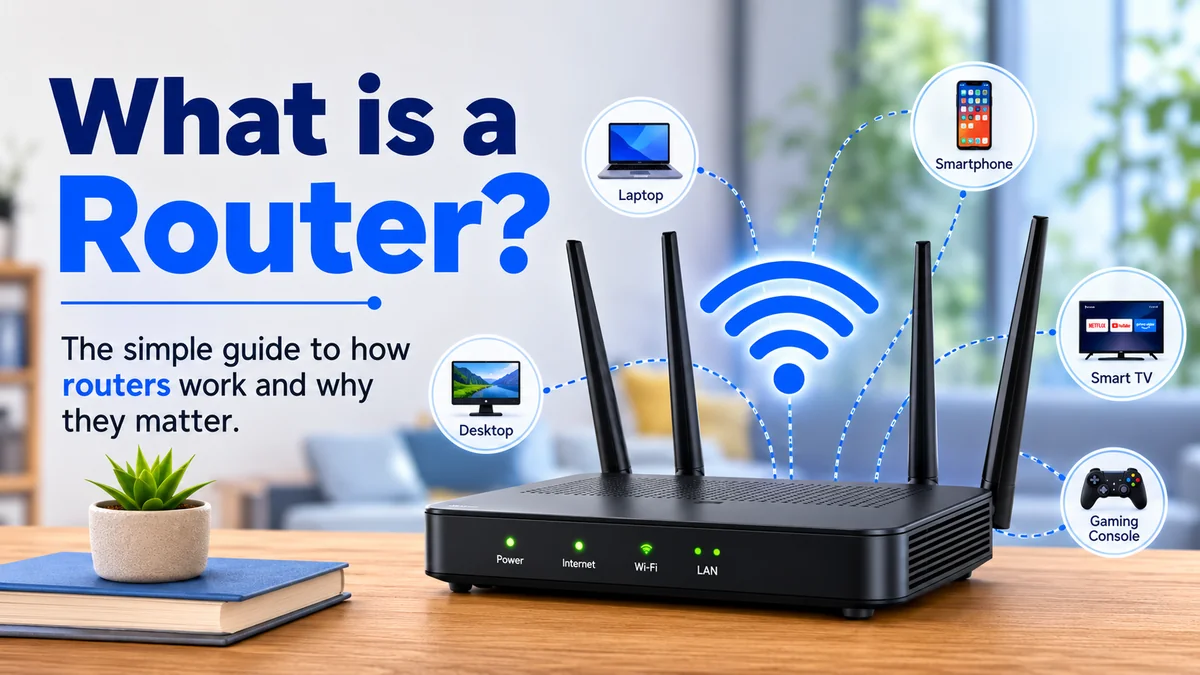

Every time you open a website, stream a video, send a message, or connect a smart TV to the internet, data has to reach the correct device. Your router plays a central role in making that happen.
If you have ever wondered what is a router, the simplest answer is this: a router is a networking device that connects two or more networks and directs data packets between them using IP addresses. In a typical home, it connects your local network to the internet and lets phones, laptops, TVs, consoles, and other devices share the same internet connection.
That definition sounds straightforward, but modern routers do much more than simply move data. They can create Wi-Fi networks, assign private IP addresses, provide firewall protection, manage traffic, support guest networks, and connect wired devices through Ethernet.
Understanding those jobs makes home networking much easier to troubleshoot.
What is a router and what does it actually do?
A router is essentially a traffic director for computer networks.
Data moving across a network is divided into small units called packets. These packets contain information about where they came from and where they need to go. A router examines the destination IP address and determines where the packet should be sent next.
Think of a delivery company.
A package has a destination address printed on it. At a sorting center, that address is checked so the package can be sent along the appropriate route. A router performs a similar job with digital information.
In technical networking terms, routers primarily operate at Layer 3—the network layer—of the OSI model. This is one reason routers are associated so closely with Internet Protocol, or IP.
A typical home router handles several related jobs:
- Connects your local network to another network, usually the internet
- Forwards packets according to their destination IP addresses
- Allows multiple devices to share an internet connection
- Creates a local area network, or LAN
- Often provides wireless connectivity through a built-in Wi-Fi access point
- Connects wired devices through Ethernet ports
- Assigns local IP addresses to devices
- Commonly performs Network Address Translation (NAT)
- Provides basic firewall and network security features
The important distinction is that routing and Wi-Fi are not the same thing. Routing is the process of moving traffic between networks. Wi-Fi is one method devices can use to connect wirelessly.
Quick Takeaway: A router’s fundamental job is connecting networks and deciding where network traffic should go. Wi-Fi is an additional capability built into most consumer routers.
How does a router work?
To understand how a router works, imagine opening a website on your laptop.
Your laptop needs to send a request beyond your home network. That request is broken into IP packets and passed toward your router.
The basic journey looks like this:
- Your device sends data. Your laptop, phone, or another connected device creates network traffic.
- The router receives the packets. It examines information such as the destination IP address.
- The router checks its routing information. A routing table helps determine where packets should be forwarded.
- The packet is sent toward the next destination. For internet traffic, this normally means forwarding it toward your ISP.
- Other routers continue the journey. Internet traffic may pass through multiple routers, with each transition commonly described as a hop.
- Responses return through the network. Your router makes sure returning traffic reaches the appropriate device on your local network.
Routers therefore do not need to know the complete physical journey of every packet. They need enough routing information to select an appropriate next hop or outgoing interface.
Routing can become considerably more sophisticated on enterprise and internet-scale networks. Routing protocols can exchange information about available paths, while routers evaluate metrics to determine how traffic should move.
What is a routing table?
A routing table is a collection of information a router uses when deciding where network traffic should go.
Entries can identify destination networks and the appropriate interface or next hop for reaching them. When a packet arrives, the router compares its destination with available routing information and forwards it accordingly.
Your home router has a relatively simple routing environment. Routers operated by large enterprises, cloud providers, and internet service providers can handle vastly more complicated networks.
What are IP addresses?
An IP address identifies a device or network interface for communication using Internet Protocol.
Your router uses IP addressing to determine where traffic belongs.
Home networks generally involve both private and public IP addresses. Devices inside the LAN receive private addresses, while the internet-facing connection typically uses a public IP address supplied through the ISP’s network.
IPv4 remains widely used, while IPv6 provides a vastly larger address space. Router behavior is governed by networking standards and specifications, including IETF standards for IPv4 and IPv6.
How does a router connect your devices to the internet?
Your home network and the internet are separate networks.
The router sits at the boundary between them.
Suppose your home contains:
- 2 smartphones
- 2 laptops
- A smart TV
- A tablet
- A game console
- A smart speaker
These devices form part of your local area network (LAN). Your internet connection leads toward a much larger wide area network (WAN).
A router enables traffic to move between those network environments. Cloudflare describes routers as devices connecting packet-switched networks or subnetworks and forwarding packets toward their intended IP addresses.
LAN vs. WAN
Understanding these two terms clears up much of the confusion surrounding routers.
| Feature | LAN | WAN |
|---|---|---|
| Full name | Local Area Network | Wide Area Network |
| Typical scale | Home, office, building | Cities, countries, global networks |
| Example | Your home network | An ISP network or interconnected networks |
| Router’s role | Connects local devices/network | Provides a path toward external networks |
| Common connection | Wi-Fi or Ethernet | ISP/internet-facing connection |
The LAN ports on a consumer router are normally used for local wired devices. The WAN port typically connects the router toward a modem, ONT, gateway, or another upstream network device.
What is NAT?
One feature commonly found in home routers is Network Address Translation (NAT).
NAT enables devices using private addresses on a home network to communicate through an internet-facing connection. The router translates addressing information as traffic moves between the private network and the external network.
That means several household devices can access internet services without each behaving as a completely separate internet-facing network.
NAT is useful, but it should not be confused with a firewall. They perform different functions, even though both are commonly handled by the same home router.
Is a router the same as Wi-Fi?
No. This is one of the most common networking misconceptions.
A router routes network traffic. Wi-Fi is a wireless networking technology that allows compatible devices to communicate without an Ethernet cable.
Most home products combine several functions inside one box, which is why people commonly call the device providing their Wi-Fi “the router.”
A typical wireless router may combine:
- Router
- Ethernet switch
- Wireless access point
- DHCP server
- NAT functionality
- Firewall
- Network-management software
A wireless access point provides wireless connectivity, whereas the router’s fundamental job is moving traffic between networks. Cisco similarly distinguishes a router from an access point while noting that wireless routers combine both functions.
This also explains why saying “my router isn’t working” can describe several different problems.
Your Wi-Fi radio might have a problem while the wired router connection still works. Or your Wi-Fi network may work perfectly between local devices while the external internet connection is down.
Can a router work without the internet?
Yes.
A router can create and manage a local network even when there is no functioning internet connection.
Devices on that LAN may still be able to communicate with each other, depending on their configuration. For example, you could potentially access a local network-attached storage device, printer, or another computer without reaching the public internet.
So:
Wi-Fi connection ≠ internet connection.
You can be connected to Wi-Fi while having no internet access.
what is a router compared with a modem?
Router and modem are often used interchangeably, but they perform different jobs.
A modem connects your premises to the service delivered by your internet provider, while a router distributes network connectivity among your devices and routes traffic between networks. Some ISP equipment combines both functions in a single gateway.
| Feature | Router | Modem |
|---|---|---|
| Primary job | Routes traffic between networks | Connects to the ISP’s access service |
| Creates/manages a LAN | Yes | Not its fundamental purpose |
| Wi-Fi | Common on home routers | Not inherently required |
| Ethernet | Usually multiple LAN ports | Often provides an Ethernet handoff |
| Handles routing | Yes | Not necessarily |
| Connects multiple local devices | Yes | Usually requires routing/gateway functionality |
| Typical position | Between LAN and upstream network | Between ISP service and customer network |
A simplified home setup can look like:
Internet → ISP connection → Modem/ONT → Router → Your devices
However, modern internet equipment makes the terminology less obvious.
Cable connections may use a cable modem. Fiber services frequently terminate at an optical network terminal (ONT) rather than what consumers traditionally call a modem. Your provider may also supply an integrated gateway that combines multiple networking functions.
That is why some homes appear to have only one box.
Do you always need both a modem and router?
Not necessarily as two separate physical devices.
You need the required functions, but they can sometimes exist inside one device.
If an ISP supplies a combined modem-router or residential gateway, a separate router may not be necessary. With other installations, the modem or ONT and router remain separate.
Router vs. switch vs. access point
Modems are not the only devices commonly confused with routers.
Switches and wireless access points also perform different networking jobs.
| Device | Main purpose | Usually connects |
|---|---|---|
| Router | Connects and routes between networks | LANs, WANs, internet-facing networks |
| Switch | Connects devices within a local network | PCs, servers, printers, access points |
| Access point | Provides wireless network access | Wi-Fi devices to a wired network |
| Modem/ONT | Terminates or converts ISP access connection | Provider service to customer equipment |
A network switch primarily connects devices within a network and forwards local traffic. A router connects different IP networks.
In a small home, these roles may all be hidden inside a single wireless router.
In an office, they are more likely to be separate:
Internet → firewall/router → switches → access points and wired devices
Keeping the roles separate can provide greater scalability and management control.
What are the different types of routers?
Routers range from small consumer devices to infrastructure responsible for carrying traffic across enormous networks.
Wireless router
A wireless router, often called a Wi-Fi router, combines routing with wireless access.
It is the type most people have at home.
Devices can generally connect through Wi-Fi or Ethernet, while the router provides a path toward an upstream network.
Wired router
A wired router performs routing without relying on integrated Wi-Fi for client connectivity.
Devices and switches connect through Ethernet or other wired interfaces.
Wired routers are particularly common in professional networks where dedicated wireless access points handle Wi-Fi separately.
Edge router
An edge router sits near the boundary between networks and connects an internal network with external networks.
Businesses, service providers, and other large network operators use edge-routing equipment to manage traffic entering and leaving their networks.
Core router
A core router is designed for high-capacity routing within large network infrastructures.
Service providers, cloud operators, telecommunications companies, and large organizations may use them to move substantial amounts of traffic between network segments.
Cisco notes that core routers are typically associated with service providers, cloud providers, and very large enterprise environments rather than ordinary small businesses.
Distribution or interior router
A distribution or interior router moves traffic within an organization’s broader network architecture.
Rather than simply connecting a home to an ISP, these routers help connect different internal networks, locations, or network layers.
Virtual router
A router does not have to be a physical box.
A virtual router implements routing functions in software. Virtualization and cloud networking make it possible to deploy routing capabilities without dedicated router hardware for every routing function.
Virtual routers are particularly useful where scalability, automation, and flexible network architecture matter.
What features does a home router provide?
Modern home routers have evolved into multifunction network appliances.
Routing remains their defining function, but the features people interact with most often may be something else entirely.
DHCP and automatic IP addressing
When your phone joins your home network, you normally do not manually configure all of its network information.
The router commonly runs a Dynamic Host Configuration Protocol (DHCP) service that automatically provides devices with configuration such as a private IP address, subnet information, gateway, and DNS settings.
This is why joining a home network can be as simple as selecting its name and entering a password.
Ethernet connections
Ethernet provides a wired connection between devices.
Most home routers contain LAN Ethernet ports for computers, TVs, game consoles, network-attached storage, switches, or other equipment.
Wired connections can be particularly useful for devices that benefit from consistent latency and throughput.
Firewall protection
Many consumer routers include a built-in firewall.
The firewall helps control traffic between your private network and external networks. Business routers can offer substantially more sophisticated filtering and security controls. Cisco notes that routers may incorporate firewall and content-filtering capabilities as part of network protection.
A router’s firewall is useful, but it should not be treated as complete cybersecurity protection. Devices still need secure software, current updates, strong credentials, and sensible user behavior.
Guest networks
A guest network creates a separate wireless network for visitors.
Depending on the router’s implementation and settings, guest devices can be isolated from your primary local network while retaining internet access.
This can also be useful for keeping some smart-home or IoT devices separated from more sensitive computers.
Quality of Service
Quality of Service (QoS) features can prioritize certain categories of network traffic.
For example, a network administrator might prioritize voice calls, video conferencing, gaming, or business applications when bandwidth is constrained.
QoS does not magically increase the bandwidth supplied by your ISP. It manages how available network resources are used.
VPN capabilities
Some routers can act as VPN clients or servers.
A router-level VPN configuration can apply to network traffic without installing identical VPN software on every connected device, although capabilities vary widely between models.
How Wi-Fi routers communicate with wireless devices
A wireless router contains one or more radios and antennas that transmit and receive radio signals.
Your phone, laptop, tablet, TV, or other Wi-Fi device communicates with the router’s wireless access point. The router then forwards relevant traffic toward another local device or external network.
Wi-Fi technology is based on the IEEE 802.11 family of standards.
Modern generations include standards marketed as Wi-Fi 6, Wi-Fi 6E, and Wi-Fi 7. Older devices may use earlier Wi-Fi generations.
Newer standards can improve factors such as:
- Network capacity
- Efficiency with many connected devices
- Maximum theoretical throughput
- Latency characteristics
- Spectrum utilization
- Wireless performance under suitable conditions
But buying a newer router does not automatically make your ISP connection faster.
If your internet plan delivers 100 Mbps, installing a router capable of multi-gigabit wireless speeds does not turn the ISP connection into a multi-gigabit service.
The slowest relevant link can become the bottleneck.
Why can a router make your internet seem slow?
People frequently blame their internet provider when the real problem is somewhere inside the home network.
The router can affect perceived performance, but several factors need to be separated.
Weak Wi-Fi signal
Radio signals become weaker with distance and can be affected by walls, floors, building materials, interference, router placement, and the capabilities of both the router and client device.
Moving closer to the router may dramatically improve wireless performance.
Too many connected devices
A network with dozens of active devices has to divide available resources among them.
Modern wireless technologies are designed to handle multiple clients more efficiently, but heavy simultaneous usage can still create congestion.
Old hardware
An aging router may support older Wi-Fi technology, slower Ethernet interfaces, weaker processing hardware, or fewer management features.
It can therefore become a bottleneck even when the internet connection itself is capable of higher speeds.
Poor router placement
Putting a Wi-Fi router inside a cabinet, behind large objects, or at one extreme end of a large property can reduce coverage.
For wireless performance, a relatively central and open position is often more effective.
The ISP connection itself
Sometimes the router is working perfectly.
The bottleneck may instead be your broadband connection, ISP congestion, a service outage, remote server performance, or another part of the route.
A useful troubleshooting test is comparing wired Ethernet performance with Wi-Fi performance. If Ethernet is fast but Wi-Fi is slow, the local wireless network deserves attention before blaming the internet connection.
Quick Takeaway: Your router manages local network traffic, but it cannot create bandwidth your ISP does not provide. Router performance, Wi-Fi conditions, device capabilities, and internet service all affect the experience.
How does a router help protect a network?
Your router occupies an important position: the boundary between trusted local devices and external networks.
That makes router security particularly important.
Common security capabilities include:
- Firewall rules
- WPA2 or WPA3 wireless security
- Guest-network isolation
- Access controls
- Automatic or manual firmware updates
- VPN support
- Device management
- Content or parental controls
- Network monitoring
Security also depends on configuration.
Changing default administrator credentials where applicable, installing firmware updates, using modern Wi-Fi encryption, disabling unnecessary remote-management services, and using strong Wi-Fi passwords can reduce avoidable risks.
Do not confuse the Wi-Fi password with the router administrator password. The first controls access to the wireless network; the second protects the router’s management interface.
They should be treated as separate security credentials.
What happens when you visit a website through your router?
Following one everyday action brings all these concepts together.
Suppose you type a website address into your browser.
First, your device needs the necessary network configuration and typically uses DNS to determine the IP address associated with the domain.
It then creates traffic destined for a server outside your local network.
The process can be simplified as:
Laptop → Wi-Fi/Ethernet → Home router → Modem/ONT or gateway → ISP → Internet routers → Destination network/server
The response makes the return journey through interconnected networks.
Internet-scale routers repeat the fundamental process of examining routing information and forwarding packets toward their destinations. A packet can travel through multiple routers before arriving.
This happens extremely quickly.
That is why routing is fundamental to the internet itself—not merely to home Wi-Fi.
Do you need a router at home?
For a modern multi-device household, some form of routing functionality is normally essential.
Without it, you would not have the familiar setup where phones, laptops, televisions, consoles, security cameras, and other devices share one broadband connection and communicate through a managed local network.
You might already have routing without realizing it.
An ISP-supplied box may combine:
Modem or access termination + router + switch + Wi-Fi access point + firewall
Manufacturers and ISPs commonly call such integrated equipment a gateway, hub, or similar product-specific name.
That distinction matters when troubleshooting or replacing equipment. Buying another router when your existing gateway already performs routing can create unnecessary complexity unless the network is configured appropriately.
Router terminology worth knowing
Networking becomes much easier once a handful of recurring terms make sense.
Packet: A formatted unit of data transmitted across a packet-switched network.
IP address: An address used to identify and route network traffic.
LAN: Local Area Network, such as a home or office network.
WAN: Wide Area Network, covering a larger geographic area or connecting multiple smaller networks.
Ethernet: A widely used technology for wired local networking.
Wi-Fi: Wireless networking based on IEEE 802.11 technologies.
Routing table: Information used by a router to decide where packets should be forwarded.
Gateway: A device or function providing a path from one network to another. A router often serves as the default gateway for local devices.
NAT: Network Address Translation, commonly used to translate between private and external addressing.
DHCP: Dynamic Host Configuration Protocol, commonly used to automatically provide network configuration to client devices.
DNS: Domain Name System, which helps applications resolve domain names to IP addresses.
ISP: Internet Service Provider, the company or organization providing internet connectivity.
Firewall: A security system that controls network traffic according to defined rules.
SSID: The network name users typically see when selecting a Wi-Fi network.
Understanding these terms removes much of the mystery from router settings and home-network troubleshooting.
what is a router in simple terms?
A router is the device or software function that directs data between different networks.
At home, it commonly sits between your local network and your internet connection. It ensures traffic from your laptop, phone, television, and other devices can travel toward the correct destination and that returning traffic reaches the appropriate part of your network.
The most useful distinction to remember is:
A modem or ONT connects you to your provider’s access network. A router directs traffic between networks. A switch connects devices within a local network. An access point provides wireless access.
Consumer hardware often combines several of these functions in one box, which is why the terminology can seem confusing.
Once you understand what is a router, everyday network problems become easier to diagnose. When something stops working, you can ask a much better question: is the problem with the internet connection, routing, Ethernet, Wi-Fi, or the individual device? That distinction is the foundation of effective network troubleshooting.
