
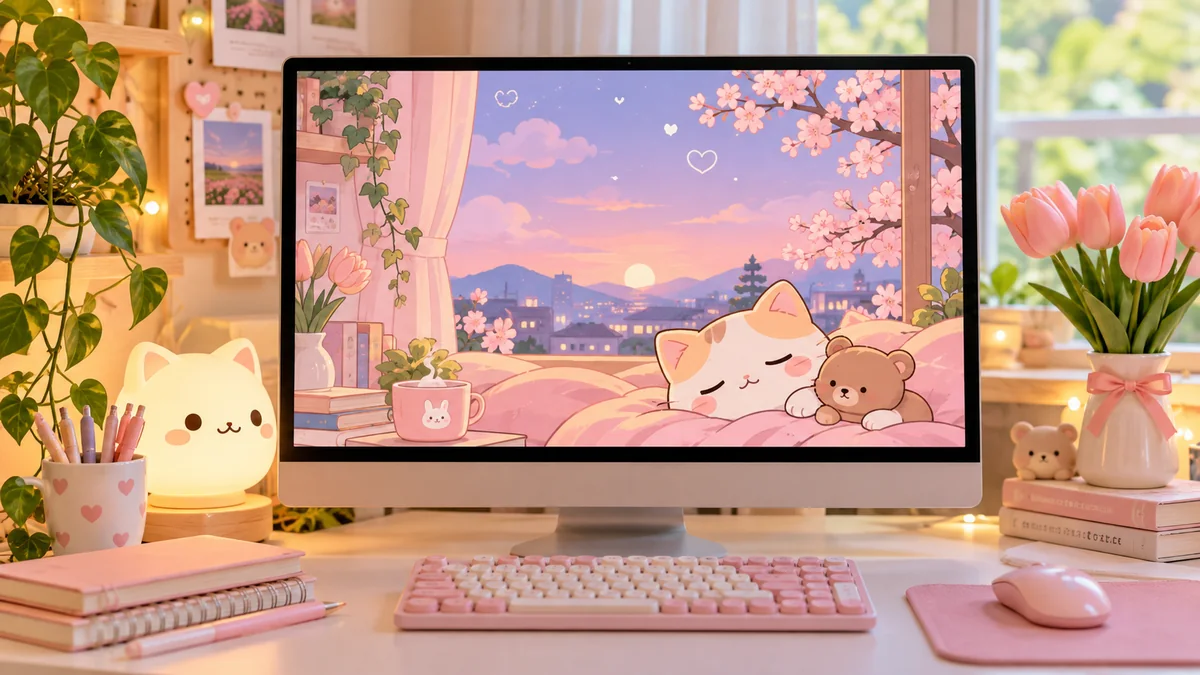

A computer background is something you may see hundreds of times each week. The right design can make a laptop or desktop feel calmer, more personal, and even easier to organize.
cute backgrounds for computer are desktop wallpapers built around playful, cozy, colorful, or aesthetically pleasing designs. Popular choices include pastel colors, cute animals, flowers, clouds, bows, cartoons, minimalist patterns, seasonal illustrations, and desktop organizers. For the sharpest result, choose a wallpaper that matches your screen’s native resolution and aspect ratio.
There is no single definition of “cute.” One person might prefer a tiny illustrated frog on a sage-green background, while another wants pink bows, strawberries, stars, cats, or a cozy illustrated bedroom.
What matters most is finding a style that looks good without making the desktop difficult to use.
What Makes a Computer Background Look Cute?
Cute desktop wallpaper usually combines several visual characteristics rather than relying on one particular subject.
Soft colors are especially common. Pastel pink, lavender, baby blue, sage green, cream, peach, and pale yellow can create a gentle look without dominating the screen.
Illustrations also play a major role. Common themes include:
- Cats, dogs, bears, rabbits, frogs, and capybaras
- Hearts, bows, stars, clouds, and sparkles
- Strawberries, cherries, desserts, coffee, and matcha
- Flowers, daisies, mushrooms, and plants
- Cozy rooms and reading corners
- Cartoon-style landscapes
- Kawaii characters and objects
- Seasonal pumpkins, snowflakes, or spring flowers
- Minimalist patterns and doodles
- Positive quotes and short reminders
Current wallpaper libraries show considerable variety within the “cute” category. For example, Canva’s templates include bears, cats, dogs, whales, frogs, flowers, cherry blossoms, organizer layouts, pastel patterns, bows, strawberries, and seasonal illustrations.
The best design, however, is not necessarily the one with the most decorative elements.
For an everyday desktop, visual breathing room matters.
Cute vs. Aesthetic Computer Backgrounds
“Cute” and “aesthetic” are often used together, but they are not exactly the same.
A cute wallpaper usually emphasizes adorable subjects, playful illustrations, rounded shapes, cheerful colors, or charming decorative details.
An aesthetic wallpaper focuses more broadly on a coordinated visual style. It might be minimalist, vintage, dark academia, pastel, retro, floral, Y2K, cozy, or monochrome.
A background can easily be both.
A pastel illustration of a sleepy bear under stars, for example, combines a cute subject with a coordinated aesthetic.
Best Styles of cute backgrounds for computer
Finding a wallpaper becomes much easier once you choose a general visual direction. Instead of scrolling through thousands of unrelated images, decide what you want your desktop to feel like.
Pastel Desktop Backgrounds
Pastel wallpaper is one of the easiest styles to use for long periods.
Think pale pink, lavender, mint, peach, cream, or sky blue paired with small illustrations. Because these colors usually have lower visual intensity than highly saturated designs, they can work well behind desktop icons.
Pastels also combine naturally with clouds, stars, flowers, hearts, animals, desserts, and simple geometric shapes.
Kawaii Computer Wallpapers
“Kawaii” is commonly associated with a cute Japanese-inspired visual style.
Typical kawaii wallpaper elements include smiling food, tiny animals, rounded characters, expressive objects, clouds, hearts, stars, and soft color palettes.
A kawaii design can be extremely detailed, but a simpler composition is often more practical for a working desktop.
Leave at least one relatively plain area for shortcuts and folders.
Cute Animal Backgrounds
Animals are a natural fit for adorable computer wallpapers.
Cats and dogs are obvious favorites, but bears, bunnies, frogs, ducks, seals, pandas, hamsters, whales, and capybaras can create equally charming backgrounds.
Illustrated animals tend to provide more control over color and composition than photographs. A tiny character placed in one corner, for example, leaves most of the desktop available for icons.
Pink and Girly Desktop Wallpapers
Pink wallpapers range from subtle blush backgrounds to elaborate collages filled with bows, hearts, flowers, ribbons, cherries, and inspirational text.
For a cleaner desktop, use a pale base color with darker pink accents.
If you prefer a maximalist look, a collage can work well, but keep the area behind your icons less detailed.
Floral and Nature Backgrounds
Flowers offer a middle ground between cute and elegant.
Daisies, cherry blossoms, tulips, wildflowers, leaves, mushrooms, and illustrated gardens can add personality without making the desktop feel childish.
Nature themes also work across different color palettes. You can build a warm beige floral desktop, a green botanical setup, or a pink cherry-blossom theme.
Cozy Computer Backgrounds
A cozy wallpaper aims to make the screen feel warm and comfortable.
Popular scenes include rainy windows, reading corners, bedrooms, coffee shops, autumn landscapes, books, blankets, lamps, candles, and night skies.
Illustrated cozy rooms are especially useful because the artist can deliberately leave open sections where desktop icons remain visible.
Minimalist Cute Backgrounds
Minimalism and cuteness work surprisingly well together.
Instead of covering the entire screen with patterns, try:
- One small character in a corner
- A simple flower illustration
- Tiny stars around the edges
- A centered heart
- A subtle checkerboard pattern
- A plain pastel background with a small doodle
Minimalist wallpaper is particularly practical for computers used for work or study.
Seasonal Cute Wallpapers
Changing the desktop with the season is an easy way to refresh your setup without redesigning everything.
Spring can feature flowers, rabbits, and pastel greens. Summer works with fruit, beaches, ice cream, or bright illustrations. Autumn suits pumpkins, leaves, warm brown tones, and cozy rooms. Winter can use snow, stars, holiday illustrations, or cool blue palettes.
Choose the Right Wallpaper Resolution
A beautiful wallpaper can look surprisingly poor if its dimensions do not match your display.
The most important specification is your screen’s native resolution.
Common desktop and laptop resolutions include:
| Resolution | Aspect Ratio | Typical Use |
|---|---|---|
| 1366 × 768 | 16:9 | Older and budget laptops |
| 1920 × 1080 | 16:9 | Full HD laptops and monitors |
| 2560 × 1440 | 16:9 | QHD monitors |
| 3840 × 2160 | 16:9 | 4K displays |
| 1440 × 900 | 16:10 | Some laptop displays |
| 1920 × 1200 | 16:10 | Modern productivity displays |
| 2560 × 1600 | 16:10 | Higher-resolution laptops |
A 1920 × 1080 image is an excellent choice for a Full HD display, but it should not automatically be used for every computer.
Check the resolution of your own screen first.
Why Aspect Ratio Matters
Resolution determines the number of pixels in an image. Aspect ratio describes its overall shape.
A 1920 × 1080 wallpaper has a 16:9 aspect ratio.
If you place a differently shaped image on that screen, the operating system may crop, stretch, or add empty space around it.
This becomes especially noticeable when the wallpaper contains characters, text, calendars, or carefully positioned decorative elements.
Should You Use 4K Wallpaper?
Use 4K wallpaper when your display has a 3840 × 2160 resolution or when you want a high-resolution source that can be cropped safely.
A large image can usually be scaled down cleanly.
A very small image enlarged to fill a large monitor is more likely to look blurry or pixelated.
Some wallpaper libraries now offer images substantially larger than Full HD, giving users more flexibility for high-resolution displays.
Quick Takeaway: Match the wallpaper to your screen’s resolution whenever possible. If an exact match is unavailable, start with an image that is at least as large as your display and has the same aspect ratio.
How to Find High-Quality Cute Computer Wallpapers
Wallpaper websites, stock-image libraries, template platforms, and design tools all offer different approaches.
The key is to evaluate the actual file rather than relying on a thumbnail.
Look for High-Resolution Downloads
A preview can look perfectly sharp in a browser while the downloaded image is too small for your monitor.
Check its pixel dimensions before setting it as your background.
For a 1920 × 1080 screen, a wallpaper of the same dimensions or larger is usually preferable.
Use Reputable Wallpaper and Image Libraries
Several established platforms provide desktop-oriented images or editable wallpaper templates.
Canva offers customizable desktop wallpaper templates that can be personalized with illustrations, images, fonts, icons, grids, and other elements before being exported as JPG or PNG.
Adobe Express similarly provides editable cute desktop wallpaper templates, while Adobe Firefly can generate wallpapers from text descriptions and adjust designs for different aspect ratios.
Pixabay provides a large collection of royalty-free images searchable by terms such as cute desktop wallpaper, HD wallpaper, desktop backgrounds, and 4K wallpaper.
Dedicated wallpaper collections can also be useful when you simply want to download an existing image rather than customize one.
Check Usage Rights
An image appearing in a search result does not automatically mean you have unrestricted rights to reuse or redistribute it.
For personal desktop use, check the source’s terms. If you intend to publish the wallpaper on a website, include it in a product, share modified versions, or use it commercially, licensing becomes even more important.
Go to the original source whenever possible instead of downloading an image copied onto an unknown website.
Cute Desktop Organizer Backgrounds
A desktop organizer combines decoration with designated spaces for files and shortcuts.
Instead of treating the wallpaper as pure artwork, the design may contain labeled areas such as:
| Desktop Zone | Possible Contents |
|---|---|
| School | Notes, assignments, PDFs |
| Work | Projects and documents |
| To Do | Current tasks |
| Personal | Photos and personal folders |
| Later | Files that need sorting |
| Important | Frequently opened items |
Organizer wallpapers are especially popular with students and people who keep many shortcuts on the desktop.
Current cute wallpaper templates include organizer-style layouts alongside conventional decorative backgrounds.
Keep Organizer Wallpaper Simple
There is one limitation: the wallpaper itself cannot actually control your files.
It provides visual zones, but you still have to position desktop icons manually.
Avoid creating ten or twelve tiny sections. Two to four broad areas usually look cleaner and are easier to maintain.
Also remember that widgets, the taskbar, Dock, and desktop icons may cover parts of the design.
How to Create Your Own Cute Computer Background
Making your own wallpaper gives you control over the exact colors, characters, text, and layout.
You do not need advanced graphic-design skills.
1. Check Your Display Resolution
Find the recommended or native resolution in your computer’s display settings.
Create your design at those dimensions.
If your display is 1920 × 1080, for example, make the canvas 1920 pixels wide and 1080 pixels tall.
2. Pick One Visual Theme
Choose one clear direction before adding elements.
Examples include:
- Pink bows and hearts
- Lavender night sky
- Sage-green frogs
- Strawberry pattern
- Minimalist bear illustration
- Cozy reading room
- Pastel clouds
- Floral organizer
- Cute cats
- Retro cherries
A defined theme keeps the design cohesive.
3. Build a Simple Color Palette
Three to five colors are usually enough.
Start with one dominant background color, add one or two supporting colors, and reserve stronger shades for accents.
For example:
Cream + blush pink + burgundy + muted green
or
Lavender + pale blue + white + soft yellow
Using too many competing colors can make desktop icons harder to recognize.
4. Leave Space for Icons
Before adding decorative elements, look at where you normally keep files.
Windows users often arrange icons along the left side of the desktop. macOS users may have items positioned differently, while the Dock occupies additional screen space.
Keep your busiest artwork away from those areas.
This small decision often separates a pretty wallpaper from a genuinely usable one.
5. Add Personal Details
Personalization can be subtle.
Try a name, initials, a small calendar, a favorite short phrase, tiny stars, photos, a weekly focus area, or a few decorative stickers.
Canva and Adobe Express both support customizable wallpaper designs, while generative tools such as Adobe Firefly can create an image from a written description.
6. Export at Full Resolution
JPG works well for photographic or highly detailed backgrounds.
PNG can be useful for illustrations, typography, and graphics where crisp edges matter.
Avoid repeatedly resizing and re-saving the same small file because image quality can deteriorate.
How to Make AI-Generated Cute Wallpapers
AI image generators offer another way to create backgrounds when you cannot find the exact design you want.
The secret is writing a prompt that describes not only the subject but also the wallpaper’s composition.
Instead of requesting:
“cute bunny wallpaper”
describe the layout more specifically:
“Pastel lavender desktop wallpaper with a small sleepy bunny under stars in the bottom-right corner, soft clouds, minimal composition, large clean area on the left for desktop icons, widescreen 16:9 layout.”
That tells the generator where the decorative elements should appear and why the empty space is needed.
Adobe Firefly, for example, supports text-based wallpaper generation, aspect-ratio selection, image expansion, upscaling, and further editing.
Useful Details to Put in an AI Wallpaper Prompt
Mention:
- Subject — cat, bunny, flowers, room, clouds
- Style — kawaii, watercolor, minimalist, cartoon
- Colors — pink, lavender, cream, sage
- Mood — cozy, cheerful, dreamy, calm
- Composition — subject on right, empty space on left
- Aspect ratio — 16:9 or another screen ratio
- Detail level — minimal or highly detailed
- Purpose — desktop wallpaper with clear icon space
Composition is particularly important. Without instructions, an image generator may place its most detailed elements exactly where your folders need to go.
How to Set a Cute Background on Windows
Once you have the wallpaper saved to your computer, applying it takes only a few steps.
On current Windows systems, you can generally:
- Open Settings.
- Select Personalization.
- Open Background.
- Choose Picture as the background type.
- Select your downloaded wallpaper.
- Adjust the fit if necessary.
If the image looks stretched or important elements disappear, the wallpaper probably does not match your screen’s aspect ratio.
Try another fit option or crop the original image to the correct dimensions.
How to Set a Cute Background on Mac
On a Mac, wallpaper controls are available through System Settings.
Choose the wallpaper section, add or select your image, and inspect how it fills the display.
Again, cropping is the main thing to watch.
If a character’s face or important text disappears at the edge of the screen, create a version matching your Mac’s display proportions rather than forcing an unsuitable image to fit.
How to Keep Desktop Icons Readable
A cute wallpaper stops being useful when you cannot find anything on it.
Icon visibility depends heavily on contrast.
If your icons sit over a detailed flower field, photo collage, or repeating pattern, filenames may become difficult to read.
Several simple techniques solve the problem.
Create Negative Space
Negative space is an intentionally uncluttered part of a composition.
Put the character, flowers, or decorative artwork on one side and leave the other side relatively plain.
The empty area becomes a natural home for icons.
Avoid Strong Patterns Behind Files
Gingham, flowers, hearts, and checkerboards can look charming, but dense patterns create visual competition.
Reduce the pattern’s contrast or reserve it for the edges.
Use Subtle Gradients
A gradient can preserve the color theme while giving the desktop more visual depth than a completely flat background.
Soft pink-to-cream or blue-to-lavender gradients work particularly well with small illustrations.
Limit Wallpaper Text
Quotes and motivational phrases can be attractive, but large text competes with filenames, widgets, and shortcuts.
One short phrase is usually enough.
Cute Backgrounds for Studying and Work
A work or study wallpaper does not have to look corporate.
Cute designs can still be practical when decorative elements stay away from active desktop areas.
For study setups, try a pastel organizer with sections for assignments, notes, resources, and current projects.
For work, a minimalist background with one illustrated character and large empty areas can provide personality without distracting from documents and apps.
A calendar can also be incorporated into the design, but remember one limitation: a calendar embedded in a static image will not update automatically.
You will need to replace it each month.
Static Wallpaper vs. Animated Wallpaper
Animated backgrounds can create effects such as rain, drifting clouds, moving landscapes, or subtle character animation.
They are visually engaging, but they are not always the right choice.
Static wallpapers are simple, widely compatible, and require no continuous animation.
Animated backgrounds require compatible software and may use additional system resources. If battery life and maximum simplicity matter, a static JPG or PNG is the safer option.
Common Mistakes When Choosing Cute Wallpapers
The most common problem is downloading an image simply because the thumbnail looks nice.
Check these issues first.
Using an Image That’s Too Small
A small image enlarged across a large monitor can become soft or pixelated.
Start with the correct resolution or a larger source.
Ignoring the Aspect Ratio
A beautiful vertical phone wallpaper usually will not translate cleanly to a widescreen monitor.
Use desktop-oriented landscape images.
Choosing a Background That’s Too Busy
Dense collages can look great in a gallery but become frustrating once covered by 30 desktop icons.
Always imagine your actual folders sitting on top of the wallpaper.
Putting Important Artwork Near the Edges
Different screens and fit settings can crop images slightly.
Keep essential characters, faces, text, and organizer labels away from extreme edges.
Downloading From Unclear Sources
Use established wallpaper libraries, image platforms, or the original creator whenever possible.
This helps you obtain better-quality files and understand how the image may be used.
Build a Complete Cute Desktop Aesthetic
Wallpaper is only one part of a desktop’s appearance.
A coordinated setup can combine the background with a clean folder structure, a small number of widgets, matching colors, and carefully positioned shortcuts.
The trick is restraint.
You do not need a dozen widgets, hundreds of custom icons, animated effects, and an elaborate collage at the same time.
Start with the wallpaper.
Then organize your desktop icons into predictable areas. Add only the widgets you actually use. If you want stronger visual consistency, match those elements to two or three colors already present in the wallpaper.
The result feels intentional rather than cluttered.
Final Thoughts on cute backgrounds for computer
The best cute backgrounds for computer balance personality with usability. Pastel illustrations, kawaii animals, pink collages, flowers, cozy scenes, seasonal designs, minimalist doodles, and desktop organizers can all work—the right choice depends on what you enjoy seeing every day.
Before downloading anything, check your display resolution and aspect ratio. Choose a high-quality image, leave enough negative space for icons, and avoid overly busy patterns in frequently used areas.
And if existing wallpapers never look quite right, create your own. Start with your screen’s exact dimensions, choose a simple color palette, add a few cute elements, and design around the way you actually use your desktop. That approach produces a background that is not only adorable but genuinely comfortable to use.
