
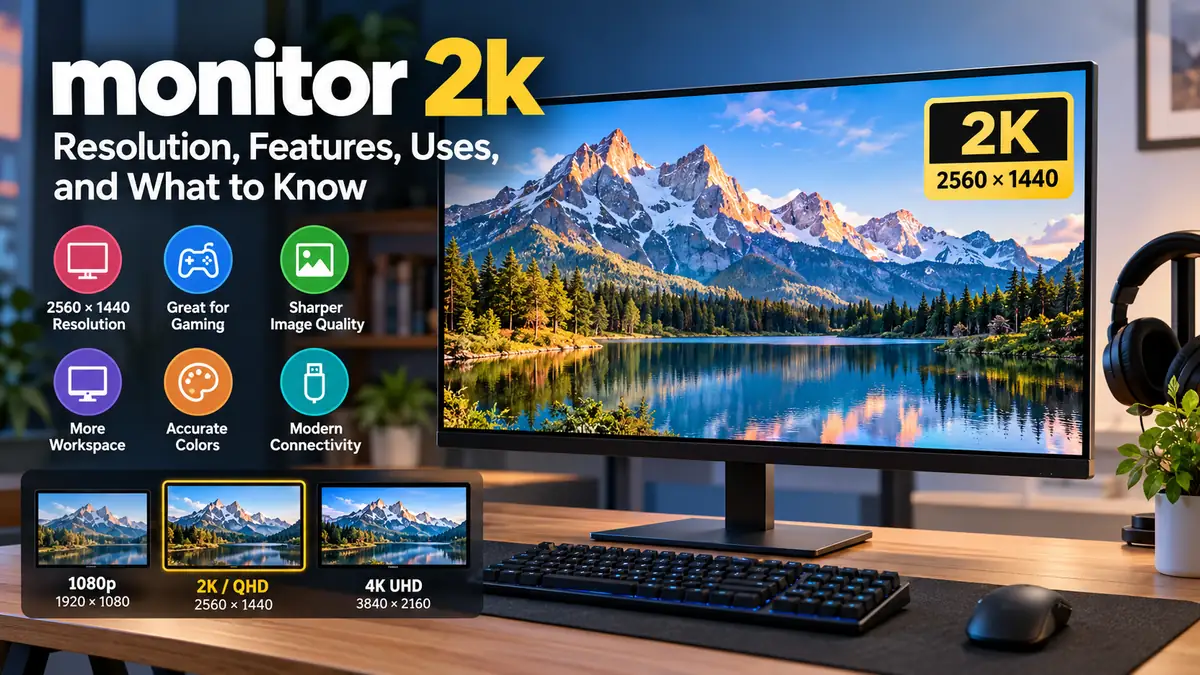

A monitor 2k sits in a useful middle ground between Full HD and 4K. It gives you noticeably more screen detail and workspace than 1080p without placing the same demands on your graphics hardware as 4K.
In everyday monitor terminology, a 2K monitor usually means a 2560 × 1440 QHD (1440p) display. Technically, the DCI cinema standard defines 2K as 2048 × 1080, but PC monitor manufacturers and shoppers commonly use “2K” for 2560 × 1440 QHD screens. Tom’s Hardware
What Is a monitor 2k?
A monitor 2k is generally a computer display marketed with a resolution of 2560 × 1440 pixels. You may see the same resolution described as:
- 1440p
- QHD
- Quad HD
- WQHD
- 2K QHD
The terminology can be confusing because true cinema 2K is 2048 × 1080. When shopping for a PC monitor, therefore, it is better to check the actual pixel dimensions rather than relying solely on the “2K” label. Tom’s Hardware
A standard 2560 × 1440 display contains 3,686,400 pixels. By comparison, a 1920 × 1080 Full HD monitor contains 2,073,600 pixels.
That means QHD provides about 78% more pixels than Full HD. The additional pixels can produce finer detail while also providing more usable desktop space.
2K, QHD, and 1440p: Are They the Same?
For consumer monitors, the terms are frequently used interchangeably, although they are not technically identical.
| Term | Typical Resolution | Common Context |
|---|---|---|
| Full HD / FHD | 1920 × 1080 | Entry-level monitors |
| DCI 2K | 2048 × 1080 | Digital cinema |
| QHD / 1440p | 2560 × 1440 | PC monitors and gaming |
| 4K UHD | 3840 × 2160 | High-resolution monitors and TVs |
If a retailer advertises a “2K gaming monitor,” checking the specifications will usually reveal a 2560 × 1440 panel. Xiaomi, for example, lists its 2K Monitor A27Qi at 2560 × 1440. Xiaomi Australia
Why Is 2560 × 1440 Popular?
Resolution is only one component of display quality, but moving from 1080p to 1440p can make a meaningful difference.
More pixels allow text, interface elements, photographs, games, and video to display with finer detail. The additional resolution also provides more workspace when applications are displayed at comparable scaling settings.
For desktop users, 1440p occupies a practical position between two established resolutions.
1080p requires relatively modest graphics power but provides less detail and desktop space.
4K delivers much higher pixel density but requires considerably more graphics processing in demanding games and applications.
A 2560 × 1440 monitor falls between them.
This balance is particularly relevant to PC gaming. Rendering at 1440p requires substantially fewer pixels per frame than 3840 × 2160, making high frame rates easier to achieve with the same GPU. TechRadar
monitor 2k vs 1080p
Moving from 1920 × 1080 to 2560 × 1440 increases both horizontal and vertical resolution.
| Specification | 1080p | 2K/QHD |
|---|---|---|
| Resolution | 1920 × 1080 | 2560 × 1440 |
| Total pixels | ~2.07 million | ~3.69 million |
| Typical name | Full HD | QHD/1440p |
| GPU demand | Lower | Higher |
| Desktop space | Less | More |
| Common gaming use | Budget/high-FPS | Balanced high-resolution gaming |
The improvement is especially noticeable when both resolutions are used at the same physical screen size.
Imagine two 27-inch monitors. One has 1920 × 1080 pixels and the other has 2560 × 1440. Because the second display packs substantially more pixels into roughly the same area, fine details can appear sharper.
The difference can help with activities such as reading small text, working with spreadsheets, browsing several windows, coding, photo editing, and gaming.
There is a trade-off: your computer must render those extra pixels.
For basic desktop applications, this generally isn’t a major concern with modern hardware. Games are more demanding because the GPU must continually render millions of pixels for every frame.
Is 2K noticeably better than 1080p?
At common desktop viewing distances, it can be—particularly on a 27-inch screen.
The difference becomes less straightforward on smaller displays or when the viewer sits farther away. Screen size, pixel density, viewing distance, eyesight, panel quality, and operating-system scaling all affect perceived sharpness.
Resolution should therefore never be evaluated in isolation.
monitor 2k vs 4K
The other major comparison is 1440p versus 4K UHD.
A 4K UHD monitor normally has a resolution of 3840 × 2160, containing approximately 8.3 million pixels. That’s more than twice the number rendered by a 2560 × 1440 display. TechRadar
| Feature | 2K/QHD | 4K UHD |
|---|---|---|
| Resolution | 2560 × 1440 | 3840 × 2160 |
| Pixels | ~3.69 million | ~8.29 million |
| GPU workload | Moderate | Higher |
| High-refresh gaming | Easier to drive | More demanding |
| Fine image detail | High | Higher |
| Typical sweet spot | Around 27 inches | 27–32+ inches |
| Professional detail work | Good | Often preferable |
A 4K display can produce finer text and image detail, particularly as screen size increases. It can therefore be attractive for photography, video production, detailed design work, and productivity applications where resolution matters.
But those pixels have to be rendered.
For games, moving from 2560 × 1440 to 3840 × 2160 substantially increases GPU workload. A system that produces excellent frame rates at QHD may produce considerably fewer frames at 4K with identical graphics settings.
This is one reason 1440p remains common in gaming displays.
Does 4K always look better?
Not necessarily in every practical situation.
Resolution determines pixel count, not overall panel quality. A good 1440p display can have better color accuracy, motion performance, contrast, HDR implementation, refresh rate, or response characteristics than a poor 4K display.
Screen size also changes the equation.
At larger sizes, the extra pixel density offered by 4K becomes increasingly valuable. At typical 27-inch desktop sizes, QHD already provides considerably greater density than 1080p.
What Is the Best Size for a 2K Monitor?
For conventional desktop use, 27 inches is one of the most common matches for 2560 × 1440 resolution.
A 27-inch 16:9 QHD display has a pixel density of roughly 109 pixels per inch (PPI). A 32-inch QHD display drops to roughly 92 PPI, while a 24-inch version is approximately 122 PPI. 2K Monitor
24-inch 2K monitors
At 24 inches, QHD produces high pixel density.
Text and interface elements can look crisp, although some users may prefer scaling because native-size elements can appear relatively small.
This size works well when desk space is limited or when you sit close to the display.
27-inch 2K monitors
For many desktop setups, 27 inches provides a useful combination of screen area and pixel density.
You get more physical workspace than on a typical 24-inch display while maintaining good sharpness without necessarily requiring aggressive scaling.
That’s why 27-inch QHD displays are common for gaming, office work, programming, general productivity, and content creation.
32-inch 2K monitors
A 32-inch QHD monitor provides a physically larger picture, but its pixels are less densely packed.
That does not make it unusable. It simply means it will not look as fine as a smaller QHD display when viewed from the same distance.
A larger viewing distance can compensate for some of this difference.
Choosing a monitor 2k for Gaming
Resolution is only the beginning when evaluating a gaming monitor.
A 60 Hz QHD office monitor and a 240 Hz QHD gaming monitor have the same number of pixels, but their gaming experience can be dramatically different.
Refresh rate
Refresh rate tells you how many times the monitor can update its image each second.
Common options include:
- 60 Hz
- 75 Hz
- 100 Hz
- 120 Hz
- 144 Hz
- 165 Hz
- 180 Hz
- 240 Hz and higher
Higher refresh rates can make movement look smoother when the computer produces enough frames per second.
For example, 144 Hz allows the display to refresh up to 144 times each second. That doesn’t automatically mean every game runs at 144 FPS—the GPU and CPU still have to produce those frames.
For general office work, an extremely high refresh rate isn’t essential. For fast-paced gaming, it can be much more valuable.
Response time
Response time describes how quickly pixels transition between states.
Very slow pixel transitions can create visible trailing or smearing during motion. Gaming displays therefore often advertise response times such as 1 ms.
These manufacturer numbers should be treated carefully because testing methods differ. Real-world response behavior across different refresh rates is more informative than a single advertised figure.
Adaptive sync
Gaming monitors may support variable refresh rate technologies associated with AMD FreeSync or NVIDIA G-SYNC ecosystems.
Variable refresh rate synchronizes monitor refresh behavior with the frames being delivered by the system within supported operating ranges. Its purpose is to make inconsistent frame delivery appear smoother and reduce visible tearing.
Check both monitor and GPU compatibility rather than assuming that every adaptive-sync label provides an identical experience.
IPS vs VA vs OLED for a 2K Monitor
Panel technology can affect your experience as much as resolution.
IPS
IPS (In-Plane Switching) displays are widely used for general-purpose and gaming monitors.
They are known for strong viewing angles and generally consistent color reproduction. Modern fast IPS displays can also provide high refresh rates and quick pixel response.
IPS makes sense for users who combine work, gaming, browsing, and creative applications.
Its traditional weakness is contrast. Dark scenes viewed in a dark room can look less deep than on good VA or OLED panels.
VA
VA (Vertical Alignment) LCD panels typically provide stronger native contrast than IPS.
Dark content can therefore look richer, which is attractive for movies and atmospheric games.
Pixel response behavior varies considerably between models, however. Some VA displays show noticeable dark-level smearing during movement, while faster models perform much better.
OLED
OLED is fundamentally different because individual pixels emit their own light rather than relying on an LCD backlight.
That enables extremely deep blacks, excellent contrast, and very fast pixel transitions.
OLED gaming monitors can deliver outstanding motion and image quality, but they are generally more expensive. Long-term burn-in risk and text rendering characteristics should also be considered depending on the model and workload.
The correct choice depends on what you do most often rather than resolution alone.
How Much Refresh Rate Do You Actually Need?
Higher isn’t automatically necessary.
For documents, email, browsing, and basic productivity, 60–100 Hz can be sufficient, although many users find higher refresh rates noticeably smoother even outside gaming.
For mainstream gaming, 120–180 Hz provides a strong balance between smoothness, price, and hardware requirements.
Competitive players may prefer 240 Hz or above, provided their games and computer can actually generate sufficiently high frame rates.
Current 1440p monitor ranges span everything from lower-refresh productivity models to 240 Hz and faster gaming displays. 2K Monitor
The key is matching the monitor to your system.
Buying a 240 Hz QHD display offers limited gaming benefit if your computer consistently produces only 60 FPS in the games you play.
What GPU Do You Need for a 2K Monitor?
There is no single GPU requirement for 1440p.
A computer displaying websites and office software at 2560 × 1440 needs far less graphics performance than one trying to run a demanding game at 1440p, ultra settings, and 165 FPS.
Think about the workload in layers:
Basic desktop use: Integrated graphics found in many modern processors can support 2560 × 1440 for ordinary productivity, provided the computer’s display output supports the required resolution and refresh rate.
Casual gaming: GPU requirements depend heavily on the individual game and desired settings.
AAA gaming: Higher graphics settings, ray tracing, and high frame rates can require considerably more powerful hardware.
Competitive gaming: Games designed for high frame rates may reach 144–240 FPS on hardware that would not achieve similar performance in graphically intensive titles.
Technologies such as NVIDIA DLSS, AMD FSR, and other rendering/upscaling techniques can also affect achievable performance in supported games.
Rather than asking whether a GPU can “run 2K,” ask whether it can run your games at 2560 × 1440 at your desired graphics settings and frame rate.
Ports and Connectivity Matter
An excellent panel can still become frustrating if it doesn’t have suitable connections.
DisplayPort
DisplayPort is common on desktop graphics cards and gaming monitors.
The exact DisplayPort version and monitor implementation determine which resolution, refresh rate, bit depth, and other features can be carried.
HDMI
HDMI is useful for desktops, laptops, consoles, streaming devices, and other electronics.
Again, the version matters. Do not assume that simply having an HDMI connector means every refresh-rate option will be available.
Check the monitor’s specification sheet to see which refresh rates are supported over each input.
USB-C
USB-C can be particularly valuable for laptop users.
A compatible USB-C connection with DisplayPort Alt Mode may carry video, while monitors with USB Power Delivery can also charge compatible laptops.
Some monitors add a USB hub, allowing one cable to connect the laptop to the screen, keyboard, mouse, storage, and other peripherals.
Power delivery varies between monitors, so check the available wattage against the laptop’s charging requirements.
Color Accuracy, HDR, and Brightness
Resolution alone doesn’t tell you whether a monitor produces a good picture.
Three other areas deserve attention.
Color gamut and accuracy
Creative users should check the monitor’s coverage and accuracy for relevant color spaces.
Common specifications include:
- sRGB
- DCI-P3
- Adobe RGB
A wide color gamut isn’t the same as accurate color. If color-critical work matters, look for reliable independent measurements or calibration data rather than judging solely by an advertised percentage.
HDR
An HDR label does not guarantee impressive HDR.
Convincing high-dynamic-range reproduction depends on factors including peak brightness, black level, contrast, local dimming capability, color gamut, and panel technology.
An entry-level HDR-compatible monitor may accept an HDR signal without producing anything close to the experience of a high-performance Mini LED or OLED display.
Brightness
Monitor brightness is normally specified in nits (cd/m²).
How much you need depends on your environment. A bright office with substantial daylight can require more brightness than a dim room.
Matte or glossy screen coatings also affect how reflections and ambient light are perceived.
Is a monitor 2k Good for Office Work?
Yes. QHD can be particularly useful for productivity.
A 2560 × 1440 desktop gives you more pixels to arrange applications than 1920 × 1080. That can make side-by-side windows more practical.
Typical uses include:
Spreadsheets: More rows and columns can fit on screen.
Programming: Editors, terminals, documentation, and browser windows can be arranged more efficiently.
Writing and research: Documents can remain open alongside reference material.
Web browsing: Pages and applications benefit from additional usable screen space.
Photo editing: The increased resolution helps when examining image details.
For laptop users, USB-C connectivity can be more useful for productivity than an extremely high refresh rate. A monitor offering video, USB connectivity, and laptop charging through one cable can simplify a workstation significantly.
Is 2K Good for Photo and Video Editing?
QHD provides enough resolution for many creative workflows, but resolution should not be the only priority.
A photographer may benefit more from an accurate QHD monitor with strong color performance than from an inaccurate 4K display.
Look for appropriate color-space coverage, factory calibration, uniformity, bit-depth support, connectivity, and reliable independent testing.
For detailed 4K video work, however, a 4K monitor has an obvious advantage: it can display more of a 4K image or timeline at native resolution.
This illustrates why there is no universally superior monitor resolution.
The right specification depends on the work being performed.
Ultrawide Displays and the “2K” Label
Monitor terminology becomes even more confusing with ultrawides.
A standard QHD display usually uses a 16:9 aspect ratio and 2560 × 1440 resolution.
A 3440 × 1440 ultrawide typically uses a 21:9 aspect ratio, giving you substantially more horizontal workspace while retaining 1440 vertical pixels.
A 5120 × 1440 super-ultrawide extends this idea further, commonly using a 32:9 aspect ratio. 2K Monitor
Calling all of these simply “2K” can hide important differences.
When comparing monitors, always look at the complete resolution:
2560 × 1440 — standard QHD
3440 × 1440 — ultrawide QHD
5120 × 1440 — dual/super-ultrawide QHD
The number of pixels affects both workspace and graphics requirements.
What to Check Before Choosing a monitor 2k
Start with your actual use rather than a long specification sheet.
For general productivity, prioritize panel quality, comfortable screen size, ergonomics, useful ports, and perhaps USB-C.
For gaming, pay close attention to refresh rate, real response performance, adaptive sync, input connectivity, and whether your GPU can provide the frame rates you want.
For creative work, prioritize color accuracy, gamut coverage, uniformity, calibration capability, and appropriate screen size.
Then check these practical points:
- Confirm the resolution is actually 2560 × 1440 if QHD is what you want.
- Match screen size to your viewing distance; 27 inches is a common pairing with QHD.
- Choose IPS, VA, OLED, or another panel technology based on your workload.
- Select a refresh rate your computer can realistically use.
- Check real response-time performance rather than relying only on marketing numbers.
- Verify FreeSync, G-SYNC, or other variable-refresh compatibility when gaming.
- Check DisplayPort and HDMI capabilities at the monitor’s maximum resolution and refresh rate.
- Look for USB-C with suitable Power Delivery if connecting a laptop.
- Evaluate color accuracy and gamut coverage for creative work.
- Check stand adjustment and VESA mounting support for long-term ergonomics.
A monitor is something you may look at for thousands of hours. Small usability details—height adjustment, glare handling, text clarity, input switching, and port placement—can matter more over time than impressive-looking specifications.
Common Mistakes When Choosing a 2K Monitor
One mistake is assuming every QHD monitor provides the same image quality.
Two displays can have identical 2560 × 1440 resolutions while differing substantially in contrast, color accuracy, motion clarity, brightness, HDR, viewing angles, and response performance.
Another is buying purely by refresh rate. A 240 Hz label doesn’t guarantee excellent motion handling, and high refresh rates provide the most benefit when the system can produce correspondingly high frame rates.
Screen size is another overlooked factor. Moving from 27-inch QHD to 32-inch QHD makes the pixels physically larger, reducing pixel density.
Finally, don’t ignore connectivity. Before buying, confirm that both your computer and monitor support the desired resolution and refresh rate through the connection you intend to use.
Is a monitor 2k Worth Using?
For many desktop setups, 2560 × 1440 QHD offers a practical balance of sharpness, workspace, performance requirements, and high-refresh-rate availability. It delivers substantially more pixels than Full HD while demanding far less rendering work than 4K.
A 27-inch QHD monitor is particularly versatile for mixed productivity and gaming. Users focused on maximum text sharpness, high-resolution photo/video work, or larger screens may benefit more from 4K, while users prioritizing low hardware requirements or very high frame rates may still prefer 1080p.
The most useful approach when searching for a monitor 2k is to look beyond the label. Confirm the actual resolution first, then evaluate screen size, panel technology, refresh rate, response performance, adaptive sync, color quality, HDR capability, and connectivity. Those factors determine how good the monitor will actually feel in daily use.
