
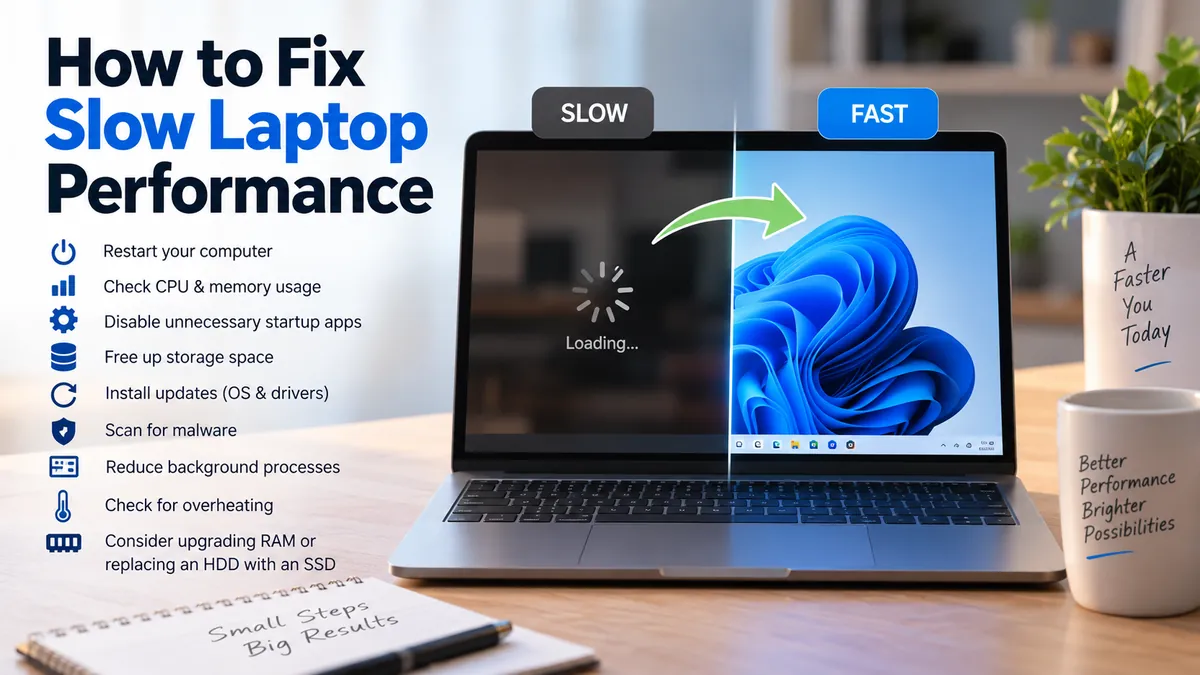

A laptop that once opened apps instantly can gradually become frustratingly slow. Programs take longer to launch, browser tabs freeze, startup drags on, and even simple tasks can make the fan run hard.
The good news is that poor performance does not automatically mean you need a new computer. Storage shortages, unnecessary startup programs, background processes, outdated software, malware, overheating, limited RAM, and aging storage drives are all common causes of sluggish performance. Microsoft identifies limited storage, startup apps, outdated software, and older hardware among the main causes of slow Windows PCs.
Quick answer: To learn how to fix slow laptop performance, restart the computer, check CPU and memory usage, disable unnecessary startup apps, free storage space, install operating-system and driver updates, scan for malware, reduce background processes, check for overheating, and consider upgrading RAM or replacing an HDD with an SSD if hardware is the bottleneck.
Why Is My Laptop So Slow?
Before changing settings or buying hardware, identify what is actually slowing the machine down.
Laptop performance depends on several components working together: the CPU (processor) handles calculations, RAM (memory) holds active data, the SSD or HDD stores files, and the operating system manages applications and background processes.
When one resource becomes overloaded, the entire computer can feel slow.
Open Task Manager on Windows by pressing Ctrl + Shift + Esc. Check the Processes and Performance sections and pay particular attention to:
| Resource | What High Usage May Indicate |
|---|---|
| CPU | Heavy applications, updates, malware, or background processes |
| Memory | Too many applications or insufficient RAM |
| Disk | Heavy file activity, updates, low storage, or an aging HDD |
| GPU | Games, video editing, graphics software, or browser acceleration |
| Network | Downloads, cloud syncing, updates, or unwanted software |
Microsoft specifically recommends checking CPU, memory, and disk utilization when diagnosing persistent performance problems.
Do not immediately terminate every process showing high usage. Windows services and legitimate applications can temporarily consume significant resources while installing updates, scanning files, or performing maintenance.
Is your laptop slow all the time or only during certain tasks?
This distinction can reveal the cause.
If the laptop is slow immediately after startup but becomes normal after several minutes, excessive startup programs are likely contributing.
If performance drops when many browser tabs or applications are open, RAM may be the limitation.
If everything becomes sluggish while files are copying or Windows is updating, storage activity may be responsible.
If the laptop starts fast but slows considerably after extended use, heat and thermal throttling deserve attention.
How to Fix Slow Laptop Performance: Start With the Simple Steps
Before making major system changes, work through the least disruptive fixes first.
1. Restart the laptop
Restarting sounds basic, but it is one of the fastest troubleshooting steps.
A restart closes applications, clears temporary processes from memory, completes some pending updates, and gives Windows a fresh session.
If you normally close the laptop lid instead of shutting it down or restarting it, the computer may go days or weeks without a complete restart.
Save your work and choose:
Start > Power > Restart
After restarting, use the laptop normally for several minutes and compare its responsiveness.
2. Close programs you are not using
Running several demanding applications simultaneously can exhaust available RAM and CPU resources.
Check Task Manager and sort the processes by:
- CPU
- Memory
- Disk
This quickly shows which programs are consuming the most resources.
Browsers deserve particular attention. Dozens of tabs, web applications, browser extensions, streaming services, and background browser processes can consume several gigabytes of memory.
Close tabs and programs you no longer need rather than simply minimizing them.
3. Identify one unusually demanding application
Sometimes the laptop itself is fine and a single application is causing the slowdown.
Suppose Task Manager shows one program constantly consuming unusually high CPU or memory resources even while you are not actively using it. Close and reopen that application.
If the problem repeatedly returns, check for an update or use Windows’ application repair options where available. Windows 11 allows some installed applications to be repaired or reset through Settings > Apps > Installed apps > Advanced options.
Quick Takeaway: Diagnose first. A laptop with insufficient RAM requires a different solution from one slowed by startup programs, malware, overheating, or a nearly full storage drive.
How to Fix Slow Laptop Startup and Background Programs
One of the most common reasons a laptop feels slow is that too many applications launch automatically.
Cloud storage utilities, communication apps, game launchers, printer utilities, update managers, music services, and other programs may start whenever Windows boots.
Each application uses some combination of CPU time, RAM, storage activity, and network bandwidth.
Disable unnecessary startup apps
On Windows 11:
- Press Ctrl + Shift + Esc.
- Open Startup apps.
- Review the applications.
- Select an unnecessary application.
- Click Disable.
Microsoft recommends disabling startup applications you do not need because they can increase boot time and background resource consumption.
You can also review startup programs through:
Settings > Apps > Startup
Do not randomly disable security software, hardware utilities, touchpad drivers, graphics services, or applications you do not recognize without checking what they do first.
Reduce unnecessary background activity
Some applications continue working even when their windows are closed.
Background processes may check notifications, synchronize files, download updates, or maintain services.
For supported Windows applications, background permissions can be controlled through the application’s advanced settings. Microsoft includes limiting unnecessary background applications among its Windows performance recommendations.
Reducing this activity can be particularly helpful on laptops with limited memory.
Free Up Storage Space on Your Laptop
A nearly full system drive can cause more than an annoying low-storage warning.
Windows needs free space for temporary files, updates, caches, virtual memory, and other system operations. Microsoft notes that computers running short on storage may experience reduced performance and difficulty installing updates.
Open:
Settings > System > Storage
Review the categories consuming space.
Remove files you no longer need
Start with obvious locations:
- Downloads
- Recycle Bin
- Temporary files
- Old installers
- Large videos
- Duplicate files
- Applications you no longer use
Windows also includes Storage Sense, which can help manage temporary files automatically.
Before deleting unfamiliar files manually from Windows or application directories, determine what they are. Removing random system files can create more problems than it solves.
Uninstall unused applications
Go to:
Settings > Apps > Installed apps
Sort through programs you no longer need and uninstall them normally.
Removing unused applications can recover storage and, when those applications include background services, potentially reduce resource usage as well. Microsoft recommends uninstalling unused software as part of its PC performance guidance.
How much free storage should you have?
There is no single percentage that guarantees good performance across every laptop.
The practical goal is to maintain enough free capacity for operating-system updates, temporary data, applications, and your workload rather than allowing the system drive to remain almost completely full.
If deleting temporary files only frees a tiny amount of space, look for large applications, games, videos, virtual machines, backups, and old downloads instead.
Update Windows, Drivers, and Important Software
Software problems can also make a laptop slow.
Operating-system updates may contain bug fixes, security patches, compatibility improvements, and updated components. Drivers allow Windows to communicate correctly with hardware such as the GPU, Wi-Fi adapter, chipset, and storage controller.
On Windows 11, check:
Settings > Windows Update > Check for updates
Install relevant updates and restart when required.
Microsoft’s current performance guidance recommends installing Windows updates and appropriate optional driver updates when troubleshooting poor PC performance.
For manufacturer-specific drivers, use your laptop manufacturer’s official support page.
For example, Dell Support and HP Support provide drivers and diagnostic resources for supported models. Dell’s troubleshooting guidance also includes driver and BIOS-related checks for persistent slow-performance problems.
Should you update the BIOS?
A BIOS/UEFI update can sometimes resolve hardware compatibility, stability, or performance-related issues, but it should not be treated like routine junk-file cleanup.
Use only the BIOS intended for your exact laptop model and follow the manufacturer’s instructions carefully. Keep the laptop connected to reliable power throughout the update.
Scan the Laptop for Malware
A computer that suddenly becomes much slower without an obvious reason deserves a malware check.
Malicious software can consume CPU cycles, memory, storage activity, network bandwidth, and battery power while operating in the background.
Microsoft lists sudden slowdowns, reduced battery life, unexpected data usage, pop-ups, and browser redirects among possible signs of malware activity.
Run a Windows Security scan
Open:
Windows Security > Virus & threat protection > Quick scan
If suspicious behavior continues, open Scan options and perform a deeper scan.
Microsoft Defender also offers an offline scanning option for more thorough investigation of certain threats.
Keep real-time antivirus protection enabled during normal use.
Be cautious with random “PC cleaner,” “RAM booster,” and “registry optimizer” applications promising dramatic speed improvements. Installing unnecessary optimization utilities can add more background software instead of solving the original problem.
Check RAM Usage and Memory Pressure
RAM (Random Access Memory) is the fast working memory your laptop uses for active applications.
When available RAM becomes insufficient, the operating system has to rely more heavily on storage for temporary memory operations. Because storage is slower than RAM, switching between applications may become noticeably less responsive.
Common signs of memory pressure include:
- Apps becoming slow when several programs are open
- Browser tabs frequently reloading
- Delays when switching windows
- High memory usage in Task Manager
- Heavy disk activity during multitasking
Windows 11 officially requires at least 4 GB of RAM, but that figure is a minimum system requirement rather than a recommendation for demanding multitasking.
A laptop can technically meet minimum requirements and still feel constrained when running modern browsers, communication tools, office software, creative applications, or multiple programs simultaneously.
Will adding RAM speed up a slow laptop?
It can—if insufficient memory is the bottleneck.
Upgrading from a very limited amount of RAM can substantially improve multitasking. But adding memory will not fix every performance problem.
If Task Manager shows plenty of unused memory while the CPU or disk remains overloaded, RAM probably is not your main issue.
Also check whether your laptop’s memory is upgradeable. Some thin laptops have RAM soldered directly to the motherboard.
Mac users can perform a similar diagnosis with Activity Monitor. Apple’s Memory section displays Memory Pressure, physical memory, memory used, compressed memory, cached files, and swap usage.
SSD vs. HDD: Check Whether Storage Is the Bottleneck
Older laptops commonly use a mechanical hard disk drive (HDD).
An HDD contains moving components and is significantly slower at many everyday operations than modern solid-state storage. An SSD (solid-state drive) has no mechanical read/write head and provides much faster access to data.
That difference affects:
| Task | HDD | SSD |
|---|---|---|
| Windows startup | Generally slower | Generally faster |
| Opening applications | Slower | Faster |
| File searches | Slower | Faster |
| Multitasking involving storage | More easily bottlenecked | More responsive |
| Noise | Can produce mechanical noise | Silent |
If an older laptop still uses an HDD, replacing it with a compatible SSD can make everyday operation noticeably more responsive.
However, an SSD cannot compensate for every limitation. A very old CPU, inadequate RAM, failing cooling system, or unsupported operating system can still restrict performance.
How do you know whether you have an SSD or HDD?
In Windows:
- Open Task Manager.
- Select Performance.
- Select Disk.
- Check the drive information.
You can also search Windows for Defragment and Optimize Drives, where the media type is typically displayed.
Avoid assuming that high disk usage automatically means the drive is defective. Windows Update, antivirus scanning, indexing, file synchronization, and application installations can temporarily create heavy disk activity.
Fix Overheating and Thermal Throttling
Heat is an often-overlooked cause of a slow laptop.
Processors generate heat while working. The cooling system removes that heat using heat pipes, fans, heatsinks, and ventilation openings.
If temperatures become too high, modern processors can reduce their operating speed to protect the hardware. This behavior is commonly called thermal throttling.
A laptop affected by heat may:
- Perform normally when first turned on
- Become slower after gaming or heavy workloads
- Run its fan constantly
- Feel unusually hot
- Suddenly reduce CPU performance
- Shut down under extreme conditions
Improve laptop airflow
Use the laptop on a hard, flat surface rather than a bed, blanket, pillow, or other material that can obstruct vents.
Check visible ventilation openings for dust.
HP recommends periodically checking for dust buildup because accumulated dust can contribute to overheating and reduced performance.
If internal cleaning requires opening the laptop, follow the manufacturer’s service instructions. Some machines are difficult to disassemble, and careless opening can damage connectors or other components.
A laptop that remains unusually hot after cleaning may require professional inspection of its fan or cooling system.
Adjust Power Settings When Performance Drops on Battery
Laptop power management balances speed, heat, fan noise, and battery life.
If the machine feels fast while plugged in but noticeably slower on battery power, check its power settings.
In Windows 11, look under:
Settings > System > Power & battery
The available power modes depend on the device and manufacturer.
Higher-performance settings can improve responsiveness for demanding workloads, but there is a tradeoff: greater power consumption can shorten battery life and produce more heat.
For basic browsing and document work, aggressively increasing power usage is rarely necessary.
Also remember that an aging battery and poor system health can affect the overall laptop experience. Windows Security’s Device performance & health report checks areas including storage capacity, battery-related issues, and software problems.
Make Your Browser Faster
Sometimes users search for how to fix slow laptop performance when the slowdown actually occurs almost entirely inside the web browser.
Modern browsers can become resource-heavy because each tab, extension, web application, video, and background process may consume memory or CPU time.
Try these steps:
- Close unused tabs.
- Remove extensions you no longer use.
- Update the browser.
- Restart it completely.
- Check its built-in task manager if available.
- Test problematic websites in another browser.
- Clear problematic site data or cache when appropriate.
If the laptop remains responsive in desktop applications but struggles only while browsing, investigate the browser before changing hardware.
Extensions are particularly easy to overlook. A badly designed or unwanted extension can affect browsing performance across every session.
Check Whether Cloud Sync and Updates Are Temporarily Slowing Things Down
Not every slowdown represents a permanent problem.
Windows Update, antivirus scans, search indexing, application installations, photo synchronization, and cloud-storage services can create temporary CPU, network, or disk activity.
For example, a laptop may become sluggish after being turned on for the first time in several days because it begins downloading updates and synchronizing files.
Task Manager can help reveal this activity.
Rather than disabling essential services permanently, allow legitimate maintenance tasks to finish and then check performance again.
This distinction matters because aggressive “optimization” can create security or reliability problems while providing little long-term benefit.
What to Do If Your Laptop Is Still Slow
If you have cleaned up startup applications, freed storage, updated the system, scanned for malware, and checked temperatures but the laptop remains slow, move to deeper troubleshooting.
Run built-in health checks
Windows 11 users can search for PC Health Check, which provides information about device health and compatibility. Microsoft says the application can help users review system health and troubleshoot performance concerns.
Windows Security also provides:
Windows Security > Device performance & health
Review any warnings about storage, software, battery health, or related system problems.
Test whether the slowdown began after a recent change
Think about when the problem started.
Did you recently:
- Install a new program?
- Add a browser extension?
- Install a driver?
- Receive a Windows update?
- Connect new hardware?
- Start experiencing crashes?
- Notice unusual advertisements or redirects?
A sudden slowdown usually deserves different troubleshooting from a laptop that has gradually become slower over several years.
Repair Windows before performing a complete reset
Windows 11 includes recovery options for systems that are slow, freezing, crashing, or behaving unexpectedly. Microsoft recommends starting with the least disruptive recovery option before progressing to more extensive measures.
Windows 11 also provides a Fix problems using Windows Update recovery option on supported systems. It can reinstall the current Windows version while preserving applications, files, and settings.
Back up important data before using recovery tools.
A full reset or clean installation should normally come later in the troubleshooting process—not as the first solution to an unexplained slowdown.
When Should You Upgrade the Laptop Instead?
Software optimization has limits.
If the laptop’s hardware can no longer comfortably handle your applications, repeatedly deleting temporary files will not solve the underlying limitation.
Microsoft lists persistent high CPU, memory, or disk usage, very slow startup, storage limitations, frequent errors, and inability to receive current updates among signs that an aging computer may need replacement or a hardware-focused solution.
Consider a hardware upgrade when diagnostics reveal a clear bottleneck.
Upgrade RAM when:
Memory is consistently close to full during your normal workload and the laptop supports replaceable or expandable memory.
Upgrade to an SSD when:
The computer uses a mechanical HDD and the drive can be replaced with a compatible SSD.
Consider replacing the laptop when:
The CPU is too old for your workload, memory and storage cannot be upgraded, hardware failures are becoming frequent, or the machine cannot run a currently supported operating system.
This last point has become especially relevant for older Windows PCs. Microsoft ended free Windows 10 software updates, technical assistance, and security fixes on October 14, 2025.
For Windows 11, Microsoft’s minimum hardware requirements include a compatible 64-bit processor with at least two cores, 4 GB RAM, at least 64 GB storage, UEFI/Secure Boot capability, and TPM 2.0, among other requirements.
An older machine that cannot meet modern software requirements may eventually reach the point where replacement makes more sense than repeated troubleshooting.
Common Mistakes That Can Make a Slow Laptop Worse
Performance troubleshooting should be systematic. Some popular “speed-up” methods can create unnecessary risk.
Avoid:
- Deleting unfamiliar Windows files manually
- Installing several antivirus programs simultaneously
- Downloading unknown “one-click PC optimizer” tools
- Disabling every Windows service
- Turning off security protection permanently
- Editing the registry without a specific reason
- Updating the BIOS with a file intended for another model
- Buying more RAM without confirming memory is the bottleneck
- Replacing hardware before checking software causes
- Resetting Windows before backing up important files
One especially risky shortcut is disabling antivirus software because it appears in Task Manager. Dell explicitly warns that disabling antivirus or anti-malware protection can leave the computer vulnerable to infection.
Performance improvements should not come at the expense of security or system stability.
The Best Order for Troubleshooting a Slow Laptop
When you are unsure where to begin, use this sequence:
- Restart the laptop.
- Open Task Manager and check CPU, memory, and disk usage.
- Close unnecessary applications and browser tabs.
- Disable unnecessary startup programs.
- Check available storage and remove unnecessary files.
- Uninstall applications you no longer use.
- Install Windows and appropriate driver updates.
- Run a malware scan with Windows Security.
- Check for excessive background activity.
- Inspect ventilation and investigate overheating.
- Determine whether limited RAM is the bottleneck.
- Check whether the laptop uses an HDD or SSD.
- Run manufacturer and Windows health diagnostics.
- Back up your files and consider Windows recovery if software problems persist.
- Upgrade hardware or replace the laptop only when diagnostics justify it.
This order matters because it starts with free, reversible changes before moving toward hardware upgrades or operating-system recovery.
Final Thoughts on how to fix slow laptop Performance
Learning how to fix slow laptop performance is mostly about identifying the bottleneck rather than trying random speed-up tricks.
Start with Task Manager. Check CPU, RAM, disk usage, startup applications, storage capacity, updates, malware, and background activity. If the laptop becomes slower after extended use, investigate cooling and thermal throttling. If memory stays full during normal work, consider additional RAM. If an older machine still relies on an HDD, a compatible SSD may provide a substantial improvement in everyday responsiveness.
If those steps do not help, use Windows and manufacturer diagnostics before resetting the operating system or purchasing replacement hardware. A methodical diagnosis tells you whether the problem is software, storage, memory, temperature, or simply aging hardware—and prevents spending money on an upgrade that will not address the actual cause.
