
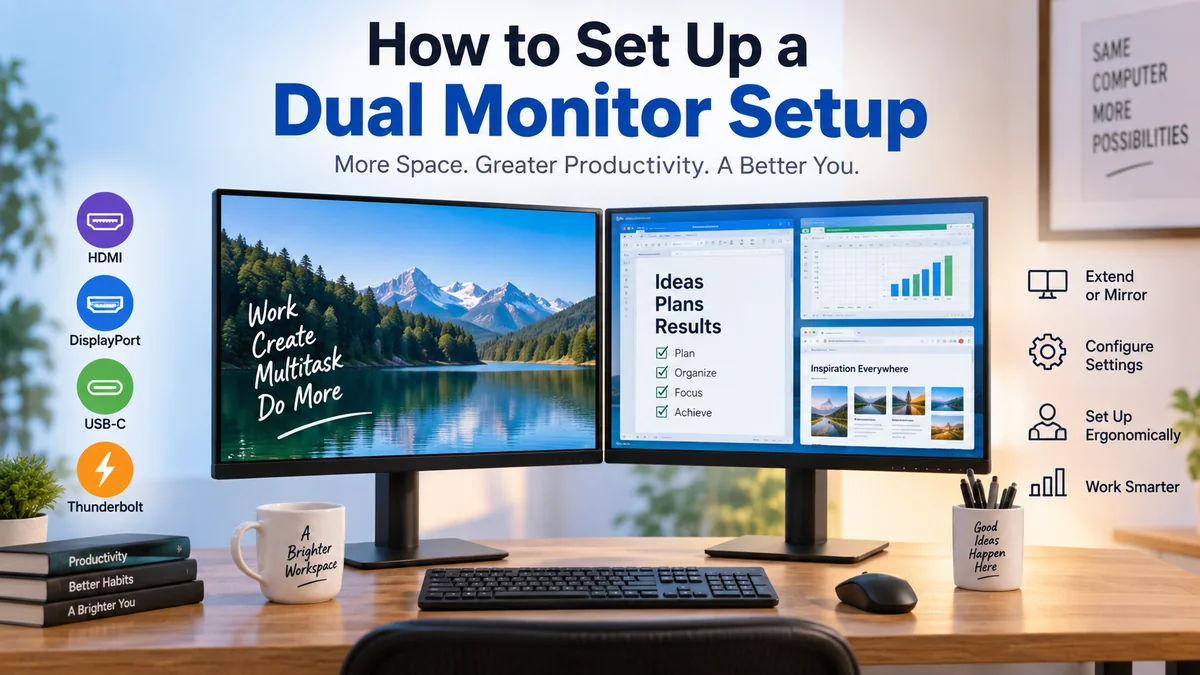

A dual monitor setup can make everyday computer work far more comfortable by giving applications, documents, browser tabs, communication tools, and reference material their own screen space. The tricky part isn’t plugging in two displays—it’s making sure your computer actually supports them and configuring the connection correctly.
A dual monitor setup uses two displays as one expanded workspace or as mirrored screens. To set one up, confirm your computer supports two displays, connect each monitor through HDMI, DisplayPort, USB-C, Thunderbolt, or a compatible dock, then configure display arrangement, resolution, scaling, refresh rate, and the primary screen in your operating system.
This guide covers the complete process for Windows PCs, laptops, and Macs, including the hardware requirements, cable choices, docking stations, daisy chaining, ergonomic positioning, and common problems that can prevent a second monitor from working.
What Is a dual monitor setup?
A dual monitor setup is a computer configuration in which two displays are connected to the same system.
The screens can operate in two basic ways:
| Display mode | What happens | Common use |
|---|---|---|
| Extend | Both screens become one larger desktop | Work, coding, editing, multitasking |
| Duplicate/Mirror | Both screens show the same content | Presentations, demonstrations |
| Primary + secondary | One screen is designated as the main display | General productivity |
| Laptop + monitor | Laptop screen becomes one of two displays | Home and office workstations |
For most desktop work, Extend is the useful option because each monitor provides independent workspace. Windows specifically allows PC screen only, Duplicate, Extend, or Second screen only.
You might keep a spreadsheet on one monitor while viewing source data on the other. A developer could keep an IDE on the main screen and documentation on the second. Video editors can dedicate one display to the timeline and another to previews.
The benefit isn’t simply “having two screens.” It is having more visible workspace without constantly switching between overlapping windows.
What You Need for a Dual Monitor Setup
Before buying cables or adapters, check the entire display path.
You generally need:
- A computer capable of driving the required number of displays
- Two monitors, or a laptop display plus one external monitor
- Compatible video outputs
- Suitable HDMI, DisplayPort, USB-C, or Thunderbolt cables
- Adapters or a docking station when required
- Enough desk space for comfortable monitor positioning
The computer’s supported display count is particularly important.
Two physical video connectors do not necessarily guarantee that the system can drive two independent external displays at your preferred resolution and refresh rate.
Check Your Computer’s Video Outputs
Look at the back or sides of the computer.
Common display connections include:
HDMI: Extremely common on monitors, laptops, desktops, TVs, and graphics cards.
DisplayPort: Common on desktop graphics cards and business/professional monitors. It can also support Multi-Stream Transport (MST) for compatible daisy-chain configurations.
USB-C: A USB-C connector may carry video, but USB-C itself does not automatically mean video output. The port and computer need the appropriate display capability, such as DisplayPort Alt Mode or Thunderbolt.
Thunderbolt: Common on many premium laptops and Macs. Depending on the computer, display, and Thunderbolt implementation, one connection can carry video, data, and sometimes power.
DVI: Still found on some older PCs and monitors.
VGA: An analog connection mainly associated with older equipment.
If you’re using a desktop with a dedicated GPU, your monitors will normally connect to the graphics card rather than the motherboard’s display ports.
Check How Many Displays Your Computer Supports
This is one of the most commonly missed steps.
The maximum display count depends on factors such as:
- Computer model
- GPU
- Processor/platform
- Available video outputs
- USB-C or Thunderbolt capabilities
- Dock specifications
- Display resolution
- Refresh rate
Mac users should pay particular attention to the specifications for their exact model. Apple notes that the number of external displays a Mac can use simultaneously depends on the Mac model and the resolution and refresh rate of those displays.
The same principle applies to PCs: don’t judge compatibility simply by counting connectors.
Laptop Screen + Monitor vs. Two External Monitors
These are different configurations.
A laptop’s built-in screen plus one external monitor creates two displays.
If you want the laptop screen plus two external monitors, you’re actually asking the computer to drive three displays simultaneously.
That distinction matters because some laptops can run one external screen but have restrictions on multiple external displays.
HDMI vs. DisplayPort vs. USB-C for Two Monitors
There isn’t one universally best connection. What matters is whether the connection supports your required resolution, refresh rate, display count, and features.
| Connection | Typical use | Key consideration |
|---|---|---|
| HDMI | PCs, laptops, monitors, TVs | Version and device capabilities matter |
| DisplayPort | Desktop PCs and monitors | Strong multi-display support; MST may be available |
| USB-C | Modern laptops and docks | Port must support video output |
| Thunderbolt | Premium laptops, Macs, docks | Supports high-bandwidth video/data configurations |
| DVI | Older equipment | Limited compared with modern standards |
| VGA | Legacy systems | Analog and generally best avoided when digital options exist |
Don’t automatically replace a working digital connection merely because another connector sounds newer. If HDMI provides the resolution and refresh rate you need, it can be perfectly suitable.
Can You Use HDMI and DisplayPort at the Same Time?
Usually, yes, provided the computer/GPU supports both outputs simultaneously.
For example:
- Monitor 1 → DisplayPort
- Monitor 2 → HDMI
The displays do not need identical cable types.
You can also use different monitor brands, sizes, resolutions, and refresh rates, although matching displays can make physical alignment, scaling, and color consistency easier.
How to Set Up Dual Monitors Step by Step
The cleanest approach is to verify compatibility before changing software settings.
1. Check Display Support
Find the specifications for your exact laptop, desktop, graphics card, or Mac.
Determine:
- Maximum number of displays
- Maximum supported resolution
- Available outputs
- Supported refresh rates
- Whether USB-C carries video
- Whether a dock is required
This five-minute check can prevent hours of troubleshooting.
2. Choose the Correct Connections
Match the computer outputs with the monitor inputs.
A desktop might use:
- DisplayPort → Monitor 1
- DisplayPort → Monitor 2
A laptop could use:
- HDMI → Monitor 1
- USB-C to DisplayPort → Monitor 2
A USB-C laptop workstation might instead use:
- Laptop → USB-C/Thunderbolt dock
- Dock → Monitor 1
- Dock → Monitor 2
The best arrangement depends on the actual hardware rather than a universal wiring pattern.
3. Connect Power and Video Cables
Turn on both monitors and connect them to power.
Then attach the video cables.
Select the correct input source on each monitor if it does not switch automatically. For example, a monitor connected through DisplayPort should have DisplayPort selected rather than HDMI 1.
4. Let the Operating System Detect the Displays
Windows and macOS normally recognize properly connected monitors automatically.
If they don’t, don’t immediately assume the monitor is faulty.
Check:
- Monitor power
- Selected monitor input
- Cable connections
- Adapter compatibility
- Dock connections
- Display settings
- GPU/display drivers
Once both monitors are detected, move on to arranging them.
dual monitor setup on Windows 11
Windows 11 provides built-in controls for multiple displays.
Open:
Settings → System → Display
You should see numbered rectangles representing your screens.
Microsoft provides an Identify option that displays a number on each physical monitor, making it easy to match the software layout with your desk.
Arrange Your Screens
Suppose your physical arrangement is:
Monitor 2 | Monitor 1
The Windows display arrangement should match it.
Drag the numbered rectangles until their positions correspond to the actual monitors, then apply the changes.
This matters because Windows uses the arrangement to determine how the pointer and windows travel between screens.
If Monitor 2 physically sits to the left but Windows thinks it is on the right, moving the mouse between displays feels unnatural.
Vertical positioning matters too. If one monitor sits slightly higher than the other, you can reproduce that position in Display settings.
Extend Instead of Duplicate
Press:
Windows key + P
Windows provides four options:
- PC screen only
- Duplicate
- Extend
- Second screen only
Choose Extend when you want two independent workspaces.
Duplicate is useful when another person needs to see exactly what appears on your screen, but it doesn’t provide extra desktop space.
Choose Your Main Display
Your primary monitor normally contains important interface elements and becomes the default location for many applications.
In Display settings:
- Select the monitor you want.
- Open Multiple displays.
- Choose the option to make it your main display.
For a workstation where one monitor receives most of your attention, make that screen the primary display.
Set the Correct Resolution
Each monitor should normally run at its recommended/native resolution.
For example, two monitors might operate independently at:
- 1920 × 1080
- 2560 × 1440
Different resolutions are possible, but window sizes and pointer movement may feel slightly different when crossing screens.
Windows lets you configure resolution, scale, layout, brightness/color options, and refresh rate for connected displays.
Check Scaling
High-resolution monitors may require scaling so text and interface elements remain readable.
Common scale values include:
- 100%
- 125%
- 150%
You don’t necessarily need identical scaling on both screens.
A 27-inch 4K monitor, for example, will often need different scaling from a 24-inch 1080p monitor.
Set the Refresh Rate
Refresh rate describes how many times per second a display updates its image.
Common values include:
- 60 Hz
- 75 Hz
- 120 Hz
- 144 Hz
- 165 Hz
- 240 Hz
If you own a high-refresh-rate monitor but it feels unusually sluggish, check Windows’ advanced display settings. A monitor capable of 144 Hz or 165 Hz can sometimes be configured at a lower rate.
Remember that the GPU, port, cable, monitor, resolution, and connection standard all affect which refresh rates are available.
How to Set Up Dual Monitors on a Mac
The physical process is similar on macOS, but hardware support varies substantially between Mac models.
First determine how many external displays your exact Mac supports.
Apple specifically recommends checking specifications for the individual Mac model because simultaneous display support depends on the machine as well as display resolution and refresh rate.
Connect the Displays
Depending on your Mac, connections may include:
- HDMI
- Thunderbolt
- USB-C
- A compatible adapter or dock
Connect the displays to power and then to the Mac.
Apple states that a properly connected supported display should normally be detected automatically.
Configure macOS Display Settings
Go to:
Apple menu → System Settings → Displays
From here, you can configure options including:
- Resolution
- Refresh rate
- Display arrangement
- Extended or mirrored behavior
Arrange the display representations so they match the monitors’ physical positions on your desk.
Don’t Assume Every Dock Supports Two Mac Displays
This causes a surprising number of failed setups.
A docking station having two HDMI connectors does not automatically mean every Mac can use both as independent extended displays.
The Mac model, dock architecture, display protocol, and software can all matter.
Check compatibility for the exact Mac and dock combination before buying hardware.
Using a Docking Station for a Dual Monitor Setup
A docking station can simplify a laptop workstation dramatically.
Instead of plugging several cables into your laptop every time you sit down, you might connect:
Laptop → USB-C/Thunderbolt dock → two monitors
The same dock may also connect:
- Keyboard
- Mouse
- Ethernet
- External storage
- Audio equipment
- Power delivery
That can turn a laptop into a desktop-like workstation using one host connection.
What to Check Before Buying a Dock
Look beyond the number of HDMI or DisplayPort sockets.
Confirm:
- Supported operating system
- Mac/Windows compatibility
- Number of independent displays
- Maximum resolution per display
- Maximum refresh rate
- USB-C/Thunderbolt requirements
- DisplayPort Alt Mode requirements
- Power delivery wattage
- DisplayLink requirements, if applicable
A dock’s specifications should explicitly describe the display configuration you intend to run.
What Is DisplayLink?
DisplayLink-based adapters and docks can provide additional display functionality over USB using dedicated hardware/software.
This can be useful when a computer’s native video outputs are limited.
However, DisplayLink isn’t identical to a direct GPU-driven HDMI, DisplayPort, USB-C DisplayPort Alt Mode, or Thunderbolt connection. It requires compatible hardware and software, so check requirements before choosing it for gaming, color-critical work, or other demanding applications.
Can You Connect Two Monitors With an HDMI Splitter?
An HDMI splitter is commonly misunderstood.
A conventional splitter takes one HDMI video signal and sends copies of that signal to multiple displays.
That normally means:
Computer → splitter → Monitor 1 + Monitor 2
Both monitors receive the same image.
You have two physical screens, but not two independent desktop workspaces.
If your goal is an extended desktop, you generally need separate supported display streams rather than a basic HDMI splitter. RTINGS likewise notes that HDMI splitters generally mirror the image rather than creating independent extended displays.
Daisy Chaining Two Monitors
Daisy chaining provides a cleaner alternative on compatible hardware.
Instead of running two video cables directly from the computer, the connection can look like:
Computer → Monitor 1 → Monitor 2
DisplayPort Multi-Stream Transport, compatible USB-C implementations, and Thunderbolt can support certain daisy-chain arrangements. Dell notes that HDMI does not support monitor daisy chaining in this way.
DisplayPort MST
MST stands for Multi-Stream Transport.
With compatible hardware, DisplayPort MST allows multiple independent video streams to travel through a DisplayPort connection.
A typical arrangement might use:
- Computer DisplayPort output → first monitor DisplayPort input.
- Enable MST if required.
- First monitor DisplayPort output → second monitor DisplayPort input.
- Configure the screens as extended displays.
The first monitor needs the appropriate output capability; merely having a DisplayPort input does not make a monitor suitable for daisy chaining.
Always verify the monitor documentation and computer/GPU specifications.
Best Monitor Arrangement for Two Screens
Technical configuration is only half of a good dual-screen workstation.
Poor positioning can leave you constantly turning your neck.
When One Monitor Is Your Main Screen
Place the primary monitor directly in front of you.
Put the secondary monitor beside it and angle it toward you.
This arrangement works particularly well for:
- Writers
- Programmers
- Researchers
- Office workers
- Video editors
- Designers
- Students
The primary display contains your active task, while the secondary screen handles reference material or supporting applications.
UC Davis’ ergonomics guidance similarly recommends placing the primary monitor and keyboard directly in front of the user when one screen is used more frequently, with the secondary monitor positioned to the side.
When You Use Both Screens Equally
The arrangement changes when both monitors receive roughly equal attention.
Position them next to each other with the inner edges close together and angle them toward you, creating a shallow semicircle.
The Canadian Centre for Occupational Health and Safety recommends positioning equally used monitors in front of the user, with their edges touching and screens angled into a semicircle.
Your body should remain centered rather than spending the entire day rotated toward one screen.
Monitor Height
A useful starting point is to place both screens at approximately the same height, with the viewing area at or slightly below comfortable eye level.
UC Davis recommends monitor height at or slightly below eye level and matching the height of multiple monitors where possible.
Exact positioning should still account for monitor size, desk height, chair position, vision correction, and individual comfort.
Viewing Distance
An arm’s length is a practical starting point for many desk setups.
CCOHS recommends multiple monitors remain roughly an arm’s length away while following normal single-monitor positioning principles.
Larger monitors may need additional distance so you can comfortably see the entire screen without excessive head movement.
Should You Use a Dual Monitor Arm?
A monitor arm isn’t mandatory, but it can solve several problems simultaneously.
It can help you adjust:
- Height
- Tilt
- Rotation
- Distance
- Screen angle
It can also reclaim desk space occupied by large monitor stands.
Before buying one, verify that your displays support the required mounting pattern and that the desk can safely support the arm and combined monitor weight.
Matching vs. Different Monitors
Your two monitors don’t have to match.
A perfectly usable setup might combine:
- 27-inch 1440p primary monitor
- 24-inch 1080p secondary monitor
Or:
- 32-inch landscape display
- 24-inch portrait display
However, identical or similar monitors make certain things easier.
Matching displays typically provide more consistent:
- Physical height
- Pixel density
- Resolution
- Scaling
- Bezel dimensions
- Color appearance
For general office work, mixing displays is usually fine.
For photography, design, video color work, and other color-sensitive tasks, differences in panel characteristics and calibration become more significant.
Should the Second Monitor Be Vertical?
Portrait orientation can be extremely useful when your work involves vertically structured information.
Good uses include:
- Programming
- Long documents
- Research papers
- Messaging applications
- Web development
- Reading webpages
Windows lets you change display orientation through its display settings.
Not every monitor stand supports physical rotation, though. A monitor arm or pivot-capable stand may be necessary.
Choosing Resolution for a Dual Monitor Setup
Resolution affects both image sharpness and available workspace.
Common monitor resolutions include:
| Resolution | Common name | Typical use |
|---|---|---|
| 1920 × 1080 | Full HD / 1080p | General office and budget setups |
| 2560 × 1440 | QHD / 1440p | Productivity, gaming, creative work |
| 3840 × 2160 | UHD / 4K | High-detail productivity and creative work |
Higher resolution provides more pixels, but it also increases the amount of display bandwidth required.
Two 1080p 60 Hz monitors are far less demanding from a display-bandwidth perspective than two 4K high-refresh-rate screens.
That’s why “supports two monitors” isn’t always enough information.
You need to know whether the computer supports two monitors at your desired resolution and refresh rate.
Refresh Rate and Dual Monitors
Two monitors don’t necessarily need the same refresh rate.
For example:
- Primary gaming display: 165 Hz
- Secondary productivity display: 60 Hz
Modern operating systems and GPUs generally support mixed-refresh configurations.
Still, your available settings depend on the entire signal chain.
If a high-refresh-rate option disappears after adding another display, investigate:
- GPU display limits
- Cable bandwidth
- Port version
- Dock limitations
- Adapter specifications
- Resolution settings
- Graphics drivers
A docking station can sometimes be the limiting component even when both the laptop and monitor support higher specifications individually.
How to Use Two Monitors More Effectively
Once everything works, decide what each screen is for.
Randomly spreading windows across two monitors often creates more visual clutter rather than less.
A simple system works better.
Primary Screen
Keep your main task here:
- Document being written
- Spreadsheet being edited
- IDE
- Design software
- Video timeline
- Main browser workspace
Secondary Screen
Use the second display for supporting information:
- Research
- Messaging
- Documentation
- File manager
- Preview windows
- Video calls
- Monitoring tools
This reduces repetitive application switching without forcing your attention to jump constantly between screens.
Quick Takeaway: Treat the second monitor as supporting workspace rather than somewhere to put every window you aren’t currently using.
dual monitor setup for Gaming
Dual displays can be useful for gaming even when the game itself runs on only one monitor.
A typical arrangement is:
Primary display: game
Secondary display: Discord, browser, streaming controls, hardware monitoring, guides, or music
Gaming adds extra hardware considerations because the primary monitor may run at 144 Hz, 165 Hz, 240 Hz, or another high refresh rate.
Connect the gaming monitor through an output capable of delivering its required resolution and refresh rate.
Also check that features such as HDR or variable refresh rate are configured as intended for the primary display.
Running a second monitor doesn’t inherently mean your gaming performance will collapse, but applications actively using GPU resources on the secondary display can contribute additional load.
Dual Monitors for Laptops
Laptop users often gain the most practical benefit because the built-in screen already provides one display.
The simplest configuration is:
Laptop + one external monitor
For many systems, connecting a single monitor through HDMI, USB-C, DisplayPort, or Thunderbolt is enough.
Two external displays can require more planning.
Using the Laptop With the Lid Closed
Some users prefer:
External Monitor 1 + External Monitor 2 + laptop closed
This creates a cleaner desktop-style arrangement.
Make sure the laptop’s power, sleep, cooling, and lid-close behavior are configured appropriately. Don’t block ventilation when placing the machine in a vertical stand.
Also remember that closing the built-in display may affect the active display configuration differently depending on the computer and operating system.
Why Is My Second Monitor Not Detected?
A missing second display is one of the most common dual-monitor problems.
Start with simple checks before replacing hardware.
1. Check the Input Source
A monitor can be powered on yet display nothing because the wrong source is selected.
Switch between:
- HDMI
- DisplayPort
- USB-C
until you reach the port actually connected to the computer.
2. Reseat the Cable
Disconnect and reconnect both ends.
A partially inserted DisplayPort or HDMI connector can cause intermittent detection problems.
3. Test Another Cable
Cables fail.
They can also support different capabilities, particularly when high resolutions or refresh rates are involved.
Testing a known-working cable helps isolate the problem.
4. Use Windows Detect
Go to:
Settings → System → Display → Multiple displays → Detect
Microsoft specifically provides this function for a connected display that isn’t appearing in Settings.
5. Check Graphics Drivers and Updates
Outdated or malfunctioning graphics drivers can contribute to multi-monitor problems.
Check your operating system updates and the appropriate graphics driver for your hardware.
Microsoft recommends checking Windows Update when troubleshooting external-display configuration.
6. Bypass the Dock
If you’re using a dock, temporarily connect the monitor directly to the computer when possible.
If it suddenly works, the likely issue lies somewhere in the dock, its host connection, compatibility, bandwidth, or configuration.
7. Test Components Individually
A useful troubleshooting sequence is:
- Test Monitor A alone.
- Test Monitor B alone.
- Test Cable A.
- Test Cable B.
- Test each computer output.
- Reconnect both displays.
This isolates the failing component much faster than changing several things simultaneously.
Why Do Both Monitors Show the Same Screen?
They’re probably configured to mirror or duplicate.
On Windows, press:
Windows + P → Extend
That turns the screens into a larger desktop instead of showing identical content.
On macOS, open Displays in System Settings and configure the displays for an extended desktop rather than mirroring.
If you’re using a simple HDMI splitter, however, software settings may not solve the problem because the splitter itself is distributing one video stream to both monitors.
Why Does the Mouse Move the Wrong Way?
Your software arrangement doesn’t match your physical arrangement.
Suppose Monitor 1 sits on the left but Windows has Monitor 1 positioned on the right. The pointer will appear to travel in the wrong direction.
Open Display settings and drag the monitor rectangles into the correct order.
Use Identify if you aren’t sure which screen is which.
Also align their vertical positions. Otherwise, the pointer may cross between screens only at certain points along the edge.
Why Is One Monitor Blurry?
First verify its resolution.
Running an LCD monitor below or outside its appropriate native/recommended resolution can produce softer-looking text.
Also inspect:
- Scaling
- Cable and adapter quality
- GPU settings
- Monitor sharpness settings
- Refresh rate
- Operating-system display settings
If one monitor is 1080p and the other is 4K, don’t expect text and interface elements to have identical physical size at the same scaling percentage.
Configure each display individually.
Common Dual Monitor Setup Mistakes
A few mistakes cause a disproportionate number of problems.
Assuming Every USB-C Port Supports Video
USB-C describes the connector, not every feature behind it.
Check the computer specifications for display output capability before buying a USB-C-to-HDMI or USB-C-to-DisplayPort cable.
Buying an HDMI Splitter for Extended Displays
A splitter usually duplicates one signal.
It isn’t a substitute for two independent display outputs.
Ignoring Dock Limitations
A dock may have several video connectors yet support fewer independent displays than expected—or lower resolutions and refresh rates when several displays operate simultaneously.
Read the multi-display specification, not just the port list.
Connecting Desktop Monitors to the Wrong Ports
If a desktop has a dedicated graphics card, monitors are normally connected to the GPU’s video outputs.
Motherboard outputs may behave differently depending on the processor, BIOS/UEFI configuration, and integrated graphics support.
Forgetting the Monitor’s Input Setting
A perfectly working PC can appear broken because the display is listening to HDMI while the cable is connected to DisplayPort.
Using Poor Physical Placement
Two correctly configured monitors can still create an uncomfortable workstation.
If one display is used most often, keep it directly ahead rather than forcing yourself to remain turned toward it throughout the day. Ergonomic guidance from UC Davis and CCOHS emphasizes arranging monitors according to how frequently each one is used.
A Practical Dual Monitor Configuration
For general office, study, research, SEO, programming, or business work, a straightforward arrangement is often enough:
- Main monitor directly in front
- Secondary monitor immediately beside it
- Inner edges close together
- Screens at similar heights
- Secondary display angled inward
- Keyboard aligned with the primary screen
- Monitors approximately an arm’s length away
- Extended desktop enabled
- Native/recommended resolution selected
- Comfortable scaling on each display
- Appropriate refresh rate enabled
If both monitors receive equal use, center the pair more symmetrically and angle them toward you instead.
Cable management comes last. Get the height, distance, angles, and screen arrangement right before spending time making the cables perfect.
Final Thoughts on dual monitor setup
A reliable dual monitor setup starts with compatibility, not cables. Confirm how many displays your computer can drive, check the required resolution and refresh rate, and then choose HDMI, DisplayPort, USB-C, Thunderbolt, a compatible dock, or an appropriate daisy-chain configuration.
Once connected, use an extended desktop, arrange the displays in software to match their physical positions, set each monitor’s recommended resolution and suitable scaling, and position the screens around your actual usage pattern.
The most useful next step is simple: check your computer’s exact display specifications before buying any adapter, splitter, dock, or additional cable. That one check prevents many of the problems people encounter when building a two-screen workstation.
