
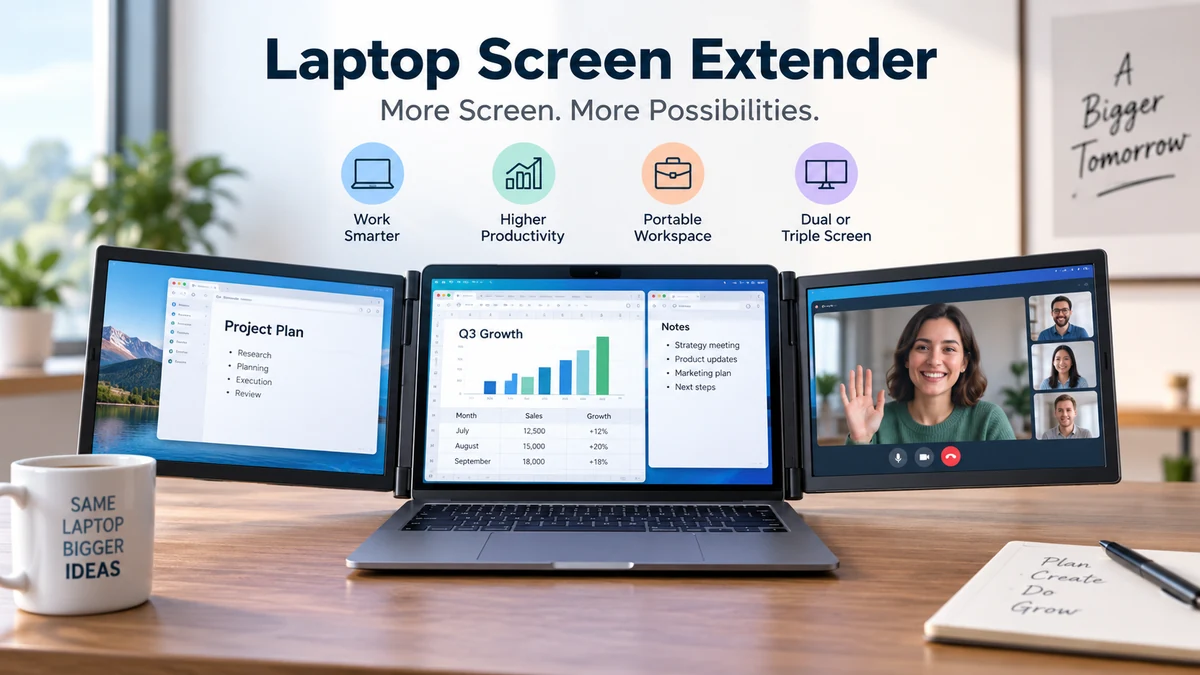

Working from one laptop display can feel cramped surprisingly quickly. A browser, spreadsheet, video call, notes, and messaging app can turn a perfectly capable computer into a constant cycle of minimizing windows and switching tabs.
A laptop screen extender adds one or more external displays to your laptop, creating a portable dual-screen or triple-screen workspace. Most connect through USB-C, HDMI, or USB-A-based display technology. The key to choosing and using one successfully is understanding display-output support, power requirements, operating-system limitations, screen size, and how the extender physically attaches to your laptop.
This guide explains what these devices actually do, how they differ from ordinary portable monitors, what USB-C specifications matter, how to set one up, and which compatibility problems cause the most trouble.
What Is a Laptop Screen Extender?
A laptop screen extender is an additional portable display—or a foldable assembly containing multiple displays—designed to expand the usable desktop space of a laptop.
Instead of replacing the laptop’s built-in display, the extender works alongside it. A single additional panel creates a dual-monitor workspace, while an attachment containing two extra panels can turn the laptop into a triple-screen workstation.
Typical extenders use:
- USB-C
- USB-C with DisplayPort Alt Mode
- HDMI or mini HDMI
- USB-A with compatible display technology
- A combination of video and separate power cables
Many current models use Full HD IPS panels with a resolution of 1920 × 1080, although other resolutions and screen sizes are available. Lenovo notes that portable screen extenders commonly use USB or HDMI and may receive power from the laptop or an external power source.
The important distinction is that adding another physical panel is only half the process. Your laptop must also be capable of producing the required video signal.
What does a screen extender actually extend?
A screen extender can normally operate in either Extend or Duplicate/Mirror mode.
In Extend mode, every display becomes a different section of your desktop. You might keep a document on the laptop, research on the left monitor, and email or communication software on the right.
In Mirror mode, another display shows the same content as the main laptop screen. This can be useful for presentations or sharing information with someone sitting opposite you.
For productivity, Extend mode is generally the reason people use multi-monitor systems.
Laptop Screen Extender vs Portable Monitor
The terms “portable monitor” and “laptop screen extender” are sometimes used interchangeably, but the hardware can be quite different.
A conventional portable monitor is usually a standalone flat display with its own kickstand or folding cover. You place it next to the laptop and connect it with a cable.
A screen extender is more commonly designed to become part of the laptop setup. One or two panels may slide, fold, clamp, magnetically attach, or sit around the laptop’s existing display.
Recent comparisons describe this as the central distinction: portable monitors stand independently, whereas screen extenders are designed to create a more integrated laptop workspace.
| Feature | Laptop Screen Extender | Portable Monitor |
|---|---|---|
| Position | Usually attached to or supported around laptop | Stands separately |
| Extra displays | Commonly one or two | Usually one per monitor |
| Portability | Foldable integrated system | Thin separate panel |
| Desk space | Usually compact | Requires space beside laptop |
| Laptop load | Can add physical weight | No load on laptop display |
| Position flexibility | Depends on hinge/design | Usually easier to position freely |
| Cabling | Can require multiple connections | Often one USB-C cable |
| Best suited to | Mobile multi-screen workstation | Flexible second-screen setup |
Neither design is automatically better.
If you regularly work from small hotel desks, temporary offices, or coworking spaces and want several displays in one compact unit, an attached extender can be convenient.
If you need only one extra display and care more about flexible placement, a standalone portable monitor may be simpler.
How Does a Laptop Screen Extender Work?
A laptop screen extender works like an external monitor: the laptop’s graphics system produces another display signal, the connection carries that signal to the monitor, and the operating system treats the panel as an additional display.
What makes the process confusing is that identical-looking ports do not necessarily provide identical capabilities.
USB-C
USB-C describes the connector shape. It does not guarantee video output.
For a straightforward USB-C monitor connection, the laptop port commonly needs to support DisplayPort Alt Mode or another supported display protocol. A compatible USB-C connection can potentially carry video, data, and power through one cable.
HP specifically identifies USB-C with DisplayPort Alt Mode as a convenient option for portable displays because compatible setups can provide video and power through a single connection.
This is why simply seeing a USB-C socket on your laptop is not enough to establish compatibility.
HDMI
HDMI provides a dedicated video connection and is widely supported.
The complication is power. HDMI carries the display signal, but a portable panel will commonly need power through a separate USB connection or power adapter.
Some extender instructions therefore require HDMI for video plus USB-A-to-USB-C or another USB connection for power.
USB-A
A normal USB-A port is not equivalent to a native HDMI or DisplayPort video output.
Some extenders nevertheless support USB-A by using USB graphics technology and software or a driver to create the additional display. The exact requirements depend on the extender.
This distinction matters when evaluating claims such as “works with USB.”
Always determine whether USB is being used for:
- video,
- power,
- data, or
- a combination of them.
DisplayLink and USB graphics
DisplayLink-based hardware is another way of creating external displays through USB.
Rather than relying exclusively on a native DisplayPort video path from the laptop, compatible hardware and software process display information and send it through USB to the display adapter or dock.
This approach can solve certain multi-monitor limitations, but it may require software installation and introduces another compatibility layer. For applications where latency, protected video, gaming performance, or highly color-sensitive work matters, native display output is generally worth investigating first.
Will a Laptop Screen Extender Work With Any Laptop?
No. This is probably the most important fact to understand before using or choosing one.
Compatibility depends on more than the physical dimensions of the computer. The laptop must provide the required number and type of display outputs, and the operating system and graphics hardware must support the intended number of external displays.
A manufacturer can say an extender “uses USB-C” while your USB-C port supports charging and data but not native video.
Likewise, having two USB-C connectors does not automatically mean both can independently drive external displays.
Check these five things
Before connecting a laptop screen extender, identify:
- Laptop screen size and physical dimensions
- Available USB-C, Thunderbolt, HDMI, and USB-A ports
- Whether USB-C supports DisplayPort Alt Mode
- How many external displays the laptop supports
- Whether the extender requires drivers or special software
Physical fit matters because attachable extenders are designed around specific laptop-size ranges. For example, individual 14-inch products may specify compatibility with laptops roughly in the 13-to-17-inch class, but the exact supported dimensions vary by model.
Do not assume that a 14-inch extender automatically fits every 14-inch laptop. Bezels, lid dimensions, hinge construction, and attachment mechanisms vary.
Quick Takeaway: Port shape is not enough. Verify the port’s video capabilities, the laptop’s supported external-display count, the extender’s power needs, and physical fit.
USB-C, Thunderbolt, HDMI, and DisplayPort Alt Mode Explained
The collection of logos around a laptop can make screen-extender compatibility look more complicated than it really is.
The easiest approach is to separate connector shape from connection capability.
USB-C is a connector
USB-C is the small reversible connector found on many modern laptops.
Depending on the computer, that port might support only data and charging, or it might also support display output.
Check the laptop manufacturer’s specifications rather than relying only on the connector.
DisplayPort Alt Mode carries native video
DisplayPort Alt Mode allows a compatible USB-C connection to transport DisplayPort video.
For many portable displays, this is what makes a one-cable USB-C setup possible.
If your extender expects USB-C video and your laptop’s USB-C port lacks the required display functionality, plugging the two devices together may provide power without producing an image.
Thunderbolt can support displays
Thunderbolt ports use the USB-C connector on modern laptops and support high-bandwidth connectivity that can include external displays.
However, the total number and resolution of monitors that can actually be driven still depend on the laptop hardware, operating system, processor, graphics architecture, dock, and display configuration.
HDMI is straightforward but may need separate power
HDMI is often the easiest fallback when USB-C video compatibility is uncertain.
A common configuration is:
Laptop HDMI → extender HDMI input
plus:
Laptop USB or power adapter → extender power input
That extra power connection is normal and does not indicate that the HDMI cable is faulty.
Dual-Screen vs Triple-Screen Laptop Setups
The terminology around portable displays is inconsistent, so it helps to count the laptop’s original display.
A laptop plus one additional display gives you two active screens.
A laptop plus two additional displays gives you three.
| Setup | Laptop Display | Extra Displays | Total Screens |
|---|---|---|---|
| Standard laptop | 1 | 0 | 1 |
| Dual-screen setup | 1 | 1 | 2 |
| Triple-screen setup | 1 | 2 | 3 |
Products marketed as “triple laptop screen extenders” therefore commonly contain two additional panels.
Some fold outward from both sides of the laptop. Others use an independent support frame or kickstand so their weight is not carried entirely by the laptop lid.
When is one extra screen enough?
One additional monitor works well when your normal workflow involves two primary applications.
Examples include:
- writing while viewing research,
- attending a video call while taking notes,
- comparing two documents,
- keeping email visible beside your main task,
- watching reference material while studying.
This setup also tends to require fewer ports, cables, and graphics resources.
When do two extra screens help?
A triple-screen configuration becomes useful when several applications need to remain visible simultaneously.
Common examples include software development with an editor, documentation, and output window; financial analysis involving spreadsheets and dashboards; or project work involving communication, reference material, and the main application.
The trade-off is straightforward: another display adds screen space, but it also adds weight, power consumption, connection requirements, and complexity.
Screen Size, Resolution, IPS Panels, and Refresh Rate
Compatibility gets the extender working. Display specifications determine what it is like to use.
Screen size
Portable extender panels frequently fall around the 12-to-16-inch range, with 14-inch and 15.6-inch options commonly appearing in current products.
Larger screens provide more physical workspace but also increase the overall footprint and weight.
A display close to your laptop’s own panel size can make moving the pointer and windows between screens feel more natural.
Full HD 1920 × 1080
Full HD, or 1920 × 1080, remains common among portable laptop extenders. Current models from multiple manufacturers use 1080p IPS panels.
For screens around 14 or 15.6 inches, 1080p provides a practical balance between sharpness, compatibility, bandwidth, and interface scaling.
Higher resolutions such as 4K are available in the broader portable-monitor category, but resolution alone does not determine image quality.
IPS
IPS refers to the panel technology.
IPS displays are commonly used in extenders because their broad viewing angles are useful when side screens are positioned at an angle rather than directly in front of the viewer.
This becomes particularly relevant in triple-screen configurations.
Refresh rate
Many productivity-oriented portable monitors operate at 60 Hz.
That is sufficient for ordinary office work, web browsing, spreadsheets, coding, and video. Gaming-oriented users should examine refresh rate, response characteristics, connection bandwidth, and graphics performance separately rather than assuming every portable extender is designed for gaming.
Brightness and color
Two displays can both be labeled “1080p IPS” yet look noticeably different.
Brightness, contrast, color gamut, calibration, surface finish, backlight uniformity, and viewing angle all affect perceived quality.
If photo editing, graphic design, or video color work is important, look beyond resolution and verify actual color specifications.
How to Set Up a Laptop Screen Extender
Installation varies slightly by product, but the basic process is consistent.
1. Check compatibility before attaching anything
Find the exact laptop model and inspect its technical specifications.
Confirm:
- supported external displays,
- USB-C display capability,
- HDMI availability,
- operating-system compatibility,
- required drivers,
- power requirements.
This avoids troubleshooting a setup that was never electrically compatible in the first place.
2. Position the extender
If it attaches to the laptop, install its frame or support mechanism according to the manufacturer’s instructions.
Avoid forcing clips around the display bezel.
For heavier multi-panel units, use the included rear support or kickstand when provided. Some current designs specifically incorporate kickstands to stabilize the multi-display assembly instead of leaving all the load on the laptop screen.
3. Connect the video cables
For a compatible USB-C setup, connect the display to the video-capable USB-C port.
For HDMI, connect the HDMI cable and provide separate power if the display requires it.
A triple-screen system may require two separate display connections unless it uses a dock, USB graphics solution, or another multi-display architecture.
4. Power the displays
If the screens do not receive sufficient power from the laptop, use the required USB power connection or adapter.
A display that repeatedly turns off, flickers, or fails to reach normal brightness can sometimes indicate inadequate power rather than a video-configuration problem.
5. Configure the operating system
On Windows, open:
Settings → System → Display
The connected screens should appear as numbered rectangles.
Choose Extend these displays rather than Duplicate if you want independent desktop space.
Drag the display rectangles until their virtual positions match the physical arrangement on your desk.
On macOS, use the display settings to arrange available displays and choose the appropriate extended-desktop configuration.
HP’s current setup guidance similarly recommends arranging the displays through Windows, macOS, or ChromeOS display settings after connecting the monitor.
6. Set resolution and scaling
Start with the display’s native resolution.
For a 1920 × 1080 panel, that normally means selecting 1920 × 1080.
Then adjust interface scaling independently if text or icons look too small.
Matching scaling across differently sized or differently resolved displays can take a little experimentation.
7. Test each screen separately
If a triple-screen configuration is not working, disconnect one additional display and test the remaining screen.
Then swap connections.
This quickly helps determine whether the problem is:
- one monitor,
- one cable,
- one laptop port,
- insufficient power, or
- the laptop’s multi-display limitation.
Common Laptop Screen Extender Problems
A black screen does not necessarily mean the extender is defective.
In practice, compatibility and connection issues are among the first things worth checking.
The extender has power but says “No Signal”
If the monitor turns on but receives no picture, check whether the selected laptop port actually outputs video.
A USB-C cable connected to a data-only USB-C port can power a device without providing the required display signal.
Try a verified video-capable USB-C port or HDMI connection.
One screen works but the second does not
This is particularly common with triple-screen configurations.
Possible causes include:
- the laptop supports fewer external displays than expected,
- one USB-C port lacks display output,
- insufficient available ports,
- incorrect cabling,
- inadequate power,
- operating-system restrictions,
- a required driver is missing.
Do not assume a cable splitter will automatically create two independent extended desktops. The computer must be able to address the displays appropriately.
The display flickers
Start by checking power and cables.
Try a shorter or known-good cable that meets the required specification. If the monitor has a separate power input, test it with the recommended adapter rather than relying entirely on the laptop.
Also restore the monitor to its native resolution and supported refresh rate.
The screen is detected but everything looks too small
This is usually a scaling issue rather than a hardware fault.
Increase display scaling while leaving the screen at its native resolution when possible.
The cursor moves in the wrong direction
The virtual monitor arrangement does not match the physical arrangement.
If the right-hand display is shown to the left of your laptop in Windows display settings, the cursor will appear to move in the wrong direction.
Rearrange the numbered display boxes to match their real positions.
The laptop battery drains faster
That is expected when the laptop is powering additional displays.
Portable panels require electricity, and screen extenders without independent power ultimately obtain that energy from the computer. Current guidance notes that USB-C portable displays can draw power directly from a laptop, while other configurations use an external source.
For long sessions, keeping the laptop connected to its charger is preferable when the port configuration permits it.
macOS, Apple Silicon, Windows, ChromeOS, and Linux Compatibility
Operating-system support deserves special attention because a physically compatible cable does not guarantee that the desired number of displays will work.
Windows
Windows generally provides straightforward controls for detecting, arranging, duplicating, and extending displays.
Windows 10 and Windows 11 are commonly listed by manufacturers of current screen extenders.
Still, the actual number of displays depends on the laptop hardware and connection method.
macOS and Apple Silicon
Mac compatibility requires more careful checking.
Different Mac models and Apple silicon generations can support different numbers of external displays, and some extender configurations rely on special USB display solutions rather than purely native video outputs.
This is one area where broad statements such as “Mac compatible” can be misleading.
Current product listings illustrate the problem: one extender explicitly excludes certain M1/M2 configurations, while another claims compatibility with several Apple silicon variants.
That variation is why the exact Mac model, chip, extender, and connection method need to be checked together.
ChromeOS and Linux
Some portable displays can work with Chromebooks and Linux laptops, particularly when standard HDMI or supported USB-C display output is used.
Driver-dependent USB graphics solutions deserve additional verification because software support can differ by operating system and distribution.
Does a Laptop Screen Extender Increase Productivity?
It can improve workflow efficiency, but simply adding displays does not automatically make someone more productive.
The practical benefit comes from reducing unnecessary window switching.
Imagine preparing a report. On one screen you keep the document, while the second holds source material. With a third display, you could keep communication or a spreadsheet visible without covering either of the first two.
That arrangement can make information easier to compare and reduce the mental interruption caused by repeatedly finding hidden windows.
The advantage becomes smaller when your work depends almost entirely on one application at a time.
A writer using one distraction-free editor may gain little from three screens. A developer comparing code, documentation, logs, and a browser may gain much more.
The number of screens should follow the workflow—not the other way around.
Ergonomics Matter More With Attached Screens
Portable multi-monitor systems create ergonomic issues that ordinary product specifications often overlook.
Two side panels can make the entire workstation considerably wider. Constantly turning your head toward extreme left and right positions can become uncomfortable during long sessions.
Keep the primary task on the central display and use side monitors for supporting information.
Also consider display height. Laptop screens naturally sit relatively low on a desk. Adding more screens at the same low height can encourage prolonged downward neck posture.
For longer sessions, an external keyboard and mouse can allow the whole display assembly to be raised to a more comfortable level.
Watch the laptop hinge
An attachable screen extender adds weight around the display area.
A well-designed support stand can transfer some of that load to the desk. This is especially relevant with two-panel extenders.
If the laptop lid begins drifting backward, feels unstable, or requires excessive hinge resistance, use the extender’s support system rather than expecting the laptop hinge to carry everything.
What Features Actually Matter?
Product pages often contain long feature lists, but a few specifications have a much bigger effect on everyday use.
Connection requirements
This should be checked first.
Know exactly how many video-capable ports the setup requires and whether separate USB connections are needed for power.
Physical compatibility
Check both the supported laptop-size range and actual attachment dimensions.
A screen extender should sit securely without covering important ports or placing excessive pressure on the laptop lid.
Weight
The difference between carrying a laptop and carrying a laptop plus two displays is significant.
A triple-screen workstation may be portable in the literal sense while still being heavier than you want for daily commuting.
Stand design
A strong kickstand is particularly valuable with two extra panels.
It improves stability and reduces reliance on the laptop hinge.
Rotation and viewing angles
Side displays that rotate or fold allow you to reduce the setup’s width and position the screens more naturally.
Some designs also let a screen face another person for presentations.
Matte vs glossy surface
A matte panel can reduce visible reflections in bright offices and shared working spaces.
Glossy displays can look vivid but may show more reflections.
Power delivery and charging access
One easily overlooked problem is using the same USB-C port that you normally need for charging.
A user review of a current dual-screen extender specifically noted difficulty charging the laptop while both monitors occupied the available connections.
Before building a multi-screen setup, map out all required ports—including the laptop charger.
Is a Laptop Screen Extender Good for Gaming?
It can display games, but productivity-oriented extenders should not automatically be treated as gaming monitors.
A typical 1080p 60 Hz IPS extender is perfectly capable of ordinary desktop use and many casual applications. Current products commonly advertise 1920 × 1080 resolution and 60 Hz refresh rates.
For serious gaming, other characteristics become more important:
- refresh rate,
- response time,
- input latency,
- adaptive-sync support,
- GPU performance,
- connection bandwidth.
Running multiple displays also gives the graphics system more pixels to manage.
If the purpose is competitive gaming, a dedicated high-refresh-rate monitor is generally a different category of hardware from a productivity-focused laptop extender.
Can You Use a Laptop Screen Extender With a Phone or Tablet?
Sometimes.
The deciding factor is whether the phone or tablet can output a compatible video signal and whether the display receives sufficient power.
Some current portable-monitor guides and product specifications list smartphones, tablets, Android devices, or gaming consoles among supported sources.
But again, USB-C does not guarantee display output.
A phone with USB-C charging may lack the video-output capability required by the monitor.
For that reason, check the source device’s display-output specifications rather than assuming compatibility from connector shape.
Laptop Screen Extender Mistakes to Avoid
The most common mistakes happen before the display is even connected.
Buying by laptop size alone: Physical fit is only one part of compatibility. Ports and display-output capabilities matter just as much.
Assuming every USB-C port outputs video: Some do; some do not.
Ignoring power requirements: HDMI video may still require a separate power cable.
Assuming two extra panels need only one ordinary output: Multi-display support depends on the laptop and the extender’s internal connection architecture.
Ignoring laptop charging: Using all available USB-C ports for monitors can leave nowhere convenient to connect the charger.
Focusing only on resolution: Brightness, panel quality, viewing angles, surface finish, scaling, and color performance also affect usability.
Ignoring weight: An extender that looks compact when folded can still substantially increase the weight of your travel setup.
Expecting identical Mac support across models: Apple silicon display support varies by hardware and configuration, so verify the exact computer rather than relying on a generic “macOS compatible” statement.
A Practical Compatibility Checklist
Before connecting or evaluating a laptop screen extender, work through this checklist:
- Identify the exact laptop model.
- Determine how many external displays it supports.
- List every available HDMI, USB-C, Thunderbolt, and USB-A port.
- Confirm which USB-C ports support video output.
- Check the extender’s required connections.
- Determine whether each panel needs separate power.
- Verify operating-system and driver requirements.
- Confirm the laptop’s physical dimensions fit the attachment.
- Check whether the extender has its own kickstand or support.
- Make sure enough ports remain available for charging and other essential accessories.
- Match the native resolution and supported refresh rate.
- Consider total travel weight, not just screen size.
This short process prevents most compatibility surprises.
Is a Laptop Screen Extender Worth Using?
A laptop screen extender makes the most sense when you need desktop-style screen space but regularly work away from a permanent desk.
Remote workers can keep communication separate from their primary work. Students can read source material while writing notes. Developers can separate code, documentation, and testing. Analysts can keep spreadsheets and dashboards visible simultaneously.
The compromises are equally real.
More displays mean more weight, more power consumption, additional cables, greater desk width, and potentially more complicated compatibility. An attached model can also place extra mechanical load around the laptop lid unless its stand supports the assembly properly.
For one additional display, a standalone portable monitor may provide a simpler and more flexible solution. For a compact three-screen workstation, a dual-panel extender can offer an integrated arrangement that would be awkward to reproduce with two separate portable monitors.
The key is to choose the configuration around the work you actually perform.
Final Thoughts
A laptop screen extender is essentially a portable way to transform a single-screen notebook into a larger multi-display workspace. The concept is simple, but reliable operation depends on understanding the details behind USB-C, DisplayPort Alt Mode, HDMI, power delivery, external-display limits, operating-system support, and physical fit.
Before connecting an extender, verify the laptop’s exact display capabilities rather than relying on the appearance of its ports. Then consider resolution, IPS panel quality, screen size, weight, kickstand design, charging access, and ergonomics.
When those pieces match, an extender can provide the practical advantage people expect from a desktop dual- or triple-monitor setup while keeping the workstation portable.
