

Your internet can be fast at the wall and frustratingly slow on your phone. That apparent contradiction usually makes more sense once you understand what the modem, router, and WiFi connection are each responsible for.
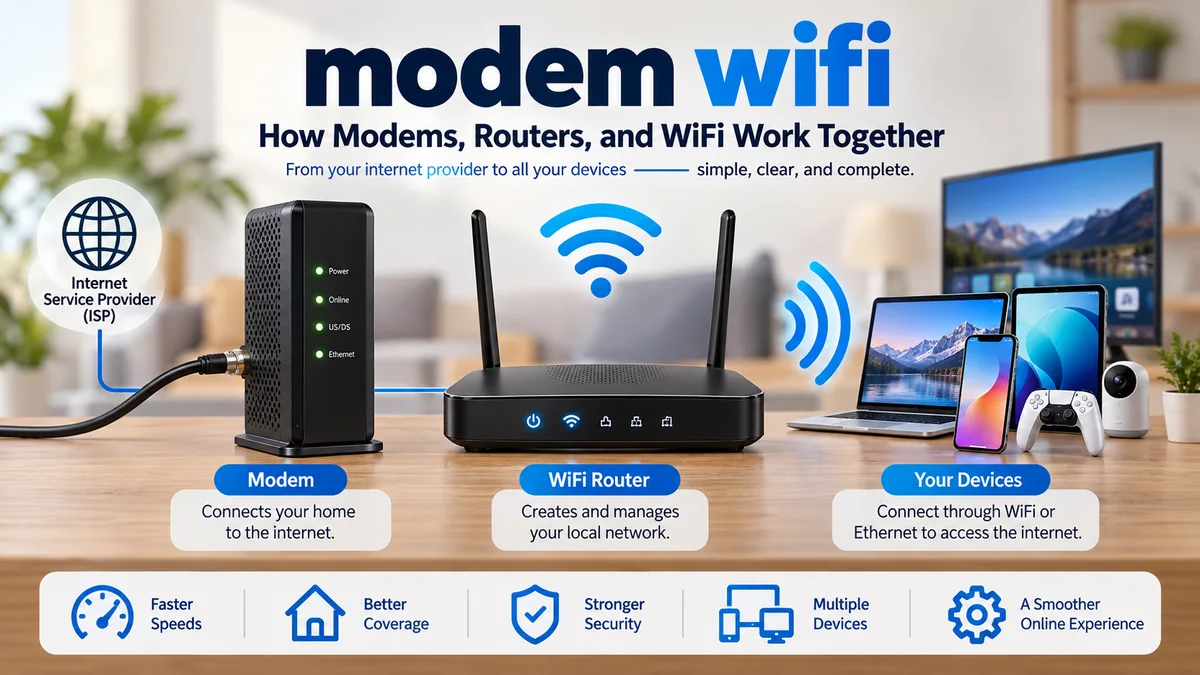
A modem wifi setup connects your home to an internet service provider and then distributes that connection to wireless devices. A standalone modem normally handles the provider connection, while a WiFi router creates the local wireless network. Many homes use a gateway that combines both functions in one device.
The terms are often used interchangeably, especially because internet service providers frequently supply a single box that performs several networking jobs. Technically, however, a modem and a WiFi router have different purposes.
What Is modem wifi?
People commonly use modem wifi to describe the equipment that brings an internet connection into a home and makes that connection available over WiFi.
Technically, three components may be involved:
- Modem: Connects the premises to the internet service provider, or ISP.
- Router: Creates and manages the local network.
- Wireless access point: Provides the radio connection used by WiFi devices.
These components do not necessarily have to be separate boxes. A residential gateway can combine modem, routing, Ethernet, firewall, and WiFi capabilities into one device.
Think about the connection path this way:
ISP network → modem or ONT → router → WiFi/Ethernet → your devices
With an all-in-one gateway, the modem or provider-terminal and router portions are simply housed together.
Does a modem provide WiFi?
A traditional standalone modem generally does not provide WiFi. It establishes the internet connection and normally passes that connection through an Ethernet port to another device.
A wireless router creates the WiFi network.
This is where terminology becomes confusing. An ISP may call its supplied box a “modem” even when that box also contains a router and WiFi access point. Such equipment is more accurately described as a gateway or modem-router combination.
modem wifi vs Router: What Is the Difference?
The easiest distinction is that the modem connects your home network to the provider, while the router manages connections within your home and shares internet access among your devices.
| Feature | Modem | WiFi Router | Gateway |
|---|---|---|---|
| Connects to ISP | Yes | Usually no | Yes |
| Creates local network | Usually no | Yes | Yes |
| Provides WiFi | Usually no | Yes | Usually yes |
| Assigns local IP addresses | Usually no | Yes | Yes |
| Ethernet support | Yes | Yes | Yes |
| Handles routing | No | Yes | Yes |
| One-box setup | No | No | Yes |
A router creates a LAN, or local area network. Devices such as phones, computers, printers, smart TVs, game consoles, and security cameras can communicate through this network.
The provider-facing connection forms part of the WAN, or wide area network, side of the setup.
What does the modem actually do?
The modem or equivalent provider-terminal device establishes the link between your premises and your ISP’s network.
The exact hardware depends on the access technology.
A cable internet connection commonly uses a cable modem connected by coaxial cable. DSL services can use a DSL modem connected to a telephone line. Fiber connections work differently: they commonly terminate at an ONT (Optical Network Terminal) rather than a traditional modem.
That distinction matters when troubleshooting or replacing equipment. Buying a cable modem will not solve an equipment problem on a fiber service.
What does the WiFi router do?
The router sits at the boundary between your local network and the upstream internet connection.
It can:
- create the local network;
- assign local IP addresses;
- direct traffic to the correct device;
- provide Ethernet connections;
- broadcast WiFi through an integrated wireless access point;
- apply firewall rules;
- support guest networks and parental controls;
- and allow multiple devices to share one internet connection.
Home routers commonly use DHCP to assign local IP addresses automatically. They also commonly perform NAT (Network Address Translation), allowing multiple private devices to share the internet connection associated with the household’s public-facing connection.
The router is therefore much more than an antenna for WiFi.
How modem wifi Works Step by Step
Understanding the data path makes home networking much easier to troubleshoot.
Suppose you open a website on a laptop.
1. Your device connects to WiFi
The laptop connects to the wireless network created by your router or gateway.
The network name you select on the laptop is called the SSID. Authentication is handled using the WiFi network’s security configuration and password.
2. The router identifies the device
The router maintains the local network and gives connected devices local IP addresses, typically through DHCP.
It can then determine where traffic on the local network should go.
3. Internet traffic reaches the modem or provider terminal
When the laptop requests information outside the local network, the router forwards that traffic toward the WAN connection.
In a conventional cable setup, an Ethernet cable typically connects the router’s WAN port to the modem.
4. The connection reaches your ISP
The modem, ONT, or other broadband termination equipment connects your premises to the provider’s network.
The request can then travel across other networks toward its destination.
5. Data returns to the correct device
Response data travels back through the provider connection and router.
The router directs it to the device that requested it.
All of this happens rapidly enough that opening a webpage feels almost instantaneous when the connection is working properly.
Quick Takeaway: The modem gets the internet connection into your network. The router organizes and shares that connection. WiFi is one method devices use to connect to the router.
Modem Types and Internet Connection Technologies
Not every internet connection uses the same kind of modem. “Modem” has become a convenient general term, but the underlying technology can vary considerably.
Cable modem
Cable broadband generally uses a coaxial cable and cable modem.
Modern cable networks commonly rely on the DOCSIS family of standards. The modem must normally be compatible with the cable provider’s network and supported service specifications.
A faster WiFi router cannot compensate for a modem that cannot support the subscribed internet service adequately.
DSL modem
DSL transmits broadband service over telephone-line infrastructure.
A DSL modem terminates this connection and provides an interface for the customer’s network. The exact performance depends heavily on the DSL technology, provider network, and line conditions.
Fiber and ONT
Fiber-to-the-home services generally do not require a conventional cable or DSL modem.
Instead, an Optical Network Terminal (ONT) converts the optical connection into a connection usable by the customer’s networking equipment. Some providers integrate more functions into a fiber gateway.
Fixed wireless and cellular internet
Fixed wireless, 4G LTE, and 5G home internet use radio-based provider connections rather than cable, DSL, or fiber entering the property in the same way.
The provider’s device may integrate cellular or fixed-wireless connectivity, routing, Ethernet, and WiFi into one unit.
The fundamental networking principle remains similar: there is a provider-facing connection and a local network serving your devices.
What Is a Modem-Router Combo or WiFi Gateway?
A WiFi gateway combines functions that would otherwise require separate networking devices.
Instead of:
Internet line → modem → router → devices
you may have:
Internet line → gateway → devices
ISP-provided gateways are common because they reduce the amount of equipment customers need to configure.
Advantages of a gateway
A combination device can make sense for a straightforward home network.
You have fewer cables, fewer power adapters, one main device to restart, and usually one administration interface. Provider support can also be simpler when the ISP controls the supplied equipment.
Disadvantages of a gateway
Combining everything creates limitations.
If the WiFi technology becomes outdated but the provider connection remains perfectly adequate, you may not be able to upgrade only the wireless component. A standalone router offers greater flexibility in that situation.
Separate equipment can also provide more advanced networking controls and make future WiFi upgrades easier.
Neither design is inherently correct for every home. Simplicity favors an integrated gateway; flexibility often favors separate components.
WiFi Standards, Bands, and Speed
Your internet plan and your WiFi connection are related, but they are not the same measurement.
You could have a fast broadband connection entering the house while experiencing poor wireless performance in a distant bedroom.
2.4 GHz
The 2.4 GHz band generally offers useful range and wall penetration, but it has limited spectrum and can experience substantial interference.
Many household and smart-home devices also use this band.
It can remain useful for:
- IoT devices;
- devices farther from the router;
- basic browsing;
- areas where range matters more than peak throughput.
5 GHz
The 5 GHz band provides more spectrum for high-throughput WiFi and is widely used by modern routers.
Its practical range and ability to penetrate obstacles can be less favorable than lower frequencies, so router placement remains important.
6 GHz
Newer WiFi generations can also use the 6 GHz band where regulations and hardware support permit it.
WiFi 6E extended WiFi 6 operation into 6 GHz, while WiFi 7 can also use 6 GHz with compatible devices.
The client device, router, regulatory environment, channel availability, interference, and distance all influence actual performance.
WiFi 5, WiFi 6, WiFi 6E, and WiFi 7
WiFi generations represent improvements in wireless networking technology rather than faster internet plans by themselves.
A new router cannot make a 100 Mbps internet subscription magically become a gigabit internet connection. What it can potentially improve is the efficiency, capacity, latency, coverage, and local wireless performance of your home network.
This distinction prevents a common upgrade mistake: replacing the modem when the real bottleneck is WiFi, or replacing the router when the provider connection is actually slow.
Do You Need Both a Modem and a Router?
For a conventional home broadband setup serving multiple wired and wireless devices, you need the functions provided by both sides of the network.
That does not necessarily mean you need two physical boxes.
You might have:
- a standalone modem plus separate WiFi router;
- an ISP gateway combining modem and router functions;
- a fiber ONT plus standalone router;
- an ONT plus provider gateway;
- fixed-wireless or cellular equipment with integrated routing and WiFi.
This explains why one household might have two or three networking boxes while another has only one.
Can you connect directly to a modem?
Some standalone modems allow a computer or router to be connected through Ethernet.
For everyday home networking, however, a router provides the local networking, traffic-management, WiFi, and security functions needed to connect multiple devices. NETGEAR, for example, describes the router as the component that shares the modem’s connection among local devices.
Directly connecting a computer should not be treated as a substitute for a properly configured home router unless you understand the security and provider implications.
How to Identify Your modem wifi Equipment
You do not need to be a network engineer to determine what the box beside your wall is doing.
Start with the cables and ports.
Signs you have a standalone modem
A cable modem commonly has:
- a coaxial input;
- a power connection;
- one or a small number of Ethernet ports;
- provider/status indicator lights;
- no normal WiFi network broadcast.
Other broadband technologies use different service connectors.
Signs you have a standalone router
A router commonly has:
- a dedicated WAN or Internet Ethernet port;
- several LAN Ethernet ports;
- WiFi network information;
- internal or external antennas;
- no coaxial or DSL provider input.
The router’s WAN port normally connects to a modem, ONT, or upstream gateway.
Signs you have a gateway
A gateway usually combines characteristics of both.
For example, a cable gateway may have a coaxial provider connection, several Ethernet LAN ports, and built-in WiFi.
Another easy clue is your network configuration. If there is only one provider-connected box and your phone connects directly to WiFi broadcast by that box, it is probably performing gateway functions.
How to Set Up modem wifi Correctly
Exact installation instructions vary by ISP and connection type, but a typical separate modem-and-router network follows a predictable pattern.
1. Connect the provider line
Connect the appropriate service line to the modem or provider terminal.
This could be coaxial cable for cable internet, a DSL line, or fiber terminating through an ONT.
2. Activate the connection
Some providers automatically recognize supplied equipment. Others require activation or registration before internet access becomes available.
A personally owned cable modem must also be compatible with the provider’s network.
3. Connect the router
Run an Ethernet cable from the modem’s Ethernet connection to the router’s WAN/Internet port.
Avoid accidentally connecting it to an ordinary LAN port unless the equipment documentation specifically requires that configuration.
4. Configure WiFi
Set the wireless network name and a strong password.
Use the strongest modern security mode supported by both the router and your devices, typically WPA2 or WPA3 depending on compatibility.
5. Position the router intelligently
Router location can have a major effect on wireless performance.
Place it in an open, reasonably central position rather than hiding it inside a metal cabinet, behind large appliances, or at one extreme end of the home.
Physical obstacles, distance, neighboring networks, and radio interference can all weaken wireless performance.
6. Test wired and wireless performance
Run a test using an Ethernet-connected device where practical, then compare it with WiFi performance.
This simple comparison is extremely useful.
If Ethernet is fast but WiFi is slow, focus on the router, wireless settings, coverage, interference, or client device.
If both are slow, investigate the modem, ONT, provider connection, service plan, cabling, or ISP network.
Why modem wifi Can Be Slow
“Slow internet” is a description of the symptom, not the cause.
Finding the actual bottleneck is more useful than immediately replacing equipment.
Weak WiFi signal
Distance and physical barriers reduce wireless performance.
Concrete, brick, metal, mirrors, floors, and other structures can affect radio propagation. Moving the router to a more central and elevated location can sometimes produce a bigger improvement than changing the internet plan.
Network congestion
A household may have laptops, smartphones, tablets, smart TVs, cameras, consoles, speakers, and smart-home devices sharing the same network.
Large downloads, cloud backups, video streaming, and game updates can consume significant bandwidth.
Wireless interference
The 2.4 GHz band can become especially crowded because many WiFi networks and other wireless devices operate around it.
Modern routers may automatically select suitable channels, but congested environments can still reduce performance.
Old networking hardware
An older router may become the limiting factor when paired with a much faster broadband plan.
Likewise, cable customers need modem hardware that supports their provider and service tier.
The problem may be the client device
Do not assume the network equipment is always responsible.
An older laptop may support an older WiFi generation, fewer spatial streams, or only certain frequency bands. Its wireless connection can therefore be substantially slower than that of a newer device on the same network.
Quick Takeaway: Test more than one device and compare Ethernet with WiFi before replacing your modem or router.
How to Troubleshoot modem wifi Problems
A systematic approach saves time because it separates internet problems from wireless-network problems.
Step 1: Check whether every device is affected
If only one phone or laptop has a problem, the issue may be with that device.
If everything is offline, investigate the network equipment or ISP connection.
Step 2: Look at the equipment indicators
Check the modem, ONT, router, or gateway for abnormal connection lights.
Indicator meanings vary by manufacturer, so use the equipment’s documentation rather than assuming every flashing light represents an error.
Step 3: Check cables
Loose Ethernet, coaxial, power, or other provider-side cables can cause intermittent or complete connection failures.
Check connections without unnecessarily disconnecting fiber components.
Step 4: Restart equipment properly
When appropriate for your provider setup, power cycling can resolve temporary connection or software problems.
With separate equipment, allow the modem or provider device to establish its connection before expecting the router to regain internet access.
Step 5: Test Ethernet
Connect a computer through Ethernet where possible.
If the wired connection performs normally but wireless devices do not, you have narrowed the problem to the WiFi side of the network.
Step 6: Test close to the router
Stand relatively close to the router and retest.
A major improvement suggests a coverage issue rather than a slow broadband connection.
Step 7: Check for an ISP outage
If the provider connection remains unavailable across devices despite functioning local equipment, check the ISP’s service status or contact its support team.
WiFi Coverage, Extenders, Access Points, and Mesh Systems
A faster modem does not automatically increase wireless coverage.
Coverage is primarily a local wireless-network issue.
WiFi extender
An extender attempts to increase wireless reach by relaying an existing connection.
It can be useful in some situations, although placement and implementation have a substantial impact on performance.
Wireless access point
An access point provides wireless connectivity to an existing network.
Wired access points can be particularly effective when Ethernet cabling is available because they do not need to rely solely on a wireless link back to the primary router.
Mesh WiFi
A mesh WiFi system uses multiple coordinated nodes to provide wireless coverage across a larger area.
You still normally need a provider-facing modem, ONT, or gateway. NETGEAR notes that a mesh system’s router function still needs the internet connection supplied through the broadband equipment.
Mesh can be especially useful in large or multi-story homes where a single access point cannot provide adequate coverage everywhere.
Separate Modem and Router vs One Gateway
There is no universal answer because the better architecture depends on how much control and simplicity you want.
| Separate Equipment | Gateway |
|---|---|
| Components can often be upgraded independently | One integrated device |
| Greater router choice | Simpler installation |
| More networking flexibility | Fewer cables |
| Easier to replace only the WiFi system | Convenient ISP support |
| Requires more equipment | Less component-level flexibility |
| Configuration can be more complex | Advanced options may be limited |
For someone who simply wants reliable connectivity and minimal administration, an ISP gateway can be perfectly practical.
For someone who wants better coverage, advanced network controls, or the ability to upgrade WiFi independently, separate equipment may be more flexible.
Security Matters as Much as Speed
A modem wifi network is an entry point to computers, phones, cameras, smart-home products, and other connected devices, so configuration should not stop once the internet starts working.
Change default administrative credentials when appropriate, use a strong unique WiFi password, and install router firmware or security updates.
Disable features you do not need and consider a separate guest network for visitors or certain connected devices.
Modern routers commonly provide a firewall, and some offer parental controls, guest access, device management, VPN capabilities, and additional network-security functions.
Be cautious with remote administration. There is rarely a reason for an ordinary home router’s management interface to be openly accessible from the internet.
Common modem wifi Mistakes
One of the most common mistakes is assuming that “internet” and “WiFi” mean the same thing.
They do not.
You can have working WiFi with no internet access. Your devices may successfully connect to the router and communicate locally even when the provider connection is down.
You can also have working internet at the modem or ONT while experiencing terrible WiFi because of weak coverage or interference.
Another common problem occurs when people connect their own router behind an ISP gateway while both devices continue performing routing and NAT. This can create double NAT, which may cause complications with gaming, port forwarding, VPNs, and some applications.
Depending on the equipment and ISP, bridge mode or access-point mode may be used to avoid unnecessary layers of routing. These settings should be changed only after checking the provider’s and equipment manufacturer’s instructions.
How to Improve modem wifi Performance
Start with diagnosis rather than buying new equipment.
First, determine the speed and reliability reaching your network over Ethernet. Then evaluate WiFi performance close to the router and in the areas where devices are actually used.
If wired performance is good but WiFi deteriorates with distance, focus on coverage.
Move the router into a more central, unobstructed location. Connect stationary high-bandwidth devices such as desktop computers, televisions, or game consoles through Ethernet where practical. In a larger property, consider wired access points or a properly designed mesh network.
If both wired and wireless connections are consistently poor, investigate the provider connection, modem or ONT, Ethernet cabling, service provisioning, and internet plan before blaming WiFi.
This distinction matters because upgrading the wrong component may produce no noticeable improvement.
Understanding Your Home Network
The easiest way to understand modem wifi is to stop thinking of your internet equipment as one mysterious box.
The modem, ONT, or equivalent provider equipment brings the external internet connection to your premises. The router creates and manages your local network. WiFi lets compatible devices join that network wirelessly. A gateway simply combines several of those functions into one unit.
Once you know which component performs which job, choosing equipment and diagnosing connection problems becomes much easier. When something goes wrong, identify whether the failure is on the provider connection, routing, Ethernet, or WiFi side first. That one habit can prevent unnecessary upgrades and make most home-network problems far easier to solve.
