
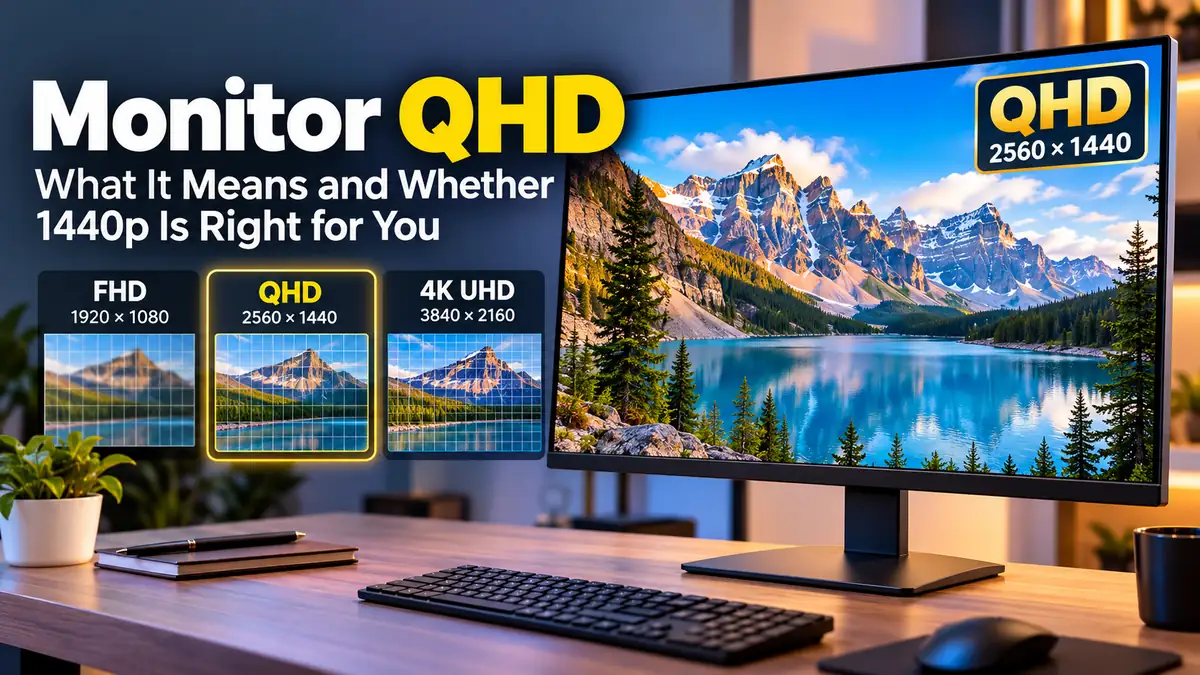

A monitor qhd display is one of the most practical upgrades you can make when Full HD no longer looks sharp enough, but 4K feels unnecessary or too demanding. QHD offers noticeably more detail and desktop space while keeping hardware requirements more manageable than 4K.
A QHD monitor normally has a resolution of 2560 × 1440 pixels, which equals about 3.69 million pixels. It is commonly called QHD, Quad HD, WQHD, or 1440p. Compared with 1920 × 1080 Full HD, QHD provides roughly 78% more pixels, resulting in sharper text, finer image detail, and additional usable workspace. Tom’s Hardware
What Is a Monitor QHD Display?
QHD stands for Quad High Definition. The name comes from its relationship to standard 720p HD resolution.
Standard HD is 1280 × 720 pixels. QHD doubles both dimensions to 2560 × 1440. Doubling the horizontal and vertical dimensions results in four times as many total pixels, which explains the word “Quad.” Tom’s Hardware
A typical QHD display uses a 16:9 aspect ratio, the familiar widescreen shape found on most modern desktop monitors.
Here is how common monitor resolutions compare:
| Resolution | Pixel Dimensions | Approx. Pixels | Common Name |
|---|---|---|---|
| HD | 1280 × 720 | 0.92 million | 720p |
| Full HD | 1920 × 1080 | 2.07 million | FHD / 1080p |
| QHD | 2560 × 1440 | 3.69 million | QHD / 1440p |
| 4K UHD | 3840 × 2160 | 8.29 million | UHD / 2160p |
| 5K | 5120 × 2880 | 14.75 million | 5K |
This places QHD directly between mainstream Full HD and considerably denser 4K UHD displays. RTINGS.com
Is QHD the Same as 1440p?
For a conventional 16:9 computer monitor, QHD and 1440p generally refer to the same 2560 × 1440 resolution.
The terms describe the display differently.
QHD emphasizes the total pixel count relative to 720p HD, while 1440p refers to the 1,440 vertical pixels. The “p” historically indicates progressive scanning.
You may also encounter the term WQHD, meaning Wide Quad High Definition. Manufacturers commonly use QHD and WQHD for 2560 × 1440 displays. Intel
However, terminology becomes less consistent with ultrawide monitors. A display with a resolution such as 3440 × 1440 has the same 1,440-pixel vertical dimension but considerably more horizontal pixels.
For that reason, always check the actual resolution rather than relying entirely on labels such as QHD, WQHD, or UWQHD.
Is QHD Really 2K?
This is another source of confusion.
QHD monitors are frequently advertised as “2K,” but technically these terms are not identical.
Digital Cinema Initiatives defines DCI 2K as 2048 × 1080, while standard QHD is 2560 × 1440. In consumer monitor marketing, however, “2K” is often used informally for 1440p displays. Tom’s Hardware
When comparing products, 2560 × 1440 is therefore more informative than a “2K” label.
Monitor QHD vs Full HD
The jump from Full HD to QHD can be substantial, particularly on a 27-inch desktop monitor.
Full HD contains:
1920 × 1080 = 2,073,600 pixels
QHD contains:
2560 × 1440 = 3,686,400 pixels
That means QHD displays approximately 1.78 times as many pixels as Full HD. Samsung Business Insights
Those extra pixels affect more than photographs and games. Text can appear cleaner, diagonal lines smoother, interface elements more detailed, and more information can fit on the desktop.
Where You Notice the Difference
The benefits become particularly obvious when you:
- read small text for extended periods;
- work with spreadsheets;
- keep several applications visible;
- edit photographs;
- use video-editing timelines;
- play detailed PC games;
- browse large websites;
- write or program with multiple windows open.
At smaller screen sizes, the improvement may be less dramatic because Full HD already produces relatively dense pixels. As screen size increases, however, resolution becomes increasingly important.
Monitor QHD vs 4K
If QHD is sharper than 1080p, why not simply buy a 4K monitor?
Because resolution involves tradeoffs.
A 4K UHD monitor uses 3840 × 2160 pixels, providing approximately 8.29 million pixels. That’s more than twice the total pixel count of QHD. RTINGS.com
This produces extremely detailed visuals, especially on larger displays. But your computer must also process substantially more pixels.
| Feature | QHD | 4K UHD |
|---|---|---|
| Resolution | 2560 × 1440 | 3840 × 2160 |
| Total pixels | 3.69 million | 8.29 million |
| Image sharpness | Excellent | Higher |
| GPU workload | Moderate | Higher |
| High-refresh gaming | Easier to drive | More demanding |
| Desktop space | Very good | Excellent |
| Scaling | Often minimal at 27″ | Frequently useful at 27″ |
| Best balance | Gaming + productivity | Maximum detail |
For productivity and professional visual work, 4K’s additional detail can be valuable. For gaming, however, rendering fewer pixels makes QHD easier for a GPU to drive at high frame rates.
This balance is why manufacturers and technology publications frequently describe 1440p as a middle ground or “sweet spot” between Full HD and 4K. HP
What Is the Best Screen Size for QHD?
Resolution alone does not determine image quality. Screen size and viewing distance matter because they affect pixel density.
For many desktop setups, 27 inches is an especially natural match for 2560 × 1440.
At 27 inches, QHD provides roughly 109 pixels per inch (PPI). That gives text and interface elements a noticeably finer appearance than 1080p at the same screen size while generally remaining comfortable to use without aggressive operating-system scaling.
24-Inch QHD
A 24-inch QHD display has high pixel density and can look extremely sharp. Text and interface elements are physically smaller at native scaling, however, so some users may prefer scaling.
27-Inch QHD
This is the classic combination.
It provides enough physical screen area for multitasking while maintaining good sharpness. It’s suitable for gaming, office work, programming, browsing, and general creative tasks.
32-Inch QHD
QHD remains usable at 32 inches, but pixel density drops compared with a 27-inch QHD screen.
If maximum text sharpness is important on a 32-inch monitor, 4K becomes increasingly attractive.
Is a Monitor QHD Good for Gaming?
Yes. QHD is particularly well suited to PC gaming because it improves visual detail without imposing the same rendering workload as 4K.
Modern gaming displays combine 2560 × 1440 resolution with refresh rates ranging well beyond traditional 60Hz monitors. Current gaming-monitor recommendations include numerous high-refresh 1440p models, demonstrating that the resolution remains highly relevant for gaming in 2026. Tom’s Guide
Resolution isn’t the only specification that matters, though.
Refresh Rate
Refresh rate describes how many times a monitor can update its image each second.
A 60Hz display can refresh up to 60 times per second, while 144Hz, 165Hz, 240Hz, and faster panels can display much smoother motion when the computer produces sufficiently high frame rates.
For gaming, consider your priorities:
- 60–100Hz: casual gaming and general use
- 120–180Hz: strong balance for mainstream gaming
- 240Hz and above: useful primarily for high-frame-rate and competitive gaming
Higher isn’t automatically better for everyone. Your graphics hardware must produce enough frames to take meaningful advantage of a high refresh rate.
Adaptive Sync
Variable refresh technologies can synchronize the monitor’s refresh behavior with frames generated by the GPU, helping reduce tearing and inconsistent motion.
Support varies by monitor and graphics hardware, so compatibility should be checked rather than assumed.
Response Time
Response time describes how quickly pixels transition between states. Fast transitions can improve motion clarity, but manufacturer response-time figures don’t always represent typical real-world performance.
Independent testing is therefore useful when comparing gaming monitors.
What GPU Do You Need for QHD Gaming?
There isn’t one graphics card requirement for QHD.
The necessary GPU performance depends on:
- the game;
- graphics settings;
- target frame rate;
- ray tracing;
- upscaling technology;
- CPU performance;
- monitor refresh rate.
Running a competitive game at 1440p and 240 fps presents a very different workload from playing a slower strategy game at 60 fps.
This distinction is important when choosing a monitor.
Buying a 240Hz QHD display doesn’t guarantee 240 fps. The monitor can display frames only as quickly as the computer generates them.
If gaming is your priority, evaluate your graphics card’s performance in the specific games you play at 2560 × 1440, rather than relying solely on broad GPU categories.
Is QHD Good for Office Work and Productivity?
QHD can be excellent for productivity because the increased resolution provides more desktop information than Full HD.
Dell notes that 2560 × 1440 gives users additional room for documents, browser windows, spreadsheets, and application controls, although operating-system scaling affects the final usable workspace. Dell
Imagine writing a report while researching online.
On a QHD screen, you can comfortably position a browser beside your document. Spreadsheet users can see additional rows and columns, while programmers can keep an editor, documentation, and other tools visible more easily.
This doesn’t mean QHD literally replaces multiple monitors in every workflow. It simply provides a larger digital workspace at the same physical screen size.
Is QHD Good for Photo and Video Editing?
QHD’s higher pixel density makes it useful for creative applications.
Photographers can inspect finer image details, while video editors gain additional workspace for timelines, preview windows, controls, and media libraries. Philips specifically identifies photo editing, video editing, and gaming among common applications that benefit from QHD’s increased resolution. Philips UK
But resolution should not be confused with color accuracy.
A monitor can have millions of pixels and still reproduce colors poorly.
For creative work, also examine:
- color-gamut coverage;
- factory calibration;
- color accuracy;
- panel uniformity;
- contrast;
- viewing angles;
- bit depth;
- HDR capability.
A well-calibrated QHD monitor may be more useful for color-critical work than a poorly calibrated 4K model.
IPS, VA, OLED, and Other QHD Panel Types
Once you’ve decided on QHD resolution, panel technology becomes another major consideration.
IPS
IPS panels are popular for productivity, creative work, and gaming because they generally provide strong viewing angles and consistent colors.
They’re a versatile choice when one monitor must handle several types of work.
VA
VA panels commonly provide stronger native contrast than typical IPS LCD displays. Dark scenes can therefore appear deeper.
Some VA panels, however, may exhibit slower transitions in darker tones. Performance varies considerably between individual models.
OLED and QD-OLED
OLED technologies can deliver extremely deep blacks, excellent contrast, and very fast pixel response.
High-refresh 1440p OLED gaming monitors are now established in the premium gaming market. Tom’s Guide
Their disadvantages can include higher prices and the long-term possibility of image retention or burn-in when static content is displayed repeatedly. Modern mitigation features reduce the risk, but don’t eliminate the underlying characteristic of emissive OLED technology.
Does QHD Make Text Sharper?
Yes—when comparing displays of the same physical size, QHD generally renders text more finely than Full HD.
A 27-inch 1080p screen spreads approximately 2.07 million pixels across its panel. A 27-inch QHD monitor fits approximately 3.69 million into the same area.
That increased pixel density allows fonts, curves, icons, and interface elements to be represented with finer detail.
This improvement is particularly noticeable when reading documents, coding, browsing websites, or working with small spreadsheet cells.
Operating-system font rendering and scaling still affect the final appearance.
Does QHD Require Display Scaling?
Not necessarily.
Many users find native 2560 × 1440 comfortable on a 27-inch monitor. Others prefer slightly larger text and interface elements.
Windows and macOS provide display-scaling options that allow interface elements to appear larger without simply switching the monitor to a lower resolution.
Preferences depend on screen size, viewing distance, eyesight, and the applications being used.
Whenever possible, run an LCD or OLED monitor at its native 2560 × 1440 resolution and adjust operating-system scaling rather than lowering the display resolution.
HDMI vs DisplayPort for a QHD Monitor
Both HDMI and DisplayPort can support QHD, but maximum resolution and refresh rate depend on the versions implemented by your computer, monitor, and cable.
This becomes especially relevant with high-refresh displays.
A computer might technically support 2560 × 1440 but fail to expose the monitor’s highest refresh rate when connected through an older or bandwidth-limited interface. Resolution, refresh rate, color depth, and HDR all affect required bandwidth. FreeScreenTest
Before buying, check:
- the monitor’s supported resolution and refresh rate through each input;
- your GPU or laptop’s output specifications;
- the cable requirements;
- whether adaptive sync works through the selected connection.
USB-C monitors add another possibility. Compatible laptops may transmit video, data, and power through one cable, although exact capabilities depend on the USB-C implementation.
What Should You Look for in a Monitor QHD Display?
Resolution should be the starting point rather than the entire buying decision.
A practical QHD monitor should match how you’ll actually use it.
For Everyday Work
Prioritize comfortable ergonomics, text clarity, a good stand, suitable screen size, and useful connectivity.
Height adjustment can make more difference to everyday comfort than a small improvement in headline specifications.
For Gaming
Look at refresh rate, response performance, adaptive sync, input lag, HDR performance, and the ports required to achieve the monitor’s maximum refresh rate.
Don’t choose solely based on the fastest advertised response-time number.
For Creative Work
Color performance matters as much as resolution.
Check color-space coverage, accuracy, calibration options, panel uniformity, and the type of content you’re producing.
For Laptop Users
Connectivity deserves extra attention.
A USB-C connection with video and sufficient power delivery can turn a QHD monitor into a convenient desktop hub. Confirm what your specific laptop supports before relying on a single-cable setup.
Common QHD Monitor Mistakes to Avoid
One frequent mistake is assuming that every 1440p monitor offers the same experience.
They don’t.
Two monitors can share a 2560 × 1440 resolution while differing dramatically in motion performance, contrast, brightness, HDR, color accuracy, ergonomics, and connectivity.
Another mistake is buying an extremely high-refresh model without checking whether the computer can produce comparable frame rates.
Similarly, don’t assume “HDR” on the specification sheet guarantees impressive HDR performance. Actual results depend on brightness, contrast, local dimming or emissive pixel control, color capability, and implementation.
Finally, verify the physical dimensions. A 32-inch QHD display and a 27-inch QHD display contain exactly the same number of pixels, so the smaller panel has greater pixel density.
When Should You Choose QHD Instead of 1080p?
QHD makes sense when you want a clear improvement in sharpness and workspace without jumping to 4K.
It’s particularly attractive if you’re using a 27-inch monitor, multitasking regularly, editing content, or gaming with hardware capable of strong 1440p performance.
Full HD can still make sense when:
- your budget is limited;
- you’re using a smaller display;
- maximum competitive frame rate matters more than resolution;
- your graphics hardware is modest;
- your workload simply doesn’t benefit from additional pixels.
Resolution should solve a need rather than merely increase a specification.
When Is 4K Better Than QHD?
Choose 4K when maximum image and text detail outweigh the additional hardware requirements or cost.
It can be especially valuable for large desktop monitors, detailed photography, high-resolution video production, and productivity setups where very high pixel density is desirable.
For gamers, the choice is more nuanced.
If you prioritize image detail and your GPU can deliver the performance you want at 3840 × 2160, 4K can be excellent. If maintaining high frame rates is more important, QHD often provides a more achievable balance.
Is a Monitor QHD Worth It?
For many desktop users, yes.
A monitor qhd display combines 2560 × 1440 resolution, approximately 3.69 million pixels, increased workspace, and substantially better pixel density than Full HD without reaching the much heavier pixel load of 4K.
That makes QHD particularly compelling around 27 inches for gaming, productivity, programming, browsing, photo editing, and general everyday computing.
The key is not to treat resolution in isolation. Screen size, panel technology, refresh rate, color performance, connectivity, ergonomics, and your computer’s capabilities all contribute to the final experience.
If 1080p feels cramped or soft but 4K exceeds what you need, QHD remains one of the most balanced monitor resolutions available.
