
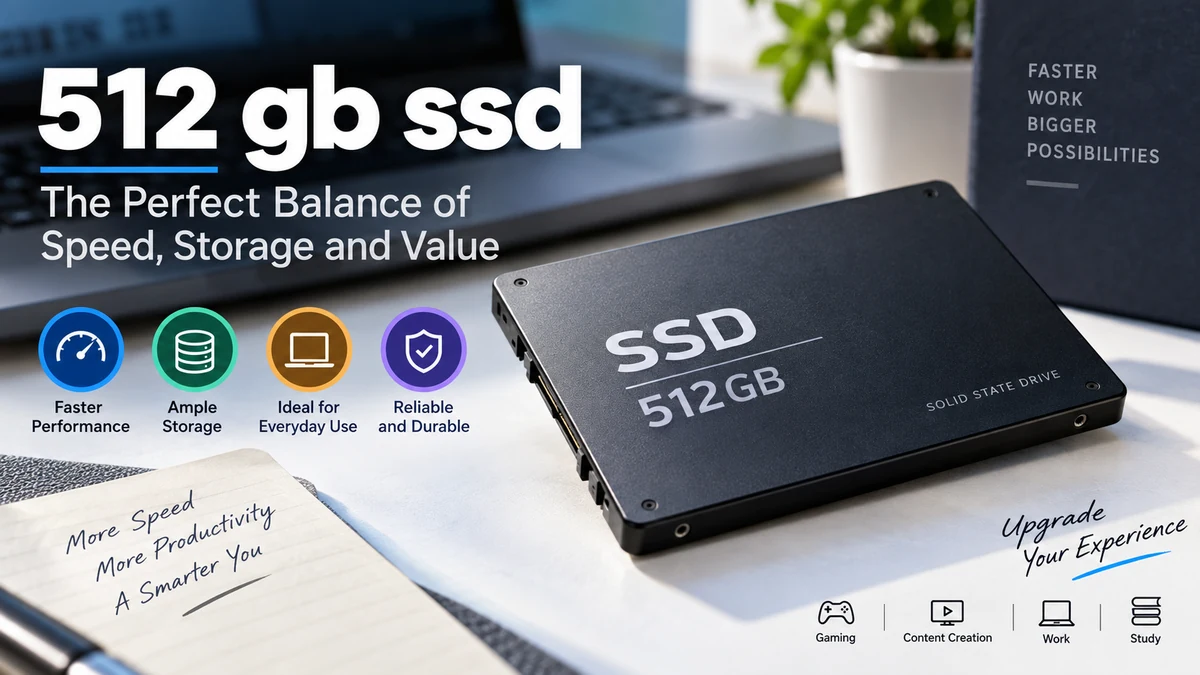

A 512 gb ssd is one of the most common storage capacities found in laptops, desktops, mini PCs, and portable drives. It gives everyday users enough room for an operating system, applications, documents, photos, and a modest collection of games without the slower response associated with a traditional hard disk drive.
A 512 gb ssd is a solid-state drive with 512 gigabytes of advertised storage. In practice, an operating system may display roughly 476 GiB because manufacturers specify capacity using decimal units while many computer interfaces report storage using binary units. It can use SATA or faster PCIe/NVMe technology.
For students, office users, programmers, and general laptop owners, that amount of storage can still be practical. For large gaming libraries, 4K video projects, virtual machines, or extensive local media collections, however, 1TB or more provides considerably more breathing room.
What Is a 512 gb ssd?
An SSD, or solid-state drive, stores digital information in NAND flash memory rather than on spinning magnetic platters.
That distinction matters. A traditional HDD has mechanical components, including spinning disks and a moving read/write head. An SSD has no equivalent moving parts, allowing it to access data with much lower latency.
The “512GB” part describes its advertised storage capacity:
512GB = 512,000,000,000 bytes
That space can hold:
- Windows or another operating system
- Applications and productivity software
- Documents and spreadsheets
- Photos and music
- Games
- Videos
- Programming projects
- Temporary and system files
The capacity alone does not tell you how fast the drive is. Two drives labeled 512GB can have dramatically different interfaces, controllers, NAND types, cache designs, endurance ratings, and performance.
That is why comparing SSDs only by storage capacity can be misleading.
Why Does a 512GB SSD Show About 476GB?
One of the first surprises after installing a drive is discovering that Windows may not display the full number printed on the packaging.
A brand-new 512GB SSD can appear as approximately 476GB/GiB in the operating system.
This usually does not mean storage is missing.
Drive manufacturers use the decimal system:
1 GB = 1,000,000,000 bytes
So:
512 × 1,000,000,000 = 512,000,000,000 bytes
Binary measurement uses 1 GiB = 1,073,741,824 bytes.
Dividing the drive’s total bytes by that value gives:
512,000,000,000 ÷ 1,073,741,824 ≈ 476.84 GiB
Some operating-system interfaces have historically labeled this binary value as “GB,” creating confusion for users.
Formatting, partitions, recovery environments, and manufacturer-reserved space can further affect what you actually see and can use. EMTEC, for example, explains that storage devices are advertised according to decimal SI measurements and that formatting can affect displayed usable capacity.
Advertised vs displayed capacity
| Advertised Capacity | Approx. Binary Capacity |
|---|---|
| 128GB | 119 GiB |
| 256GB | 238 GiB |
| 512GB | 477 GiB |
| 1TB | 931 GiB |
| 2TB | 1.82 TiB |
Quick Takeaway: Seeing around 476–477 GiB from a 512GB SSD is generally normal. It is largely a measurement-unit difference rather than hundreds of gigabytes mysteriously disappearing.
How Much Can You Actually Store on a 512 gb ssd?
The approximately 477 GiB visible before system use is not necessarily the amount available for personal files.
Your operating system needs space. So do applications, updates, drivers, browser caches, temporary files, recovery partitions, and other system data.
A Windows laptop might therefore have substantially less free space by the time it is fully configured. PCWorld notes that Windows, drivers, applications, updates, and manufacturer software can reduce the space available on a new 512GB computer significantly.
A simplified example might look like this:
| Storage Use | Example Space |
|---|---|
| Windows and system files | 35–60GB |
| Applications | 20–50GB |
| Documents | 10GB |
| Photos | 30GB |
| Games | 150GB |
| Remaining space | Depends on configuration |
These numbers are examples, not fixed requirements. A clean productivity laptop and a gaming PC can have completely different storage footprints.
You also shouldn’t plan around filling every last gigabyte. SSD controllers benefit from available free space for operations such as garbage collection and wear management.
Is a 512 gb ssd Enough for a Laptop?
For a typical laptop used for browsing, Microsoft Office, streaming, studying, email, and moderate file storage, 512GB is generally workable.
It is considerably easier to manage than a 128GB or 256GB boot drive.
A student, for example, could install Windows, Microsoft Office, browsers, communication applications, development tools, and thousands of ordinary documents without immediately running into storage problems.
512GB works particularly well for:
- Web browsing
- Office applications
- School and university work
- Programming
- Streaming
- Light photo editing
- Everyday applications
- Moderate personal file storage
- Cloud-assisted workflows
The situation changes when large local files become part of your workflow.
Raw photographs, 4K video, large game installations, virtual machines, datasets, and offline media libraries can consume hundreds of gigabytes surprisingly quickly.
PCWorld’s 2026 storage guidance similarly describes 512GB as useful beyond basic computing but recommends larger capacities for users dealing heavily with games and large media files.
Is a 512 gb ssd Enough for Gaming?
Yes, 512GB can run games perfectly well, but capacity rather than SSD performance becomes the limitation.
Storage capacity doesn’t determine whether the GPU can render a game at 60 or 120 FPS. A game can run normally from a suitable 512GB SSD.
The challenge is simply how many large games can remain installed simultaneously.
Modern AAA titles can consume well over 100GB each, and some installations can approach or exceed 200GB. Recent storage guides consequently regard 512GB as restrictive for people maintaining several large games at once.
Imagine that roughly 400GB remains after accounting for Windows, software, system data, and some sensible free space.
Your library might include:
- One 150GB AAA game
- One 100GB game
- Two 40GB games
- Several smaller indie or esports titles
That can work.
But installing several 100GB–200GB titles simultaneously becomes difficult.
512GB vs 1TB for gaming
| Factor | 512GB SSD | 1TB SSD |
|---|---|---|
| Windows + apps | Comfortable | Comfortable |
| Indie games | Plenty of room | Excellent |
| Small gaming library | Good | Excellent |
| Several AAA games | Limited | Much easier |
| Large long-term library | Restrictive | Better |
| Storage management | More frequent | Less frequent |
For someone who mainly plays a few esports or indie titles, 512GB can remain entirely practical.
For an enthusiast who wants many current AAA games installed simultaneously, 1TB or 2TB makes storage management easier. Recent gaming-storage guidance increasingly points toward at least 1TB for larger modern game libraries.
Quick Takeaway: A 512GB SSD doesn’t make games slower because it has less capacity than a 1TB SSD. Its main disadvantage for gaming is simply running out of room sooner.
512GB SATA SSD vs 512GB NVMe SSD
Capacity and interface are separate specifications.
You may encounter both a 512GB SATA SSD and a 512GB NVMe SSD. They store approximately the same amount of data, but their communication methods and maximum performance can be very different.
SATA SSD
SATA was originally developed around storage technologies that included hard drives.
A typical 2.5-inch SATA SSD connects through SATA data and power connections. M.2 SATA drives also exist, demonstrating another important distinction: M.2 describes a form factor, not necessarily NVMe.
SATA III has an interface ceiling around 6 Gb/s, and practical sequential transfer speeds for SATA SSDs commonly top out around the 500–550 MB/s region.
NVMe SSD
NVMe SSDs communicate through PCI Express rather than the SATA storage interface.
Modern consumer NVMe drives commonly use an M.2 form factor and may operate over PCIe 3.0, PCIe 4.0, or newer PCIe generations depending on the drive and computer.
Their sequential throughput can be multiple times higher than SATA.
| Feature | SATA SSD | NVMe SSD |
|---|---|---|
| Common interface | SATA III | PCI Express |
| Protocol | AHCI commonly | NVMe |
| Typical form factors | 2.5-inch, M.2 | M.2, add-in card |
| Sequential speed potential | ~500–550 MB/s | Often several GB/s |
| Latency | Low | Lower |
| Everyday responsiveness | Fast | Very fast |
| Large file transfers | Good | Much faster potential |
Do not assume every M.2 drive is NVMe. Some older or budget M.2 SSDs communicate over SATA.
Likewise, an NVMe drive must be compatible with the computer’s M.2 slot and supported PCIe/NVMe configuration.
Does a 512GB SSD Make a Computer Faster?
Replacing a mechanical HDD with an SSD can dramatically improve perceived system responsiveness.
Common improvements include:
- Faster operating-system startup
- Quicker application launches
- Faster file searches and access
- Shorter software installation times
- Better responsiveness during multitasking
- Faster game loading
- Quicker large-file transfers
Moving from a SATA SSD to an NVMe SSD can provide another performance increase, particularly in workloads involving large sequential transfers or heavy storage I/O.
But don’t confuse storage performance with total computer performance.
An SSD does not directly increase:
- CPU processing capability
- GPU rendering power
- RAM capacity
- Monitor refresh rate
For example, replacing a SATA SSD with an extremely fast PCIe NVMe drive won’t automatically raise gaming frame rates substantially. The GPU and CPU remain the primary performance factors in most games.
The biggest everyday storage upgrade is usually the jump from an HDD to an SSD.
What Determines 512 gb ssd Speed?
“512GB” describes capacity, not performance.
Several technical characteristics influence how quickly a drive operates.
Interface and protocol
SATA and PCIe/NVMe impose very different performance ceilings.
PCIe generation
An NVMe SSD might support PCIe 3.0, 4.0, or a newer generation. The motherboard and CPU platform also need appropriate support to reach the drive’s maximum interface capability.
NAND flash
SSDs store information in NAND flash cells.
Common NAND configurations include:
- SLC
- MLC
- TLC
- QLC
Consumer drives frequently use TLC or QLC NAND.
More bits stored per cell can improve storage density and reduce cost, but NAND type can also influence endurance and sustained-write behavior.
Controller
The SSD controller manages communication between the computer and NAND flash.
It handles tasks such as:
- Reading and writing data
- Error correction
- Wear leveling
- Garbage collection
- NAND management
A good controller can make a meaningful difference to consistency and responsiveness.
DRAM and cache
Some SSDs contain dedicated DRAM, while DRAM-less NVMe models may use technologies such as Host Memory Buffer (HMB).
Many consumer SSDs also use part of their NAND in an SLC-like caching mode to accelerate writes.
This explains why a drive can benchmark extremely quickly during a short test but slow down during a very large continuous file transfer after its cache becomes exhausted.
What Do Read and Write Speeds Mean?
SSD specifications frequently advertise sequential read and write speeds.
Read speed measures how quickly data can be retrieved from storage.
Write speed measures how quickly information can be saved to it.
Sequential performance matters for operations involving large continuous files, such as:
- Copying video files
- Moving disk images
- Transferring large archives
- Video production
- Handling large datasets
Random performance and latency matter greatly for workloads involving many small files, including operating-system activity and application launches.
This is why the largest sequential-speed number on an SSD box doesn’t tell the entire performance story.
A drive advertising several thousand MB/s isn’t automatically several times faster in every real-world task than a SATA SSD rated around 550 MB/s.
512 gb ssd vs 256GB SSD
The difference here is mainly capacity.
A 256GB drive can serve as a basic operating-system disk, but its free space disappears much faster after installing Windows and applications.
| Use | 256GB | 512GB |
|---|---|---|
| Windows | Yes | Yes |
| Office/study | Good | Very good |
| General applications | Limited–Good | Good |
| Photo library | Limited | Better |
| Gaming | Restrictive | Moderate |
| Large local files | Restrictive | More practical |
For everyday computing, moving from 256GB to 512GB can make a bigger practical difference than many users expect because it reduces constant storage cleanup.
512 gb ssd vs 1TB SSD
A 1TB drive offers almost twice the advertised storage of a 512GB model.
Performance is a separate question. A 1TB SSD is not automatically faster simply because it is larger, although SSD designs sometimes give higher-capacity versions more NAND parallelism or different cache/endurance specifications.
The main difference remains storage headroom.
512GB makes sense when:
- Most files are stored in the cloud
- You mainly use office software
- Your gaming library is small
- You don’t store large videos locally
- External storage is available
- Your computer has an easy future upgrade path
1TB becomes more useful when:
- You install several large games
- You edit high-resolution video
- You keep large photo libraries
- You run virtual machines
- You store media offline
- You want fewer storage-management decisions
For mainstream computing, 512GB remains usable. For storage-heavy computing, 1TB provides substantially more flexibility.
How Long Does a 512GB SSD Last?
SSDs have finite write endurance because NAND flash cells tolerate a limited number of program/erase cycles.
That does not mean an SSD suddenly becomes unusable after a small amount of everyday writing.
Manufacturers commonly specify endurance using TBW, or terabytes written.
For example, if a particular drive is rated for 300 TBW, the rating represents 300 terabytes of cumulative writes under the manufacturer’s endurance specification.
Actual longevity depends on factors including:
- NAND type
- Controller quality
- Write volume
- Operating temperature
- Firmware
- Write amplification
- Available free space
- Workload
- Power conditions
Warranty length and TBW are therefore useful specifications to examine together.
Ordinary web browsing, office work, streaming, and gaming generally involve much lighter write workloads than continuous video recording, professional scratch-disk use, server workloads, or write-heavy data processing.
Should You Keep Free Space on a 512GB SSD?
Yes. Avoid treating the final few gigabytes as permanently usable working space.
SSDs perform internal maintenance operations such as garbage collection and wear leveling. Having free NAND available gives the controller greater flexibility when reorganizing data.
You do not need to become obsessed with maintaining one exact percentage because SSD architectures and workloads differ.
A practical rule is simply to avoid keeping the drive almost completely full for extended periods.
If you’re repeatedly operating near maximum capacity, that is usually a sign that your storage needs have outgrown the drive.
What Happens When a 512GB SSD Gets Full?
A full SSD does not immediately fail, but it creates practical problems.
You may experience:
- Insufficient space for Windows updates
- Failed application installations
- No room for new games
- Problems creating temporary files
- Reduced space for caches
- More complicated file management
- Potential write-performance degradation under certain workloads
Deleting unnecessary files can restore breathing room.
Windows Storage settings can help identify large applications and temporary files, while game launchers such as Steam make it possible to uninstall and later redownload titles.
If you’re performing this cleanup every few weeks, increasing storage capacity is usually more convenient than continuously reorganizing the same drive.
Can You Upgrade From a 512GB SSD?
Often, yes—but upgradeability depends entirely on the computer.
Desktop PCs typically provide the greatest flexibility and may support multiple SATA and M.2 drives.
Laptops vary substantially.
Before replacing or adding an SSD, check:
- Available M.2 slots
- Supported M.2 length, such as 2280
- SATA versus NVMe compatibility
- Supported PCIe generation
- Maximum supported capacity, if specified
- Whether another storage slot is available
- Warranty/service considerations
- Whether the existing SSD is removable
Some thin laptops have soldered storage or limited internal expansion.
If replacement is required, existing data can often be cloned to the new drive before installation, or the operating system can be installed fresh.
Internal vs External 512GB SSD
A 512GB SSD does not have to be installed inside a computer.
External SSDs are commonly connected through USB, USB-C, or Thunderbolt-compatible interfaces.
An external SSD can be useful for:
- Backups
- Large project files
- Portable media
- Moving files between computers
- Expanding laptop storage
- Photo and video libraries
Actual external-drive performance depends on both the SSD and connection.
Installing an extremely fast NVMe SSD in an enclosure does not guarantee full NVMe performance if the USB interface or enclosure creates a lower bandwidth ceiling.
SSD vs HDD: Why Solid-State Storage Feels Faster
An HDD must physically move its read/write head to different locations on a rotating disk.
An SSD accesses flash memory electronically.
That gives SSDs major advantages in latency and random access.
| Feature | SSD | HDD |
|---|---|---|
| Moving parts | No | Yes |
| Access latency | Very low | Higher |
| Noise | Silent | Audible |
| Shock resistance | Better | Lower |
| Boot performance | Fast | Slower |
| Cost per GB | Usually higher | Usually lower |
| Large cheap archival storage | Less economical | Strong use case |
Hard drives can still make sense for inexpensive high-capacity archives and backups. PCWorld notes that HDDs continue to have a role in large, infrequently accessed storage even as SSDs dominate primary system storage.
What to Check on a 512GB SSD Specification Sheet
Capacity is only the starting point.
When examining a drive, pay attention to these specifications:
- Interface: SATA or PCIe/NVMe
- Form factor: 2.5-inch, M.2, or external
- PCIe generation: if NVMe
- Sequential read speed
- Sequential write speed
- Random performance
- NAND type: such as TLC or QLC
- Controller
- Cache architecture
- TBW endurance rating
- Warranty
- Hardware compatibility
- Thermal requirements
A drive with impressive peak read speeds but poor sustained writes may be less suitable for heavy file-transfer workloads than its headline specification suggests.
Likewise, someone using a computer mainly for web browsing and documents may never notice the performance differences that matter to professional video editors.
The right specification depends on the workload.
Common Mistakes With a 512 gb ssd
One common mistake is assuming 512GB means 512GB will appear as usable storage inside the operating system. As explained earlier, approximately 476–477 GiB before other deductions is normal.
Another is confusing M.2 with NVMe. M.2 is a physical form factor; drives in that shape can use different interfaces.
A third mistake is focusing exclusively on sequential read speed. Real-world SSD performance also depends on latency, random I/O, cache behavior, controller design, NAND, thermals, and workload.
Finally, many users underestimate their future storage growth.
A 512GB drive that feels enormous when storing documents can become restrictive once several 100GB games, phone backups, videos, or creative projects accumulate.
Who Is 512GB Best For?
A 512 gb ssd occupies a useful middle ground between entry-level storage and larger 1TB-plus drives.
It remains particularly practical for:
- Students
- Office workers
- Home users
- Programmers
- Web developers
- Casual gamers
- Users relying on cloud storage
- People with secondary external drives
- Laptop owners with upgradeable storage
It becomes less comfortable for people whose workloads naturally generate enormous files.
Video editors, serious gamers, photographers working with large RAW libraries, virtual-machine users, and anyone maintaining a substantial offline media collection may benefit from 1TB, 2TB, or more.
The key distinction is not simply whether 512GB is “enough.” It is how much local data your particular workload creates and how frequently that data needs to remain immediately available.
Final Thoughts on 512 gb ssd
A 512 gb ssd provides a strong balance of storage capacity and everyday practicality for general computing. Expect roughly 476–477 GiB before operating-system, formatting, recovery, and application usage, rather than assuming every advertised gigabyte will appear as free space.
For browsing, studying, office work, programming, everyday applications, and a modest game library, 512GB can work comfortably. Large AAA gaming libraries, 4K video, virtual machines, and extensive local media can fill it much faster, making 1TB or larger storage more convenient.
Most importantly, capacity is only one SSD specification. Interface, SATA versus NVMe, PCIe generation, NAND flash, controller design, cache behavior, endurance, TBW, thermals, and compatibility all influence what a particular 512GB drive can actually deliver.
