
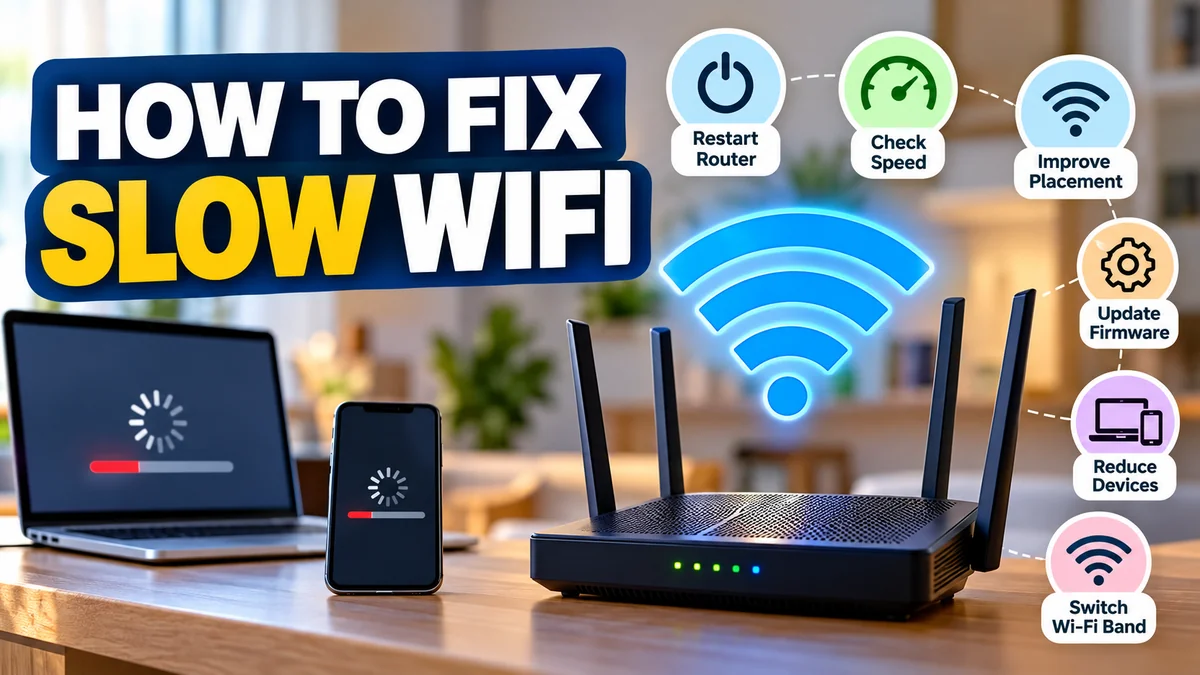

Slow Wi-Fi can turn everyday tasks into frustrating experiences. Videos buffer, websites take too long to load, video calls freeze, and downloads seem to last forever. Even with a high-speed internet plan, your wireless connection may perform much worse than expected.
The good news is that many Wi-Fi performance problems can be solved without replacing your router or paying for a faster internet plan.
To learn how to fix slow wifi, start by restarting your router, testing your internet speed, moving closer to the router, and reducing wireless interference. If the problem continues, check connected devices, switch Wi-Fi frequency bands, update router firmware, and investigate whether your internet service provider is experiencing an issue.
The best solution depends on what is causing the slowdown. Understanding that cause can save time and prevent unnecessary equipment upgrades.
Why Is My Wi-Fi So Slow?
Before changing settings, identify whether the problem comes from your Wi-Fi network, internet connection, device, or router.
Wi-Fi and internet speed are related, but they are not the same thing.
Wi-Fi is the wireless connection between your device and your router or access point. Your internet connection is the service that connects your home network to websites and online applications.
A fast internet plan cannot compensate for a weak wireless signal, and an excellent Wi-Fi connection cannot overcome a slow internet service.
Common causes of slow Wi-Fi
| Cause | Typical symptoms | Possible solution |
|---|---|---|
| Weak Wi-Fi signal | Slow speeds in distant rooms | Move closer or improve router placement |
| Router congestion | Slowdown when several devices connect | Reduce traffic or enable QoS |
| Wireless interference | Unstable connection or frequent drops | Change channels or router location |
| Outdated router | Poor performance across multiple devices | Update firmware or evaluate hardware |
| ISP congestion | Slow speeds during busy periods | Test at different times and contact ISP |
| Background downloads | Sudden reduction in available bandwidth | Pause downloads and automatic updates |
| Incorrect Wi-Fi band | Good signal but disappointing speed | Try 5 GHz or 6 GHz where supported |
| Device-specific problems | One device is slow while others work | Update or troubleshoot that device |
A useful first question is whether the problem affects every device or only one.
If your phone, laptop, and smart TV are all slow, focus on the router or internet connection. If only your laptop is affected, investigate its wireless adapter, software, and network settings.
How to Fix Slow WiFi: Start With These Quick Solutions
The following troubleshooting steps address the most common causes of poor wireless performance.
1. Restart your router and modem
Restarting network equipment is one of the easiest troubleshooting steps.
Routers manage many simultaneous connections. Temporary software problems, resource issues, or connection errors can occasionally reduce performance.
To restart your network:
- Disconnect power from the router and modem or optical network terminal (ONT), if applicable.
- Wait approximately 30 seconds.
- Reconnect the modem or ONT first.
- Wait until its connection indicators stabilize.
- Reconnect the router and allow it to start.
- Test your internet speed again.
If you have a combined modem-router gateway, restart that single device.
Important: Restarting is different from performing a factory reset. A factory reset erases customized network settings and should not be your first troubleshooting step.
2. Check your internet speed
A speed test helps determine whether your connection is performing as expected.
Popular testing services include Ookla Speedtest, Fast.com, and Cloudflare Speed Test.
Measure three main indicators:
- Download speed: How quickly your device receives data.
- Upload speed: How quickly it sends data.
- Latency (ping): How long data takes to travel between your device and a test server, generally measured in milliseconds.
Run tests near the router and from the location where you experience problems.
For more accurate comparisons, temporarily pause major downloads, disconnect from VPN services when appropriate, and repeat the test several times.
If possible, connect a computer directly to your router using an Ethernet cable. Comparing wired and wireless performance is particularly useful.
| Test result | What it may indicate |
|---|---|
| Wired fast, Wi-Fi slow | Wireless interference, router settings, or signal issues |
| Wired and Wi-Fi both slow | ISP, modem, router, or heavy network traffic |
| Only one device slow | Device-specific hardware or software problem |
| Speed drops only in distant rooms | Coverage or signal obstruction problem |
| Speed drops mainly at night | Possible peak-hour congestion or household usage |
Remember that internet providers typically advertise speeds in megabits per second (Mbps), while downloads may display megabytes per second (MB/s).
Eight megabits equal one megabyte, so a 100 Mbps connection has a theoretical maximum transfer rate of 12.5 MB/s before overhead and other limitations.
3. Move your router to a better location
Router placement has a significant effect on wireless coverage.
Wi-Fi signals weaken as they travel through walls, floors, furniture, and other materials.
For better performance, position your router:
- Near the center of your home.
- On an elevated shelf or open surface.
- Away from large metal objects and thick concrete walls.
- Away from microwave ovens and other potential interference sources.
- Outside enclosed cabinets.
Avoid placing the router behind a television or inside a metal cabinet.
If your home has multiple floors, a centrally located position may provide more balanced coverage, although building materials and layout will influence the best placement.
4. Disconnect unnecessary devices
Every active device shares network resources.
Smart televisions, gaming consoles, security cameras, phones, tablets, and smart-home equipment can all generate traffic.
The number of connected devices alone does not necessarily cause slow Wi-Fi. The bigger concern is how much data those devices transfer and how efficiently they share wireless airtime.
Check your router’s connected-device list to identify unfamiliar or unusually active devices.
Pause large downloads, cloud backups, game updates, and high-resolution streaming temporarily.
Then test whether your connection improves.
If you find an unauthorized device, change your Wi-Fi password and review your router’s security settings.
How to Fix Slow WiFi by Optimizing Router Settings
If basic troubleshooting does not work, adjusting wireless settings can improve speed and stability.
5. Switch between 2.4 GHz, 5 GHz, and 6 GHz
Modern wireless routers may support multiple frequency bands.
Each band offers different advantages.
| Feature | 2.4 GHz | 5 GHz | 6 GHz |
|---|---|---|---|
| Coverage | Generally longer | Moderate | Often shorter indoors |
| Potential speed | Usually lower | Higher | High |
| Interference | Often crowded | Usually less crowded | Typically less congested |
| Wall penetration | Generally better | More limited | More limited |
| Compatibility | Very broad | Broad | Requires compatible equipment |
The 2.4 GHz band is useful for longer distances and many smart-home devices.
The 5 GHz band often provides better performance for streaming, gaming, and downloads when the signal is strong.
The 6 GHz band is available on compatible Wi-Fi 6E and Wi-Fi 7 equipment, subject to regional regulations.
For devices close to your router, try 5 GHz or 6 GHz if supported. For devices farther away, 2.4 GHz may provide a more reliable connection.
A router’s automatic band-steering feature may select an appropriate band, but it does not always make the ideal choice for every device.
6. Change your Wi-Fi channel
Wireless interference occurs when nearby networks or other devices compete for the same radio frequencies.
This is particularly common in apartment buildings and densely populated neighborhoods.
On the 2.4 GHz band, channels 1, 6, and 11 are commonly preferred in regions using the standard 11-channel arrangement because they do not overlap when configured with 20 MHz channel widths.
For 5 GHz and 6 GHz, channel choices and permitted widths depend on your router, device compatibility, and local regulations.
Many modern routers automatically select channels. Before changing them manually, check whether the automatic setting already works well.
If performance remains poor, use a reputable Wi-Fi analyzer to inspect nearby network congestion and test another permitted channel.
7. Update your router firmware
Router firmware is the software that controls the device’s networking functions.
Manufacturers release firmware updates to fix security vulnerabilities, improve compatibility, and sometimes address performance issues.
To check for updates:
- Open your router’s administration interface or official mobile app.
- Sign in using your administrator credentials.
- Find the firmware or software update section.
- Check for an available update.
- Follow the manufacturer’s installation instructions.
Avoid interrupting power during an update.
Some routers from manufacturers such as TP-Link, ASUS, and NETGEAR support automatic firmware updates.
If your router is no longer receiving security updates, consider whether continued use is appropriate.
8. Configure Quality of Service (QoS)
Quality of Service, commonly called QoS, helps prioritize certain network traffic when bandwidth becomes congested.
For example, you may want video conferencing and online gaming traffic to receive priority over background downloads.
Some routers offer device priority settings, application-based QoS, or more advanced traffic management features.
QoS cannot increase the total speed supplied by your ISP. Its purpose is to manage available bandwidth more effectively.
Poorly configured QoS settings can actually reduce performance, so start with your router’s recommended defaults and test changes carefully.
How to Fix Slow WiFi on Windows, Android, and iPhone
Sometimes the router works correctly, but one device experiences poor performance.
This may happen because of outdated network drivers, incorrect settings, background applications, or software conflicts.
9. Fix slow Wi-Fi on Windows 10 and Windows 11
Windows computers use wireless network adapters that depend on compatible drivers and operating system settings.
Start with these steps:
- Restart your computer.
- Open Settings → Network & internet → Wi-Fi.
- Disconnect from your wireless network and reconnect.
- Open Device Manager and expand Network adapters.
- Find your wireless adapter and check for an updated driver from your computer or adapter manufacturer.
- Close applications consuming excessive bandwidth.
- Run the Windows network troubleshooter.
For Windows 11, Microsoft recommends starting with the Network and Internet troubleshooter available through the Get Help application.
Microsoft Support
If websites are unusually slow to open, a DNS-related problem may be involved.
You can clear the Windows DNS resolver cache by opening Command Prompt and running:
ipconfig /flushdnsThis command clears cached DNS records. It does not increase your Wi-Fi signal strength or the bandwidth available from your internet provider.
If your connection still fails, you can investigate the TCP/IP configuration, network adapter settings, and router connectivity.
Avoid resetting all network settings unless simpler troubleshooting methods have failed.
10. Fix slow Wi-Fi on Android phones
Android phones can experience slow wireless connections because of signal problems, background data usage, software issues, or incompatible router settings.
Try the following:
- Turn Wi-Fi off and back on.
- Restart your phone.
- Move closer to your router.
- Check whether another phone experiences the same problem.
- Temporarily disable a VPN to compare performance.
- Check for Android system updates.
- Forget and reconnect to your Wi-Fi network.
To forget a network, open your phone’s Wi-Fi settings, select the saved network, and choose Forget. The exact menu depends on the Android manufacturer.
If nothing helps, consider resetting network settings. This may remove saved Wi-Fi networks and Bluetooth connections, so make sure you have the necessary passwords.
11. Fix slow Wi-Fi on iPhone
If your iPhone connects to Wi-Fi but loads websites slowly, first compare its performance with another device.
Restart the iPhone and reconnect to the network.
You can also open Settings → Wi-Fi, tap the information icon beside your network, and select Forget This Network.
Reconnect using your Wi-Fi password.
Check for available iOS updates and temporarily disable VPN software when testing.
If the problem persists, the Reset Network Settings option is available under:
Settings → General → Transfer or Reset iPhone → Reset → Reset Network Settings
This removes saved network configurations and should be considered only after less disruptive steps.
How to Fix Slow WiFi in Large Homes and Apartments
Large houses, thick walls, multiple floors, and neighboring wireless networks can make consistent Wi-Fi coverage difficult.
A router that works perfectly in the living room may provide much weaker performance in an upstairs bedroom.
12. Improve Wi-Fi coverage with mesh networking or access points
A mesh Wi-Fi system uses multiple connected units to extend wireless coverage across a property.
Unlike a single router, a mesh system can provide several access points distributed throughout the home.
This may improve connectivity in rooms that previously experienced weak signals.
However, mesh networking does not automatically increase your internet plan’s maximum speed.
Performance also depends on how the mesh nodes communicate.
Wireless backhaul means mesh units communicate over Wi-Fi. Ethernet backhaul uses network cables between compatible units and can offer more consistent performance.
For a large home, wired access points may provide better stability than relying entirely on wireless repeaters.
Are Wi-Fi extenders effective?
Wi-Fi extenders can help cover smaller dead zones, but their performance varies.
A basic repeater may reduce effective throughput because it must receive and retransmit wireless traffic using shared radio resources.
An extender also needs a sufficiently strong connection to the original router.
Placing one inside a room that already has almost no signal is unlikely to solve the problem.
Instead, position it where the original wireless connection remains reliable.
Use Ethernet for devices that need stable connections
Ethernet cables provide a wired connection that avoids many common wireless interference problems.
They are particularly useful for:
- Desktop computers
- Gaming consoles
- Smart televisions
- Network-attached storage (NAS)
- Workstations used for large file transfers
A wired connection can improve consistency and latency, although actual speed remains limited by the Ethernet ports, cables, router, and internet service.
For a Gigabit Ethernet connection, use suitable cabling such as Cat5e or Cat6.
Advanced Troubleshooting for Persistent Slow Wi-Fi
If basic changes fail, more detailed testing can help identify the underlying issue.
Check signal strength and connection quality
The number of Wi-Fi bars displayed on a device gives only a rough indication of wireless signal strength.
Signal strength is commonly measured in dBm, a negative logarithmic measurement.
Approximate interpretations include:
| Signal strength | General interpretation |
|---|---|
| -30 dBm | Extremely strong |
| -50 dBm | Strong |
| -60 dBm | Generally good |
| -67 dBm | Often suitable for reliable applications |
| -70 dBm | Fair; performance may vary |
| -80 dBm | Weak |
| -90 dBm | Very weak or unusable |
These are approximate guidelines rather than universal performance guarantees.
Wireless speed also depends on signal-to-noise ratio (SNR), interference, channel width, and device capabilities.
A strong signal does not always mean a fast connection.
Understand Wi-Fi standards and router limitations
Different generations of Wi-Fi technology support different capabilities.
| Standard | IEEE designation | Key characteristics |
|---|---|---|
| Wi-Fi 4 | 802.11n | Older standard supporting 2.4 GHz and 5 GHz |
| Wi-Fi 5 | 802.11ac | Higher throughput on 5 GHz |
| Wi-Fi 6 | 802.11ax | Improved efficiency and capacity |
| Wi-Fi 6E | 802.11ax with 6 GHz | Adds access to the 6 GHz band |
| Wi-Fi 7 | 802.11be | Supports features such as Multi-Link Operation |
Wi-Fi 6 introduced technologies such as OFDMA and improved multi-user communication, helping compatible networks manage multiple devices more efficiently.
Wi-Fi 7 adds capabilities such as Multi-Link Operation (MLO), allowing compatible equipment to use multiple links.
However, advertised theoretical wireless speeds are not the same as real-world internet speeds.
Router hardware, client capabilities, network conditions, and ISP bandwidth all influence actual performance.
A Wi-Fi 7 router will not automatically make an older phone operate at Wi-Fi 7 speeds.
Check channel width settings
Wireless channel width affects how much spectrum a connection can use.
Common channel widths include 20 MHz, 40 MHz, 80 MHz, and, on supported equipment and bands, 160 MHz or 320 MHz.
Wider channels can support higher throughput under favorable conditions, but they also occupy more spectrum.
In crowded environments, narrower channels may provide more consistent performance by reducing interference.
For 2.4 GHz networks, 20 MHz is generally a sensible starting point.
On 5 GHz, 80 MHz can work well when sufficient clear spectrum is available.
Use automatic settings initially, then compare results if interference is suspected.
Test latency and packet loss
Internet speed is not the only factor affecting performance.
Latency, jitter, and packet loss are especially relevant for online gaming, video calls, and remote work.
- Latency: The delay before data reaches its destination.
- Jitter: Variation in network delay.
- Packet loss: Data packets that fail to reach their destination.
You can test basic connectivity on Windows using Command Prompt.
First, find your router’s default gateway:
ipconfigThen test connectivity to that gateway, replacing the example address with your router’s actual address:
ping 192.168.1.1 -n 20High latency or packet loss to your local router may suggest a wireless or local-network issue.
You can also test an external destination:
ping 1.1.1.1 -n 20Comparing these results helps distinguish local wireless problems from issues farther along the connection.
Some devices or networks limit ICMP responses, so ping results should be interpreted alongside other tests rather than used as the only diagnostic evidence.
Microsoft also recommends testing connectivity to the default gateway when troubleshooting wireless connection problems.
Microsoft Support
Can changing DNS make Wi-Fi faster?
Changing DNS servers may improve website lookup times if your current DNS resolver is slow or unreliable.
Public DNS services include Google Public DNS, Cloudflare DNS, and Quad9.
However, DNS changes generally do not improve wireless signal strength, router capacity, or maximum download bandwidth.
A faster DNS resolver may make some websites begin loading sooner, but it will not fix a weak Wi-Fi connection.
Does a VPN slow down Wi-Fi?
A virtual private network (VPN) encrypts and routes traffic through another server.
Depending on server distance, congestion, protocol, and device performance, a VPN can reduce internet throughput or increase latency.
To investigate, run a speed test with the VPN enabled and another with it disabled.
Use the same test server and similar network conditions.
If the difference is substantial, investigate the VPN connection rather than immediately changing your Wi-Fi equipment.
When Should You Contact Your Internet Service Provider?
Not every slow connection is caused by your router.
Internet service providers can experience network outages, congestion, damaged infrastructure, or equipment problems.
Contact your ISP if:
- Wired and wireless speed tests are consistently much slower than expected.
- The connection repeatedly disconnects across all devices.
- Your modem or ONT shows a persistent connection error.
- Internet performance becomes unusually poor at predictable times.
- Your provider reports an outage or maintenance activity.
Before contacting support, collect speed test results, the times problems occurred, and information about the devices affected.
If you have a fiber connection, avoid bending fiber-optic cables sharply or attempting to repair optical connections yourself.
Why is my Wi-Fi slow at night?
Evening slowdowns can occur when more people in your household or neighborhood use the internet simultaneously.
Streaming, cloud backups, gaming downloads, and video calls can increase bandwidth demand.
ISP network congestion may also affect performance during peak hours.
Compare wired speed tests in the morning, afternoon, and evening.
If wired speeds consistently drop during busy periods while local network traffic is low, share those results with your ISP.
Can weather affect Wi-Fi speed?
Normal indoor Wi-Fi connections are generally not significantly affected by ordinary outdoor weather.
However, severe weather can damage infrastructure, interrupt electricity, or affect certain internet access technologies.
Heavy rain may affect some fixed wireless and satellite connections more noticeably than typical indoor Wi-Fi.
If a slowdown begins during a storm, determine whether the problem is with your local wireless network or the external internet service.
How to Prevent Wi-Fi From Becoming Slow Again
Once your connection is working properly, a few maintenance habits can help preserve performance.
Keep router firmware and device software updated. Position network equipment where it has adequate ventilation, and avoid overcrowding the router with objects.
Use modern wireless security such as WPA2-AES or WPA3 where supported. Avoid outdated security modes such as WEP and legacy WPA.
Choose a strong Wi-Fi password and disable WPS if you do not need it.
Periodically review connected devices and investigate unfamiliar connections.
For important devices, consider Ethernet where practical.
Finally, measure performance occasionally rather than relying entirely on the speed advertised by your ISP.
Should you upgrade your router?
A router upgrade may be worthwhile when existing hardware cannot support your connection speed, lacks necessary coverage, has insufficient processing capacity, or no longer receives security updates.
Before replacing equipment, check the following:
| Question | What to consider |
|---|---|
| Is the router still supported? | Firmware and security updates |
| Does it support your internet plan? | WAN and LAN port speeds |
| Does it cover your home? | Signal strength and layout |
| Are many devices active? | Wireless capacity and traffic management |
| Do your devices support newer Wi-Fi? | Compatibility with Wi-Fi 6, 6E, or 7 |
| Is the slowdown present on Ethernet? | Possible ISP or upstream issue |
A new router is not always the answer.
If your existing router delivers excellent performance nearby but struggles in distant rooms, better placement or additional access points may be more effective.
If both Ethernet and Wi-Fi are slow, upgrading the wireless router may not resolve the underlying problem.
Final Thoughts: how to fix slow wifi Effectively
Learning how to fix slow wifi starts with identifying the actual source of the slowdown rather than changing random settings.
Restart your networking equipment, compare wired and wireless speed tests, and check whether the issue affects one device or your entire household.
For wireless-specific problems, improve router placement, choose an appropriate frequency band, reduce interference, and update firmware.
If coverage is the main problem, consider wired access points or a properly configured mesh network. If your wired connection is also consistently slow, investigate your modem and internet service provider.
The most effective approach is to change one thing at a time, measure the results, and keep the adjustments that genuinely improve performance.
