
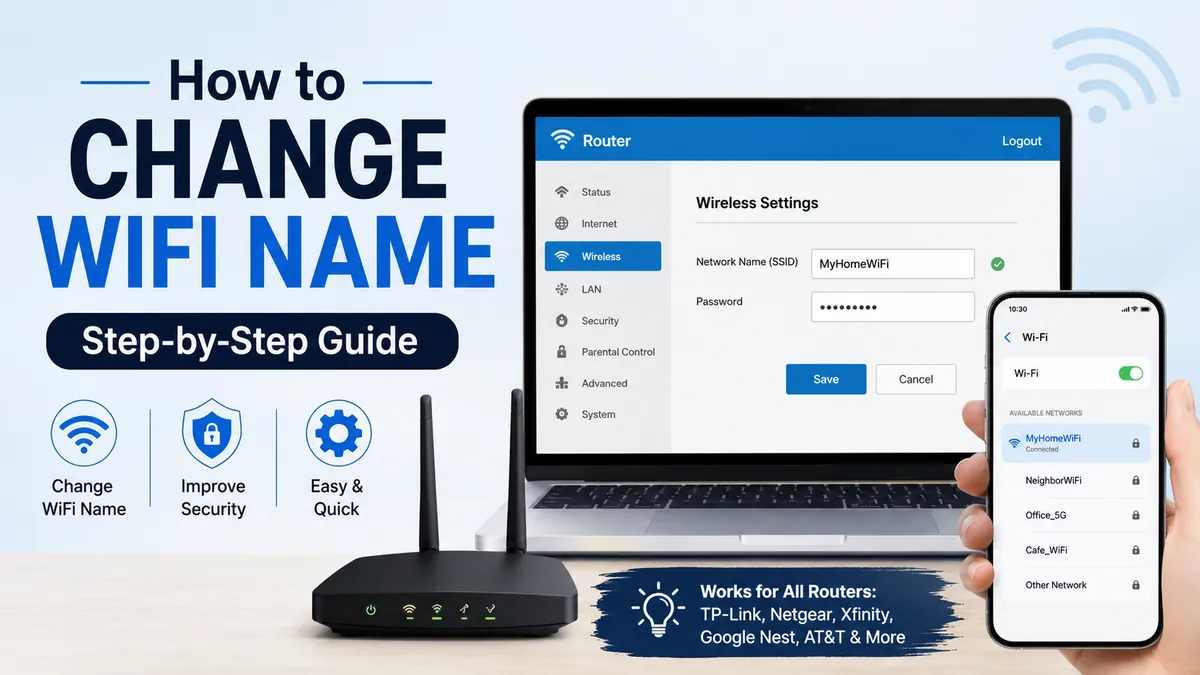

A default WiFi name such as “NETGEAR42,” “TP-Link_A812,” or a provider-generated code can be hard to recognize and may reveal unnecessary information about your router. Fortunately, renaming a wireless network usually takes only a few minutes.
To change your WiFi name, connect to your router, open its mobile app or web-based admin page, sign in with the router administrator credentials, find Wireless or WiFi Settings, replace the current Network Name or SSID, and save the changes. Your devices may disconnect and need to reconnect using the new network name.
This guide explains how to change wifi name on most routers and gateways, including TP-Link, NETGEAR, Xfinity, Google Nest Wifi, and AT&T equipment.
How to Change WiFi Name in 6 Steps
Although router interfaces differ, the underlying process is almost always the same. Your WiFi name is technically called the SSID, short for Service Set Identifier. It is the name that appears when phones, computers, smart TVs, and other wireless devices scan for nearby networks.
Follow these steps:
- Connect your phone or computer to your home network.
- Open your router’s app or web administration page.
- Sign in using the router administrator credentials.
- Find WiFi, Wireless, or Wireless Settings.
- Replace the existing Network Name (SSID) with your preferred name.
- Select Save, Apply, or Done, then reconnect your devices if necessary.
Changing the SSID does not change your internet service or broadband connection. You are simply changing the name advertised by the wireless access point.
NETGEAR, for example, places the setting under its Wireless menu, while TP-Link commonly labels the field Network Name (SSID) under Basic > Wireless. Both manufacturers warn that changing wireless settings from a WiFi-connected device can temporarily disconnect that device.
Quick takeaway
If you can already access your router settings, look for SSID, Network Name, WiFi Name, or Wireless Network Name. These terms generally refer to the same setting.
What Is a WiFi Name or SSID?
An SSID is the identifying name broadcast by a wireless network. When you open WiFi settings on an iPhone, Android phone, Windows computer, Mac, television, or game console, the list of available networks primarily consists of SSIDs.
For example, you might see:
- HomeNetwork
- Apartment5G
- NETGEAR72
- TP-Link_4382
- MyHomeWiFi
The SSID is different from both your WiFi password and your router admin password.
Your WiFi password allows a device to join the wireless network. Your router admin password gives someone permission to modify the router itself. NETGEAR explicitly distinguishes the WiFi password and SSID from the administrator password used to sign in to the router interface.
That distinction matters. If a router login screen asks for an administrator username and password, entering your normal WiFi password may not work.
How to Change WiFi Name Through a Router Web Page
For traditional routers, the web interface is one of the most universal methods.
First, stay connected to your home router using WiFi or Ethernet. Open a browser and enter the router’s local IP address or manufacturer-provided management address.
Common local addresses include:
| Router or gateway | Common management address or method |
|---|---|
| Many routers | 192.168.1.1 |
| Some routers | 192.168.0.1 |
| NETGEAR | routerlogin.net |
| TP-Link | tplinkwifi.net or model-specific local address |
| Xfinity Gateway | 10.0.0.1 on supported models |
| AT&T gateways | Provider interface or Smart Home Manager |
| Google Nest Wifi | Google Home app |
These are examples rather than universal addresses. Your exact router may use something different.
Once the administration screen opens, sign in and look for menus named Wireless, WiFi, Wireless Setup, Network, or Wireless Settings.
Find the field labeled SSID, Network Name, or WiFi Name. Enter your new name and save the configuration.
For supported NETGEAR routers, the current process is to open the router interface, select Wireless, enter the new name in the Name (SSID) field, and apply the change.
TP-Link router interfaces commonly use Basic > Wireless, where the wireless network name and password can be changed. TP-Link documentation also notes that an SSID can contain up to 32 characters on applicable models and is case-sensitive.
How do I find my router’s IP address?
If common addresses do not open the router page, check the network details on the device currently connected to WiFi.
On Windows, the address may appear as Default Gateway. On macOS, iPhone, Android, and other operating systems, look for a field such as Router or Gateway in the network information.
Entering that local address into a browser normally opens the router’s administration interface.
Do not confuse your router’s local IP address with the public IP address assigned by your internet service provider.
How to Change WiFi Name Using a Router App
Modern routers and mesh systems increasingly use smartphone apps rather than traditional browser interfaces.
The exact menu names vary, but the general path is:
Router app > Network or WiFi > WiFi settings > Network name > Save
This approach is especially common with ISP gateways and mesh WiFi systems.
Changing the name through an app has the same basic effect as changing the SSID through a browser-based interface. Once saved, the router begins advertising the new network name.
Google Nest Wifi and Google Wifi
Google manages its WiFi products through the Google Home app.
Google’s current instructions for Nest Wifi and Google Wifi direct users to open Google Home, select the WiFi/network settings, enter a new network name, and save it. Google also warns against accidentally placing spaces at the beginning or end of the name.
One particularly useful feature is the ability to reuse an old network name and password when replacing a router. Google notes that devices previously configured for that network may then reconnect without having to be individually reconfigured.
There is one catch: avoid leaving the old router broadcasting the identical SSID at the same time. Two unrelated networks advertising identical credentials can cause confusing connection behavior.
How to Change WiFi Name on TP-Link
TP-Link has several interface designs depending on router model and firmware, but the basic process remains similar.
Connect to the TP-Link router and open its management interface. On many current and recent models, you can access the router using tplinkwifi.net, although some models use another local management address.
Sign in with the administrator credentials you created for the router.
Then navigate to:
Basic > Wireless
Look for Network Name (SSID), replace the existing name, and click Save.
Some dual-band TP-Link routers allow separate names for the 2.4 GHz and 5 GHz networks. Other models support Smart Connect, which can use one SSID across multiple wireless bands so compatible devices can be directed between bands automatically.
If you are changing the setting over WiFi rather than Ethernet, losing your connection immediately after pressing Save is normal. The router is now broadcasting under its new name.
How to Change WiFi Name on NETGEAR
For many NETGEAR routers, connect a computer or phone to the router and open its management page.
Go to the router interface and sign in with your router administrator credentials. Then select Wireless.
Enter your preferred name in the Name (SSID) field and select Apply.
NETGEAR states that supported routers can use SSIDs up to 32 characters and that the name is case-sensitive. The manufacturer also recommends choosing a unique network name rather than keeping common or generic defaults.
Nighthawk, Orbi, and older NETGEAR products can have somewhat different menu structures, so use the interface supplied with your specific model if the Wireless menu does not match these instructions.
How to Change WiFi Name on Xfinity
For a rented Xfinity Gateway, the easiest method is generally the Xfinity app.
Open the app and go to:
WiFi > WiFi details > Edit WiFi settings
Change the WiFi name and save your settings.
Xfinity’s current support documentation says its gateways may broadcast 2.4 GHz, 5 GHz, and 6 GHz bands depending on the model. Xfinity generally recommends keeping the same network name and password across those bands so the gateway can manage which connection a device uses.
Once the change is made, devices previously connected under the old SSID may need to be reconnected.
How to Change WiFi Name on AT&T
Many AT&T internet gateways can be managed through Smart Home Manager.
Sign in, locate the My Wi-Fi or network section, select the option to change the network name, erase the old SSID, type the new one, and save it.
AT&T’s instructions for supported gateways also allow network settings to be changed through the gateway’s own user interface. After a WiFi name or password is changed, connected devices must use the updated information to reconnect.
Menu wording can vary by gateway model, so an older BGW or 2Wire gateway may not look exactly like a newer All-Fi Hub.
Should 2.4 GHz and 5 GHz Have the Same WiFi Name?
For most modern home networks, using the same SSID for all bands is usually the simplest configuration.
A modern dual-band or tri-band router may operate on:
2.4 GHz: typically offers longer range and broad compatibility.
5 GHz: generally provides greater capacity and performance over shorter distances.
6 GHz: available with compatible WiFi 6E and WiFi 7 equipment and devices.
When all bands use the same SSID, compatible routers can manage band selection without forcing users to manually select separate networks.
Both Xfinity and NETGEAR recommend using the same network name across bands in many home-network configurations.
Separate names can still be useful for troubleshooting, testing an IoT device, or deliberately forcing a device onto a particular band.
For example, you could use:
HomeWiFi for your main combined network.
Or, when separation is genuinely required:
HomeWiFi-2G and HomeWiFi-5G
Don’t split the bands merely because the router gives you the option. On a modern system using band steering or Smart Connect, one SSID is often easier to manage.
What Happens After You Change the WiFi Name?
The most noticeable effect is that wireless devices can disconnect.
A phone that was connected to OldNetwork, for example, is still looking for a saved network called OldNetwork. If the router starts broadcasting NewNetwork, the phone may treat it as a different WiFi network.
You may therefore need to select the new SSID manually and enter the WiFi password again.
This can affect far more than phones and laptops. Remember devices such as smart TVs, printers, security cameras, thermostats, smart speakers, streaming boxes, game consoles, doorbells, robot vacuums, smart plugs, and other Internet of Things devices.
Can I rename WiFi without reconnecting every device?
Sometimes.
One useful trick when replacing or resetting a router is to configure the new router with exactly the same SSID and WiFi password as the previous network. Many devices will recognize those credentials and reconnect automatically.
Google specifically documents this approach for Nest Wifi and Google Wifi.
It is not guaranteed for every device, however. Some hardware may still require a restart or manual reconnection, particularly if other network characteristics have changed.
How to Choose a Good WiFi Name
A WiFi name should be easy for you to identify without revealing unnecessary personal information.
Avoid putting your full name, apartment number, street address, phone number, birth year, or other identifying information in the SSID. Remember that nearby people may be able to see the network name even though they cannot connect to it.
AT&T similarly recommends avoiding personal information such as your name or address when choosing network information.
Choose something distinctive enough that you can easily recognize it among neighboring networks.
Also remember that SSIDs are case-sensitive on many router platforms. HomeNetwork and homenetwork should therefore not be assumed to be identical.
Does Changing the WiFi Name Make Your Network More Secure?
Changing the default SSID can improve privacy and organization, but the network name itself is not your main security defense.
A secure home network depends much more heavily on using a strong WiFi password, modern encryption, current router firmware, and a protected router administrator account.
Do not rely on a clever SSID to prevent unauthorized access.
Likewise, hiding the SSID does not turn a wireless network into a substitute for proper authentication and encryption. It merely prevents the network name from appearing normally in basic WiFi scans; users who need to connect must manually enter the network information. TP-Link describes hidden SSIDs in exactly this way in its router documentation.
For normal home use, broadcasting the SSID is usually simpler.
Can You Change WiFi Name Without Changing the Password?
Yes. The network name and WiFi password are separate settings.
You can normally rename the SSID while leaving your existing wireless password unchanged.
For example:
Old SSID: NETGEAR84
New SSID: HomeOffice
Password: unchanged.
Even though the password remains identical, devices may still need to select the newly named network because the SSID itself has changed.
Conversely, you can change the WiFi password without renaming the network.
Why Can’t I Change My WiFi Name?
If the Network Name or SSID field is missing, locked, or refuses to save, the problem usually comes down to how your equipment is managed.
You are logged into the wrong device
A network can contain a modem, router, mesh system, range extender, and ISP gateway at the same time. Make sure you are editing the device that actually broadcasts your WiFi network.
You used the WiFi password instead of the admin password
These credentials serve different purposes. Use your router’s administrator credentials to change configuration settings.
Your internet provider controls the setting through an app
Some ISP-supplied gateways prioritize their provider app instead of the traditional local administration page. Xfinity, for example, directs customers with rented gateways toward its app for current WiFi management.
Your mesh system controls all access points together
In a mesh network, individual nodes often do not have independent SSIDs. The network name is usually changed from the primary mesh controller or app.
Your extender is copying the main router’s SSID
Some mesh-compatible extenders use a One WiFi Name feature. NETGEAR notes that when this feature is enabled on supported extenders, WiFi network settings must be changed on the router rather than through the extender interface.
The router needs time to apply the change
After pressing Save or Apply, give the router a moment to update its wireless configuration. Your browser may appear to stop responding because the device you are using has just lost the WiFi connection it was using.
What to Do If WiFi Stops Working After Renaming It
A temporary disconnection immediately after renaming WiFi is expected.
Open your device’s WiFi settings and scan for available networks. Find the new SSID, select it, and enter your wireless password.
If the new network does not appear, turn WiFi off and back on on your phone or computer. You can also restart the router if the changed SSID still fails to broadcast.
Check both wireless bands if your router manages 2.4 GHz and 5 GHz separately. It is possible to rename one band while accidentally leaving the other under its original name.
If a device repeatedly tries to connect to the old SSID, use its Forget Network option for the old network and then join the new one.
A factory reset should be a last resort. Resetting a router can erase far more than its network name, including customized passwords, ISP settings, port forwarding rules, parental controls, guest networks, DNS configuration, and other settings.
Can I Change the WiFi Name From My Phone?
Yes. A computer is not normally required.
If the router manufacturer or internet provider offers a management app, you can often change the SSID entirely from your phone. Google Home, Xfinity, and AT&T Smart Home Manager are examples of app-based WiFi management systems.
You can also open many router administration pages through a mobile browser.
Just remember that if your phone is connected to the WiFi network you are renaming, it may disconnect as soon as the change takes effect.
How to Change WiFi Name Safely
Before saving the new SSID, write down your router administrator credentials and existing WiFi password. If you are changing the password at the same time, save the new credentials somewhere secure.
Choose a recognizable SSID without personal information, check whether your router uses one combined network or separate 2.4 GHz, 5 GHz, and 6 GHz networks, then apply the change.
Once the router begins broadcasting the new name, reconnect your important devices first. Start with your phone or computer so you can confirm that internet access works, then reconnect televisions, printers, cameras, smart-home equipment, and other wireless devices.
That is essentially how to change wifi name on almost any home network: access the router or its management app, locate the SSID setting, replace the network name, save it, and reconnect devices under the new name.
